

Introduction
In part one of this series, I described how to write an interpreter for raw GPS NMEA data. Part two described how to monitor and enforce GPS precision data to develop commercial-quality software. The articles included source code in C# and VB.NET which harnessed the power of GPS satellites to determine the current location, synchronize the computer clock to atomic time, and point to a satellite on a cloudy day. Yet, even with all of this code, most developers still need a way to display GPS information along with other geographic features. With the help of my colleague Phil Smith, a lead developer of our "GIS.NET" mapping component and the "Geodesy.NET" coordinate and projection library, this article will teach you how to generate your own maps.
The Rule of Threes
In order to understand the technology behind mapping, it's necessary to have a solid understanding of three coordinate systems: geographic, projected, and pixel. Each system serves an important role when displaying a map, and transformations from one system to another are essential. Developers typically start with a geographic coordinate (expressed as latitude and longitude). Then, it is transformed from Earth's eblate spheriod (roughly spherical) shape to a plane, resulting in a projected coordinate: a truly flat, two-dimensional coordinate. A projected coordinate is an easting/northing pair, describing a distance East of a "central meridian" (a line of longitude) and a distance North of a "central parallel" (a line of latitude). The method which transforms a geographic coordinate to and from a projected easting/northing coordinate is called a projection. Finally, projected coordinates are translated and scaled so that they align to a specific place on-screen, resulting in pixel coordinates. Pixel coordinates are the same coordinates that you've already used to align controls on a Form.
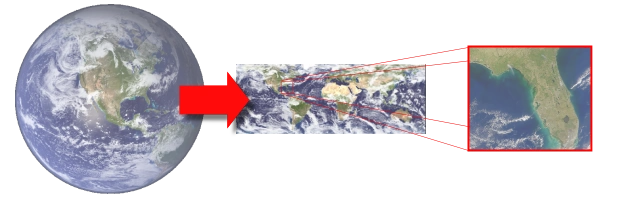
Figure 1.1: Geographic coordinates are converted from 3D to 2D using a map projection. Then, a viewport scales and translates a portion of the map to display Florida.
Let's take a closer look at each of the three coordinate systems and how to convert between them to produce a map.
The Earth is Better Flat
In parts one two of this article, we discussed how GPS devices report your location as a latitude and longitude. These pairs are often referred to as "geographic coordinates." The problem with geographic coordinates, however, is that they represent coordinates on Earth's surface, which is a spheroid (spherical) shape. Since our computer monitors are flat, we need a way to "unfold" the Earth into a perfectly flat shape before we try to display it. This technique is known as projection and it is essential for displaying maps. There are over a hundred map projections in use around the world today, and each projection serves a specific purpose. For example, the Mercator projection is widely used by boats and ships because it produces a map in which lines of constant bearing are a straight line, which greatly simplifies navigation. However, a side-effect of this projection is that it distorts the size of everything as you get closer to the North or South Poles, making this projection unsuitable for other purposes.
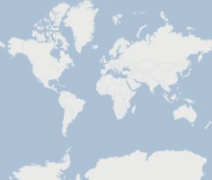
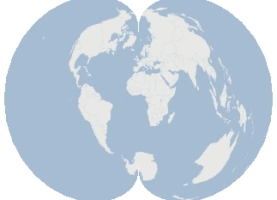
Figure 1.2: Countries of the world are displayed using two projections, Mercator and Polyconic, to demonstrate how projections can produce widely-differing views of the same data.
As you can see, map projections can make the same geographic features appear in completely different sizes and shapes, but each is perfectly valid. In fact, some projections such as the "Orthographic" projection are flat put produce the illusion of a 3D image on a flat monitor. This projection is a contemporary example which is widely used by many 3D applications, including modern 3D game engines. Regardless of the shape and size, projected coordinates flatten 3D coordinates, and this greatly simplifies the task of mapping.
Here Comes the Science
The mathematics behind map projections can be somewhat intimidating. For example, the "Van der Grinten" projection uses the following formula (where A, G, and P are mapping parameters):


For this article, we'll be writing the code for a much simpler projection known as "Equidistant Cylindrical" or "Plate Carée," which, because of its simplicity and speed, is the default projection used by our GIS.NET 3.0 component, which includes a library of twenty-five other projections:

The formulas for map projection are easier to work with when geographic coordinates are expressed as radians. Radians are straightforward to calculate, and can be applied to either a latitude or longitude:
// ninety degrees
double degrees = 90.0;
// Convert to radians
double radians = degrees * (Math.Pi / 180.0);
// Convert radians back to degrees
degrees = radians / (Math.PI / 180.0);
All map projection source code is divided into two methods. The first method, referred to as a forward projection, will convert a geographic coordinate into a projected coordinate. The second method is exactly the opposite, converting a projected coordinate back into a geographic coordinate. This is referred to as a reverse projection or de-projection. Here's how the two methods look for our example Plate Carée projection:
using System.Drawing;
public class PlateCaree
{
public PointF Project(PointF geographicCoordinate)
{
// First, convert the geographic coordinate to radians
double radianX = geographicCoordinate.X * (Math.PI / 180);
double radianY = geographicCoordinate.Y * (Math.PI / 180);
// Make a new Point object
PointF result = new PointF();
// Calculate the projected X coordinate
result.X = (float)(radianX * Math.Cos(0));
// Calculate the projected Y coordinate
result.Y = (float)radianY;
// Return the result
return result;
}
public PointF Deproject(PointF projectedCoordinate)
{
// Make a new point to store the result
PointF result = new PointF();
// Calculate the geographic X coordinate (longitude)
result.X = (float)(projectedCoordinate.X / Math.Cos(0) / (Math.PI / 180.0));
// Calculate the geographic Y coordinate (latitude)
result.Y = (float)(projectedCoordinate.Y / (Math.PI / 180.0));
return result;
}
}
With this class, we can now produce projected coordinates for any location on Earth:
// Define a geographic coordinate, in this case a GPS location
PointF myLocation = new PointF();
myLocation.Y = 39.0; // 39 North
myLocation.X = -105.0; // 105 West
// Now use our projection class to flatten this coordinate
PlateCaree projection = new PlateCaree();
PointF myProjectedLocation = projection.Project(myLocation);
myLocation = projection.Deproject(myProjectedLocation);
... this process is then repeated for each geographic coordinate until all data can be represented in projected coordinates. Once this has been done, only one step remains to convert these coordinates into pixel coordinates which can be painted on the screen.
Paint the Planet
If we were creating a map to display on a wall, our task would be easy because we could paint all of the data once and be done with it. However, mapping software should let users pan and zoom a map so that they can explore any part of it in greater detail. To do this, we must imagine a rectangle (which we refer to as a "viewport" in GIS.NET 3.0) which represents the portion of the map we actually want to see. Once this is known, math is applied a third time to convert projected coordinates into pixel coordinates. In other words, we must make the upper-left of our viewport match up to (0,0) in our Form.
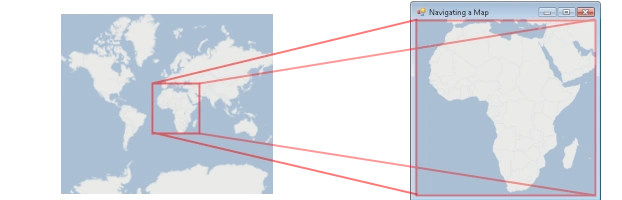
Figure 1.4: A viewport is used to see a portion of all projected coordinates. In this case, a viewport displays the continent of Africa.
.NET developers are already familiar with pixel coordinates. These are the same coordinates which you've used to place controls onto a Form, so there's nothing new to explain here. But, we need a way to convert projected coordinates into pixel coordinates. To do this, projected coordinates must be scaled and translated to make the viewport align with the pixel size of the Form. Translation is performed by applying the negative value of the X coordinate, then the Y coordinates of the upper-left corner of the viewport. Horizontal scale is calculated by dividing the pixel width of the area to paint by the projected width of the viewport, and similarly to calculate vertical scale.
Fortunately, on desktops, we can make use of the Matrix class to do all of the heavy lifting for this task. Matrix objects can rotate, translate and scale an array of coordinates in the form of a PointF array. The resulting code will look something like this:
// Use a matrix for translation and scaling
Matrix transform = new Matrix();
// First, translate all projected points so that they match up with pixel 0,0
transform.Translate(-viewport.X, viewport.Y, MatrixOrder.Append);
Mohammad HosseiniPosted Apr 29, 2010, 7:07 PM
Hello, Thanks a lot Best Regards Mohammad Hosseini