

Introduction
Xamarin.Forms code runs on multiple platforms - each of which has its own filesystem. This means that reading and writing files is most easily done using the native file APIs on each platform. Alternatively, embedded resources are a simpler solution to distribute data files with an app.
Xamarin.Essentials

The Xamarin.Essentials plugin provides 20+ cross-platform APIs for mobile application development. Xamarin.Essentials API works with all Xamarin.Forms, Xamarin.Android, Xamarin.iOS, or UWP applications that can be accessed from shared code. Developers can now access every native platform API using C#. This plugin provides many APIs so initially, there is no need of more plugins for Xamarin. Xamarin.Essentials plugin impacts your app's minimum size.
Platform Support
Platform Support
Xamarin.Essentials supports various platforms and operating systems
| Platform | Version |
| Android | 4.4 (API 19) or earlier |
| iOS | 10.0 or higher |
| UWP | 10.0.16299.0 or earlier |
Prerequisites
- Visual Studio 2017(Windows or Mac)
Setting up a Xamarin.Forms Project
Start by creating a new Xamarin.Forms project. You’ll learn more by going through the steps yourself. Choose the Xamarin.Forms App Project type under Cross-platform/App in the New Project dialog.
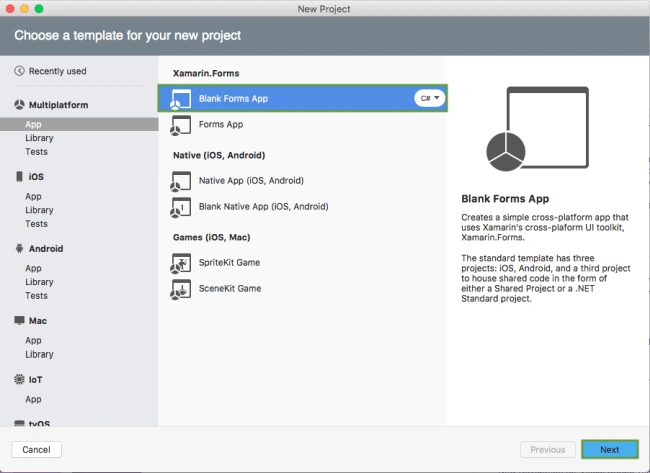
Start by creating a new Xamarin.Forms project. You’ll learn more by going through the steps yourself. Choose the Xamarin.Forms App Project type under Cross-platform/App in the New Project dialog.
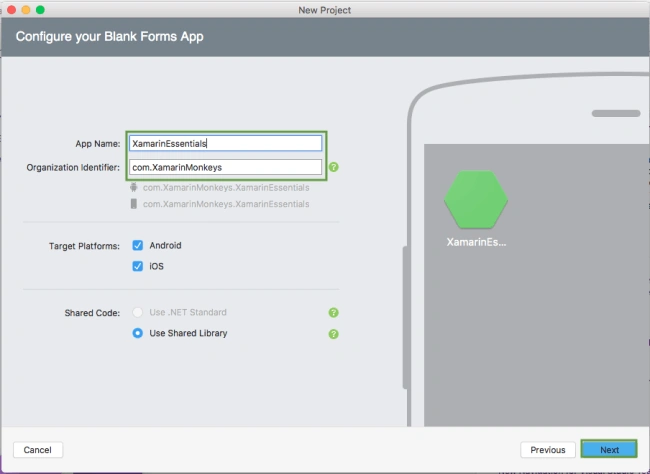
Name your app, select “Use Portable Class Library” for shared code, and target both - Android and iOS.
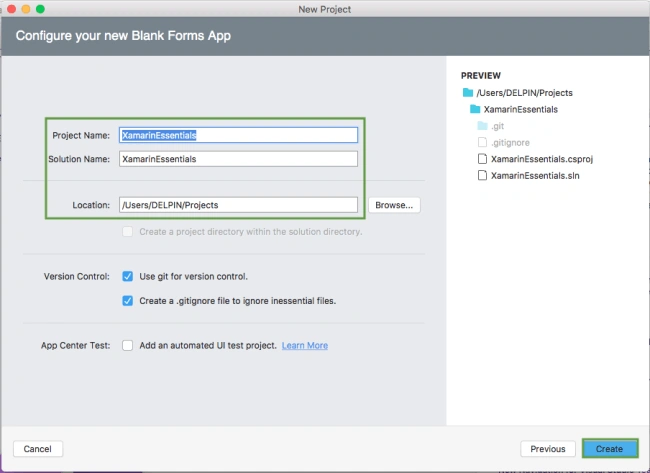
You probably want your project and solution to use the same name as your app. Put it in your preferred folder for projects and click "Create".
You now have a basic Xamarin.Forms app. Click the Play button to try it out.
Setting up the User Interface
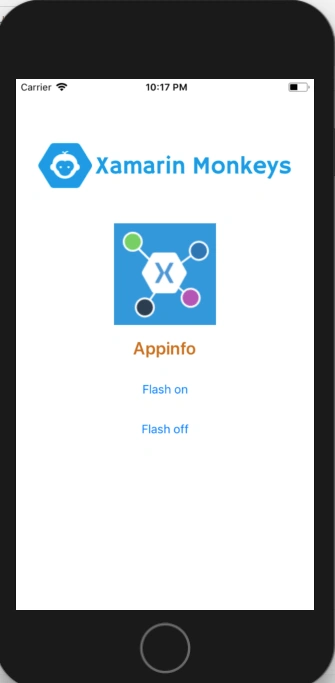
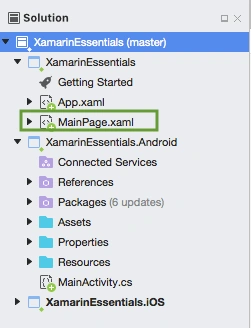
Go to MainPage.Xaml and write the following code.
You probably want your project and solution to use the same name as your app. Put it in your preferred folder for projects and click "Create".
You now have a basic Xamarin.Forms app. Click the Play button to try it out.
Setting up the User Interface
Go to MainPage.Xaml and write the following code.
MainPage.xaml
- <?xml version="1.0" encoding="utf-8" ?>
- <ContentPage xmlns="http://xamarin.com/schemas/2014/forms"
- xmlns:x="http://schemas.microsoft.com/winfx/2009/xaml"
- xmlns:local="clr-namespace:XamarinEssentials"
- x:Class="XamarinEssentials.MainPage">
- <StackLayout>
- <StackLayout HorizontalOptions="Center" VerticalOptions="Start">
- <Image Margin="0,50,0,0" x:Name="imgBanner" Source="banner.png" ></Image>
- <Image Margin="0,0,0,10" x:Name="imgXamarinEssential" Source="xamarinessential.png" ></Image>
- <Label Margin="0,0,0,10" FontAttributes="Bold" FontSize="Large" TextColor="#CA6F1E" HorizontalTextAlignment="Center" Text="Appinfo"></Label>
- <Button Text="Flash on" Clicked="Handle_Clicked"></Button>
- <Button Text="Flash off" Clicked="Handle_Clicked_1"></Button>
- </StackLayout>
- </StackLayout>
- </ContentPage>
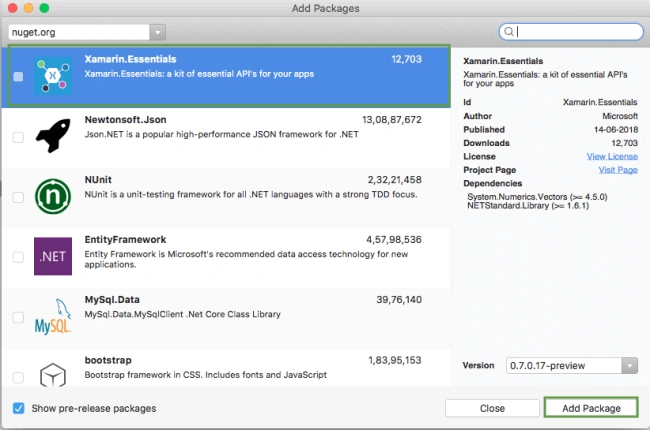
Add Xamarin Essentials
Ghalib AlfiandiPosted Sep 12, 2019, 9:53 PM
Is there any example for Visual Studio on Windows?