

Let’s start,
Step 1 - Open Visual Studio, New Project, Templates, Visual C#, Android, Blank App, Select Blank App. Then give Project Name and Project Location.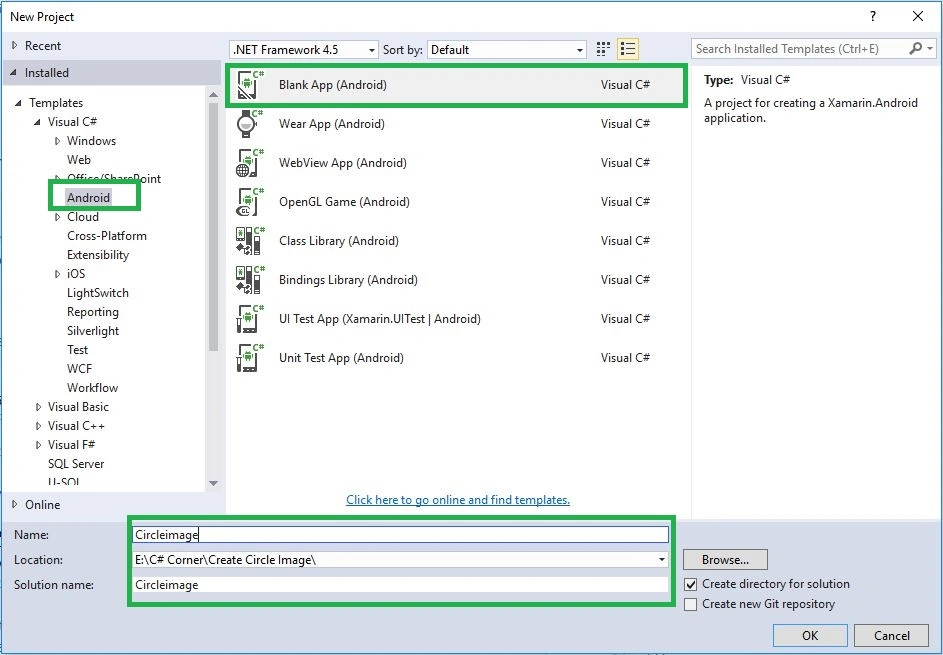
Step 2
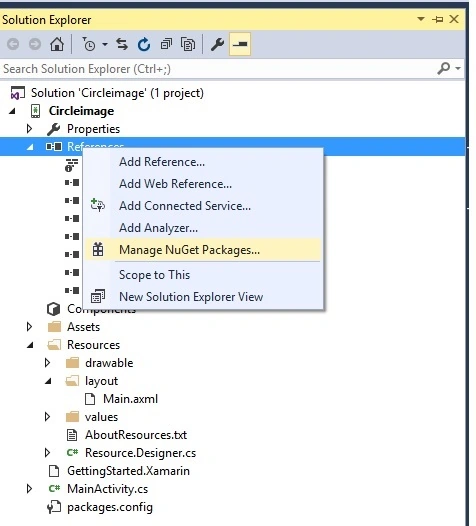
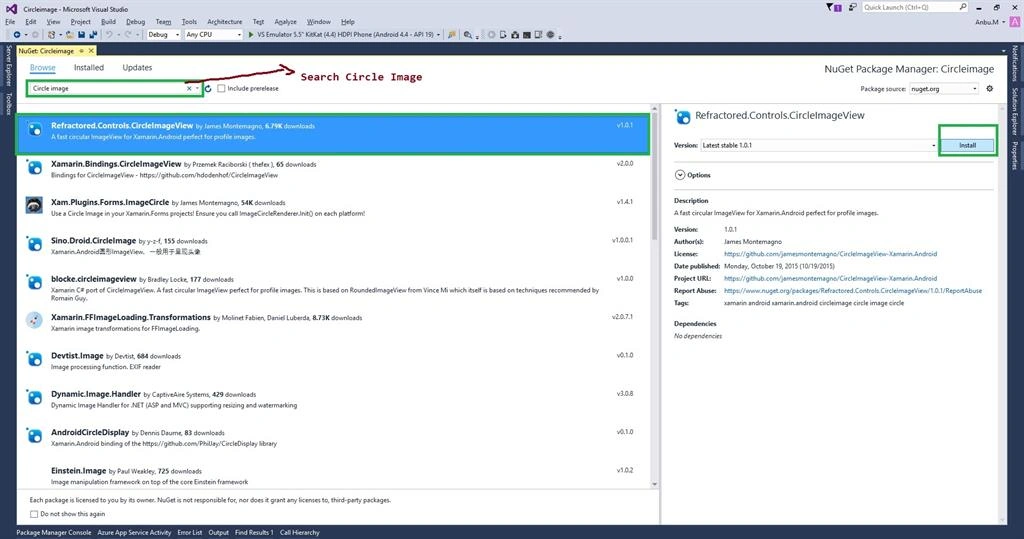
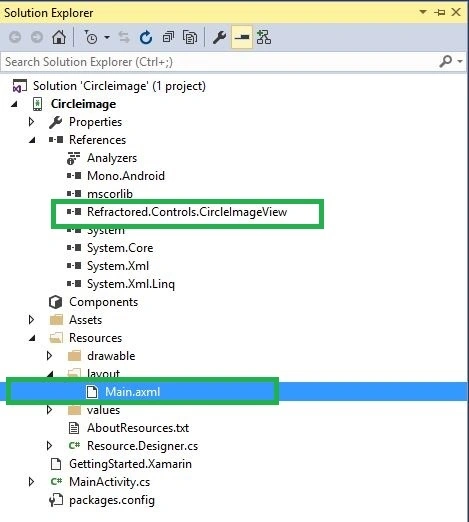
Next go to Solution Explorer-> Project Name-> References then Right Click to Manage Nuget Packages then open new Dialog box. This dialog box to search the Refractored.Controls.Circleimageview then Install the Package.
Step 3
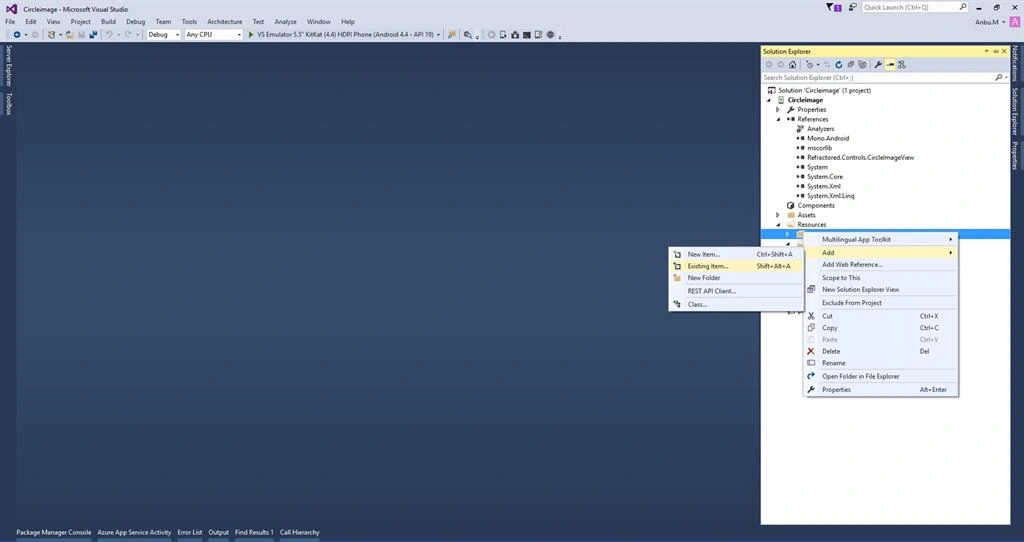
Then Open Solution Explorer-> Project Name->Resources-> drawable then Right Click to Add->Existing Item... then add any one image.
Step 4
Next Open Solution Explorer-> Project Name->Resources->layout->Main.axml Click Open Design View.
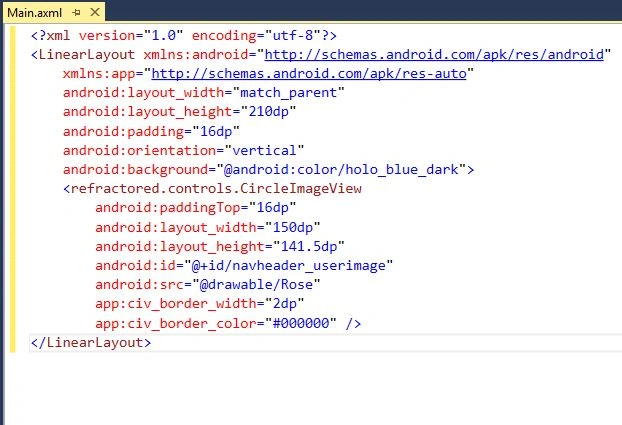
XMLCode:
- <?xml version="1.0" encoding="utf-8"?>
- <LinearLayout xmlns:android="http://schemas.android.com/apk/res/android"
- xmlns:app="http://schemas.android.com/apk/res-auto"
- android:layout_width="match_parent"
- android:layout_height="210dp"
- android:padding="16dp"
- android:orientation="vertical"
- android:background="@android:color/holo_blue_dark">
- <refractored.controls.CircleImageView
- android:paddingTop="16dp"
- android:layout_width="150dp"
- android:layout_height="141.5dp"
- android:id="@+id/navheader_userimage"
- android:src="@drawable/Rose"
- app:civ_border_width="2dp"
- app:civ_border_color="#000000" />
- </LinearLayout>
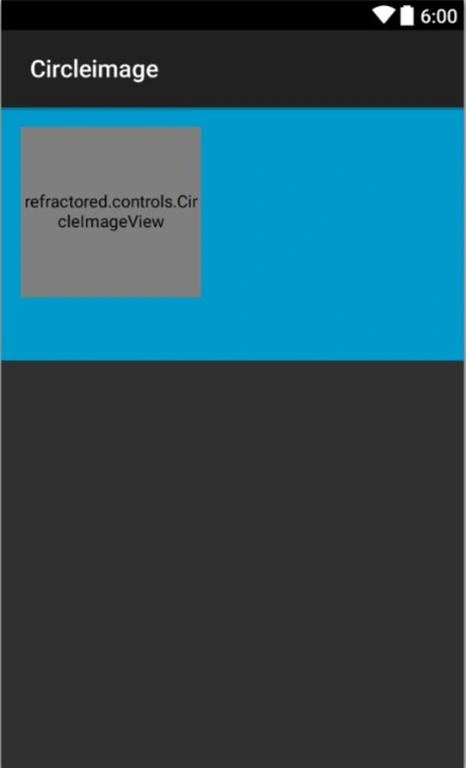
Design View
Step 5: Press F5 or Build and Run the Application.Image will showing Circle View.
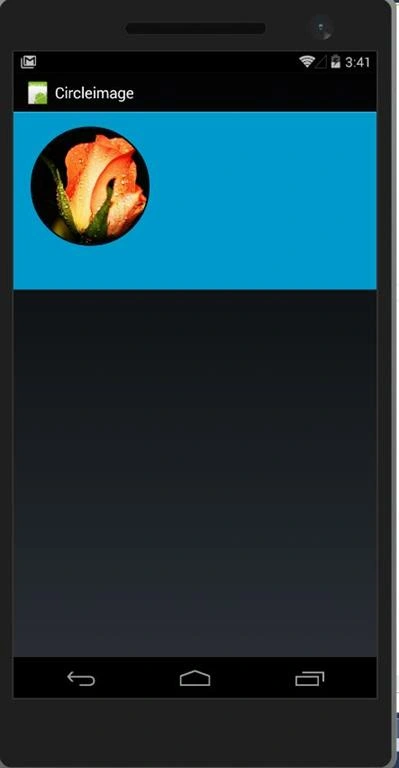
Finally, we have successfully created Xamarin Android Circle Image Application.
Pham NamPosted Dec 21, 2016, 11:48 PM
We can set size of image by height and width atrribute,right? Thanks
Bhavik PatelPosted Jul 10, 2016, 12:06 PM
Good one
Prasanna MuraliPosted May 20, 2016, 9:32 PM
Nice one...
Anbu ManiPosted May 7, 2016, 4:19 AM
Thanks
Vignesh ManiPosted May 6, 2016, 5:02 PM
Nice