

Let’s start,
Step 1
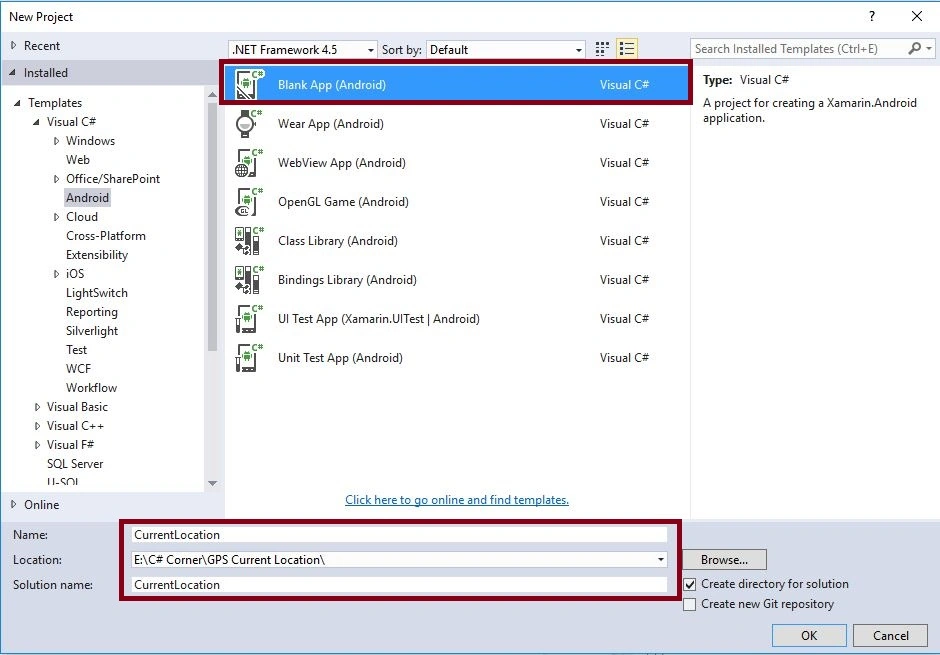
Open Visual Studio, New Project, Templates, Visual C#, Android, then select Blank App (Android),
Give Project Name and Project Location.
Step 2
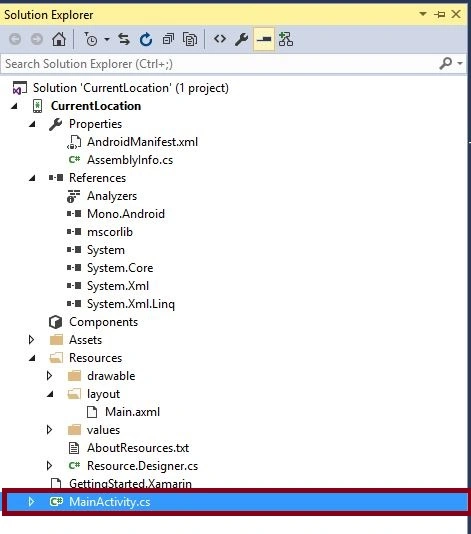
Next go to Solution Explorer-> Project Name->AndroidManifest.xml open xml code and give the Permission for Location, Network, Coarse Location services.

XML Code
- <uses-permission android:name="android.permission.ACCESS_FINE_LOCATION" />
- <uses-permission android:name="android.permission.ACCESS_COARSE_LOCATION" />
- <uses-permission android:name="android.permission.ACCESS_WIFI_STATE" />
- <uses-permission android:name="android.permission.ACCESS_NETWORK_STATE" />
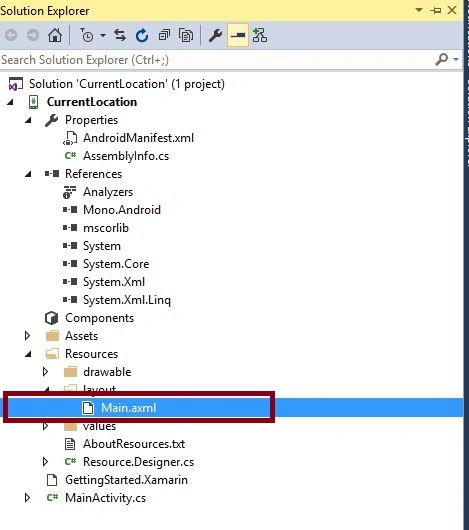
Step 3 - Next open Solution Explorer-> Project Name->Resources->layout->Main.axml click to open Design View.
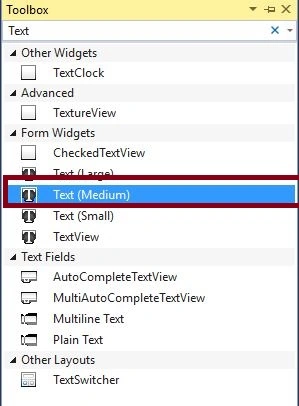
Step 4 - Then Select Toolbar Drag and Drop Five Textview box.
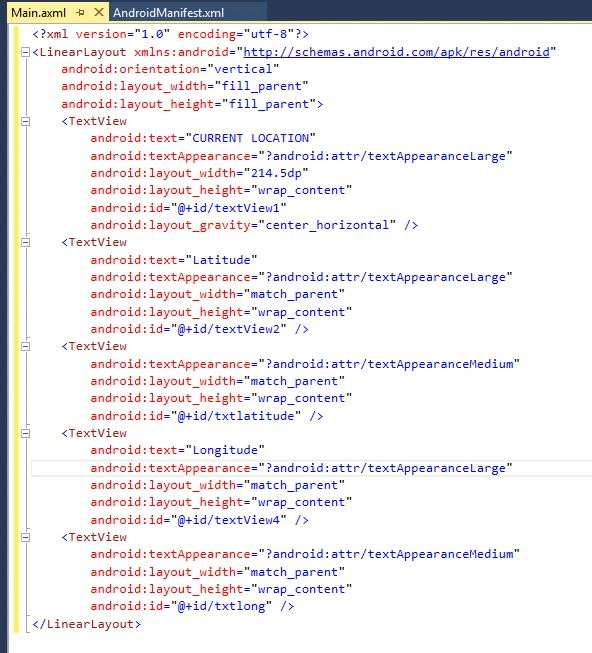
XML Code
- <?xml version="1.0" encoding="utf-8"?>
- <LinearLayout
- xmlns:android="http://schemas.android.com/apk/res/android"
- android:orientation="vertical"
- android:layout_width="fill_parent"
- android:layout_height="fill_parent">
- <TextView
- android:text="CURRENT LOCATION"
- android:textAppearance="?android:attr/textAppearanceLarge"
- android:layout_width="214.5dp"
- android:layout_height="wrap_content"
- android:id="@+id/textView1"
- android:layout_gravity="center_horizontal" />
- <TextView
- android:text="Latitude"
- android:textAppearance="?android:attr/textAppearanceLarge"
- android:layout_width="match_parent"
- android:layout_height="wrap_content"
- android:id="@+id/textView2" />
- <TextView
- android:textAppearance="?android:attr/textAppearanceMedium"
- android:layout_width="match_parent"
- android:layout_height="wrap_content"
- android:id="@+id/txtlatitude" />
- <TextView
- android:text="Longitude"
- android:textAppearance="?android:attr/textAppearanceLarge"
- android:layout_width="match_parent"
- android:layout_height="wrap_content"
- android:id="@+id/textView4" />
- <TextView
- android:textAppearance="?android:attr/textAppearanceMedium"
- android:layout_width="match_parent"
- android:layout_height="wrap_content"
- android:id="@+id/txtlong" />
- </LinearLayout>
Sébastien CREPINPosted Mar 30, 2023, 1:05 PM
I create this application for location changed, but does't work when the app is in backgroung ????can you help me
Ajay GillPosted Dec 4, 2019, 6:31 AM
Not working. Managed to remove error "location provider requires ACCESS_FINE_LOCATION permission" but not location is detected
youssef hammoudPosted Nov 20, 2019, 7:13 AM
Not working
Iqbal MuhammadPosted Sep 27, 2019, 9:38 PM
I get an eror like this.. location provider requires ACCESS_FINE_LOCATION permission
Braian WengerPosted Sep 23, 2018, 7:29 PM
Hello followed step by step your tutorial to get the latitude and longitude but I can not get into the method OnLocationChange, because it can be? I would greatly appreciate your response
Abhay NarayanPosted Aug 23, 2018, 6:16 AM
Good code, but getting error on the override void OnResume() method. error like Unhandled Exception: Java.Lang.SecurityException: <Timeout exceeded getting exception details> on your code. please help..
Robert KolPosted Jun 5, 2018, 3:40 AM
Very good tutorial to start works with The GPS locations. Thanks.
Muhammad YousufPosted Mar 12, 2018, 6:32 PM
Anbu Mani i can't get the latitude and longitude, when i debugged the application it doesn't executes the onLoctionChange method. Do you know why does that happen? Please help me out.
EdaianaPosted Nov 16, 2017, 12:47 PM
Thank you so much!
sumeet kumarPosted Nov 6, 2017, 4:55 AM
Sir I am using the above code and done as it has been guided. But no values for (Lat & Lan) are displaying on TextView.
Ripdaman SinghPosted Sep 5, 2017, 2:19 PM
Nice Post Bro, And how to get current Street Address.
Vaibhav PatilPosted Jul 27, 2017, 6:45 AM
Very Helpfull... Keep posting new articles...
Pradeep SahooPosted May 18, 2016, 4:48 PM
Nice share .........
Kuppurasu NagarajPosted May 11, 2016, 9:15 AM
Nice Sharing..
Mohammed IbrahimPosted May 11, 2016, 8:19 AM
nice
Chandra ShekherPosted May 11, 2016, 12:14 AM
Good one
Ajay MalikPosted May 10, 2016, 1:07 PM
Nice