
Introduction
Xamarin.Forms - Emotion Recognition Using Cognitive Service
Xamarin.Forms code runs on multiple platforms - each of which has its own filesystem. This means that reading and writing files is most easily done using the native file APIs on each platform. Alternatively, embedded resources are a simpler solution to distribute data files with an app.
Cognitive Services

Xamarin.Forms - Emotion Recognition Using Cognitive Service
Xamarin and Cognitive Services together can infuse your apps, websites, and bots with intelligent algorithms to see, hear, speak, understand and interpret your user needs through natural methods of communication. Also, they help you transform your business with AI today.
Use AI to solve business problems
  • Vision
  • Speech
  • Knowledge
  • Search
  • Language
Emotion API
  1. Emotion API takes a facial expression in an image as an input and returns the confidence across a set of emotions for each face in the image, as well as the bounding box for the face, using the Face API. If a user has already called the Face API, they can submit the face rectangle as an optional input.
  2. Emotion API is emotions detected are anger, contempt, disgust, fear, happiness, neutral, sadness and surprise. These emotions are understood to be cross-culturally and universally communicated with particular facial expressions.
Prerequisites
  • Visual Studio 2017(Windows or Mac)
  • Emotion API Key
Setting up a Xamarin.Forms Project
Start by creating a new Xamarin.Forms project. You’ll learn more by going through the steps yourself.
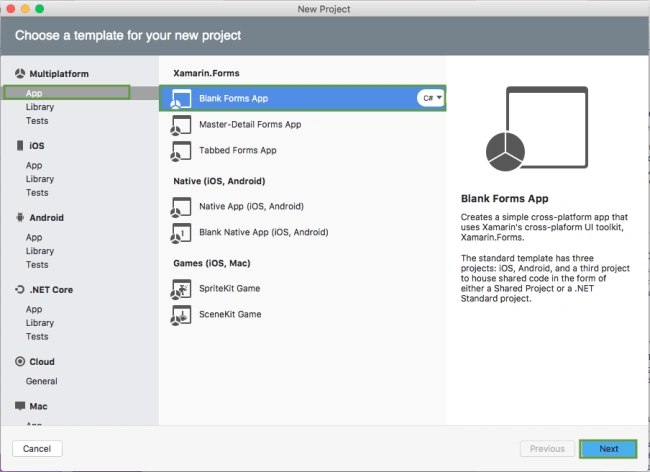
Choose the Xamarin.Forms App Project type under Cross-platform/App in the New Project dialog.
Xamarin.Forms - Emotion Recognition Using Cognitive Service
Name your app, select “Use .NET Standard” for shared code, and target both Android and iOS.

Xamarin.Forms - Emotion Recognition Using Cognitive Service
You probably want your project and solution to use the same name as your app. Put it in your preferred folder for projects and click Create.

Xamarin.Forms - Emotion Recognition Using Cognitive Service
You now have a basic Xamarin.Forms app. Click the play button to try it out.
Xamarin.Forms - Emotion Recognition Using Cognitive Service
Get Emotion API Key
In this step, get Emotion API Key. Go to the following link.
https://azure.microsoft.com/en-in/services/cognitive-services/
Click "Try Cognitive Services for free".

Xamarin.Forms - Emotion Recognition Using Cognitive Service
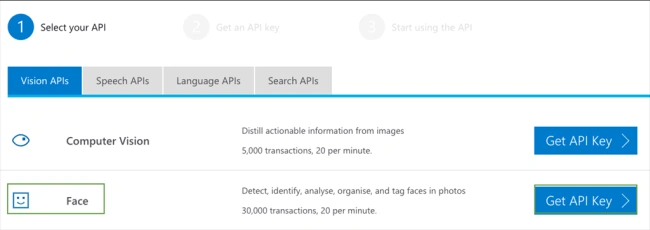
Now, you can choose Face under Vision APIs. Afterward, click "Get API Key".
Xamarin.Forms - Emotion Recognition Using Cognitive Service
Read the terms, and select your country/region. Afterward, click "Next".

Xamarin.Forms - Emotion Recognition Using Cognitive Service
Now, log in using your preferred account.

Xamarin.Forms - Emotion Recognition Using Cognitive Service
Now, the API Key is activated. You can use it now.
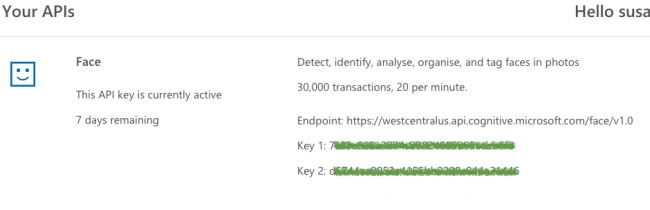
Xamarin.Forms - Emotion Recognition Using Cognitive Service
The trial key is available only 7 days. If you want a permanent key, refer to the following article.
Setting up the User Interface
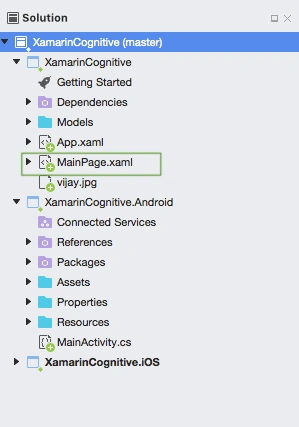
Go to MainPage.Xaml and write the following code.
MainPage.xaml
  1. <?xml version="1.0" encoding="utf-8"?>
  2. <ContentPage xmlns="http://xamarin.com/schemas/2014/forms" xmlns:x="http://schemas.microsoft.com/winfx/2009/xaml" xmlns:local="clr-namespace:XamarinCognitive" x:Class="XamarinCognitive.MainPage">
  3. <StackLayout>
  4. <StackLayout>
  5. <StackLayout HorizontalOptions="Center" VerticalOptions="Start">
  6. <Image x:Name="imgBanner" Source="banner.png" ></Image>
  7. <Image Margin="0,0,0,10" x:Name="imgEmail" HeightRequest="100" Source="cognitiveservice.png" ></Image>
  8. <Label Margin="0,0,0,10" Text="Emotion Recognition" FontAttributes="Bold" FontSize="Large" TextColor="Gray" HorizontalTextAlignment="Center" ></Label>
  9. <Image Margin="0,0,0,10" x:Name="imgSelected" HeightRequest="150" Source="defaultimage.png" ></Image>
  10. <Button x:Name="btnPick" Text="Pick" Clicked="btnPick_Clicked" />
  11. <StackLayout HorizontalOptions="CenterAndExpand" Margin="10,0,0,10">
  12. <Label x:Name="lblHappiness" ></Label>
  13. <Label x:Name="lblAnger"></Label>
  14. <Label x:Name="lblFear"></Label>
  15. <Label x:Name="lblNeutral"></Label>
  16. <Label x:Name="lblSadness"></Label>
  17. <Label x:Name="lblSurprise"></Label>
  18. <Label x:Name="lblDisgust"></Label>
  19. <Label x:Name="lblContempt"></Label>
  20. </StackLayout>
  21. </StackLayout>
  22. </StackLayout>
  23. </StackLayout>
  24. </ContentPage>
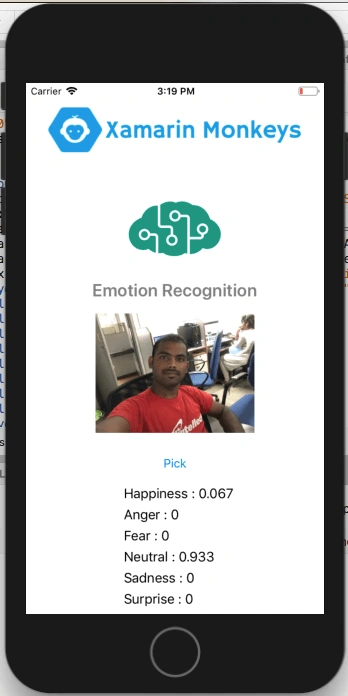
Click the play button to try it out.
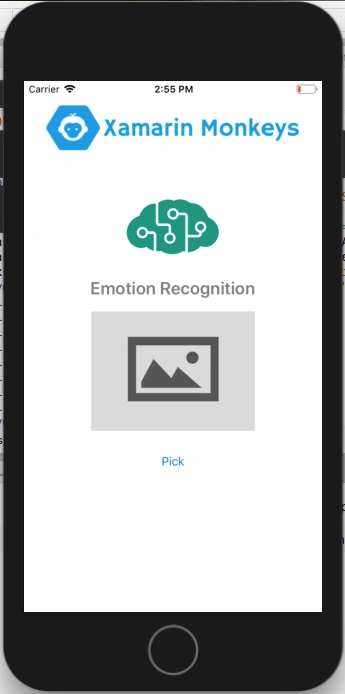
Xamarin.Forms - Emotion Recognition Using Cognitive Service
NuGet Packages
Now, add the following NuGet Packages.
  1. Xam.Plugin.Media
  2. Newtonsoft.Json
Add Xam.Plugin.Media NuGet
In this step, add Xam.Plugin.Media to your project. You can install Xam.Plugin.Media via NuGet or you can browse the source code on GitHub.
Go to Solution Explorer and select your solution. Right-click and select "Manage NuGet Packages for Solution". Search "Xam.Plugin.Media" and add Package. Remember to install it for each project (PCL, Android, iO, and UWP).

Xamarin.Forms - Emotion Recognition Using Cognitive Service
Permissions
In this step, give the following required permissions to your app.
Permissions - for Android
  1. CAMERA
  2. READ_EXTERNAL_STORAGE
  3. WRITE_EXTERNAL_STORAGE
Permissions - for iOS
  1. NSCameraUsageDescription
  2. NSPhotoLibraryUsageDescription
  3. NSMicrophoneUsageDescription
  4. NSPhotoLibraryAddUsageDescription
Create a Model
In this step, you can create a model for Deserializing your response.
ResponseModel.cs
  1. using System;
  2. using System.Collections.Generic;
  3. namespace XamarinCognitive.Models
  4. {
  5. public class ResponseModel
  6. {
  7. public string faceId { get; set; }
  8. public FaceRectangle faceRectangle { get; set; }
  9. public FaceAttributes faceAttributes { get; set; }
  10. }
  11. public class FaceRectangle
  12. {
  13. public int top { get; set; }
  14. public int left { get; set; }
  15. public int width { get; set; }
  16. public int height { get; set; }
  17. }
  18. public class HeadPose
  19. {
  20. public double pitch { get; set; }
  21. public double roll { get; set; }
  22. public double yaw { get; set; }
  23. }
  24. public class FacialHair
  25. {
  26. public double moustache { get; set; }
  27. public double beard { get; set; }
  28. public double sideburns { get; set; }
  29. }
  30. public class Emotion
  31. {
  32. public double anger { get; set; }
  33. public double contempt { get; set; }
  34. public double disgust { get; set; }
  35. public double fear { get; set; }
  36. public double happiness { get; set; }
  37. public double neutral { get; set; }
  38. public double sadness { get; set; }
  39. public double surprise { get; set; }
  40. }
  41. public class Blur
  42. {
  43. public string blurLevel { get; set; }
  44. public double value { get; set; }
  45. }
  46. public class Exposure
  47. {
  48. public string exposureLevel { get; set; }
  49. public double value { get; set; }
  50. }
  51. public class Noise
  52. {
  53. public string noiseLevel { get; set; }
  54. public double value { get; set; }
  55. }
  56. public class Makeup
  57. {
  58. public bool eyeMakeup { get; set; }
  59. public bool lipMakeup { get; set; }
  60. }
  61. public class Occlusion
  62. {
  63. public bool foreheadOccluded { get; set; }
  64. public bool eyeOccluded { get; set; }
  65. public bool mouthOccluded { get; set; }
  66. }
  67. public class HairColor
  68. {
  69. public string color { get; set; }
  70. public double confidence { get; set; }
  71. }
  72. public class Hair
  73. {
  74. public double bald { get; set; }
  75. public bool invisible { get; set; }
  76. public List<HairColor> hairColor { get; set; }
  77. }
  78. public class FaceAttributes
  79. {
  80. public double smile { get; set; }
  81. public HeadPose headPose { get; set; }
  82. public string gender { get; set; }
  83. public double age { get; set; }
  84. public FacialHair facialHair { get; set; }
  85. public string glasses { get; set; }
  86. public Emotion emotion { get; set; }
  87. public Blur blur { get; set; }
  88. public Exposure exposure { get; set; }
  89. public Noise noise { get; set; }
  90. public Makeup makeup { get; set; }
  91. public List<object> accessories { get; set; }
  92. public Occlusion occlusion { get; set; }
  93. public Hair hair { get; set; }
  94. }
  95. }
Emotion Recognition
In this step, write the following code for Emotion Recognition.
MainPage.xaml.cs
  1. using Plugin.Media;
  2. using Xamarin.Forms;
  3. using XamarinCognitive.Models;
  4. using Newtonsoft.Json;
  5. namespace XamarinCognitive
  6. {
  7. public partial class MainPage : ContentPage
  8. {
  9. public string subscriptionKey = "26d1b6941e3a422c880639fdcdcf069b";
  10. public string uriBase = "https://southeastasia.api.cognitive.microsoft.com/face/v1.0/detect";
  11. public MainPage()
  12. {
  13. InitializeComponent();
  14. }
  15. async void btnPick_Clicked(object sender, System.EventArgs e)
  16. {
  17. await CrossMedia.Current.Initialize();
  18. try
  19. {
  20. var file = await CrossMedia.Current.PickPhotoAsync(new Plugin.Media.Abstractions.PickMediaOptions
  21. {
  22. PhotoSize = Plugin.Media.Abstractions.PhotoSize.Medium
  23. });
  24. if (file == null) return;
  25. imgSelected.Source = ImageSource.FromStream(() => {
  26. var stream = file.GetStream();
  27. return stream;
  28. });
  29. MakeAnalysisRequest(file.Path);
  30. }
  31. catch (Exception ex)
  32. {
  33. string test = ex.Message;
  34. }
  35. }
  36. public async void MakeAnalysisRequest(string imageFilePath)
  37. {
  38. HttpClient client = new HttpClient();
  39. client.DefaultRequestHeaders.Add("Ocp-Apim-Subscription-Key", subscriptionKey);
  40. string requestParameters = "returnFaceId=true&returnFaceLandmarks=false" +
  41. "&returnFaceAttributes=age,gender,headPose,smile,facialHair,glasses," +
  42. "emotion,hair,makeup,occlusion,accessories,blur,exposure,noise";
  43. string uri = uriBase + "?" + requestParameters;
  44. HttpResponseMessage response;
  45. byte[] byteData = GetImageAsByteArray(imageFilePath);
  46. using (ByteArrayContent content = new ByteArrayContent(byteData))
  47. {
  48. content.Headers.ContentType = new MediaTypeHeaderValue("application/octet-stream");
  49. response = await client.PostAsync(uri, content);
  50. string contentString = await response.Content.ReadAsStringAsync();
  51. List<ResponseModel> faceDetails = JsonConvert.DeserializeObject<List<ResponseModel>>(contentString);
  52. if(faceDetails.Count!=0)
  53. {
  54. lblHappiness.Text = "Happiness : " + faceDetails[0].faceAttributes.emotion.happiness;
  55. lblSadness.Text = "Sadness : " + faceDetails[0].faceAttributes.emotion.sadness;
  56. lblAnger.Text = "Anger : " + faceDetails[0].faceAttributes.emotion.anger;
  57. lblFear.Text = "Fear : " + faceDetails[0].faceAttributes.emotion.fear;
  58. lblNeutral.Text = "Neutral : " + faceDetails[0].faceAttributes.emotion.neutral;
  59. lblSurprise.Text = "Surprise : " + faceDetails[0].faceAttributes.emotion.surprise;
  60. lblDisgust.Text = "Disgust : " + faceDetails[0].faceAttributes.emotion.disgust;
  61. lblContempt.Text = "Contempt : " + faceDetails[0].faceAttributes.emotion.contempt;
  62. }
  63. }
  64. }
  65. public byte[] GetImageAsByteArray(string imageFilePath)
  66. {
  67. using (FileStream fileStream =
  68. new FileStream(imageFilePath, FileMode.Open, FileAccess.Read))
  69. {
  70. BinaryReader binaryReader = new BinaryReader(fileStream);
  71. return binaryReader.ReadBytes((int)fileStream.Length);
  72. }
  73. }
  74. }
  75. }
Click the Play button to try it out.
Xamarin.Forms - Emotion Recognition Using Cognitive Service
I hope you have understood how to Recognize emotions in images using Cognitive Service in Xamarin.Forms.
Thanks for reading. Please share comments and feedback. Happy Coding...!