

Introduction
Xamarin.Forms code runs on multiple platforms - each of which has its own filesystem. This means that reading and writing files is most easily done using the native file APIs on each platform. Alternatively, embedded resources are a simpler solution to distribute data files with an app.
Xamarin.Essentials

Xamarin.Essentials plugin provides 20+ cross-platform APIs for mobile application development. Xamarin.Essentials API works with all Xamarin.Forms, Xamarin.Android, Xamarin.iOS, or UWP applications that can be accessed from shared code. Now, Xamarin.Essentials has overcome the problem. The developers can access every native platform API using C#. This plugin provides many APIs so initially, there is no need of more plugins for Xamarin. Xamarin.Essentials plugin impacts your app's minimum size.
Platform Support
Xamarin.Essentials
Xamarin.Essentials plugin provides 20+ cross-platform APIs for mobile application development. Xamarin.Essentials API works with all Xamarin.Forms, Xamarin.Android, Xamarin.iOS, or UWP applications that can be accessed from shared code. Now, Xamarin.Essentials has overcome the problem. The developers can access every native platform API using C#. This plugin provides many APIs so initially, there is no need of more plugins for Xamarin. Xamarin.Essentials plugin impacts your app's minimum size.
Platform Support
Xamarin.Essentials supports platforms and operating systems,
| Platform | Version |
| Android | 4.4 (API 19) or earlier |
| iOS | 10.0 or higher |
| UWP | 10.0.16299.0 or earlier |
Prerequisites
- Visual Studio 2017(Windows or Mac)
Setting up a Xamarin.Forms Project
Start by creating a new Xamarin.Forms project. You’ll learn more by going through the steps yourself.
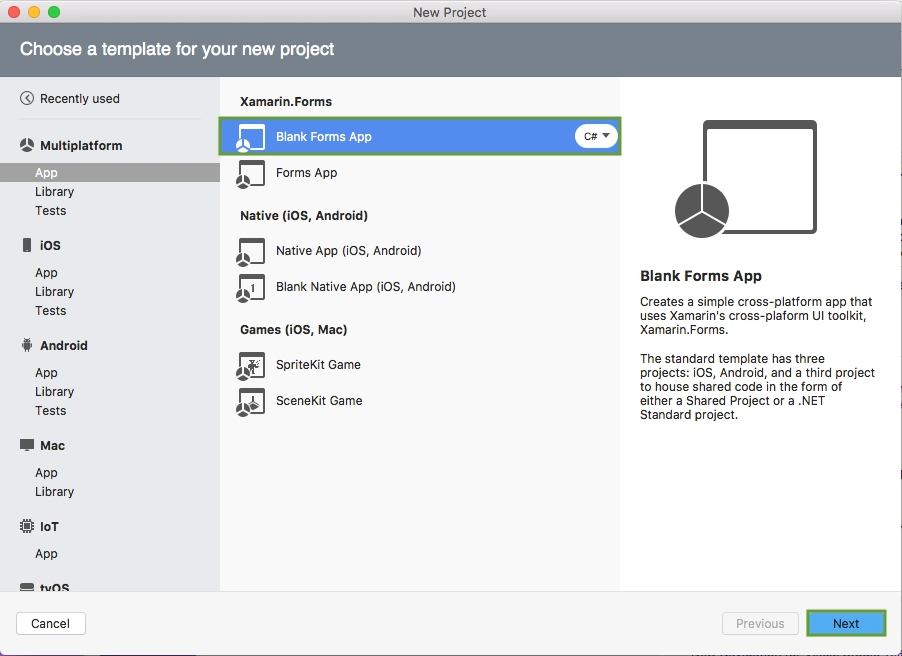
Choose the Xamarin.Forms App Project type, under Cross-platform/App in the New Project dialog.
Choose the Xamarin.Forms App Project type, under Cross-platform/App in the New Project dialog.
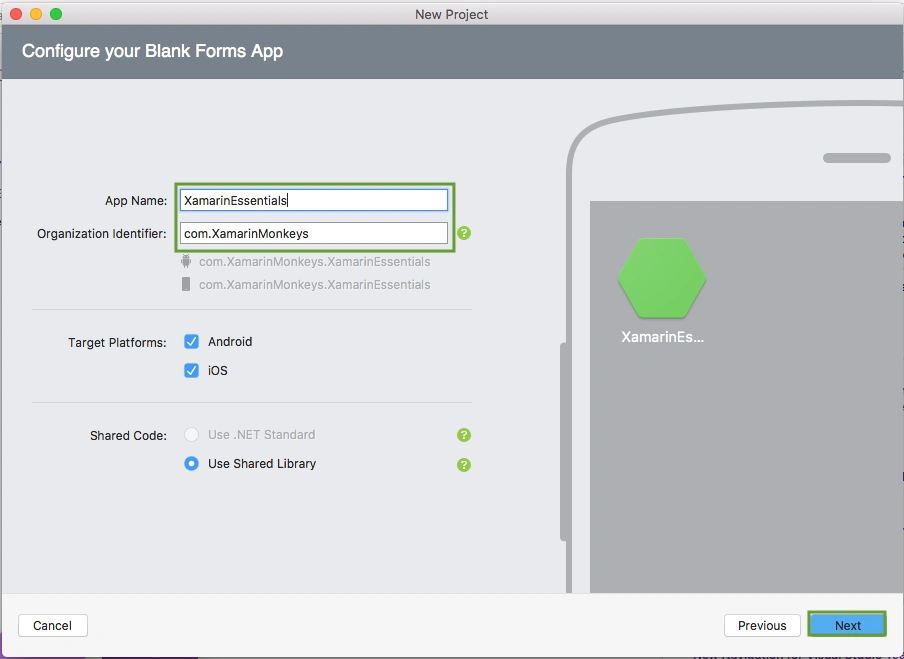
Name your app, select “Use Portable Class Library” for shared code, and target both - Android and iOS.
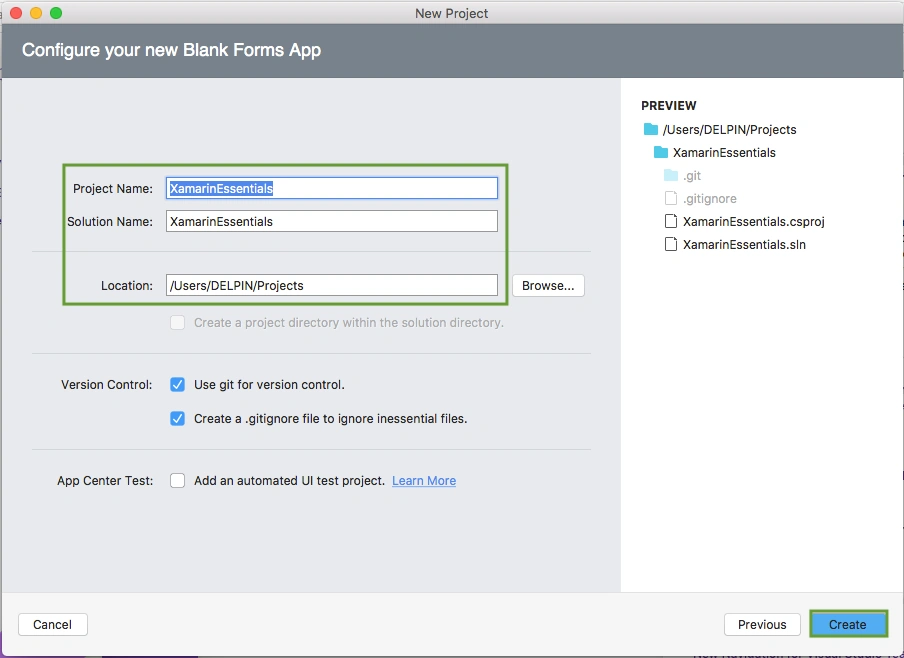
You probably want your project and solution to use the same name as your app. Put it in your preferred folder for projects and click "Create".
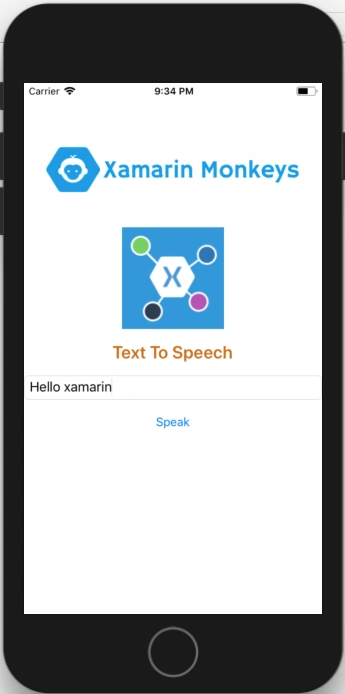
You now have a basic Xamarin.Forms app. Click the Play button to try it out.
Setting up the User Interface
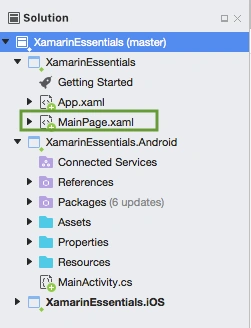
Go to MainPage.Xaml and write the following code.
MainPage.xaml
- <?xml version="1.0" encoding="utf-8" ?>
- <ContentPage xmlns="http://xamarin.com/schemas/2014/forms"
- xmlns:x="http://schemas.microsoft.com/winfx/2009/xaml"
- xmlns:local="clr-namespace:XamarinEssentials"
- x:Class="XamarinEssentials.MainPage">
- <StackLayout>
- <StackLayout HorizontalOptions="Center" VerticalOptions="Start">
- <Image Margin="0,50,0,0" x:Name="imgBanner" Source="banner.png" ></Image>
- <Image Margin="0,0,0,10" x:Name="imgXamarinEssential" Source="xamarinessential.png" ></Image>
- <Label Margin="0,0,0,10" FontAttributes="Bold" FontSize="Large" TextColor="#CA6F1E" HorizontalTextAlignment="Center" Text="Text To Speech"></Label>
- <Entry x:Name="txtInpout" Placeholder="Type what i should say"></Entry>
- <Button x:Name="btnSpeak" Text="Speak" Clicked="btnSpeak_Clicked" />
- </StackLayout>
- </StackLayout>
- </ContentPage>
Add Xamarin Essentials
In this step, add Xamarin.Essentials to your project. You can install Xamarin.Essentials via NuGet, or you can browse the source code on GitHub.
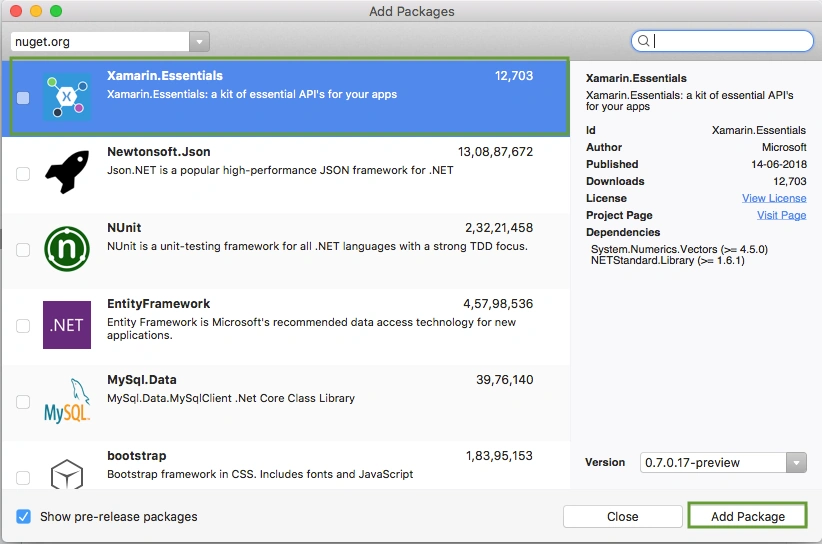
Go to Solution Explorer and select your solution. Right-click and select "Manage NuGet Packages for Solution". Search "Xamarin.Essentials" and add Package. Remember to install it for each project (PCL, Android, iO, and UWP).
Xamarin.Essentials requires platform-specific setup
Android
The following steps are necessary for Android.
Go to Solution Explorer and select your solution. Right-click and select "Manage NuGet Packages for Solution". Search "Xamarin.Essentials" and add Package. Remember to install it for each project (PCL, Android, iO, and UWP).
Xamarin.Essentials requires platform-specific setup
Android
The following steps are necessary for Android.
- Xamarin.Essentials supports a minimum Android version of 4.4
- Target Android version for compiling must be 8.1, API level 27.
In the Android project's MainActivity that is launched Xamarin.Essentials must be initialized in the OnCreate method.
MainActivity.cs
MainActivity.cs
- Xamarin.Essentials.Platform.Init(this, bundle);
Xamarin.Essentials must receive any OnRequestPermissionsResult. write the following code for runtime permission.
MainActivity.cs
MainActivity.cs
- public override void OnRequestPermissionsResult(int requestCode, string[] permissions, [GeneratedEnum] Android.Content.PM.Permission[] grantResults)
- {
- Xamarin.Essentials.Platform.OnRequestPermissionsResult(requestCode, permissions, grantResults);
- base.OnRequestPermissionsResult(requestCode, permissions, grantResults);
- }
iOS
No additional setup required.
UWP
No additional setup required.
In this step, write the following code for Text to Speech.
MainPage.xaml.cs
No additional setup required.
UWP
No additional setup required.
In this step, write the following code for Text to Speech.
MainPage.xaml.cs
- using Xamarin.Essentials;
- namespace XamarinEssentials
- {
- public partial class MainPage : ContentPage
- {
- public MainPage()
- {
- InitializeComponent();
- }
- protected override void OnAppearing()
- {
- base.OnAppearing();
- }
- async void btnSpeak_Clicked(object sender, System.EventArgs e)
- {
- await TextToSpeech.SpeakAsync(txtInpout.Text);
- }
- }
- }
Click the play button to try it out.
SpeakMultiple
Now, write the following code for Multiple Speak
MainPage.xaml.cs
Now, write the following code for Multiple Speak
MainPage.xaml.cs
- bool isBusy = false;
- public void SpeakMultiple()
- {
- isBusy = true;
- Task.Run(async () =>
- {
- await TextToSpeech.SpeakAsync("Hello World 1");
- await TextToSpeech.SpeakAsync("Hello World 2");
- await TextToSpeech.SpeakAsync("Hello World 3");
- isBusy = false;
- });
- Task.WhenAll(
- TextToSpeech.SpeakAsync("Hello World 1"),
- TextToSpeech.SpeakAsync("Hello World 2"),
- TextToSpeech.SpeakAsync("Hello World 3"))
- .ContinueWith((t) => { isBusy = false; }, TaskScheduler.FromCurrentSynchronizationContext());
- }
Click the play button to try it out.
Speech Settings
Now, write the following code for Speak Settings
MainPage.xaml.cs
Speech Settings
Now, write the following code for Speak Settings
MainPage.xaml.cs
- public async Task SpeakNow()
- {
- var settings = new SpeakSettings()
- {
- Volume = .50,
- Pitch = 2.0
- };
- await TextToSpeech.SpeakAsync("Hello Xamarin", settings);
- }
Click the play button to try it out.
Related post
I hope you have understood Text to Speech Using Xamarin Essentials in Xamarin.Forms.
Thanks for reading. Please share comments and feedback.
Thanks for reading. Please share comments and feedback.
WWW RunnerPosted Apr 30, 2021, 2:21 AM
Very helpful tutorial! I tried it on Android 11. I had to add the following lines between manifest tags in AndroidManifest.xml: <queries> <intent> <action android:name="android.intent.action.TTS_SERVICE" /> </intent> </queries> Otherwise, I receive an error "Failed to initialize Text to Speech engine." I took the above code from https://stackoverflow.com/a/64279380
Rituraj PandeyPosted Jan 18, 2020, 4:34 PM
This very nice article, it would be helpful to me for my further projects, Thanks for sharing.
Mark KamoskiPosted Jul 24, 2019, 9:17 AM
Dear Delpin -- Please help. This is a good article. Here are some questions. Is there a limit to the amount of text that this can process? If yes, then what is that limit? Please advise. Great work. Thanks. -- Mark Kamoski.
Kartik PawarPosted Sep 20, 2018, 11:17 PM
Nice article keep sharing...