
Collapsible Panel Extender
In this article,
I will show you step by step procedure, how to use a Collapsible Panel
Extender
In ASP.NET using Visual Studio 2005 or Visual
Studio 2008.
To follow this code sample, you must use Visual Studio 2005 or Visual Studio
2008.
I have used <! – –> to comment HTML part of the code.
Note: Collapsible Panel Extender is a part of AjaxControlToolkit.
To attach right click on the toolbox under Ajax Extensions and select
Choose Items - > Browse Button - > select the AjaxControlToolkit.dll. If
you are using Visual Studio 2008, you may not need AJAX Toolkit but if you are
using Visual Studio 2005, you will need to download it from http://www.msdn.com/ or http://www.asp.net/.
Step 1. Start -> All Programs -> Visual Studio 2005
or Visual Studio 2008
Step 2. Now go to File Menu -> New -> Web Site
Step 3.
Under Visual Studio Installed Template-> Choose ASP.NET WEB SITE ->
Choose File System from the location combo box -> Set the
path by the browse button - > Choose the language from the Language ComboBox
(Visual C# , Visual Basic , J #)
Choose Visual C#
Step 4. Click on the OK Button.
This is the source code window and in this page you will se this code.
<%@ Page Language=”C#” AutoEventWireup=”true” CodeFile=”Default.aspx.cs” Inherits=”_Default” %> <!DOCTYPE html PUBLIC “-//W3C//DTD XHTML 1.0 Transitional//EN” “http://www.w3.org/TR/xhtml1/DTD/xhtml1-transitional.dtd”> <html xmlns=”http://www.w3.org/1999/xhtml”> <head runat=”server”> <title>Type your
webpage title here</title> <!– Here you can specify your page title in between title tag -> </head> <body> <form id=”form1? runat=”server”> <div> <!– In between
div tags you can manage your web controls like buttons, labels, picture Box, ImageMap etc
–> </div> </form> </body> </html> |
See here is a tab named Design in the bottom of this page.
Step 5. Click on this tab and you will see a blank web page where you can drag any control from the
toolbox (which is in the left side of this window).
Step 6. Now drag
some controls under the AJAX Extensions.
First control you are going to drag and drop on the page is - Script
Manager.
first add a tag on the top of your source code window:
<%@ Register Assembly="AjaxControlToolkit"
Namespace="AjaxControlToolkit"
TagPrefix="cc1"
%>
Under the form tag,
Don’t be frustrate on seeing this code please read carefully it’s very simple.
|
<asp:ScriptManager ID="ScriptManager1" runat="server"> </asp:ScriptManager> <asp:LinkButton ID ="linkbutton1" runat="server" > About </asp:LinkButton> <asp:Label ID ="label1" runat="server" ></asp:Label> <asp:Panel ID ="Panel1" runat="server" BackColor="LightPink" ForeColor="DarkSalmon" Font-Bold="true"> Microsoft
has a complicated relationship with to
provide its existing ASP.NET developers with an easy way to implement without
having to learn JavaScript. On the other hand, Microsoft recognizes that the future is
on the client. Therefore, it wants to provide web developers with the tools
they need to
build pure client-side server-side
If you want
to retrofit an existing ASP.NET application to take advantage of take
advantage of Microsoft’s server-side framework,
you don’t need to write a single line of JavaScript code. You can continue to build
ASP.NET pages with server-side controls in the standard way. You learn how to take
advantage of the server-side The
advantage of the server-side framework is that it provides existing ASP.NET
developers with a
painless method of doing that it
doesn’t escape all the problems associated with a server-side framework. You
still have to
run back to the server whenever you perform any client-side action. </asp:Panel> <cc1:CollapsiblePanelExtender ID="CollapsiblePanelExtender1"
runat="server"
CollapseControlID="linkbutton1"
ExpandControlID="linkbutton1"
CollapsedSize="0"
CollapsedText="Expand
it..." ExpandDirection="Vertical" ExpandedSize="250" ExpandedText="Colaspe it..." SuppressPostBack="true" TargetControlID="Panel1" TextLabelID="label1"> </cc1:CollapsiblePanelExtender> </div> |
Step 7. Now run your web site by Ctrl + F5
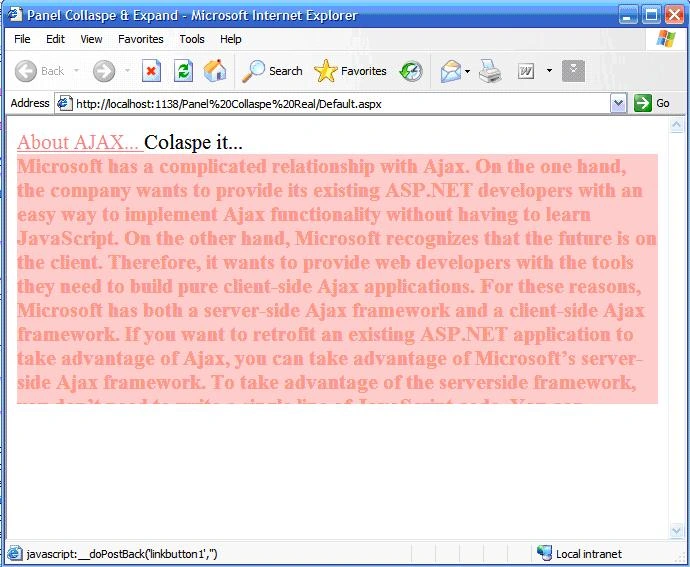
OUT PUT
Step 8. When you run the Collapsible Panel Extender will seem
like this...

When you click on the “About AJAX “it will expand and when you click on the “About AJAX” again it will
Collapse again…
Step 9. Close Browser
Step 10. Close Visual Studio…
Thanks!

Join the conversation! Your thoughts help the community grow.