

This blog post explains how to implement a secure login page with a CAPTCHA feature using JavaScript and C#. We'll walk you through the code behind the CAPTCHA functionality, how it integrates with a simple login form, and the role of session storage in verifying CAPTCHA input.
Introduction
Captcha systems are widely used to ensure that a human, not a bot, is interacting with a website. In this example, we’ll demonstrate how to integrate a simple CAPTCHA in a login page using HTML, CSS, JavaScript, and C#.
We’ll be using a randomly generated CAPTCHA image rendered on an HTML canvas and then validated on the client side.
The Code Breakdown
1. HTML Structure for the Login Page
<!DOCTYPE html>
<html xmlns="http://www.w3.org/1999/xhtml">

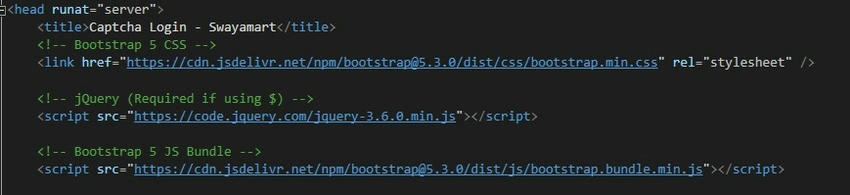
<head runat="server">
    <title>Captcha Login - Swayamart</title>

    <!-- Bootstrap 5 CSS -->
    <link href="https://cdn.jsdelivr.net/npm/[email protected]/dist/css/bootstrap.min.css" rel="stylesheet" />

    <!-- jQuery (Required if using $) -->
    <script src="https://code.jquery.com/jquery-3.6.0.min.js"></script>

    <!-- Bootstrap 5 JS Bundle -->
    <script src="https://cdn.jsdelivr.net/npm/[email protected]/dist/js/bootstrap.bundle.min.js"></script>
</head>
- We’re using Bootstrap 5 for styling to make the login page responsive and modern.
- jQuery is included to help with DOM manipulation and event handling.
2. Form and CAPTCHA Setup
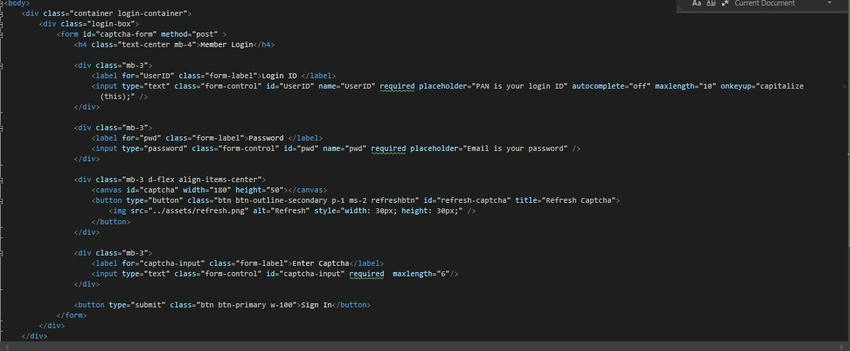
<div class="container login-container">
    <div class="login-box">
        <form id="captcha-form" method="post">
            <h4 class="text-center mb-4">Member Login</h4>

            <!-- UserID and Password Fields -->
            <div class="mb-3">
                <label for="UserID" class="form-label">Login ID</label>
                <input type="text" class="form-control" id="UserID" name="UserID" required placeholder="PAN is your login ID" />
            </div>

            <div class="mb-3">
                <label for="pwd" class="form-label">Password</label>
                <input type="password" class="form-control" id="pwd" name="pwd" required placeholder="Email is your password" />
            </div>

            <!-- CAPTCHA Canvas and Refresh Button -->
            <div class="mb-3 d-flex align-items-center">
                <canvas id="captcha" width="180" height="50"></canvas>
                <button type="button" class="btn btn-outline-secondary p-1 ms-2 refreshbtn" id="refresh-captcha" title="Refresh Captcha">
                    <img src="../assets/refresh.png" alt="Refresh" style="width: 30px; height: 30px;" />
                </button>
            </div>

            <div class="mb-3">
                <label for="captcha-input" class="form-label">Enter Captcha</label>
                <input type="text" class="form-control" id="captcha-input" required maxlength="6" />
            </div>

            <button type="submit" class="btn btn-primary w-100">Sign In</button>
        </form>
    </div>
</div>
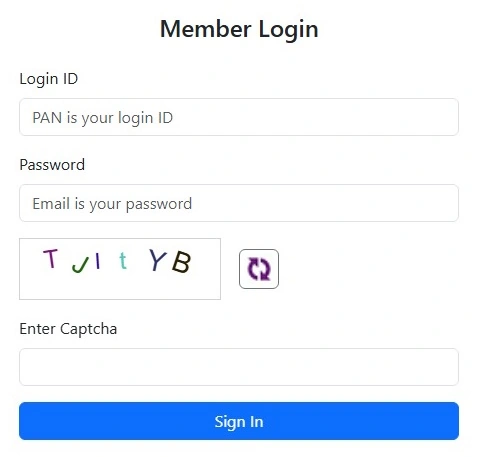
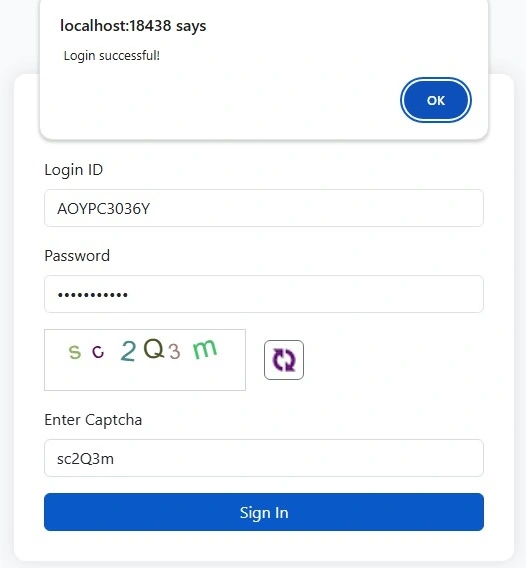
- Login Fields: The user enters their Login ID (PAN) and password.
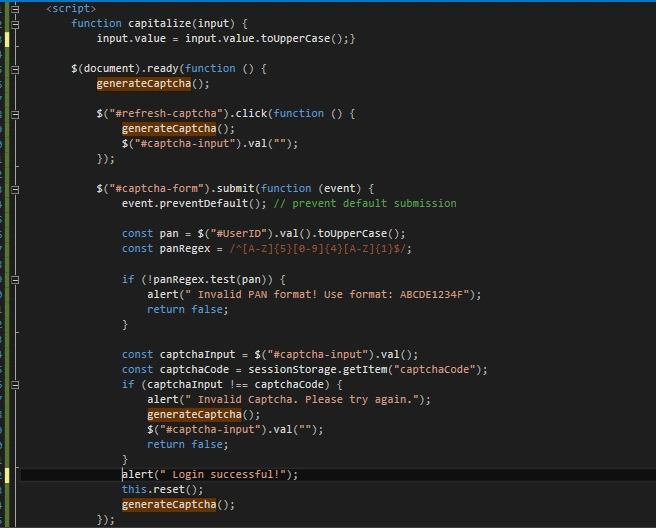
- CAPTCHA: A canvas element is used to display the CAPTCHA. Next to it is a refresh button that allows users to regenerate the CAPTCHA if needed.
Join the conversation! Your thoughts help the community grow.