

We aim to create a mobile app and its backend using C# and .NET
We will use the IGDB game review API.
https://api-docs.igdb.com/#examples
With it, we can build a mobile game catalog app and store our reviews.
Mobile Project Creation
Step 1. .NET 9 without sample content.
We will start by creating a project using .NET 9 and no sample content.
Step 2. Update the Libraries.


For this project, we will work with the following versions of libraries.
CommunityToolkit.Mvvm (version 8.4)
CommunityToolkit.Maui (version 10)


Step 3. First Steps, Create the Search Results Listing Screen.
Create the Views and ViewModels folders.
Add an XAML ContentPage to handle the search result listing.
Create its ViewModel, inheriting from ObservableObject.

Step 4. Configure the App Builder.
Add the UseMauiCommunityToolkit method to the builder and define the route for the IGDBResults page.
using GamesCatalog.ViewModels.IGDBSearch;
using GamesCatalog.Views.IGDBSearch;
using Microsoft.Extensions.Logging;
using CommunityToolkit.Maui;

namespace GamesCatalog
{
    public static class MauiProgram
    {
        public static MauiApp CreateMauiApp()
        {
            var builder = MauiApp.CreateBuilder();
            builder
                .UseMauiApp<App>()
                .UseMauiCommunityToolkit()
                .ConfigureMauiHandlers(handlers => { })
                .ConfigureFonts(fonts =>
                {
                    fonts.AddFont("OpenSans-Regular.ttf", "OpenSansRegular");
                    fonts.AddFont("OpenSans-Semibold.ttf", "OpenSansSemibold");
                });

#if DEBUG
            builder.Logging.AddDebug();
#endif

            builder.Services.AddTransientWithShellRoute<IGDBResults, IGDBResultsVM>(nameof(IGDBResults));

            return builder.Build();
        }
    }
}
Step 5. Set the Main Page.
For now, we will make the IGDBResults page the main page by defining it in the Shell.
<?xml version="1.0" encoding="UTF-8" ?>
<Shell
    x:Class="GamesCatalog.AppShell"
    xmlns="http://schemas.microsoft.com/dotnet/2021/maui"
    xmlns:x="http://schemas.microsoft.com/winfx/2009/xaml"
    xmlns:local="clr-namespace:GamesCatalog.Views.IGDBSearch"
    Shell.FlyoutBehavior="Flyout"
    Title="GamesCatalog">

    <ShellContent
        Title="Home"
        ContentTemplate="{DataTemplate local:IGDBResults}"
        Route="MainPage" />

</Shell>
Step 6. Create a Basic Search Screen.
For now, we’ll add an entry field to populate the search screen.
<?xml version="1.0" encoding="utf-8" ?>
<ContentPage
    x:Class="GamesCatalog.Views.IGDBSearch.IGDBResults"
    xmlns="http://schemas.microsoft.com/dotnet/2021/maui"
    xmlns:x="http://schemas.microsoft.com/winfx/2009/xaml"
    Title="IGDBResults">

    <VerticalStackLayout>
        <Border Padding="10,0,10,5" HorizontalOptions="FillAndExpand">
            <StackLayout Margin="0">
                <VerticalStackLayout Margin="0,5,0,0">
                    <Label Text="Search" />
                    <Entry MaxLength="100" />
                </VerticalStackLayout>
            </StackLayout>
        </Border>
    </VerticalStackLayout>
</ContentPage>
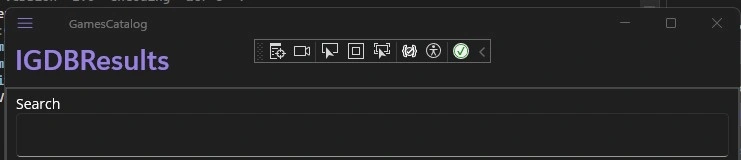
Outcome
With this, our search screen is ready to be refined and expanded.
Code on Github: GamesCatalog git
Join the conversation! Your thoughts help the community grow.