

Introduction
In this article, we will learn how to do CRUD operations with MongoDB using ASP.NET CORE. MongoDB is a NO SQL database. The advantage over the SQL-Server is scalability, agility, however, these are not the only redeeming qualities that database MongoDB possesses.
Now we will start.
Step 1
Firstly, we will add the Mongo DB Library in Visual Studio using a Nuget Command

Install-Package MongoDB.Driver -Version 2.11.6
Step 2
Log in to mongodb
https://www.mongodb.com/
After logging in you create the cluster, leave it if you have already created one
After creating the cluster, click on Connect
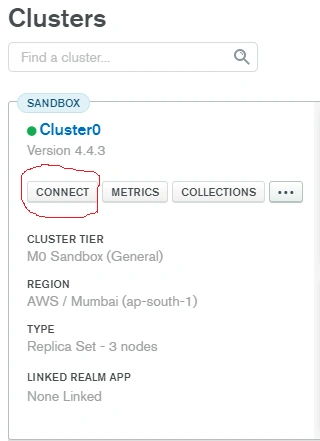
After clicking Connect, click on Connect your Application

After that, you will find the connection string.

Select the drive, C#.NET and for the version, I am using 2.11.6, so select 2.11 or later.
Step 3
Now we come to Visual Studio. Create the ASP.NET Core Web App

Step 4
After creating the project, go to appsettings.json and set the connection string.
- {
- "MyKey": "mongodb+srv://ajay:<Password>@cluster0.qmqmt.mongodb.net/<Databasename>?retryWrites=true&w=majority",
- "Logging": {
- "LogLevel": {
- "Default": "Information",
- "Microsoft": "Warning",
- "Microsoft.Hosting.Lifetime": "Information"
- }
- },
- "AllowedHosts": "*"
- }
In the above MYKEY, you need to enter your information and change the password & database.
NOTE
If the database is already created then it's working, but if the database is not created, then it's created automatically.
Step 5
Now we comes to the Controller:
- public HomeController(IConfiguration Configuration) {
- Client = new MongoClient(Configuration["MyKey"]);
- DB = Client.GetDatabase("Your Database");
- }
You can set your database name, which is the connection string.
Step 6
Ravi KumarPosted Feb 23, 2021, 4:41 AM
Great sir working fine