

Exporting Windows Live Contacts to Outlook 2010
I am in the process of moving my emails from an older PC to a new laptop. On an older PC, I had Windows XP and Windows Live Mail while on my new laptop, I have Outlook 2010. Here is the complete process of exporting contacts from Live Mail and importing into Outlook 2010.
Open Windows Live Mail and go to Tools > Contacts menu option.
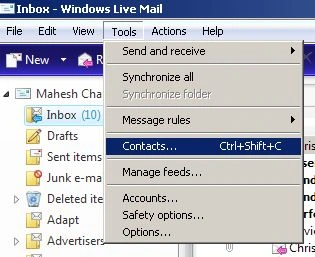
That opens Windows Live Contacts.
Go to File and select Export > Comma Separated Values (.CSV) option.
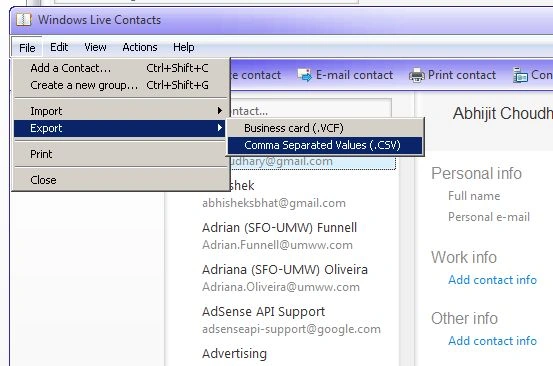
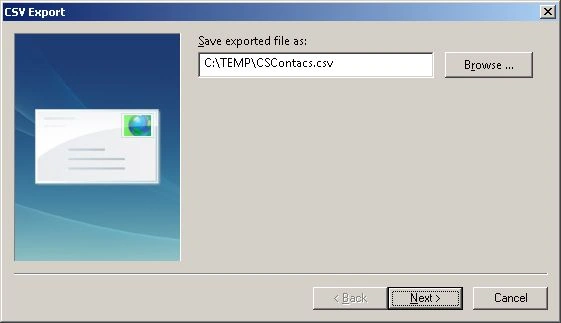
On the next dialog, select a folder and give a file name.
On the next dialog, make sure to check First Name and Last Name checkboxes.
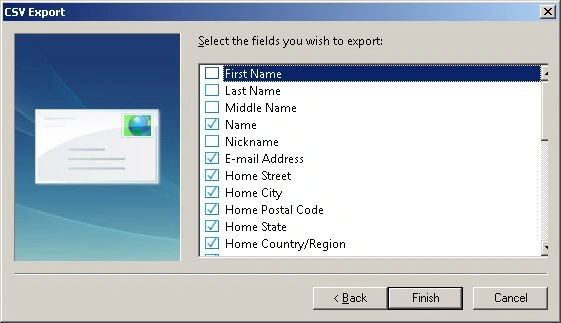
The export will start and all contacts will be copied to a .csv file.
Copy this .csv file to the machine you want to import your contacts to.
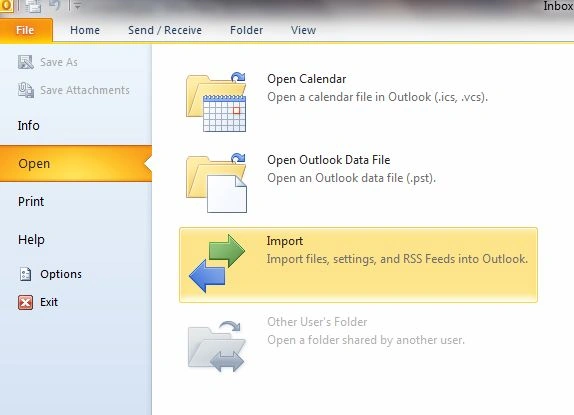
Open Outlook 2010 and select File > Open Menu item. Then select Import option.
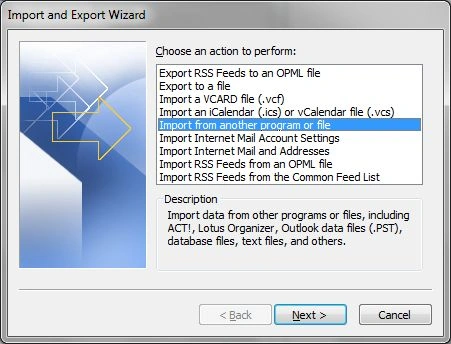
Select Import from another program or file.
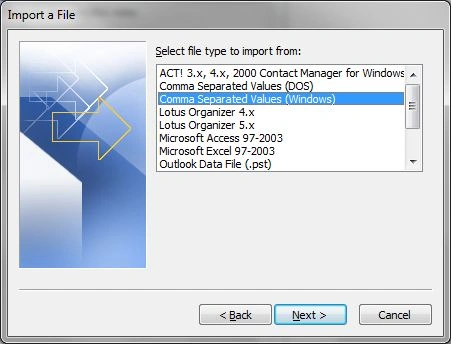
Select Comma Separated Values (Windows).
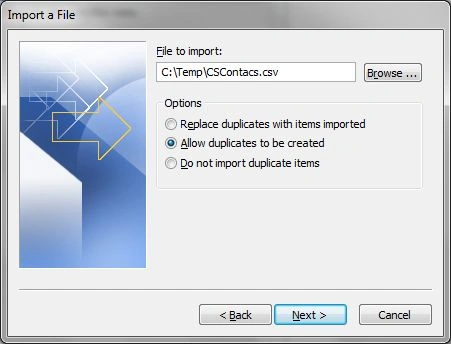
Browse your .CSV file and select Next.
Find Suggested Contacts or Contacts and hit Next.
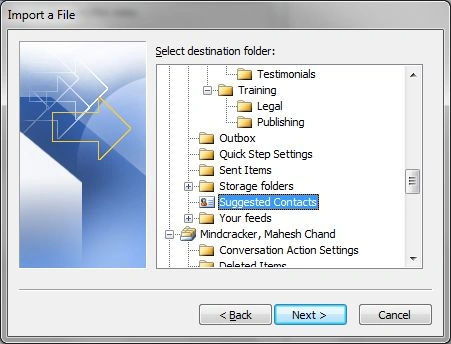
That's it. All contacts will be imported to your Outlook.
Somit VishwakarmaPosted Jan 31, 2020, 3:18 AM
This manual is working for me thank you Mr. Mahesh Chand
Kim WisePosted Mar 16, 2015, 7:51 PM
On W7, exporting from WLM to Outlook 2010, following above, get MAPI error 0X80040107