

Introduction
This article explains how to create a weekly availibility calender in an ASP.NET MVc application using fullcalender.js. Full calender is great for displaying event.user time slots which are easily managed by this. Users can create a new event and asign it to the calender so that he/she can manage their routing shedule.
Generally, routing calender can be used in things like hospital management applications where managing schedules is complicated.
So here we will see how to manage that schedule in an Asp.Net MVc Application.
Step 1
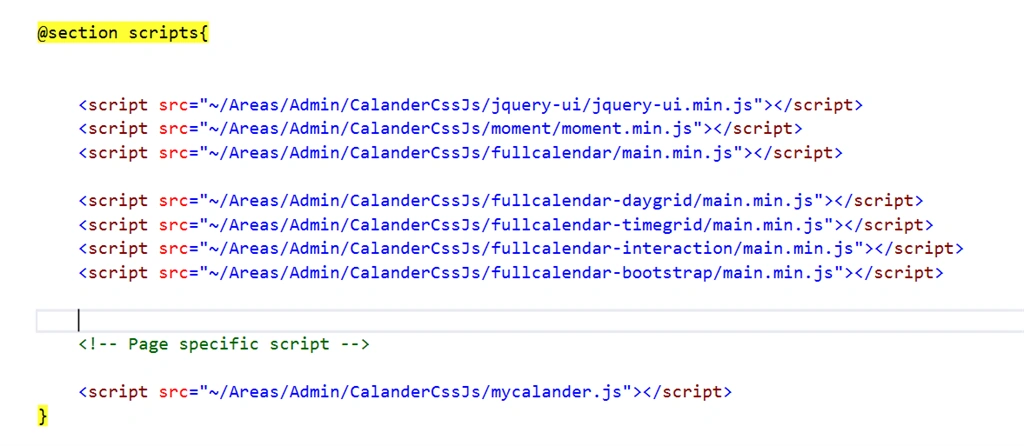
Create full availibility calender. Embed the following into your project:
https://adminlte.io/themes/dev/AdminLTE/pages/calendar.html
- fullcalendar
- fullcalendar-daygrid
- fullcalendar-timegrid
- fullcalendar-interaction
- fullcalendar-bootstrap
moment.js is just used for displaying proper datetime formate in js.
Step 2
Create AvailibilityDto.cs used for getting available time slots list.
- public class AvailibilityDto
- {
- public int Id { get; set; }
- public string Title { get; set; }
- public string Desc { get; set; }
- public string Start_Date { get; set; }
- public string End_Date { get; set; }
- }
Create CalanderController.cs for getting time slots list and return it to json.
- using MVCAdminLTE3.Models;
- using System;
- using System.Collections.Generic;
- using System.Linq;
- using System.Web;
- using System.Web.Mvc;
- namespace MVCAdminLTE3.Areas.Admin.Controllers
- {
- public class CalanderController : Controller
- {
- // GET: Admin/Calander
- public ActionResult Index()
- {
- return View();
- }
- public ActionResult GetCalendarData()
- {
- List<AvailibilityDto> data = new List<AvailibilityDto>();
- //Statically create list and add data
- AvailibilityDto infoObj1 = new AvailibilityDto();
- infoObj1.Id = 1;
- infoObj1.Title = "I am available";
- infoObj1.Desc = "Description 1";
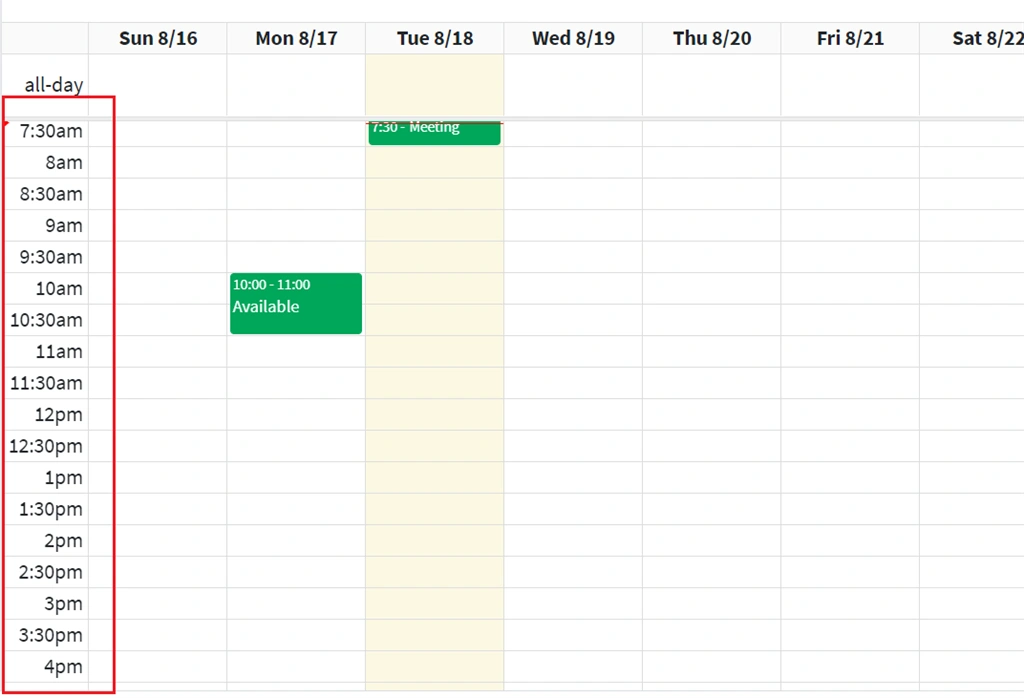
- infoObj1.Start_Date = "2020-08-16 22:37:22.467";
- infoObj1.End_Date = "2020-08-16 23:30:22.467";
- data.Add(infoObj1);
- AvailibilityDto infoObj2 = new AvailibilityDto();
- infoObj2.Id = 2;
- infoObj2.Title = "Available";
- infoObj2.Desc = "Description 1";
- infoObj2.Start_Date = "2020-08-17 10:00:22.467";
- infoObj2.End_Date = "2020-08-17 11:00:22.467";
- data.Add(infoObj2);
- AvailibilityDto infoObj3 = new AvailibilityDto();
- infoObj3.Id = 3;
- infoObj3.Title = "Meeting";
- infoObj3.Desc = "Description 1";
- infoObj3.Start_Date = "2020-08-18 07:30:22.467";
- infoObj3.End_Date = "2020-08-18 08:00:22.467";
- data.Add(infoObj3);
- return Json(data, JsonRequestBehavior.AllowGet);
- }
- [HttpPost]
- public ActionResult UpdateCalanderData(AvailibilityDto model)
- {
- var id = model.Id;
- //Write your update code here
- return Json(id, JsonRequestBehavior.AllowGet);
- }
- }
- }
Create mycalander.js
- $(function () {
- /* initialize the external events
- -----------------------------------------------------------------*/
- function ini_events(ele) {
- ele.each(function () {
- // create an Event Object (http://arshaw.com/fullcalendar/docs/event_data/Event_Object/)
- // it doesn't need to have a start or end
- var eventObject = {
- title: $.trim($(this).text()) // use the element's text as the event title
- }
- // store the Event Object in the DOM element so we can get to it later
- $(this).data('eventObject', eventObject)
- // make the event draggable using jQuery UI
- $(this).draggable({
- zIndex: 1070,
- revert: true, // will cause the event to go back to its
- revertDuration: 0 // original position after the drag
- })
- })
- }
- ini_events($('#external-events div.external-event'))
- /* initialize the calendar
- -----------------------------------------------------------------*/
- //Date for the calendar events (dummy data)
- var date = new Date()
- var d = date.getDate(),
- m = date.getMonth(),
- y = date.getFullYear()
- var Calendar = FullCalendar.Calendar;
- var Draggable = FullCalendarInteraction.Draggable;
- var containerEl = document.getElementById('external-events');
- var checkbox = document.getElementById('drop-remove');
- var calendarEl = document.getElementById('calendar');
- // initialize the external events
- // -----------------------------------------------------------------
- new Draggable(containerEl, {
- itemSelector: '.external-event',
- eventData: function (eventEl) {
- console.log(eventEl);
- return {
- title: eventEl.innerText,
- backgroundColor: window.getComputedStyle(eventEl, null).getPropertyValue('background-color'),
- borderColor: window.getComputedStyle(eventEl, null).getPropertyValue('background-color'),
- textColor: window.getComputedStyle(eventEl, null).getPropertyValue('color'),
- };
- }
- });
- GetData();
- function GenerateCalander(events) {
- var calendar = new Calendar(calendarEl, {
- //Plugins for full canlender
- //plugins: ['bootstrap', 'interaction', 'dayGrid', 'timeGrid'],
- //initialView: 'timeGridWeek',
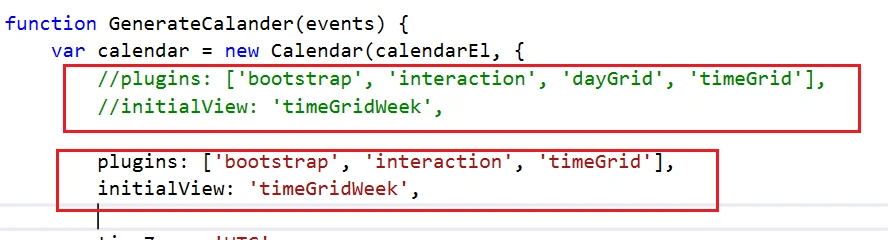
- plugins: ['bootstrap', 'interaction', 'timeGrid'],
- initialView: 'timeGridWeek',
- //select your timeZone as u wish to select
- timeZone: 'UTC',
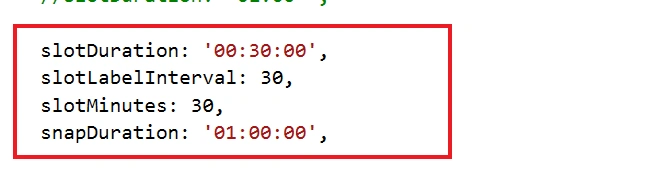
- //Slot duration fix to 30 minutes now .......you can chage any slot duration from here.
- slotDuration: '00:30:00',
- slotLabelInterval: 30,
- slotMinutes: 30,
- snapDuration: '01:00:00',
- header: {
- left: 'prev,next today',
- center: 'title',
- //right: 'dayGridMonth,timeGridWeek,timeGridDay'
- right: 'timeGridWeek'
- },
- //Random default events
- events: events
- ,
- editable: true,
- droppable: true, // this allows things to be dropped onto the calendar !!!
- drop: function (info) {
- // is the "remove after drop" checkbox checked?
- if (checkbox.checked) {
- // if so, remove the element from the "Draggable Events" list
- info.draggedEl.parentNode.removeChild(info.draggedEl);
- }
- },
- nextDayThreshold: "00:00:00",
- nowIndicator: true,
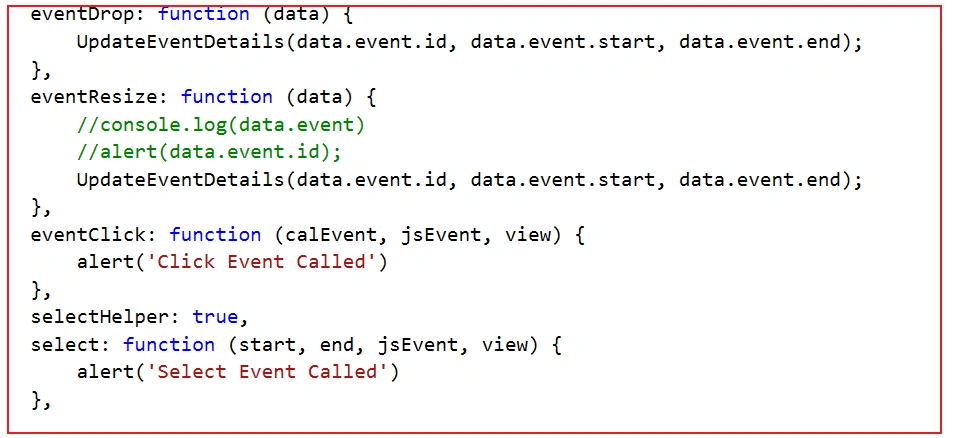
- eventDrop: function (data) {
- UpdateEventDetails(data.event.id, data.event.start, data.event.end);
- },
- eventResize: function (data) {
- //console.log(data.event.id)
- //update your event here
- UpdateEventDetails(data.event.id, data.event.start, data.event.end);
- },
- eventClick: function (calEvent, jsEvent, view) {
- //Work on click event like delete and view details
- alert('Click Event Called')
- },
- selectHelper: true,
- select: function (start, end, jsEvent, view) {
- //called when an event is selected
- alert('Select Event Called')
- },
- });
- calendar.render();
- }
- /* ADDING EVENTS */
- var currColor = '#3c8dbc' //Red by default
- //Color chooser button
- var colorChooser = $('#color-chooser-btn')
- $('#color-chooser > li > a').click(function (e) {
- e.preventDefault()
- //Save color
- currColor = $(this).css('color')
- //Add color effect to button
- $('#add-new-event').css({
- 'background-color': currColor,
- 'border-color': currColor
- })
- })
- $('#add-new-event').click(function (e) {
- e.preventDefault()
- //Get value and make sure it is not null
- var val = $('#new-event').val()
- if (val.length == 0) {
- return
- }
- //Create events
- var event = $('<div />')
- event.css({
- 'background-color': currColor,
- 'border-color': currColor,
- 'color': '#fff'
- }).addClass('external-event')
- event.html(val)
- $('#external-events').prepend(event)
- //Add draggable funtionality
- ini_events(event)
- //Remove event from text input
- $('#new-event').val('')
- })
- function GetData() {
- var events = [];
- $.ajax({
- url: 'http://localhost:3617/admin/Calander/GetCalendarData',
- type: "GET",
- dataType: "JSON",
- success: function (result) {
- $.each(result, function (i, data) {
- events.push(
- {
- title: data.Title,
- description: data.Desc,
- start: moment(data.Start_Date).format('YYYY-MM-DD HH:mm:ss'),
- end: moment(data.End_Date).format('YYYY-MM-DD HH:mm:ss'),
- backgroundColor: '#00a65a', //Success (green)
- borderColor: '#00a65a', //Success (green)
- id: data.Id,
- allDay: false,
- });
- });
- GenerateCalander(events);
- }
- })
- }
- function UpdateEventDetails(eventId, StartDate, EndDate) {
- debugger
- var object = new Object();
- object.Id = parseInt(eventId);
- object.Start_Date = StartDate;
- object.End_Date = EndDate;
- $.ajax({
- url: 'http://localhost:3617/admin/Calander/UpdateCalanderData',
- type: "POST",
- dataType: "JSON",
- data: object,
- success: function (result) {
- debugger;
- alert("updated successfully-Id:" + result)
- }
- });
- }
- });

Join the conversation! Your thoughts help the community grow.