

Introduction
In PowerApps, you may want only certain users, such as admins, to see or use specific parts of the app. A simple way to do this is by using a SharePoint Configuration List. In the list, you define roles (like "Admin") and add their email addresses in a column, separated by commas. PowerApps can read this list and show or hide features based on the user’s role.
The best part: if you need to change who has access, you don’t have to edit the app—just update the SharePoint list, and it works instantly.
Steps to Implement Role-Based accessibility in PowerApps
Create a SharePoint Configuration List
In your SharePoint site, create a new list called Configuration. Add the following two columns:RoleName – Single line of text (to store the role, e.g., "Admin")
Value – Multiple lines of text (to store the email addresses of users in that role, separated by commas)
Add the users’ email addresses in the Value column, separated by semicolons, for example: [email protected];[email protected];[email protected];
Connect PowerApps to the Configuration List
● Open your PowerApps app and Go to the Data tab on the left panel and click Add data.
● Search for your SharePoint site and select the Configuration list you created in Step 1."Add Logic to Identify the Current User’s Role
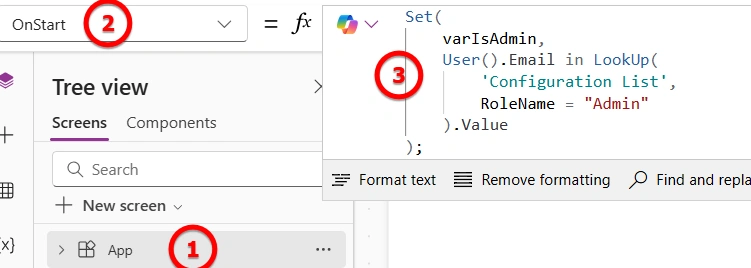
● In your app, go to the App object and select the OnStart property.
● Add the below logic to determine the current user’s role from the SharePoint Configuration list.
Tip: If your app has a splash screen with a timer, add this logic to the timer’s OnStart - this is the best approach.
Set(
    varIsAdmin,
    User().Email in LookUp(
        'Configuration List',
        RoleName = "Admin"
    ).Value
);
Explanations
This formula looks at the Configuration List to find the "Admin" role. It then checks the Value column, which has all admin emails, to see if the current user’s email is listed. It saves the result— true if the user is an Admin, false if not - in a variable called varIsAdmin . You can use this variable to show or hide parts of the app.
Add a Label to Test the Role
● In your app, insert a Label control.
● Set its Text property to: If(varIsAdmin, "You are admin", "You are not admin")
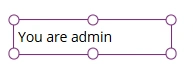
This will display "You are admin" if the current user is an Admin, and "You are not admin" if they are not.
Output
Conclusion
Using a SharePoint list to manage roles makes it easy to control who has access to different parts of your app. You don’t need to change the app itself - just update the list. This way, managing access becomes really simple
Join the conversation! Your thoughts help the community grow.