

Introduction
In my last article, I have explained how to perform remote data binding for a Kendo multi-column combo box. In this blog, I’m extending it and will explain how to do the same remote data binding to a Kendo multi-column combo box.
HTML
- <div id="example">
- <div class="demo-section k-content">
- <h4>Customers</h4>
- <!--<input id="customers" style="width: 50%;" />-->
- <input data-role="multicolumncombobox"
- data-placeholder="Type Customer Name"
- data-text-field="customerName"
- data-value-field="customerID"
- data-columns="[
- {field: 'customerID', title: 'ID'},
- {field: 'customerName', title: 'Name'}
- ]"
- data-bind="value: selectedCustomer,
- source: customer"
- style="width: 100%" />
- </div>
data-role – > It should be a widget role which is multocolumncombobox.
data-text-field -> The text field which should be bound to the text field of our datasource, in my case it is customerName.
data-value-field -> The value field, which should be bound to the value field of our datasource, in my case it is customerID.
data-columns -> Defines the columns of the grid displays inside the combo box.
data-bind -> We need to define the source, in my case it is customer view model. This will be initialized in JavaScript as given below.
JavaScript
- $(document).ready(function () {
- var viewModel = kendo.observable({
- selectedCustomer: null,
- isVisible: true,
- isEnabled: true,
- customer: new kendo.data.DataSource({
- transport: {
- read: {
- url: "http://localhost:11207/api/Customer/CustomerDetails",
- dataType: "json"
- }
- }
- })
- });
- kendo.bind($("#example"), viewModel);
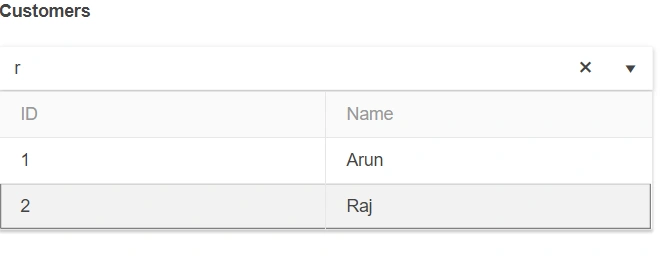
Result in browser
Laxmidhar SahooPosted Nov 24, 2018, 1:31 AM
Thanks for such a good article