

Tree View Control in ASP.NET à
Hi!
Here i will show you step by step procedure how to use
Tree View Control in ASP.NET in visual studio 2005 / 2008
Tree View control is very useful
in asp.net these are use in the left side or right side in the web site, by Tree
View control you can navigate from one page to another page…
__________________________________________________
Here I am using Visual Studio 2008 but there is no condition you can use Visual Studio 2005 also.
So follow these steps to create Tree View Control
The Steps are:
1- Start -> All Programs -> Visual Studio 2005 or Visual Studio 2008
2- Now go to File Menu -> New -> Web Site
3- Under Visual Studio Installed Template-> Choose ASP.NET WEB SITE -> Choose File System from the location combo box -> Set the path by the browse button - > Choose the language from the Language ComboBox (Visual C# , Visual Basic , J #)
Choose Visual C#
4 - Click on the OK Button:-
First you have to learn XML and HTML to work with ASP .NET_
I have used <! – –> to make the text as comment this is the way to make comment in this code …
This is the Source Code window and in this page you will se this code…
<%@ Page Language=”C#” AutoEventWireup=”true” CodeFile=”Default.aspx.cs” Inherits=”_Default” %>
<!DOCTYPE html PUBLIC “-//W3C//DTD XHTML 1.0 Transitional//EN” “http://www.w3.org/TR/xhtml1/DTD/xhtml1-transitional.dtd”>
<html xmlns=”http://www.w3.org/1999/xhtml”>
<head runat=”server”>
<title>Type your webpage title here</title>
<!– Here you can specify your page title in between
title tag ->
</head>
<body>
<form id=”form1? runat=”server”>
<div>
<!– In between div tags you can manage your web
controls like buttons, labels, picture
Box, ImageMap etc –>
</div>
</form>
</body>
</html>
See here is a tab named Design in the bottom of this page
5- Click on this tab and you will see a blank web page where you can drag any control from the toolbox (which is in the left side of this window)
Open Web.config file and write true in place of false, See
<compilation
debug="true">
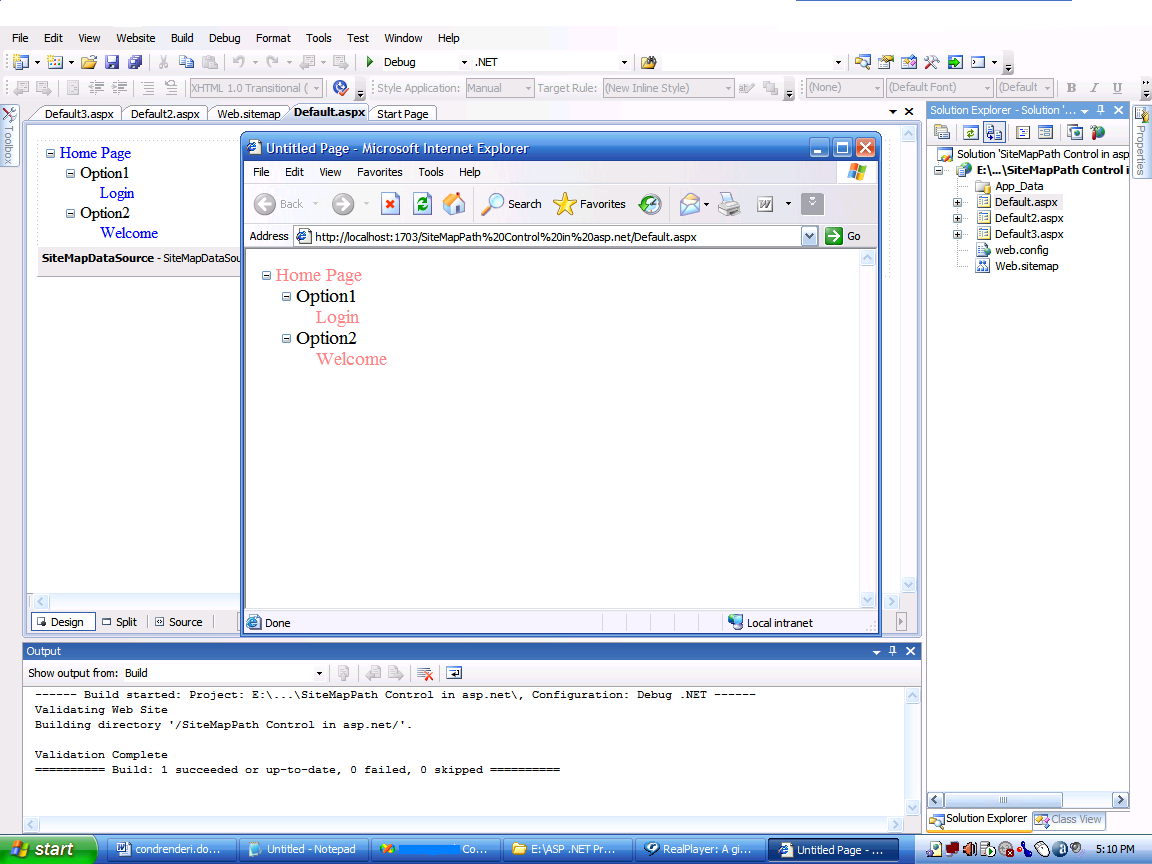
6- Drag a Menu Control from the navigation control tab
7-Now go in solution explorer and right click on the website and choose Add new item, choose Add new item, select site Map …
7- Now open your site Map file and
type this code …
<?xml version="1.0" encoding="utf-8" ?>
Join the conversation! Your thoughts help the community grow.