
/forums/uploadfile/1beccf/08032023012129AM/uctSnipAddEditView.xaml
While scrolling the content container hides the header container. How to avoid this?
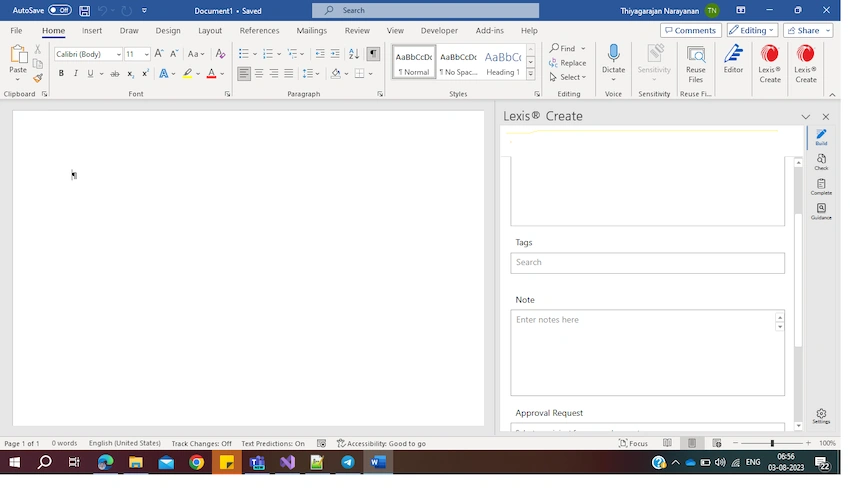
/forums/uploadfile/1beccf/08032023012129AM/uctSnipAddEditView.xaml
While scrolling the content container hides the header container. How to avoid this?
Know the answer? Post it — somebody with the same question will find it here.
Sign in to answer this question
It is the same account you read, post and publish with — and you will come straight back to this page.
Coder ThiyagarajanPosted Aug 3, 2023, 1:22 PM
Hi @Deepak Rawat,
It's related to WPF not in word environment. In the Add-In I just render the usercontrol. I attached the xaml file in the same ticket. It has header and body contents. Both in Grid Rows. While scrolling, scrollviewer will override the header element in Grid Row 0. Kindly check that xaml and let me know where I went wrong.
Deepak RawatPosted Aug 3, 2023, 6:29 AM
Hi you can try these options;
Open your Word document.
Double-click on the header section of the first page (or any page where you want the header to be visible while scrolling). This will activate the header area for editing.
In the "Header & Footer Tools" Design tab that appears, check the box next to "Different First Page." This will unlink the first-page header from the header on subsequent pages.
Now, go to the second page (or any page after the first one) and double-click on the header section.
In the "Header & Footer Tools" Design tab, uncheck the "Different First Page" box. This will make the header on all subsequent pages the same as the first-page header.
In the "Options" group, check the box next to "Header from Top." This will lock the header at the top of the page.
Save your document.