i am trying to deploy my website but getting an this error.
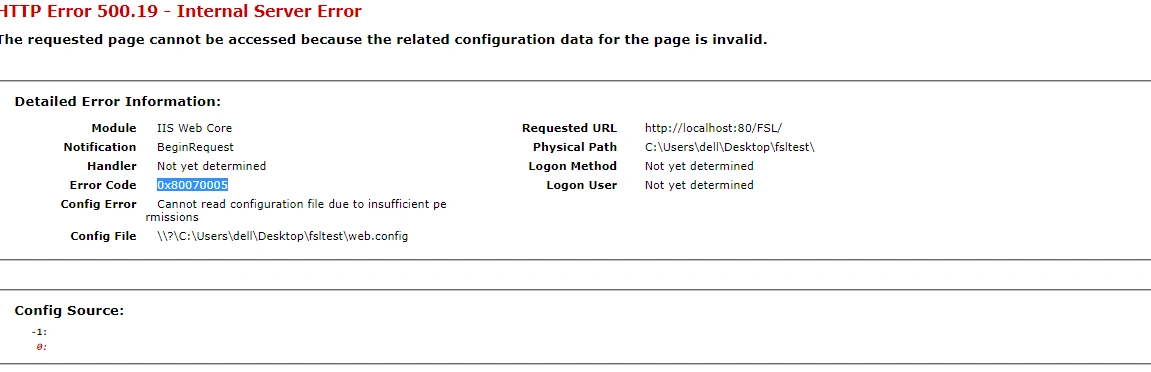
i am trying to deploy my website but getting an this error.
Know the answer? Post it — somebody with the same question will find it here.
Sign in to answer this question
It is the same account you read, post and publish with — and you will come straight back to this page.
Sachin SinghPosted Jun 30, 2022, 10:17 AM
Guest UserPosted Jun 30, 2022, 10:02 AM
Guest UserPosted Jun 30, 2022, 9:59 AM
Amit MohantyPosted Jun 30, 2022, 7:55 AM
To allow unlisted extension to run:
Sachin SinghPosted Jun 30, 2022, 7:42 AM
Guest UserPosted Jun 30, 2022, 7:31 AM
Guest UserPosted Jun 30, 2022, 4:36 AM
Sachin SinghPosted Jun 29, 2022, 2:22 PM
Amit MohantyPosted Jun 29, 2022, 11:48 AM
You should install IIS sub components from
Control Panel -> Programs and Features -> Turn Windows features on or off
Internet Information Services has subsection World Wide Web Services / Application Development Features
There you must check ASP.NET (.NET Extensibility, ISAPI Extensions, ISAPI Filters will be selected automatically). Double check that specific asp.net versions are checked.
Run from cmd:
%windir%\Microsoft.NET\Framework64\v4.0.30319\aspnet_regiis.exe -ir
Guest UserPosted Jun 29, 2022, 11:42 AM
now getting this error
Amit MohantyPosted Jun 29, 2022, 9:39 AM
Try below steps
Steps to Fix HTTP Error 500.19 – Internal Server Error – 0x80070005
From the Detailed Error Information section, it clearly indicates the error 0x80070005occurs due insufficient permissions to read web configuration file. So to fix this issue, we need to give required permissions to web configuration file for the Identity (user account or service) of the Application Pool that is used in Web Application.
Follow the below steps to give proper permissions for Application Pool Identity.
1. Open the Internet Information Services (IIS) by running the command inetmgr
2. Expand the root node, expand Sites, and right-click on your Application, click Manage Web Site ->Advanced Settings
3. Note down the Application Pool name under General settings and close the window
4. Now go to Application Pools section, here you can see what Identity is used in the corresponding Application Pool (MorganAppPool).
5. Here, the user account testuser1 is configured in MorganAppPool. So we need give required permissions for this user in the website directory “C:UsersAdministratorDocumentsMorganApp“.
6. Go the web directory folder MorganApp, right-click on the folder and click Properties.
7. Set required permissions for the Identity that used in ApplicationPool (In my case testuser1).
8. Restart Application Pool and Web Application, and browse the web page again . Hope, the error ‘HTTP Error 500.19 – Internal Server Error – 0x80070005′ will get fixed and everything will work fine now.
Guest UserPosted Jun 29, 2022, 9:24 AM
Amit MohantyPosted Jun 29, 2022, 9:17 AM