
My website not opening in chrome getting (crbug/1173575, non-JS module files deprecated), When use another browser like Microsoft Edge its working perfetlly.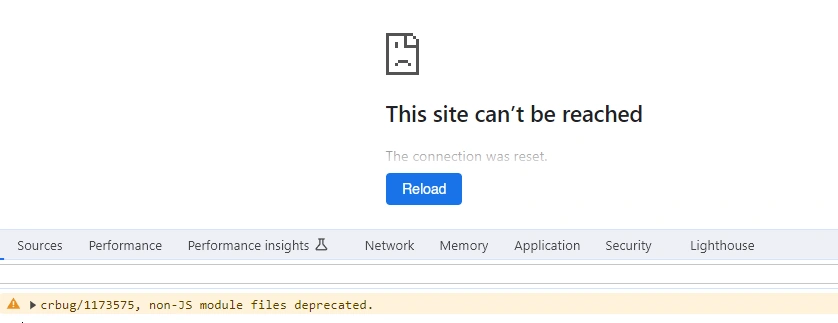
Loading
My website not opening in chrome getting (crbug/1173575, non-JS module files deprecated), When use another browser like Microsoft Edge its working perfetlly.
Know the answer? Post it — somebody with the same question will find it here.
Sign in to answer this question
It is the same account you read, post and publish with — and you will come straight back to this page.
Ajay KumarPosted Oct 11, 2023, 11:05 AM
The error message you provided, "(crbug/1173575, non-JS module files deprecated)", suggests that Chrome is encountering an issue related to non-JavaScript module files on your website. This might be caused by outdated or deprecated code that Chrome is not handling properly.
Here are a few steps you can take to troubleshoot and resolve the issue:
1. Update Chrome:
Make sure you are using the latest version of Chrome. Outdated versions of Chrome can have bugs that are fixed in newer releases.
2. Check Browser Console:
Open Chrome Developer Tools by pressing F12 or Ctrl+Shift+I, then go to the "Console" tab. Check if there are any specific error messages or warnings related to your website. These messages can provide more detailed information about the issue.
3. Review Deprecated Code:
Review your website's code, especially non-JavaScript module files, for deprecated or outdated syntax. Update your code to use modern standards and avoid deprecated features.
4. Use JavaScript Modules:
If your website is using JavaScript, consider organizing your code into modules. Use import and export statements to manage dependencies between different JavaScript files. This can help in resolving compatibility issues with modern browsers.
5. Check Browser Extensions:
Disable all Chrome extensions and check if the issue persists. Sometimes, browser extensions can interfere with website functionality.
6. Clear Browser Cache and Cookies:
Cached files or cookies might be causing conflicts. Clear your browser's cache and cookies to ensure you are loading the latest version of your website.
7. Test in Incognito Mode:
Open your website in Chrome's incognito mode (Ctrl+Shift+N). Incognito mode runs the browser without extensions, which can help identify if an extension is causing the problem.
8. Check for Content Security Policy (CSP) Issues:
If your website uses CSP, ensure that it is properly configured and not blocking necessary resources. Check the browser console for any CSP violation reports.
9. Update Server Configuration:
If you are using server-side technologies, ensure your server configuration is up-to-date and compatible with modern browsers.
10. Consult Developer Community:
If the issue persists, consider posting your problem on developer forums or communities specific to web development. Developers and experts in these communities might have encountered similar issues and can provide specific guidance.
By following these steps, you should be able to identify and resolve the issue causing your website to not work properly in Chrome.