

This is a sample article, as I have seen many asking regarding how to work with panels I will just show you a sample
In this article I would like to share with you how you can load a panel corresponding to the selected node from a tree view.
I have done this by using tree view so that it is easy to understand and later you will know how to load user controls to be displayed in a panel. Only one Panel was used and was used in a clear fashion; you can add as many controls as you can and can display for a basic tree view; I have used just a label. I have seen many of them asking that they are using 3 Panels it is a bit tricky to hide the 2 remaining panels and showing a panel. So better go through the example so that you can know how to use a single panel instead of having multiple panels.
Controls Used
Tree view, Panel, User controls.
First, place a tree view and a Panel on the form.
Create the required user controls that you need to be loaded inside the panel.
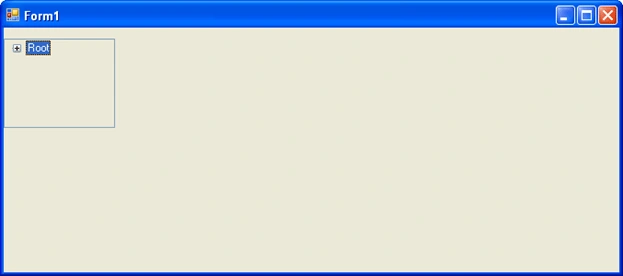
Sample Forms:
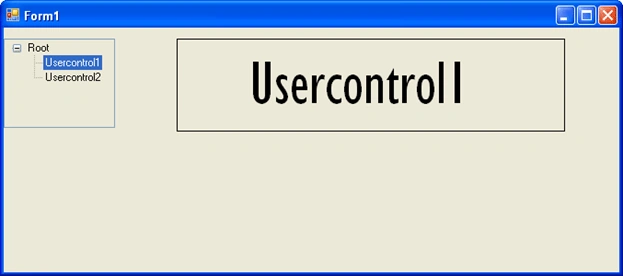
If User control1 selected
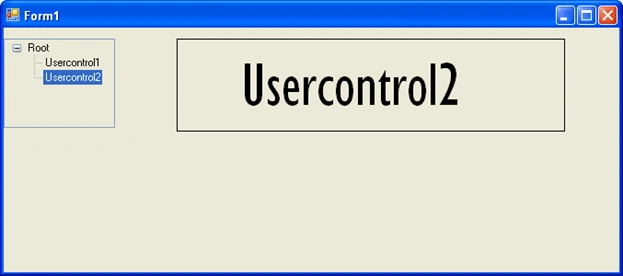
If the latter is selected
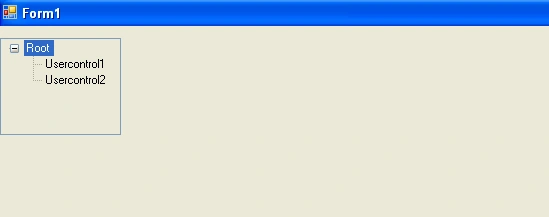
If root was selected after User controls
Code:
using System;
using System.Collections.Generic;
using System.ComponentModel;
using System.Data;
using System.Drawing;
using System.Text;
using System.Windows.Forms;
namespace Samplapp
{
public partial class Form1 : Form
{
public Form1()
Clive BixbyPosted May 11, 2011, 7:25 PM
nice and simple!