
Introduction
Typography is said to be the technique of arranging text and its design. The arrangement of type involves the selection of typefaces, point size, line length, line spacing, adjusting the spaces between groups of letters and adjusting the space between pairs of letters. WPF provides the rich-interface only with the advanced features like Text Decoration, Animations and Typography. WPF discover the rich typographic features available in both the OpenType Fonts.
The typographic features in WPF:
- Includes the better quality in terms of Quality and the Text Rendering
- Include features like bidirectional text, Unicode features
- Includes kerning and number alignment
- Capitalization of letters in words (known as Ligatures)
- Usage of custom font weights
- And the enhanced support for fonts.
Now, let's create a simple application using the following steps.
Step 1 : Open Microsoft Visual Studio 2010.
Step 2 : Select File->New->Project.
Step 3 : Select WPF Browser Application and then click Ok.
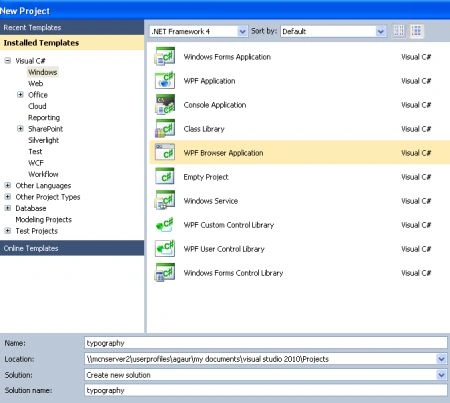
Step 4 : Now write the following code for Page1.xaml.
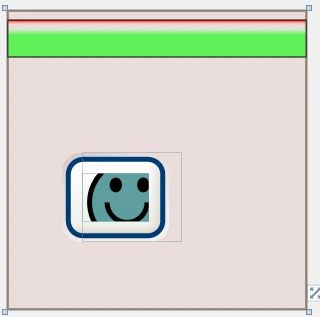
<Page x:Class="typography.Page1"
xmlns="http://schemas.microsoft.com/winfx/2006/xaml/presentation"
xmlns:x="http://schemas.microsoft.com/winfx/2006/xaml"
xmlns:mc="http://schemas.openxmlformats.org/markup-compatibility/2006"
xmlns:d="http://schemas.microsoft.com/expression/blend/2008"
mc:Ignorable="d" d:DesignHeight="300" d:DesignWidth="300" Title="Page1">
<Grid Background="#FFEBDCDC">
<Rectangle Canvas.Left="-526.614" Canvas.Top="-159.984" Height="38"
HorizontalAlignment="Stretch"
Margin="0,10,0,0" Name="Rectangle1" Stroke="Black" VerticalAlignment="Top">
<Rectangle.Fill>
<LinearGradientBrush EndPoint='0,1'>
<LinearGradientBrush.GradientStops>
<GradientStop Offset='0' Color='#FFFF0000'/>
<GradientStop Offset='.39' Color='#9900FF00'/>
<GradientStop Offset='.16' Color='#00FFFFFF'/>
</LinearGradientBrush.GradientStops>
</LinearGradientBrush>
</Rectangle.Fill>
</Rectangle>
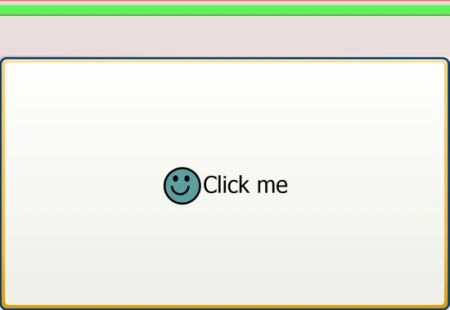
<Button Margin="55,143.75,138,68" Name="button1" Click="Button1_Click">
<Button.LayoutTransform>
<ScaleTransform ScaleX="5" ScaleY="5">
</ScaleTransform>
</Button.LayoutTransform>
<StackPanel Orientation="Horizontal">
<Canvas Width="20" Height="18" VerticalAlignment="Center">
<Ellipse Canvas.Left="1" Canvas.Top="1" Width="18" Height="18" Fill="CadetBlue"
Stroke="Black"/>
<Ellipse Canvas.Left="5.5" Canvas.Top="5" Width="2.5" Height="3" Fill="Black"/>
<Ellipse Canvas.Left="11" Canvas.Top="5" Width="2.5" Height="3" Fill="Black" />
<Path Data="M 5,10 A 3,3 0 0 0 13,10" Stroke="Black"/>
</Canvas>
<TextBlock VerticalAlignment="Center"> Click me</TextBlock>
</StackPanel>
</Button>
</Grid>
</Page>

Join the conversation! Your thoughts help the community grow.