

Introduction
You might have seen many analog clocks made in either in blend 3 or Silverlight 2/3. But the code they used to provide is very hard to follow. Here we will try to minimize the code. Actually I got fed up with the code itself tried the old school.
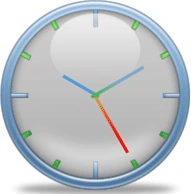
Figure 1.1 Analog Clock Widget
Steps
To begin with we need the following requirements:
-
Silverlight 3
-
Visual Studio 2008 SP1
-
Expression Blend 3
Creating a Silverlight Project with or without RIA enabled
-
Create project in Visual Studio and open the solution in Expression Blend 3.
-
The following figure will guide you for that.
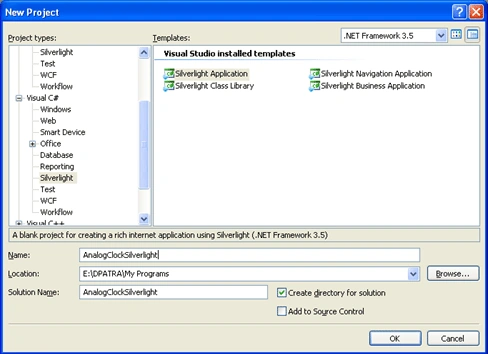
Figure 1.2 Create a new Silverlight project
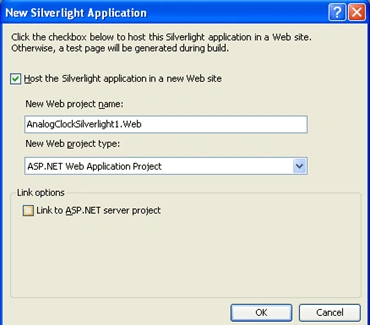
Figure 1.3 Uncheck the bottom checkbox to create the project without RIA support
Designing the User Control in Expression Blend 3
The User Control we are going to make should contain a background which matches an analog clock. I am taking a simple .png file which is looking simple.
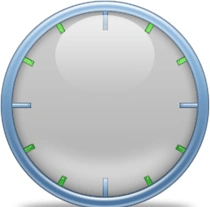
Figure 1.4 Analog Clock Background.
Now our task is to create hour hand, minute hand and second hand. We will take rectangle control and design a simple second hand; as you can see from the figure. We will further modify it to create our next two shapes that is minute hand and hour hand the below figure and XAML code will help you regarding this.
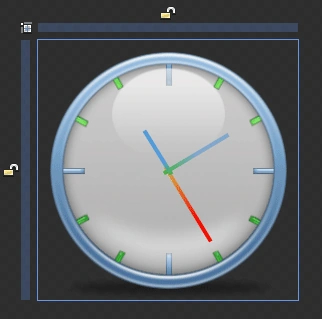
Figure 1.5 Designing the rectangular shapes.
The XAML will look like the following after all the design changes above.
- <UserControl
- xmlns="http://schemas.microsoft.com/winfx/2006/xaml/presentation"
- xmlns:x="http://schemas.microsoft.com/winfx/2006/xaml"
- xmlns:d="http://schemas.microsoft.com/expression/blend/2008" xmlns:mc="http://schemas.openxmlformats.org/markup-compatibility/2006" x:Class="AnalogClockSilverlight.MainPage"
- Width="260" Height="260" mc:Ignorable="d">
- <Grid x:Name="LayoutRoot">
- <Grid.RowDefinitions>
- <RowDefinition Height="*"/>
- </Grid.RowDefinitions>
- <Grid.ColumnDefinitions>
- <ColumnDefinition Width="*"/>
- </Grid.ColumnDefinitions>
- <Image Source="images/myClock.png" d:IsLocked="True"/>
- <Path x:Name="SecondHand" Stretch="Fill" Stroke="#00000000" Height="88" Margin="128.47,48,126.808,0" VerticalAlignment="Top" RenderTransformOrigin="0.394,0.941" Data="M0.5,0.5 L4.5,0.5 L4.5,95.5 L0.5,95.5 z" UseLayoutRounding="False" d:IsLocked="True">
- <Path.Fill>
- <LinearGradientBrush EndPoint="0.5,1" StartPoint="0.5,0">
- <GradientStop Color="#FFF80500" Offset="0.274"/>
- <GradientStop Color="#FFDBA63C" Offset="0.9"/>
- </LinearGradientBrush>
- </Path.Fill>
- <Path.RenderTransform>
- <TransformGroup>
- <RotateTransform x:Name="SecondRotate" Angle="0"/>
- </TransformGroup>
- </Path.RenderTransform>
- </Path>
- <Path x:Name="MinuteHand" Stretch="Fill" Stroke="#00000000" Height="76.25" Margin="128.331,59.75,126.669,0" VerticalAlignment="Top" RenderTransformOrigin="0.4,0.923" Data="M0.5,0.5 L4.5,0.5 L4.5,95.5 L0.5,95.5 z" UseLayoutRounding="False" d:IsLocked="True">
- <Path.Fill>
- <LinearGradientBrush EndPoint="0.5,1" StartPoint="0.5,0">
- <GradientStop Color="#FF80AACF" Offset="0.509"/>
- <GradientStop Color="#FF46B644" Offset="1"/>
- </LinearGradientBrush>
- </Path.Fill>
- <Path.RenderTransform>
- <TransformGroup>
- <RotateTransform x:Name="MinuteRotate" Angle="0"/>
- </TransformGroup>
- </Path.RenderTransform>
- </Path>
- <Path x:Name="HourHand" Stretch="Fill" Stroke="#00000000" Height="52.5" Margin="128.331,83.5,126.669,0" VerticalAlignment="Top" RenderTransformOrigin="0.4,0.889" Data="M0.5,0.5 L4.5,0.5 L4.5,95.5 L0.5,95.5 z" UseLayoutRounding="False" d:IsLocked="True">
- <Path.Fill>
- <LinearGradientBrush EndPoint="0.5,1" StartPoint="0.5,0">
- <GradientStop Color="#FF539DDE" Offset="0.73"/>
- <GradientStop Color="#FF46B644" Offset="1"/>
- <GradientStop Color="#FF47B546" Offset="1"/>
- </LinearGradientBrush>
- </Path.Fill>
- <Path.RenderTransform>
- <TransformGroup>
- <RotateTransform x:Name="HourRotate" Angle="0"/>
- </TransformGroup>
- </Path.RenderTransform>
- </Path>
- </Grid>
- </UserControl>
frankPosted Jul 10, 2010, 12:07 PM
Hi Diptimaya Patra Can you tell me what code do I need to but you clock in my Mobile phone HTC Thanks