

C# ComboBox Control
The ComboBox control provides combined functionality of a text box and a listbox in a single control. Only one list item is displayed at one time in a ComboBox and rest of the available items are loaded in a drop down list.
Creating a ComboBox
We can create a ComboBox control using a Forms designer at design-time or using the ComboBox class in C# code at run-time.
To create a ComboBox control at design-time, you simply drag and drop a ComboBox control from Toolbox to a Form in Visual Studio. After you drag and drop a ComboBox on a Form, the ComboBox looks like Figure 1.
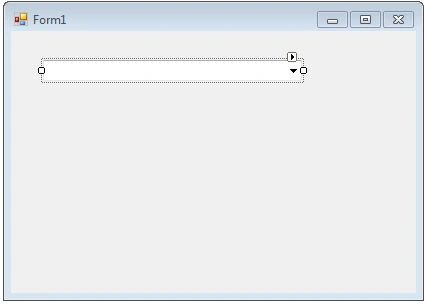
Figure 1
Once a ComboBox is on the Form, you can move it around and resize it and set its properties and events using the Properties and Events windows.
Creating a ComboBox control at run-time includes creating an instance of ComboBox class, set its properties and add ComboBox instance to the Form controls.
First step to create a dynamic ComboBox is to create an instance of ComboBox class.
The following code snippet creates a ComboBox control object.
ComboBox comboBox1 = new ComboBox();
In the next step, you set properties of a ComboBox control.
The following code snippet sets location, width, height, background color, foreground color, Text, Name, and Font properties of a ComboBox.
comboBox1.Location = new System.Drawing.Point(20, 60);
comboBox1.Name = "comboBox1";
comboBox1.Size = new System.Drawing.Size(245, 25);
comboBox1.BackColor = System.Drawing.Color.Orange;
comboBox1.ForeColor = System.Drawing.Color.Black;
Once the ComboBox control is ready with its properties, the next step is to add the ComboBox to a Form.
To do so, we use Form.Controls.Add method.
The following code snippet adds a ComboBox control to the current Form.
Controls.Add(comboBox1);
Setting ComboBox Properties
Alternatively, you can set control properites at design time. The easiest way to set properties is from the Properties Window. You can open Properties window by pressing F4 or right click on a control and select Properties menu item. The Properties window looks like Figure 2.
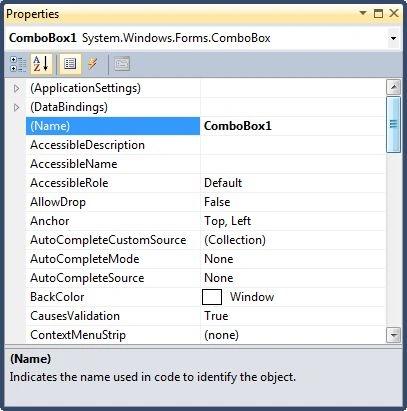
Figure 2
Name
Name property represents a unique name of a ComboBox control. It is used to access control in the code. The following code snippet sets and gets the name and text of a ComboBox control.
comboBox1.Name = "comboBox1";
Location, Height, Width and Size
The Location property is a type of Point that specifies the starting position of the ComboBox on a Form. You may also use Left and Top properties to specify the location of a control from the left top corner of the Form. The Size property specifies the size of the control. We can also use Width and Height property instead of Size property. The following code snippet sets Location, Width, and Height properties of a ComboBox control.
comboBox1.Location = New System.Drawing.Point(12, 12);
comboBox1.Size = New System.Drawing.Size(300, 25);
comboBox1.Width = 300;
comboBox1.Height = 25;
DropDownHeight and DropDownWidth
You can control the size of the dropdown area of a ComboBox. The DropDownHeight and DropDownWidth properties represent the height and width of the dropdown area in pixel respectively. If the DropDownWidth and DropDownHeight properties are less than the Width and Height values, they will not be applicable. If all the items do not fit in the size of the dropdown area, the scrollbars will appear as you can see from Figure 3.
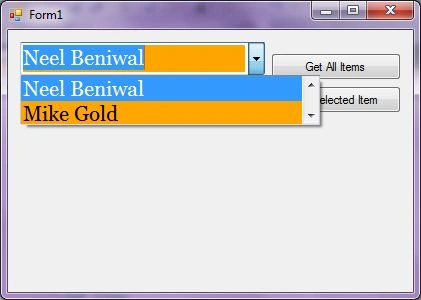
Figure 3
The following code snippet sets the height and width of the dropdown area of a ComboBox.
comboBox1.DropDownHeight = 50;
comboBox1.DropDownWidth = 300;
Font
Font property represents font of text of a ComboBox control. If you click on the Font property in Properties window, you will see Font name, size and other font options.
comboBox1.Font = new Font("Georgia", 16);
Background and Foreground
BackColor and ForeColor properties are used to set background color and foreground color of a ComboBox respectively. If you click on these properties in Properties window, the Color Dialog pops up.
Alternatively, you can set background color and foreground color at run-time. The following code snippet sets BackColor and ForeColor properties.
comboBox1.BackColor = System.Drawing.Color.Orange;
comboBox1.ForeColor = System.Drawing.Color.Black;
The new ComboBox with background and foreground looks like Figure 4.
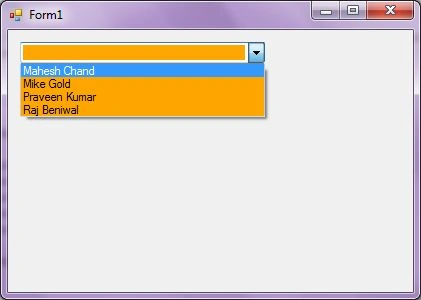
Figure 4
ComboBox Items
The Items property is used to add and access items in a ComboBox. We can add items to a ComboBox at design-time from Properties Window by clicking on Items Collection as you can see in Figure 5.
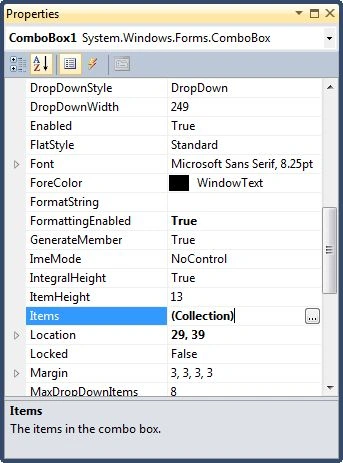
Figure 5
When you click on the Collections, the String Collection Editor window will pop up where you can type strings. Each line added to this collection will become a ComboBox item. I add four items as you can see from Figure 6.
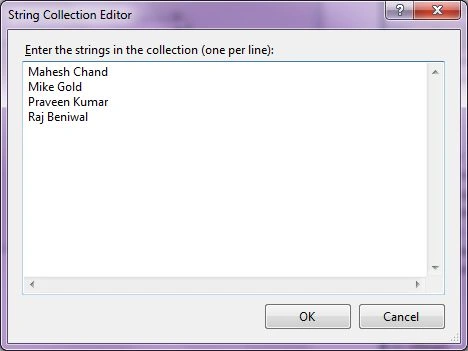
Figure 6
The ComboBox looks like Figure 7.
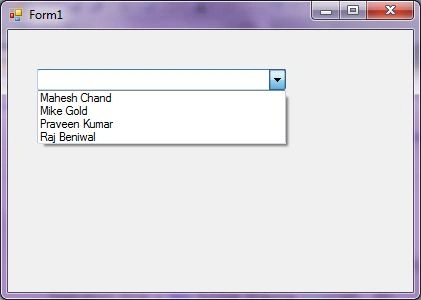
Figure 7
Alternatively, you can add same items at run-time by using the following code snippet.
comboBox1.Items.Add("Mahesh Chand");
comboBox1.Items.Add("Mike Gold");
comboBox1.Items.Add("Praveen Kumar");
comboBox1.Items.Add("Raj Beniwal");
Getting All Items
To get all items of a control, we use Items property that is a collection of items.
The following code snippet loops through all items and adds item contents to a StringBuilder and displays in a MessageBox.
private void GetItemsButton_Click(object sender, EventArgs e)
{
    StringBuilder sb = new StringBuilder();
    foreach (string name in Combo1.Items)
    {
        sb.Append(name);
        sb.Append(" ");
    }
    MessageBox.Show(sb.ToString());
}
Selected Text and Item
Text property is used to set and get text of a ComboBox. The following code snippet sets and gets current text of a ComboBox.
comboBox1.Text = "Mahesh Chand";
MessageBox.Show(comboBox1.Text);
We can also get text associated with currently selected item by using Items property.
string selectedItem = comboBox1.Items[comboBox1.SelectedIndex].ToString();
Why the value of ComboBox.SelectedText is Empty?
SelectedText property gets and sets the selected text in a ComboBox only when a ComboBox has focus on it. If the focus moves away from a ComboBox, the value of SelectedText will be an empty string. To get current text in a ComboBox when it does not have focus, use Text property.
DataSource
A ComboBox can be used to bind to a collection of items. DataSource property is used to get and set a data source to a ComboBox. The data source can be a collection or object that implements IList interface such as an array, a collection, or a DataSet.
The following code snippet binds an enumeration converted to an array to a ComboBox.
comboBox1.DataSource = System.Enum.GetValues(typeof(ComboBoxStyle));
DropDownStyle
DropDownStyle property is used to gets and sets the style of a ComboBox. It is a type of ComboBoxStyle enumeration.
The ComboBoxStyle enumeration has following three values.
- Simple - List is always visible and the text portion is editable.
- DropDown – List is displayed by clicking the down arrow and that the text portion is editable.
- DropDownList - List is displayed by clicking the down arrow and that the text portion is not editable.
The following code snippet sets the DropDownStyle property of a ComboBox to DropDownList.
comboBox1.DropDownStyle = ComboBoxStyle.DropDownList;
DroppedDown
If set true, the dropped down portion of the ComboBox is displayed. By default, this value is false.
Sorting Items
The Sorted property set to true, the ComboBox items are sorted. The following code snippet sorts the ComboBox items.
comboBox1.Sorted = true;
Find Items
FindString method is used to find a string or substring in a ComboBox. The following code snippet finds a string in a ComboBox and selects it if found.
private void FindButton_Click(object sender, EventArgs e)
{
   int index = comboBox1.FindString(textBox1.Text);
   if (index < 0)
   {
      MessageBox.Show("Item not found.");
      textBox1.Text = String.Empty;
   }
   else
   {
      comboBox1.SelectedIndex = index;
   }
}
ComboBox SelectedIndexChanged Event Hander
CheckedChanged and CheckStateChanged are two important events for a ComboBox control. The CheckedChanged event occurs when the value of the Checked property changes. The CheckStateChanged event occurs when the value of the CheckState property changes.
To add these event handlers, you go to Events window and double click on CheckedChanged and CheckedStateChanged events as you can see in Figure 8.
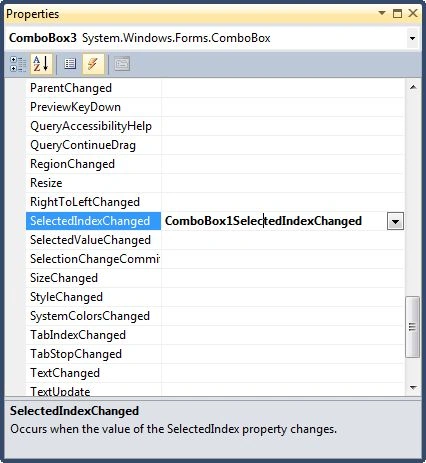
Figure 8
The following code snippet defines and implements these events and their respective event handlers.
comboBox1.SelectedIndexChanged += new System.EventHandler(ComboBox1_SelectedIndexChanged);
private void ComboBox1_SelectedIndexChanged(object sender,System.EventArgs e)
{
   MessageBox.Show(comboBox1.Text);
}
Summary
In this article, we discussed discuss how to create a ComboBox control in Windows Forms at design-time as well as run-time. After that, we discussed how to use its various properties and methods to build real world applications.
Aniket Niranjan MishraPosted Jun 3, 2020, 3:30 AM
Very helpful tutorial, keep it up
Rushi MehtaPosted Jan 25, 2019, 4:15 AM
Awesome Tutorial
Dharmendra Kumar PanditPosted Jan 24, 2019, 11:33 PM
Easy to understand this explanation.
Rushi MehtaPosted Aug 16, 2018, 11:26 PM
Very Nicely Explained
Hadshana KamalanathanPosted Aug 16, 2018, 12:57 AM
Nice explained
maha lakshmiPosted Aug 13, 2018, 8:19 PM
Thanks for sharing
Guest UserPosted Aug 13, 2018, 8:15 PM
Thanks for sharing
Sandey ChePosted May 23, 2014, 7:55 AM
hi i have taken 3 combo boxes in windows forms application .all 3 boxes contain same items.but i want is when i selected item in the combox is removed from remaining 2boxes. and selected in combx2 is removed from com box 3.please send code to me at "[email protected]"
Ehtesham MehmoodPosted Mar 5, 2014, 3:38 AM
Awsome Tutorial !
miguel hernandezPosted Jun 18, 2013, 10:53 PM
hello, how to refresh a combobox whe i add more data in the database, please, and thanks
manish rohillaPosted Oct 7, 2012, 8:46 PM
i have a three string value in a combobox and each string have a seperate panel all panel visibilty is false . and i want if selected one of the three string then its corresponding panel will show and if i change this value then previous panel visibility get false and new panel visibility gets true . i am trying many tym dont understand how to do.
hollyPosted May 6, 2012, 10:46 PM
ok this explains a lot but still leaves me with a few problems for a calculator i'm making i have a combo box that has the numbers 26-100 and each number has a multiplier for that said number (example. 26 and the multiplier is 2.197000) how would i write the code so that when the number 26 is selected 2.197000 is displayed on a label?
sandeep agarwaleditedPosted May 3, 2012, 6:00 AMEdited May 3, 2012, 6:01 AM
I LIKE THE post very much it has solved my all problems related to combo box and its scroll Specially the Wirdth and Height option to display the larger text values within the combobox Thanks a lot!
Muhammad Mubeen MushtaqPosted Feb 12, 2012, 6:07 AM
if i add 30 items or web addresses in combo box item list and i wish that each item change automatically after 10 sec how can i do that?for example i add www.google.com,www.youtube.com,www.yahoo.com in item list of a combo box for a web browser i want when i run my project www.google.com navigate and after 10 sec 2nd item selected(www.youtube.com) automatically and after 10 sec 3rd item (www.yahoo.com) selected and navigate automatically...and in the last the first item(www.google.com) select again...and so on.....
ravi shankarPosted Jan 18, 2012, 5:57 AM
How to insert "select" option in combo box in windows application default this value is 0 ?
mohan kumarPosted Oct 18, 2011, 6:43 AM
Nice article for beginners....keep it up Mahesh...
Mike JonsonPosted Jul 18, 2011, 4:44 PM
Thanks, very good information.
snehal gawariPosted May 11, 2011, 6:38 AM
how to select one combobox based on another combobox, suppose cities based on states
naveeneditedPosted Sep 1, 2010, 9:50 AMEdited Sep 1, 2010, 9:52 AM
Hello sir , i tried to display selected text in the combo box after creating dynamic button , combo1.SelectedIndexChanged += new EventHandler(comboBOX1_SelectedIndexChanged); private void comboBOX1_SelectedIndexChanged(object sender, EventArgs e) { if (combo1.SelectedIndex != -1) { MessageBox.Show("You have clicked" + combo1.SelectedText); } } here in this Event ,it shows combo1 does not exist,i even tried to declare as - Public void createComboBox() where i created this dynamic combo box but still same problem,that error " como1 does not exist in current document " thanks in advance Naveen ....