

Silverlight TextBlock Control
A TextBlock control in .NET 3.5 provides a lightweight control for displaying small amounts of flow content. This tutorial demonstrates how to create and use a TextBlock control in Silverlight using XAML and C#.
Creating a TextBlock
The TextBlock element represents a Silverlight TextBlock control in XAML.
<TextBlock/>
The Width and Height attributes of the TextBlock element represent the width and the height of a TextBlock. The Text property of the TextBlock element represents the content of a TextBlock. The x:Name attribute represents the name of the control, which is a unique identifier of a control. The Foreground property sets the foreground color of contents. This control does not have a Background property.
The code snippet in Listing 1 creates a TextBlock control and sets the name, height, width, foreground and content of a TextBlock control. Unlike a TextBox control, the TextBlock does not have a default border around it.
<TextBlock x:Name="TextBlock1" Height="30" Width="200"
Text="Hello! I am a TextBlock." Foreground="Red">
</TextBlock>
Listing 1
The output looks like Figure 1.

Figure 1
As you can see from Figure 1, by default the TextBlock is place in the center of the page. We can place a TextBlock control where we want by using the Margin, VerticalAlignment and HorizontalAlignment attributes that sets the margin, vertical alignment, and horizontal alignment of a control.
The code snippet in Listing 2 sets the position of the TextBlock control in the left top corner of the page.
<TextBlock x:Name="TextBlock1" Height="30" Width="200"
Text="Hello! I am a TextBlock."
Margin="10,10,0,0" VerticalAlignment="Top"
HorizontalAlignment="Left">
</TextBlock>
Listing 2
Creating a TextBlock Dynamically
The code listed in Listing 3 creates a TextBlock control programmatically. First, it creates a TextBlock object and sets its width, height, contents and foreground and later the TextBlock is added to the LayoutRoot.
private void CreateATextBlock()
{
TextBlock txtBlock = new TextBlock();
txtBlock.Height = 50;
txtBlock.Width = 200;
txtBlock.Text = "Text Box content";
txtBlock.Foreground = new SolidColorBrush(Colors.Red);
LayoutRoot.Children.Add(txtBlock);
}
Listing 3
Setting Fonts of TextBlock Contents
The FontSize, FontFamily, FontWeight, FontStyle, and FontStretch properties are used to set the font size, family, weight, style and stretch to the text of a TextBlock. The code snippet in Listing 4 sets the font properties of a TextBlock.
FontSize="14" FontFamily="Verdana" FontWeight="Bold"
Listing 4
The new output looks like Figure 2.

Figure 2
The FontSource property allows loading custom fonts dynamically. The following code snippet sets the FontSource property.
Uri fontUri = new Uri("SomeFont.ttf", UriKind.Relative);
StreamResourceInfo MySRI = Application.GetResourceStream(fontUri);TextBlock1.FontSource = new FontSource(MySRI.Stream);
Wrapping, Alignment and Padding
The TextWrapping property sets the wrap of no warp text. The following code snippet sets the wrapping text option.
TextWrapping="Wrap"
The TextAlignment property sets the text alignment in a TextBlock, which is of type TextAlignment enumeration. A text can be aligned left, center, or right.
TextAlignment="Right"
The Padding property sets the space between a boundary and the text that can be applied to all sides or a selected side of the boundary. The padding spacing is based on left, right, top, and bottom. If you specify only a single value, the padding will be applied to all four sides and if you specify two values, it will be applied to LeftTop and BottomRight sides.
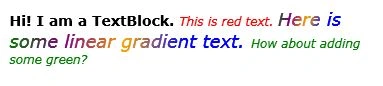
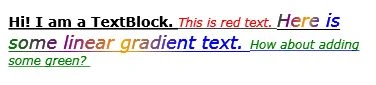
Listing 5 shows all these properties in a complete sample.
Join the conversation! Your thoughts help the community grow.