

This article will show you how to fetch and show data from database using ADO.NET Entity Data Model in WPF. What is ADO.NET Entity Data Model? When one takes a look at the amount of code that the average application developer must write to address the impedance mismatch across various data representations (for example objects and relational stores) it is clear that there is an opportunity for improvement. Indeed, there are many scenarios where the right framework can empower an application developer to focus on the needs of the application as opposed to the complexities of bridging disparate data representations.
A primary goal of the upcoming version of ADO.NET is to raise the level of abstraction for data programming, thus helping to eliminate the impedance mismatch between data models and between languages that application developers would otherwise have to deal with. Two innovations that make this move possible are Language-Integrated Query and the ADO.NET Entity Framework. The Entity Framework exists as a new part of the ADO.NET family of technologies. ADO.NET will LINQ-enable many data access components: LINQ to SQL, LINQ to DataSet and LINQ to Entities.
Getting Started:
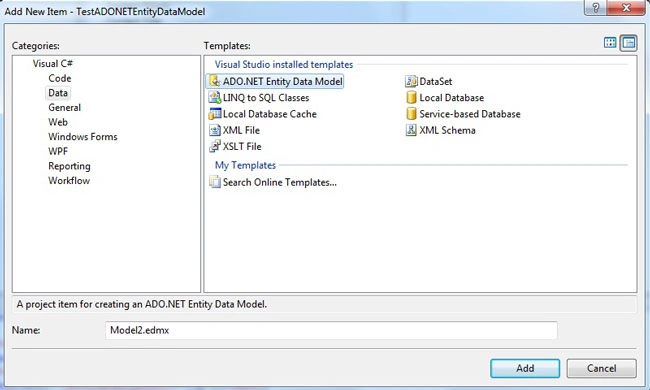
First of all add a new ADO.NET Entity Data Model template.
Figure1.
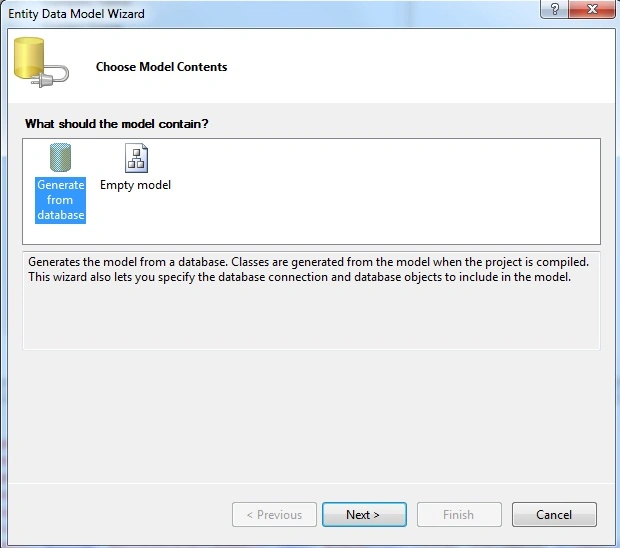
Choose your model contents.
Figure2.
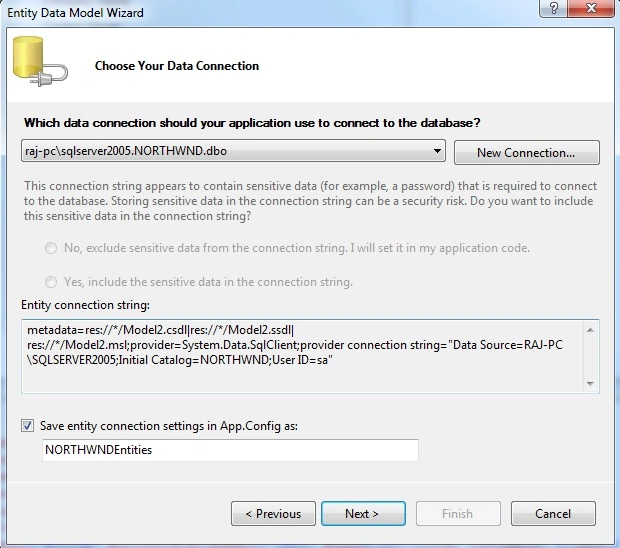
Select data connection if already made otherwise make a new connection step by step.
Figure3.
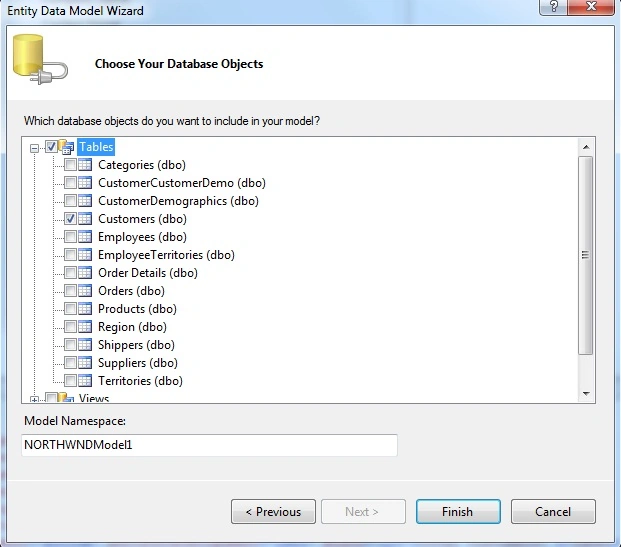
Select database object whatever you want use.
Figure4.
Finally it has .edmx extension that will look like this, here you can update name if you want.
Figure5.
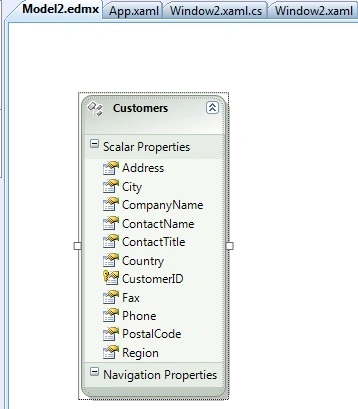
Now let's start work on window or page if you want show data in data grid then you have to add refrence of WPF toolkit (in VisualStudio2008 only). Then you have to add namespace on top of window like this:
xmlns:dataGrid=http://schemas.microsoft.com/wpf/2008/toolkit
here is my data grid.
<Grid>
<dataGrid:DataGrid AutoGenerateColumns="True" x:Name="MyGrid"></dataGrid:DataGrid>
</Grid>
public partial class Window2 : Window
{
NORTHWNDEntities2 cd;
public Window2()
{
InitializeComponent();
}
private void Window_Loaded(object sender, RoutedEventArgs e)
{
cd = new NORTHWNDEntities2();
IEnumerable<Customers> customers = (from p in cd.Customers select p).Take(20);
MyGrid.ItemsSource = customers;
}
}
Output will be like this:
Figure6.
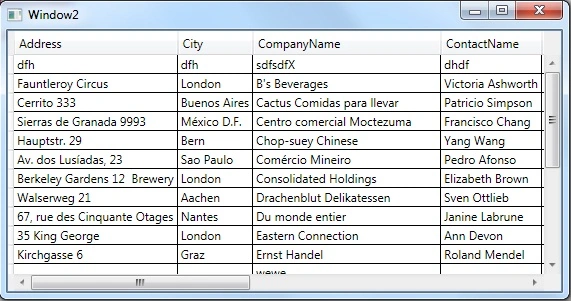
You can set your startup page name App.xaml file.
<Application x:Class="TestADONETEntityDataModel.App"
xmlns="http://schemas.microsoft.com/winfx/2006/xaml/presentation"
xmlns:x="http://schemas.microsoft.com/winfx/2006/xaml"
StartupUri="Window2.xaml">
<Application.Resources>
</Application.Resources>
</Application>
If you want show you data in other controls like labels
<Grid>
<Label Height="28" Margin="19,31,139,0" Name="label1" VerticalAlignment="Top">Company Name: </Label>
<Label Height="28" Margin="125,31,33,0" Name="CompanyNamelabel" VerticalAlignment="Top"></Label>
<Label Height="28" Margin="19,56,139,0" Name="label2" VerticalAlignment="Top">Contact Name: </Label>
<Label Height="28" Margin="125,56,33,0" Name="ContactNamelabel" VerticalAlignment="Top"></Label>
<Label Height="28" Margin="19,7,0,0" Name="CustomerID" VerticalAlignment="Top" HorizontalAlignment="Left" Width="320">Customer ID</Label>
<Label Height="28" Margin="125,7,33,0" Name="CustomerIDLabel" VerticalAlignment="Top"></Label>
<Label Height="28" Margin="12,0,0,56" Name="label3" VerticalAlignment="Bottom" HorizontalAlignment="Left" Width="120">Total Customers: </Label>
<Label Height="28" Margin="125,0,33,56" Name="Countlabel" VerticalAlignment="Bottom"></Label>
<Label Height="28" HorizontalAlignment="Left" Margin="19,75,0,0" Name="label4" VerticalAlignment="Top" Width="120">Contact Title: </Label>
<Label Height="28" HorizontalAlignment="Left" Margin="19,98,0,0" Name="label5" VerticalAlignment="Top" Width="120">Country: </Label>
<Label Height="28" HorizontalAlignment="Left" Margin="19,117,0,0" Name="label6" VerticalAlignment="Top" Width="120">Address: </Label>
<Label Height="28" HorizontalAlignment="Left" Margin="19,142,0,0" Name="label7" VerticalAlignment="Top" Width="120">City: </Label>
<Label Height="28" HorizontalAlignment="Left" Margin="19,167,0,0" Name="label8" VerticalAlignment="Top" Width="120">Region: </Label>
<Label Height="28" Margin="125,75,233,0" Name="ContactTitlelabel" VerticalAlignment="Top"></Label>
<Label Height="28" Margin="125,99,233,0" Name="Countrylabel" VerticalAlignment="Top"></Label>
<Label Height="28" Margin="125,117,233,0" Name="Addresslabel" VerticalAlignment="Top"></Label>
<Label Height="28" Margin="125,142,233,0" Name="Citylabel" VerticalAlignment="Top"></Label>
<Label Margin="125,167,233,167" Name="Regionlabel"></Label>
</Grid>
Class code:
public partial class Window1 : Window
{
NORTHWNDEntities2 ce;
List<Customers> customersList;
int currentCustomerIndex = 0;
public Window1()
{
InitializeComponent();
}
private void Window_Loaded(object sender, RoutedEventArgs e)
{
ce = new NORTHWNDEntities2();
customersList = new List<Customers>();
IEnumerable<Customers> customerQuery = from ar in ce.Customers select ar;
customersList = customerQuery.ToList();
PopulateFields();
}
private void PopulateFields()
{
Customers currentCustomer = customersList[currentCustomerIndex];
if (currentCustomer != null)
{
CustomerIDLabel.Content = currentCustomer.CustomerID.ToString();
CompanyNamelabel.Content = currentCustomer.CompanyName;
ContactNamelabel.Content = currentCustomer.ContactName;
Countlabel.Content = customersList.Count.ToString();
ContactTitlelabel.Content = currentCustomer.ContactTitle;
Addresslabel.Content = currentCustomer.Address;
Citylabel.Content = currentCustomer.City;
Regionlabel.Content = currentCustomer.Region;
Countrylabel.Content = currentCustomer.Country;
}
else
{
CustomerIDLabel.Content = "N/A";
CompanyNamelabel.Content = "N/A";
ContactNamelabel.Content = "N/A";
Countlabel.Content = "0";
ContactTitlelabel.Content = "N/A";
Addresslabel.Content = "N/A";
Citylabel.Content = "N/A";
Regionlabel.Content = "N/A";
Countrylabel.Content = "N/A";
}
}
}
Output will look like this:
Figure7.
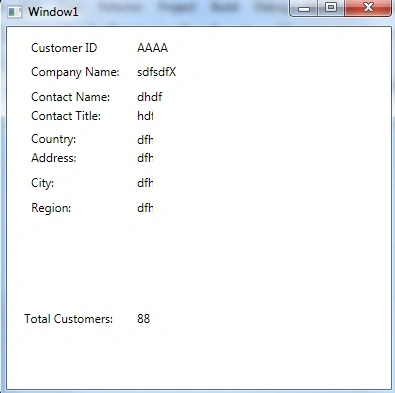
For more information download attached project, if you have any question and confusion drop me a mail or comment in C# corner comment section.
Josh PharisPosted Jul 9, 2013, 11:05 AM
I realize this is fairly old, but I'm really hoping someone might still monitor this. I am trying to add a connection to a SQL table in a WPF Browser App using the Entity Data Modeler. My project will build just fine, but as soon as I add the ADO.NET Entity Data Model, I get the error "The type name 'App' does not exist in the type 'ServiceRequest.ServiceRequest'." This error comes from the auto-generated file app.g.cs. I even tried a brand new WPF Browser App with nothing changed, and the same thing happens. I checked the app.g.cs file before and after adding the data source, and it is identical. How can this file be causing an error when nothing changed in it?
danny drorPosted Nov 11, 2009, 4:35 AM
thanks man, this is quite helpful! --------------------------- Danny, Los Angeles Locksmith