

Introduction
Provider Design Pattern is a new pattern that Microsoft formalized in ASP.NET Whidbey. The pattern was officially named in the summer of 2002 when Microsoft was designing Whidbey's new Personalization feature.
Benefits
-
No need to explicitly instantiate classes. The .NET framework will automatically manage class instantiation, including re-using classes that have already been instantiated. This will greatly improve the memory management of your application.
-
Switching data sources is much easier. Changing the source of data for your application from the current database to any database, whether SQL Server, Oracle, XML, or other, is a simple as replacing your existing concrete (implementer) class with a new concrete (implementer) class and inheriting from your provider class. That is all. Your presentation and business logic layers remain unchanged, thereby reducing effort required to switch data sources and the amount of regression testing required thereafter.
-
Learning the Provider Design concept will make it very easy to customize built-in .NET framework providers.
Note:
Our solution will have 3 projects
-
ASP.NET project (agds).
-
Business Logic project (BusinessLogicLayer).
-
Data Access project (DataAccessLayer).
Go to the Visual Studio 2005 start page, choose "Create Website" and name the project agds. Go back to the start page, choose "Create Project", choose "Class Library", name the project BusinessLogicLayer and make sure you select Add into Existing Solution. Go back to the start page, choose "Create Project", choose "Class Library", name the project DataAccessLayer and make sure you select Add into Existing Solution.
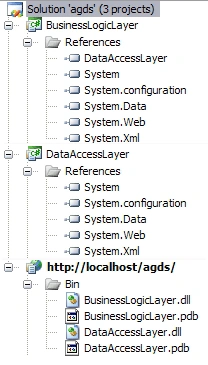
Right-click "agds" project, choose Add Reference, choose "Projects" tab, select "BusinessLogicLayer" and click Add.
Right-click "BusinessLogicLayer" project, choose Add Reference, choose "Projects" tab, select "DataAccessLayer" and click Add.
We need to Add Reference to the below framework DLLs for both the BusinessLogicLayer and DataAccessLayer.
-
System.Web
-
System.Configuration
Right-click each of above mentioned projects, choose Add Reference and choose .NET tab. Find the above two system DLLs and add them to the above projects. <configuration> <configSections> <sectionGroup name="GroupSection"> <section name="General" type="" /> <section name="" type="" /> </sectionGroup> </configSections> <GroupSection> <General> <providers> <add name="" type="" connectionStringName="SqlConnection" /> </providers> </General> </GroupSection> <connectionStrings> <add name="SqlConnection" connectionString="sql_connection_string" /> </connectionStrings> <?xml version="1.0"?> <configuration> <configSections> <sectionGroup name="GroupSection"> <section name="General" type="DataAccessLayer.SectionConfig, DataAccessLayer" /> </sectionGroup> </configSections> <GroupSection> <General> <providers> <add name="SqlGeneral" type="DataAccessLayer.SqlGeneralProvider, DataAccessLayer" connectionStringName="SqlConnection" /> </providers> </General> </GroupSection> <connectionStrings> <add name="SqlConnection" connectionString="sql_connection_string" /> </connectionStrings> <appSettings/> <system.web> <compilation debug="true"/> </system.web> </configuration> using System.Configuration; namespace DataAccessLayer { public class SectionConfig : ConfigurationSection { [ConfigurationProperty("providers")] public ProviderSettingsCollection Providers { get { return (ProviderSettingsCollection)base["providers"]; } } } } using System.Configuration.Provider; namespace DataAccessLayer { public class ProviderList : ProviderCollection { public override void Add(ProviderBase provider) { if (provider == null)throw new ArgumentNullException("The provider parameter cannot be null."); base.Add(provider); } } }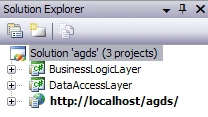
We will start setting up Web.config first:
Through a special class called "ConfigurationSection", ASP.NET 2.0 has defined several new XML nodes to make the reading easier of a particular section or group of nodes within a config file. Notice the name attributes and corresponding nodes with similar color:
</configuration>
Open agds project, add Web.config file and replace the content with below
We will explain Web.config later; for now we need to create a class that inherits from "ConfigurationSection" in order to be able to read Web.config settings.
Note: From now on we will focus on the "DataAccessLayer" project to complete our provider model. Open the "DataAccessLayer" project, delete the default class1 and add a new class file and name it "SectionConfig.cs". Add the below code into this class:
using
Add a new class and name it "ProviderList.cs". Add the below code into this class:
using System;
Now our "DataAccessLayer" project has the necessary classes for all providers to be later developed.
Here is the blue print on how we create our provider model:
BaseProvider --> xxxProvider --> SQLxxxProvider
xxx is the name of entity.
For example
CommerceProvider --> SQLCommerceProvider
Note: CommerceProvider inherits from BaseProvider.
Suppose agds is a midsize business and the agds website contains 3 major sections:
-
General Activities: Saving the website's various general forms into the database, displaying the general data through various pages, etc.
-
E-Commerce: Selling products online.
-
Customer Service: Tagging customer inquiries regarding eCommerce products, forward inquiries to appropriate departments, responding back to customer inquiries, etc.
We are going to develop:
-
A provider for General Activities.
-
A provider for Commerce which has two implementations: One implementation for using a SQL server database and another implementation for using an Oracle database.
-
A provider for Customer Service.
We will start with the General Activities provider. using System.Configuration.Provider; using System.Configuration; using System.Web.Configuration; namespace DataAccessLayer { public class InitGeneral { protected static bool isInitialized = false; static InitGeneral() { Initialize(); } private static void Initialize() { SectionConfig qc = (SectionConfig)ConfigurationManager.GetSection("GroupSection/General"); providerCollection = new ProviderList(); ProvidersHelper.InstantiateProviders(qc.Providers, providerCollection, typeof(GeneralProvider)); providerCollection.SetReadOnly(); isInitialized = true; //error-free initialization } //Public feature API private static ProviderList providerCollection; public static ProviderList Providers { get { return providerCollection; } } } //////////////////////////////////////////////////////////// // Define all methods below public abstract class GeneralProvider : ProviderBase { public abstract string GetDataGeneral(); } }
Add a new class and name it "GeneralProvider.cs". Add the below code into this class.
using System;
"InitGeneral" is responsible for instantiating our concrete (implementer) class (SqlGeneralProvider.cs), which has been defined within Web.config.
(SectionConfig)ConfigurationManager.GetSection("GroupSection/General");
providerCollection = new ProviderList();
ProvidersHelper.InstantiateProviders(qc.Providers,
providerCollection, typeof(GeneralProvider));
The above code uses "SectionConfig" class to read all providers defined within Web.config. using System.Configuration; using System.Configuration.Provider; namespace DataAccessLayer { public class SqlGeneralProvider : GeneralProvider { private String connectionString; public override void Initialize(string name, System.Collections.Specialized.NameValueCollection config) { //Let ProviderBase perform the basic initialization base.Initialize(name, config); string connectionStringName = config["connectionStringName"]; ConnectionStringsSection cs = (ConnectionStringsSection)ConfigurationManager.GetSection("connectionStrings") ; connectionString = cs.ConnectionStrings[connectionStringName].ConnectionString; config.Remove("connectionStringName"); } //////////////////////////////////////////////////////////// // Implement all methods below public override string GetDataGeneral() { //for samplicity to understand provider model better, we don't // access database and return result. return "SQL Data for GENERAL" + "<br> " + connectionString; } } } <section name="Commerce" type="DataAccessLayer.SectionConfig, DataAccessLayer" />
GetSection("GroupSection/General");
The above line returns all providers defined within <General></General> node of Web.config, adds them into the provider collection, and instantiates our "GeneralProvider.cs" class, which is inherited by the "SqlGeneralProvider.cs" class.
Here is the web.config:
The above "GeneralProvider" abstract class is the class where we will define all abstract methods to be used/overridden by the "SqlGeneralProvider.cs" class.
Add a new class file and name it "SqlGeneralProvider.cs". Add the below code into this class.
using System;
Note: "private String connectionString" reads the connection string for this particular provider and makes it available for accessing databases to methods of this class. Here is how your DataAccessLayer project should look like when you are done: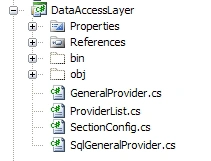
Next, we will create Commerce provider which has two implementations: One implementation for using SQL Server database and another implementation for using Oracle database.
First update Web.config by adding the below node:
Then also add:
<GroupSection> </GroupSection> <Commerce> <providers> <add name="SqlCommerce" type="DataAccessLayer.SqlCommerceProvider, DataAccessLayer" connectionStringName="SqlConnection" /> <add name="OracleCommerce" type="DataAccessLayer.OracleCommerceProvider, DataAccessLayer" connectionStringName="OracleConnection" /> </providers> </Commerce> public class InitGeneral TO public class InitCommerce GetSection("GroupSection/General") TO GetSection("GroupSection/Commerce") ProvidersHelper.InstantiateProviders(qc.Providers, providerCollection, typeof(GeneralProvider)); TO ProvidersHelper.InstantiateProviders(qc.Providers, providerCollection, typeof(CommerceProvider)); public abstract class GeneralProvider : ProviderBase TO public abstract class CommerceProvider : ProviderBase public abstract string GetDataGeneral() TO public abstract string GetDataCommerce()
Open the "DataAccessLayer" project, copy "GeneralProvider.cs" and paste back into this project, and rename the copy to "CommerceProvider.cs".
Double-click "CommerceProvider.cs" and update to match the following:
You are done here.
Commerce SQL implementation:
Copy "SqlGeneralProvider.cs" and paste it back into this project, and rename it to 'SqlCommerceProvider.cs".
Double-click on "SqlCommerceProvider.cs" and change the followings: public class SqlGeneralProvider : GeneralProvider TO public class SqlCommerceProvider : CommerceProvider public override string GetDataGeneral() TO public override string GetDataCommerce() return "SQL Data for GENERAL" + "<br> " + connectionString TO return "SQL Data for COMMERCE" + "<br> " + connectionString
You are done here.
Copy "SqlGeneralProvider.cs" and paste it back into this project, and rename it to "OracleCommerceProvider.cs".
Double-click on "OracleCommerceProvider.cs" and change the followings: public class SqlGeneralProvider : GeneralProvider TO public class OracleCommerceProvider : CommerceProvider public override string GetDataGeneral() TO public override string GetDataCommerce() return "SQL Data for GENERAL" + "<br> " + connectionString TO return "ORACLE Data for COMMERCE" + "<br> " + connectionString
You are done here.
Add below node to Web.config:
<sectionGroup name="GroupSection"> </sectionGroup> <section name="CustomerService" type="DataAccessLayer.SectionConfig, DataAccessLayer" />
Then also add:
<GroupSection> </GroupSection> <CustomerService> <providers> <add name="SqlCustomerService" type="DataAccessLayer.SqlCustSveProvider, DataAccessLayer" connectionStringName="SqlConnection" /> </providers> </CustomerService>
Double-click "CustSveProvider.cs" and change the followings: GetSection("GroupSection/General") TO GetSection("GroupSection/CustomerService") ProvidersHelper.InstantiateProviders(qc.Providers, providerCollection, typeof(GeneralProvider)); TO ProvidersHelper.InstantiateProviders(qc.Providers, providerCollection, typeof(CustSveProvider)); public abstract class GeneralProvider : ProviderBase TO public abstract class CustSveProvider : ProviderBase public abstract string GetDataGeneral() TO public abstract string GetDataSqlCustSve()
public class InitGeneral TO public class InitCustomerService
You are done here.
Copy "SqlGeneralProvider.cs", paste it back into this project, and rename it to "SqlCustSveProvider.cs".
Double-click on "SqlCustSveProvider.cs" and change the followings: public class SqlGeneralProvider : GeneralProvider TO public class SqlCustSveProvider : CustSveProvider public override string GetDataGeneral() TO public override string GetDataSqlCustSve() return "SQL Data for GENERAL" + "<br> " + connectionString TO return "SQL Data for CUSTOMER SERVICE" + "<br> " + connectionString <?xml version="1.0"?> <configuration> <configSections> <sectionGroup name="GroupSection"> <section name="General" type="DataAccessLayer.SectionConfig, DataAccessLayer" /> <section name="Commerce" type="DataAccessLayer.SectionConfig, DataAccessLayer" /> <section name="CustomerService" type="DataAccessLayer.SectionConfig, DataAccessLayer" /> </sectionGroup> </configSections> <GroupSection> <General> <providers> <add name="SqlGeneral" type="DataAccessLayer.SqlGeneralProvider, DataAccessLayer" connectionStringName="SqlConnection" /> </providers> </General> <Commerce> <providers> <add name="SqlCommerce" type="DataAccessLayer.SqlCommerceProvider, DataAccessLayer" connectionStringName="SqlConnection" /> <add name="OracleCommerce" type="DataAccessLayer.OracleCommerceProvider, DataAccessLayer" connectionStringName="OracleConnection" /> </providers> </Commerce> <CustomerService> <providers> <add name="SqlCustomerService" type="DataAccessLayer.SqlCustSveProvider, DataAccessLayer" connectionStringName="SqlConnection" /> </providers> </CustomerService> </GroupSection> <connectionStrings> <add name="SqlConnection" connectionString="sql_connection_string" /> <add name="OracleConnection" connectionString="oracle_connection_string" /> </connectionStrings> <appSettings/> <system.web> <compilation debug="true"/> </system.web> </configuration> using System; using System.Collections.Generic; using System.Text; using System.Web; namespace BusinessLogicLayer { public abstract class Helper { protected static string CurrentUserIP { get { return HttpContext.Current.Request.UserHostAddress; } } } // Add more methods/properties below } using System; using System.Collections.Generic; using System.Text; namespace BusinessLogicLayer { public abstract class General:Helper { public static string GetGeneralData() { // Here is how we access this provider DataAccessLayer.GeneralProvider SqlGeneral = (DataAccessLayer.GeneralProvider)DataAccessLayer.InitGeneral.Providers["SqlGen eral"]; // You can use helper to provide common info./data needed OR to // massage or add more info. to your data before sending it to // presentation. // Here we use helper class to get CurrentUserIP and pass it along // with data to presentation. return SqlGeneral.GetDataGeneral() + "<br> Current IP address: " + CurrentUserIP.ToString(); } } } using System; using System.Collections.Generic; using System.Text; namespace BusinessLogicLayer { public abstract class SqlCommerce : Helper { public static string GetCommerce() { // Here is how we access this provider DataAccessLayer.SqlCommerceProvider SqlCommerce = (DataAccessLayer.SqlCommerceProvider)DataAccessLayer.InitCommerce.Providers["S qlCommerce"]; return SqlCommerce.GetDataCommerce(); } } } using System; using System.Collections.Generic; using System.Text; namespace BusinessLogicLayer { public abstract class OracleCommerce : Helper { public static string GetCommerce() { DataAccessLayer.OracleCommerceProvider oracle = (DataAccessLayer.OracleCommerceProvider)DataAccessLayer.InitCommerce.Providers ["OracleCommerce"]; return oracle.GetDataCommerce(); } } } using System; using System.Collections.Generic; using System.Text; namespace BusinessLogicLayer { public abstract class CustomerService : Helper { public static string GetCustomerServiceData() { // Here is how we access this provider DataAccessLayer.SqlCustSveProvider CustomerService = (DataAccessLayer.SqlCustSveProvider)DataAccessLayer.InitCustomerService.Provid ers["SqlCustomerService"]; return CustomerService.GetDataSqlCustSve(); } } } <asp:Button ID="btnGeneral" runat="server" Text="General Data" OnClick="btnGeneral_Click" /> <asp:Button ID="btnSQLCommerce" runat="server" OnClick="btnSQLCommerce_Click" Text="Commerce SQL" /> <asp:Button ID="btnComerceOracle" runat="server" OnClick="btnComerceOracle_Click" Text="Commerce Oracle" /> <asp:Button ID="btnCustSve" runat="server" OnClick="btnForum_Click" Text="CustomerService" /> <br /> <asp:Label ID="lbl1" runat="server"></asp:Label><br /><br /> <asp:Label ID="lbl2" runat="server"></asp:Label><br /><br /> <asp:Label ID="lbl3" runat="server"></asp:Label><br /><br /> <asp:Label ID="lbl4" runat="server"></asp:Label> protected void btnGeneral_Click(object sender, EventArgs e) { lbl1.Text = BusinessLogicLayer.General.GetGeneralData(); } protected void btnSQLCommerce_Click(object sender, EventArgs e) { lbl2.Text = BusinessLogicLayer.SqlCommerce.GetCommerce(); } protected void btnComerceOracle_Click(object sender, EventArgs e) { lbl3.Text = BusinessLogicLayer.OracleCommerce.GetCommerce(); } protected void btnForum_Click(object sender, EventArgs e) { lbl4.Text = BusinessLogicLayer.CustomerService.GetCustomerServiceData(); } protected void btnClear_Click(object sender, EventArgs e) { lbl1.Text =string.Empty; lbl2.Text =string.Empty; lbl3.Text = string.Empty; lbl4.Text = string.Empty; }
You are done here.
Your DataAccessLayer project should look like this: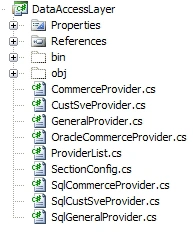
Your complete Web.config should like below:
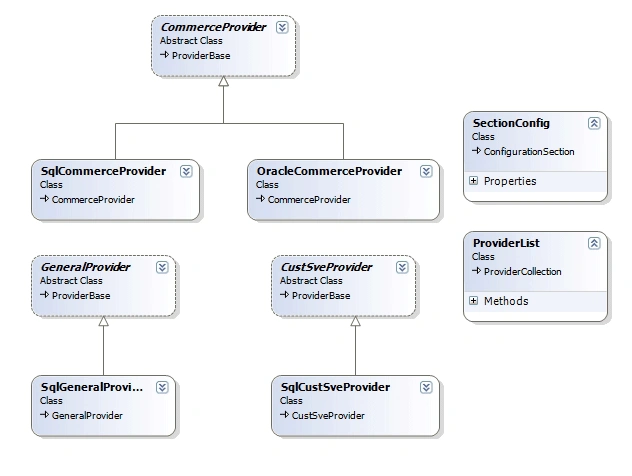
Next, we will develop our BusinessLogicLayer.
Open the BusinessLogicLayer project, delete the default class1 and add three class files entitled "General.cs", "SqlCommerce.cs", "OracleCommerce.cs" and "CustomerService.cs".
Note: It is a good idea to add a helper class into your BusinessLogicLayer project. This way, you can expose some common functionality to all of your BusinessLogicLayer classes just by inheriting from this helper class. To illustrate a helper class, create another class and name it "Helper.cs". Open "Helper.cs" and add below code into this class:
Open "General.cs" and add the below into this class:
Open "SqlCommerce.cs" and add below into this class:
Your project should look like this: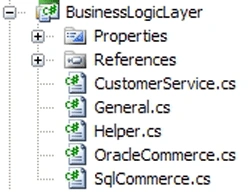
Open the "agds" project, double click on default.aspx, and add the below code (HTML view).
<asp:Button ID="btnClear" runat="server" OnClick="btnClear_Click" Text="Clear"/><br />
Compile your project.
Here is how your completed solution should look like: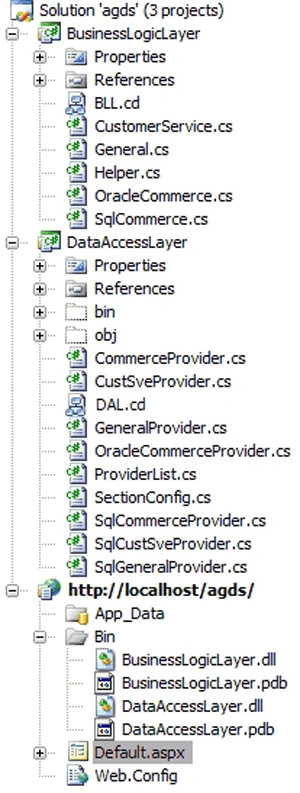
bahman diniPosted May 30, 2011, 4:28 PM
how download Provider Design Patterns in ASP.NET 2.0 ?? [email protected] help me please
lee dinoPosted Jun 6, 2009, 10:08 AM
good