

- Azure Cloud Service Introduction
- Azure Cloud Services - Create Hello World Cloud Service Using Visual Studio
- Azure Cloud Service Examine Files
- Azure Cloud Service – Add existing Web Application to Cloud Service
- Azure Cloud Service – Compute Emulator
- Azure Cloud Service - Create Package using Visual Studio
- Azure Cloud Service – Create a new Cloud Service using Azure Management Portal
- Azure Cloud Service – Deploy Cloud Service using Azure Management Portal
- Azure Cloud Service – Create Staging Slot using Azure Management Portal
- Azure Cloud Service – VIP Swap using Azure Management Portal
- Azure Cloud Service – Delete Slot using Azure Management Portal.
- Azure Cloud Service – Scale up Instance Size
- Azure Cloud Service – Scale Out Instances using Visual Studio
- Azure Cloud Service – Enable Remote Desktop using Visual Studio
In this article, we will learn, how to create a basic “Hello World” Cloud Service, using Visual Studio.
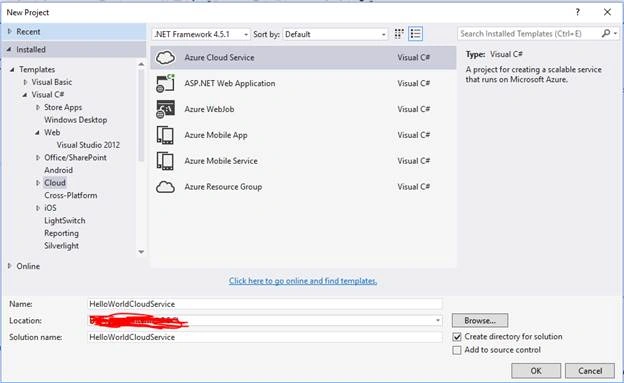
Provide a meaningful name to the project. In this case, I gave “HelloWorldCloudService”, as shown above.
Click “OK” in the “New Project” dialog box, which will open “New Microsoft Azure Cloud Service” Window, as shown below-
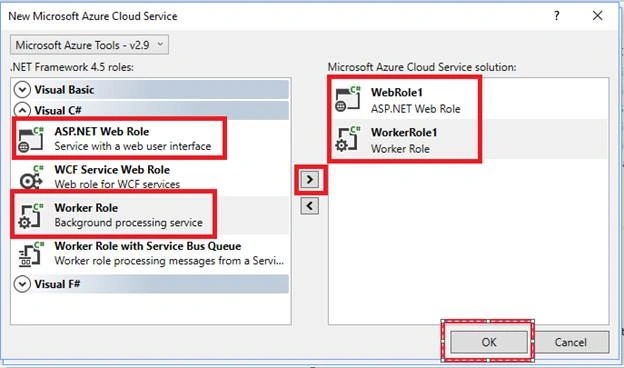
In this example, we have selected the following two roles.
- Web Role
- Worker Role
Let’s change the names of the roles to something meaningful.
Hover mouse on the role in “Microsoft Azure Cloud Service solution” Window, as shown below-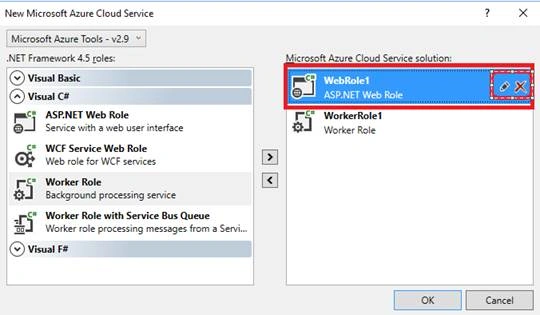
You will see two icons (1) Edit icon and (2) Delete icon. Click “Edit” icon, which will allow us to edit the name of the name, as shown below-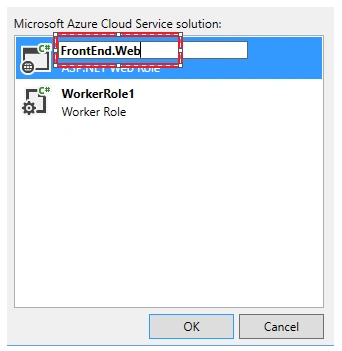
Provide the required name and click OK button in “New Microsoft Azure Cloud Service” Window. This will open up another Window “New ASP.NET Project”, as shown below-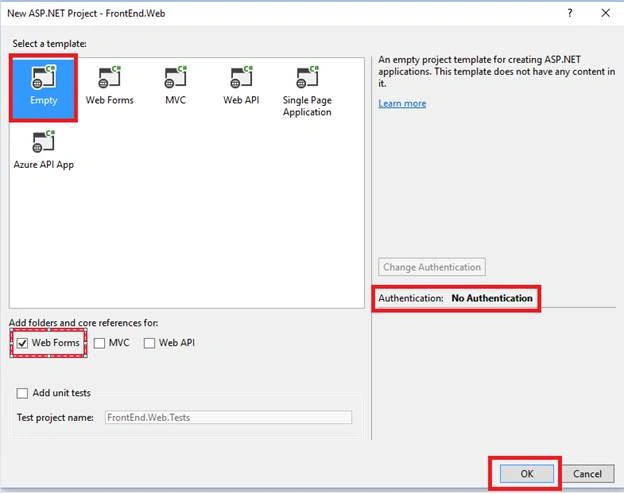
For this example, to make things simple, I have selected the following.
- Select a template - Empty.
- Add folders and core references for - Web Forms.
- Authentication - No Authentication.
Now, click on “OK” button in the “New ASP.NET Project” window to create the Cloud Service project.
As shown below, the Cloud Service project is successfully created.
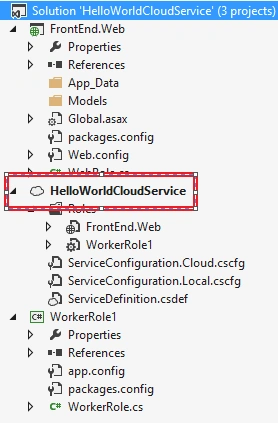
Visual Studio has created the following three projects-
- FrontEnd.Web.
- HellowWorldCloudService.
- WorkerRole1 (You would provide a meaningful name, even for this in your projects).
As shown below, in Solution Properties, the Cloud Service is the “Startup Project” for this solution. 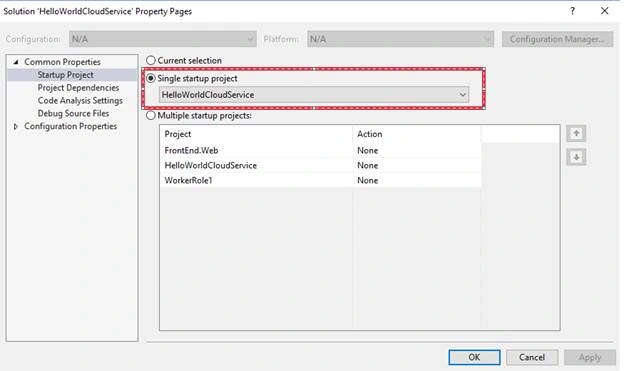
If you remember, we have created an “Empty” Application. Let’s add a sample page to our Web Application, as shown below-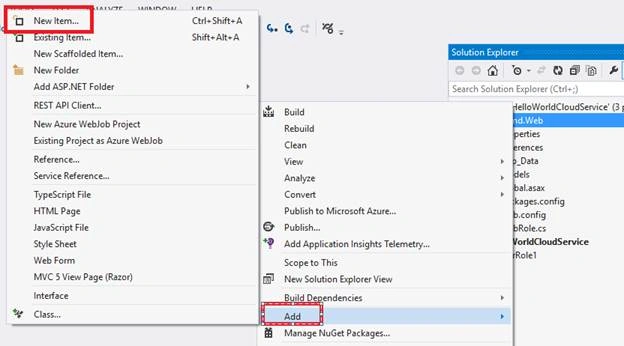
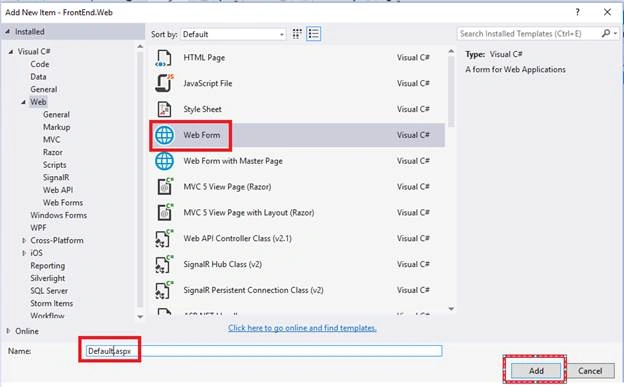
As shown below, Default.aspx page is created.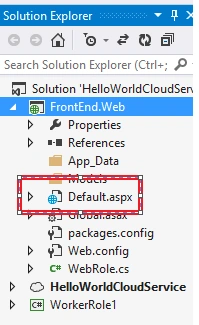
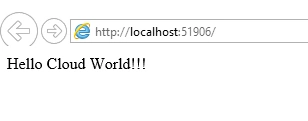
I just added the text “Hello Cloud World!!!” text to Default.aspx page.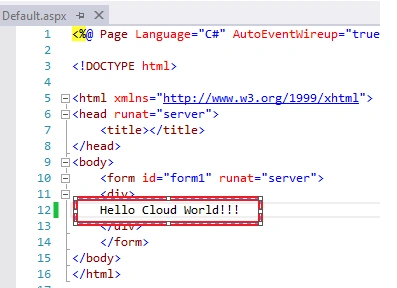
Let’s execute the Application by clicking “Ctrl + F5” in Visual Studio.
The steps taken by Visual Studio are given below to create Microsoft Azure Debugging Environment.
- Initialize the Microsoft Azure Storage Emulator, as shown below-
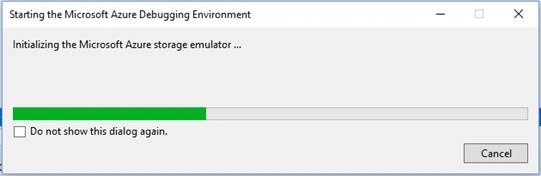
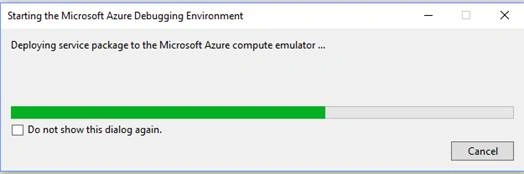
- Deploying the Service package to the Microsoft Azure Compute Environment is given below-
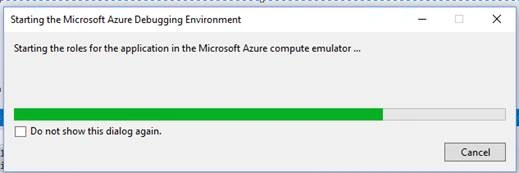
- Starting the roles for the Application in Microsoft Azure Compute Emulator is shown below-
Join the conversation! Your thoughts help the community grow.