

Wix# is an open Source framework available on GitHub and used for generating Installer using C# syntax. Wix# is an open source framework for building installer setup for MSI source code by using script file that is written into C#. Wix# uses C# to produce a wix or MSI source code. Using wix#, easily create a sample installer MSI file if familiar with C# syntax. The logic behind wix# uses C# syntax that updates .wxs file and generates MSI source code.
Background
Wix installer can be compiled into two MSI packages - one for 32-bit and the other for 64-bit.Windows Installer’s inability to write to the 64-bit Program Files directory from a 32-bit MSI package.
Features
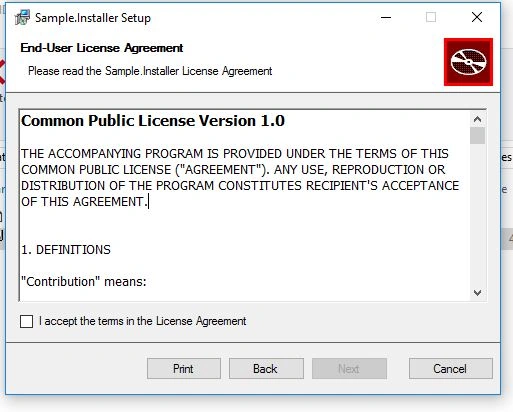
- Displays a license agreement
- Checks to prevent installing the 32-bit version on a 64-bit OS
- Uses the upgrade logic
- Custom dialog
- Puts an executable and a config file in %ProgramFiles%
- Prevents multiple installations of the same product, etc.
First, create a sample .NET C# application using Visual Studio.
Then, you need to add wix# package from nuget manager.
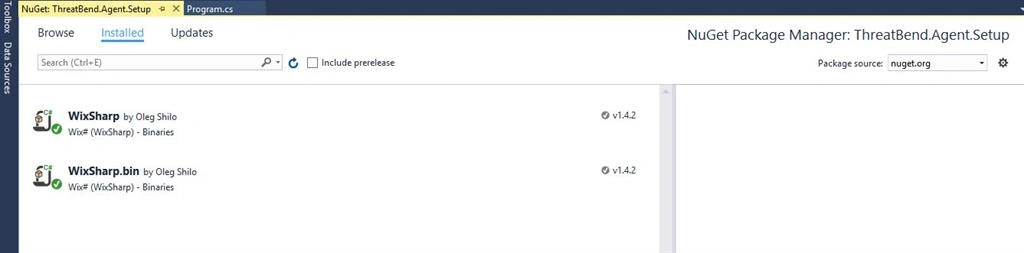
There are different ways to create installer with custom dialog box we can modify, but we can start with the first simple MSI file.
Check out the online HTML CheatSheet here and save this link because you might need it while composing content for a web page.
- using WixSharp;
- namespace WixSharpSetup
- {
- public class Program
- {
- private static void Main()
- {
- var project = new ManagedProject
- ("Sample.Installer",// your installer msi file name
- new Dir
- (@"%ProgramFiles%\Sample.Installer\Sample.Installer",//where
- //files are extract in program files when installer run.
- new File("Program.cs")));//which file
- // you want into include into installer.
- project.GUID =
- new Guid("52e30b47-2514-4114-9095-1861ba258814"); // Upgrade code
- //HAS to be the same for all updates.Once you've chosen it don't change it.
- project.ManagedUI = ManagedUI.Empty; //no standard UI dialogs
- project.ManagedUI = ManagedUI.Default; //all standard UI dialogs
- //custom set of standard UI dialogs
- project.ManagedUI = new ManagedUI();
- project.ManagedUI.InstallDialogs.Add(Dialogs.Welcome)
- .Add(Dialogs.Licence)
- .Add(Dialogs.SetupType)
- .Add(Dialogs.Features);
- project.Load += Msi_Load; // generate event. occurs when ,.msi file load
- }
- private static void Msi_Load(SetupEventArgs e)
- {
- if (!e.IsUISupressed && !e.IsUninstalling)
- MessageBox.Show(e.ToString(), "Load");
- }
- }
- }
Once you build your application, it will generate Sample.Installer.msi setup.
When you build your application, this .msi setup file generates on basedirectory.
Later, when you start installing, it looks like below:
Check OS compatibility for many more features that would be available to build installer easily.
Generate Shortcut
Generate Shortcut
- project.ResolveWildCards()
- .FindFile((f) =>
- f.Name.EndsWith("Sample.Installer.exe")).First()
- .Shortcuts = new[] {
- new FileShortcut
- ("Sample.Installer.exe", "INSTALLDIR"),
- new FileShortcut
- ("Sample.Installer.exe", "%Desktop%")
- };
- // .ResolveWildCards() Used For
- // Resolves all wild card specifications if any.
- // This method is called by WixSharp.Compiler
- // during the compilation. However it might be convenient
- // to call it before the compilation if any files matching the
- // wild card mask need to be handled in special way
- // (e.g. shortcuts created). See
- // WildCard Files example.
- // WixSharp.Project.ResolveWildCards(System.Boolean)
- // should be called only after WixSharp.WixProject.SourceBaseDir is set.
- // Otherwise wild card paths may not be
- // resolved correctly.
Join the conversation! Your thoughts help the community grow.