

Introduction
CommandBar is another user interface element we can use on the Universal Windows Platform to provide more options in the form of icons and menu options to the user than what they see displayed by default. It is really helpful to implement simple navigation and some feature to your app. So, let’s get crack in Universal Windows Platform Command Bar.
Creating a New Project and Add a CommandBar
Firstly, open up a new project or you can simply load your previous project. Now, in your left-side of Visual Studio, you can see a side window named “Document Outline”. Just right click on the “BottomAppBar” and add a “Command Bar”.
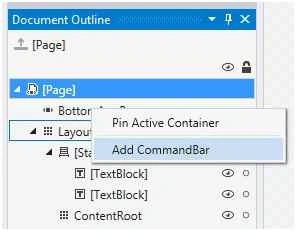
Figure 1
Now, you’ll notice that, it automatically generates a XAML code snippet for you.
- <Page.BottomAppBar>
- <CommandBar>
- <AppBarButton Icon="Accept" Label="appbarbutton" />
- <AppBarButton Icon="Cancel" Label="appbarbutton" /> </CommandBar>
- </Page.BottomAppBar>
Now, again right click on the “SecondaryCommands” and add a new “AppBarButton”.
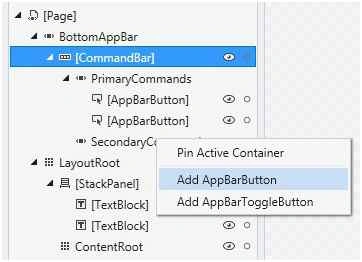
Figure 2
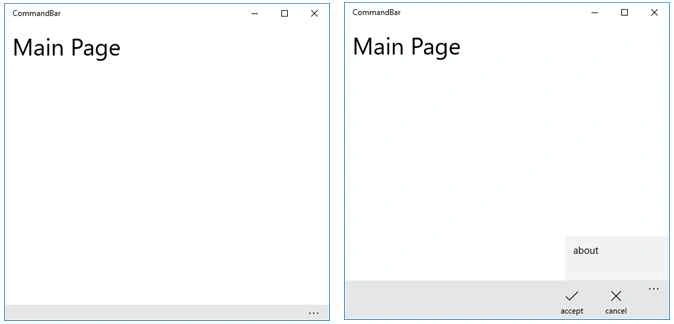
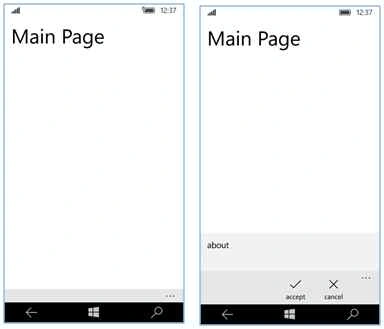
And you can see it creates another menu button for your “Command Bar”, and your XAML code will look like this.
- <Page.BottomAppBar>
- <CommandBar>
- <CommandBar.SecondaryCommands>
- <AppBarButton Label="about" /> </CommandBar.SecondaryCommands>
- <AppBarButton Label="accept" Icon="Accept" />
- <AppBarButton Label="cancel" Icon="Cancel" /> </CommandBar>
- </Page.BottomAppBar>
We have modified the labels of “Accept” and “Cancel” button, it shows the hint about the “Command Bar” buttons, and changed the label of “AppBarButton” to “about”.
Changing the CommandBar Icons
Now, you can change the icons of your “Command Bar”, as you can see in the following picture, it already set to “Accept” icon. Because we’ve selected the “accept” button in the XAML code.
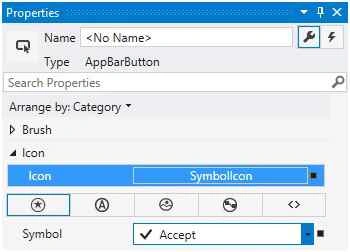
Figure 3
Or you can choose a “font icon” as your Icon, like “A”, “B” or anything you want.
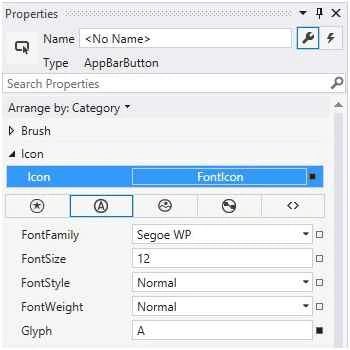
Figure 4
If you change “Accept” to “A” and “Cancel” to “C”, the code will look like this.
- <Page.BottomAppBar>
- <CommandBar>
- <CommandBar.SecondaryCommands>
- <AppBarButton Label="about" /> </CommandBar.SecondaryCommands>
- <AppBarButton Label="accept">
- <AppBarButton.Icon>
- <FontIcon Glyph="A" /> </AppBarButton.Icon>
- </AppBarButton>
- <AppBarButton Label="cancel">
- <AppBarButton.Icon>
- <FontIcon Glyph="C" /> </AppBarButton.Icon>
- </AppBarButton>
- </CommandBar>
- </Page.BottomAppBar>
Santhakumar MunuswamyPosted Oct 25, 2015, 11:19 AM
Good one
Mukesh KumarPosted Oct 24, 2015, 12:04 PM
Great Work
Sibeesh VenuPosted Oct 24, 2015, 3:30 AM
Nice Share
Nilesh JadavPosted Oct 24, 2015, 2:55 AM
Good Share !!
Harshad PansuriyaPosted Oct 24, 2015, 12:01 AM
Nice one