

Introduction
This article describes how to add a Google Blog search feature in ASP.Net. Here I will describe how to communicate with the Google Search API.
Description
Since it is third party software, we require a third-party DLL to be referenced by our application that will communicate with the Google server.
For this we must download the Google Search API:
- GoogleSearchAPI.dll
You can download it from the source code attached to this article.
Or from this link: http://google-api-for-dotnet.googlecode.com/files/GoogleSearchAPI_0.3.1.zip
Design
Now add one TextBox, one Button and one Datalist.Design your screen as in the following screen.
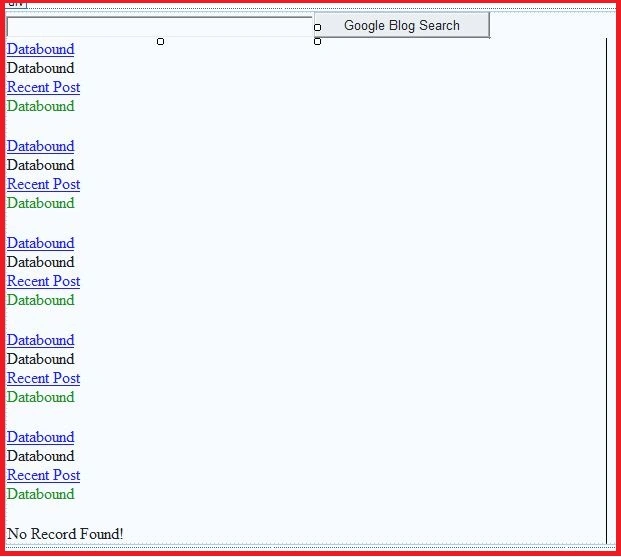
Or you can copy the following source code:
- <body>
- <form id="form1" runat="server">
- <div>
- <asp:TextBox ID="TextBox1" runat="server" Width="300px"></asp:TextBox>
- <asp:Button ID="btnSearch" runat="server" Text="Google Blog Search" OnClick="Button1_Click" /><br />
- <asp:DataList ID="dlSearch" runat="server" Width="600px">
- <ItemTemplate>
- <asp:LinkButton ID="LinkButton1" runat="server" Text='<%#Eval("Title") %>' PostBackUrl='<%#Eval("Url")%>'></asp:LinkButton><br />
- <asp:Label ID="Label1" runat="server" Text='<%#Eval("Content") %>'></asp:Label><br />
- <asp:HyperLink ID="HyperLink1" runat="server" NavigateUrl='<%#Eval("PostUrl") %>'>Recent Post</asp:HyperLink><br/>
- <asp:Label ID="Label2" runat="server" Text='<%# "(Publisher:"+Eval("Author")+")"+Eval("PublishDate") %>' ForeColor="Green"></asp:Label>
- <br /><br />
- </ItemTemplate>
- <FooterTemplate>
- <asp:Label Visible='<%#bool.Parse((dlSearch.Items.Count==0).ToString())%>' runat="server" ID="lblNoRecord" Text="No Record Found!"></asp:Label>
- </FooterTemplate>
- </asp:DataList>
- </div>
- </form>
- </body>
Next add a reference of the following Google Search API DLL to your website:
- GoogleSearchAPI.dll
- using System;
- using System.Collections.Generic;
- using System.Linq;
- using System.Web;
- using System.Web.UI;
- using System.Web.UI.WebControls;
- using System.Data;
- using Google.API.Search;
- public partial class GoogleBlogSearch : System.Web.UI.Page
- {
- protected void Page_Load(object sender, EventArgs e)
- {
- if (!IsPostBack)
- {
- dlSearch.DataSource = null;
- dlSearch.DataBind();
- TextBox1.Text = "";
- }
- }
- protected void Button1_Click(object sender, EventArgs e)
- {
- DataSet ds = new DataSet();
- DataTable dt = new DataTable();
- dt.Columns.Add(new DataColumn("Title", typeof(string)));
- dt.Columns.Add(new DataColumn("Content", typeof(string)));
- dt.Columns.Add(new DataColumn("Url", typeof(string)));
- dt.Columns.Add(new DataColumn("PostUrl", typeof(string)));
- dt.Columns.Add(new DataColumn("Author", typeof(string)));
- dt.Columns.Add(new DataColumn("PublishDate", typeof(string)));
- GblogSearchClient client = new GblogSearchClient("");
- IList<IBlogResult> results = client.Search(TextBox1.Text, 30);
- foreach (IBlogResult result in results)
- {
- DataRow dr = dt.NewRow();
- dr["Title"] = result.Title.ToString();
- dr["Content"] = result.Content.ToString();
- dr["Url"] = result.BlogUrl;
- dr["PostUrl"] = result.PostUrl;
- dr["Author"] = result.Author;
- dr["PublishDate"] = result.PublishedDate;
- dt.Rows.Add(dr);
- }
- dlSearch.DataSource = dt;
- dlSearch.DataBind();
- }
- }
After getting the result I bound it to the datatable then to the datalist control.
Just check these two lines:
- GblogSearchClient client = new GblogSearchClient ("www.c-sharpcorner.com");
- IList<IBlogResult> results = client.Search(TextBox1.Text, 30);
In the first line I am passing "www.c-sharpcorner.com" as the Client because it required a hosted site for security purposes.
If you don't pass that then it will show an exception.
In the second line I am passing 30 and a TextBox value. Here 30 specifies to get 30 search results.
So you can increase or decrease this value as needed.
Now build your application. Enter a search query then press the button.
It will show all the Google Blog search results.
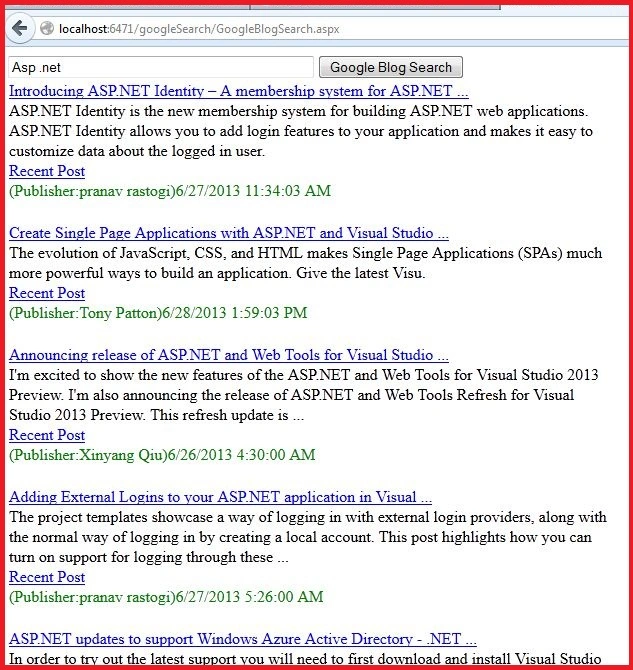
Click on the Blog Title to see the Blog.
Manish Kumar ChoudharyPosted Nov 25, 2014, 11:15 PM
nice one..
Rajesh SolankiPosted Nov 25, 2014, 7:00 AM
Very Nice.. And Important
Preeti AgrawallaPosted Sep 7, 2013, 7:01 AM
good article..