Sorting : Sorting is the process of
putting a list or a group of items in a specific order. Sorting algorithm is an
algorithm that puts elements of a list in a certain order.The most-used orders
are numerical order. Efficient sorting is important for optimizing the use of
algorithms that require sorted lists to work correctly; it is also often useful
for the data and for producing human-readable.Sorting can also be done in
ascending order (A-Z) or descending order (Z-A).
Condition : The Sorting Technique satisfies two condition.
- The output is in non decreasing order.
- The output is permutation or reordering of
the input.
Step 1 : Open Visual Studio 2011.
- Select File>New->WebSite.
- Select ASP.NET WebSite.
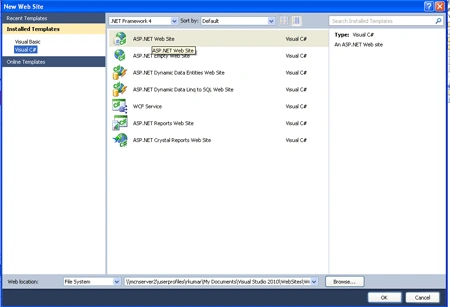
Step 2 : Go to Solution Explorer and
right-click.
- Select Add->NewItem.
- Select WebForm.
- Default.aspx page open.
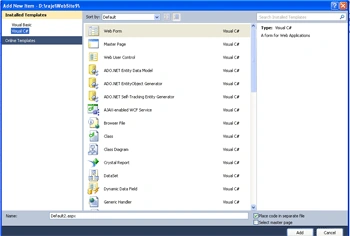
Step 3 : Now drag and drop controls from
Toolbox.
- Drag ScriptManager, UpdatePanel, GridView.
Define DataSource :
Step 4 : Go to Solution Explorer and
right-click.
- Select Add->NewItem.
- Select SqlServer Database.
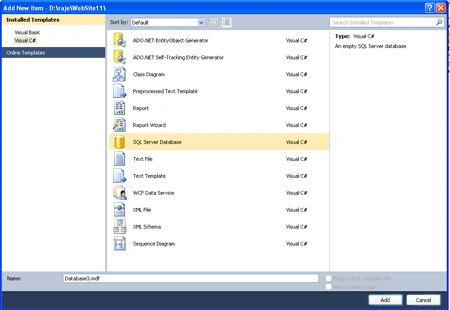
Step 5 : Go to Server Explorer and click
in Database option.
- Create Table for particular application.
- Define the Data Field Property.
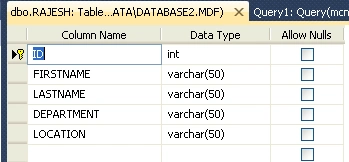
Step 6 : Go to Table option and
right-click.
- Select Show Table Data Option.
- Define all field value.
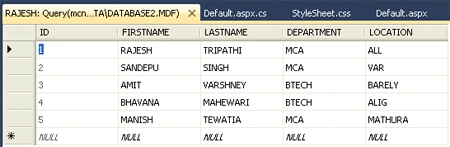
Data Bind :
Step 7 : Go to Default.aspx Design
option.
- Select GridView Control.
- Click in Arrow option of GridView.
- Select Choose Data Source option.
- Select New Data Source.
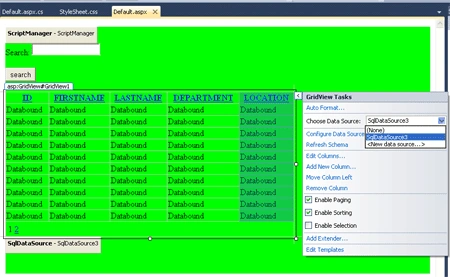
Add Connection String :
Step 8 : After Select of New Data Source
option and select Sql DataBase.
- Define SQL DataSource Name.
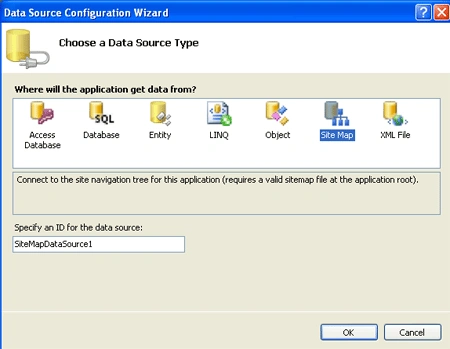
Step 9 : After that we click in
Connection String option and select our Database and Established Connection.
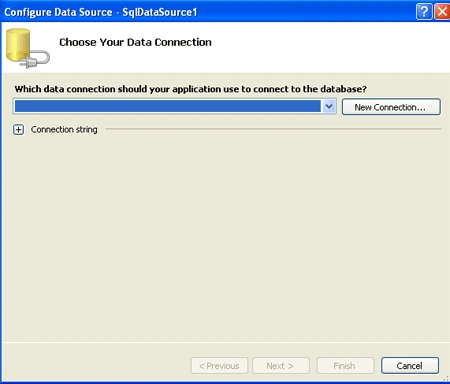
Step 10 : Go to Default.aspx page and
write the below code.
Code :
<div
style="background-color:
#00FF00">
<asp:ScriptManager
ID="ScriptManager"
runat="server"
/>
Search: <asp:TextBox
ID="txtSearch"
runat="server"
ontextchanged="txtSearch_TextChanged"
/>
<br
/>
<br
/>
<asp:Button
ID="Button1"
runat="server"
onclick="Button1_Click"
Text="search"
/>
<br
/>
<br
/>
<asp:UpdatePanel
ID="UpdatePanel1"
runat="server">
<ContentTemplate>
<div
class GridView>
<asp:GridView
ID="GridView1"
runat="server"
AutoGenerateColumns="False"
AllowSorting
= "True"
AllowPaging ="True"
Width="540px"
CssClass="yui"
DataKeyNames="ID"
DataSourceID="SqlDataSource3">
<Columns>
<asp:BoundField
DataField="ID"
HeaderText="ID"
InsertVisible="False"
ReadOnly="True"
SortExpression="ID"
/>
<asp:BoundField
DataField="FIRSTNAME"
HeaderText="FIRSTNAME"
SortExpression="FIRSTNAME"
/>
<asp:BoundField
DataField="LASTNAME"
HeaderText="LASTNAME"
SortExpression="LASTNAME"
/>
<asp:BoundField
DataField="DEPARTMENT"
HeaderText="DEPARTMENT"
SortExpression="DEPARTMENT"
/>
<asp:BoundField
DataField="LOCATION"
HeaderText="LOCATION"
SortExpression="LOCATION"
/>
</Columns>
</asp:GridView>
<asp:SqlDataSource
ID="SqlDataSource3"
runat="server"
ConnectionString="<%$
ConnectionStrings:ConnectionString2 %>"
SelectCommand="SELECT
* FROM [RAJESH]"></asp:SqlDataSource>
</div>
<br
/>
<br
/>
</ContentTemplate>
<Triggers>
<asp:AsyncPostBackTrigger
ControlID="txtSearch"
EventName="TextChanged"
/>
</Triggers>
</asp:UpdatePanel>
Step 11 : Go to
Default.aspx page and write the code for sorting and searching.
Code :
public
partial class
_Default : System.Web.UI.Page
{
string searcstring =
"";
protected void
Page_Load(object sender,
EventArgs e)
{
txtSearch.Attributes.Add("onkeyup",
"setTimeout('__doPostBack(\'" +
txtSearch.ClientID.Replace("_",
"$") +
"\',\'\')', 0);");
if (!IsPostBack)
{
GridView1.DataBind();
}
}
protected void
txtSearch_TextChanged(object sender,
EventArgs e)
{
string srch= txtSearch.Text;
if
(GridView1.HasAttributes.Equals(srch))
{
GridView1.SelectedValue.Equals(srch);
}
searcstring = txtSearch.Text;
}
public string
HighlightText(string InputTxt)
{
string Search_Str =
txtSearch.Text.ToString();
// Setup the regular expression and add the Or
operator.
Regex RegExp =
new Regex(Search_Str.Replace("
", "|").Trim(),
RegexOptions.IgnoreCase);
// Highlight keywords by calling the
//delegate each time a keyword is
found.
return RegExp.Replace(InputTxt,
new MatchEvaluator(ReplaceKeyWords));
// Set the RegExp to null.
RegExp = null;
}
public string
ReplaceKeyWords(Match m)
{
return
"<span class=highlight>" + m.Value +
"</span>";
}
protected void
Button1_Click(object sender,
EventArgs e)
{
GridView1.Visible = true;
}
Step 12 : Now we press
F5 and run the application.
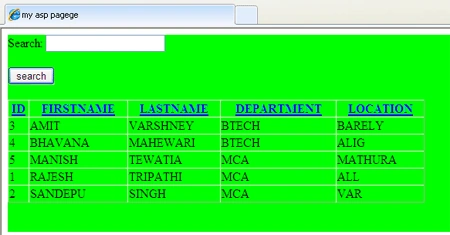
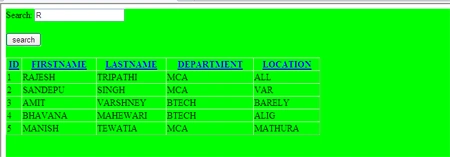
Step 13 : Click on the Id and the data in the grid view will sort in ascending order.

Join the conversation! Your thoughts help the community grow.