

Introduction
Virtual hosting is a process for hosting multiple domain names on a single server. This is basically sharing the services of a single server for multiple companies or for multiple websites. Sometimes it's called Vhost. A Virtual Host is usually used by a company or organization that doesn't want to maintain or purchase multiple servers. Virtual Hosting can be supported using IIS Web Server or using Apache Web Server. In this article we will see how to create a virtual host using IIS Web Server on Windows Server 2012 VM.
You can do Virtual Hosting using IIS and Apache server. For more details about Virtual Hosting using IIS visit the following link.
http://www.c-sharpcorner.com/UploadFile/59b9d6/virtual-hosting-or-virtual-directory-using-iis/
This following procedure will provide you with deep knowledge about how to do Virtual Hosting using Apache Server.
Download the Apache “.msi” file from the https://archive.apache.org/dist/httpd/binaries/win32/ site.
For example httpd-2.2.25-win32-x86-no_ssl.msi.
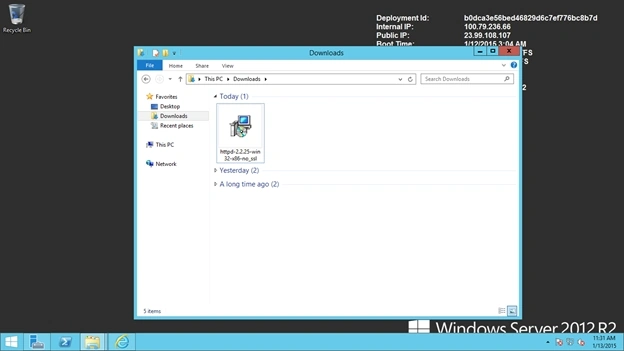
Figure1 Download Apache
Install it on your server machine.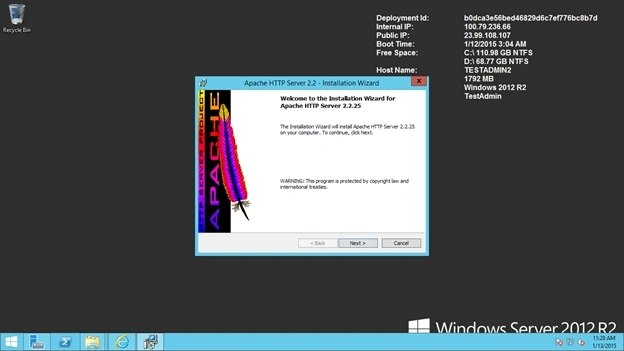
Figure 2 Instalation
Use the default server setting or change it depending on requirements.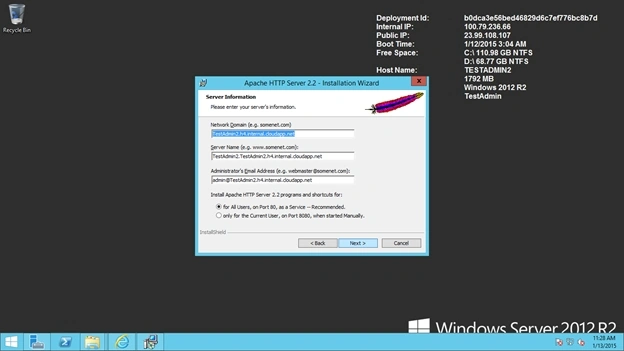
Figure 3 Defoult Server Setting
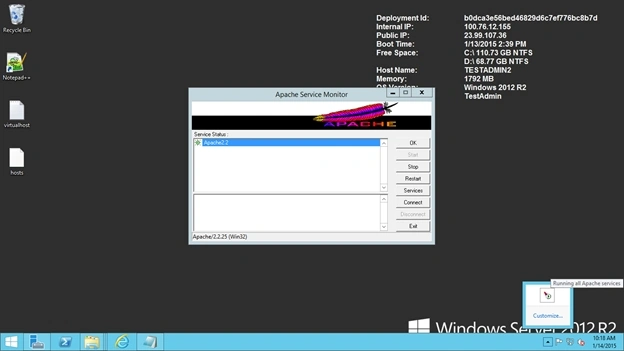
Choose Typical Installation and finish the Apache installation process. After successful installation Apache will appear in your Taskbar icon list.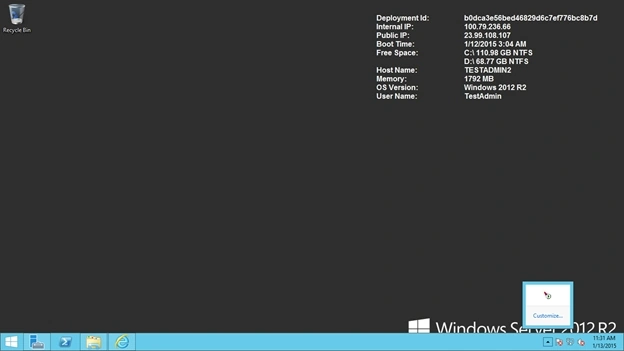
FIgure 4 Task Icon List
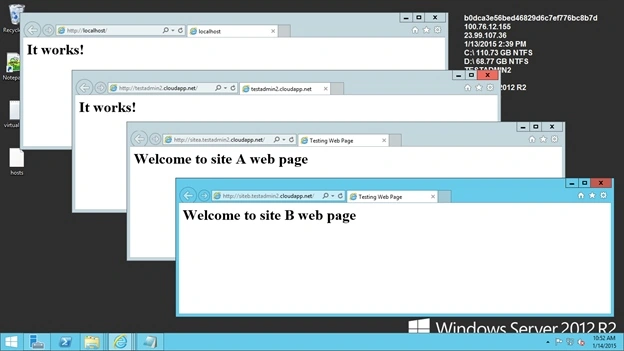
Now test Apache using an internet browser. Type localhost in the address bar and hit the Enter button.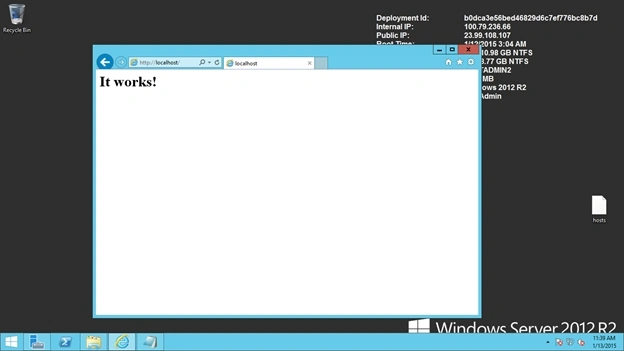
Figure 5 Test Apache
Now create two web site folders and a default web page in the following Apache directory:
“C:\Program Files (x86)\Apache Software Foundation\Apache2.2\htdocs”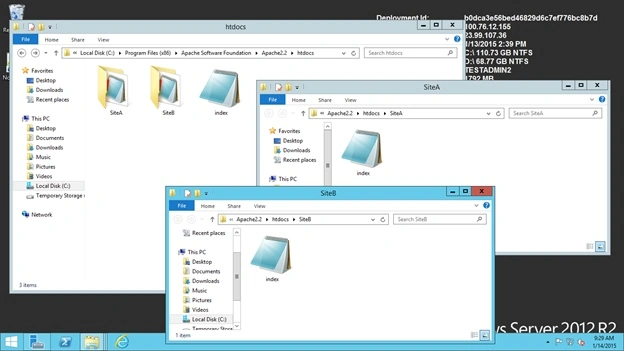
Figure 6 Create Website Folder
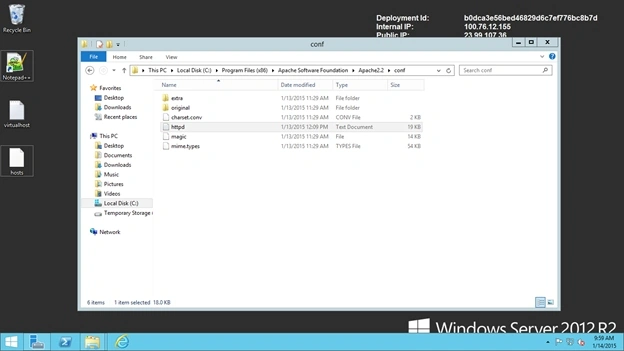
Now go to the following directory to add the virtual host details:
“C:\Program Files (x86)\Apache Software Foundation\Apache2.2\conf\extra”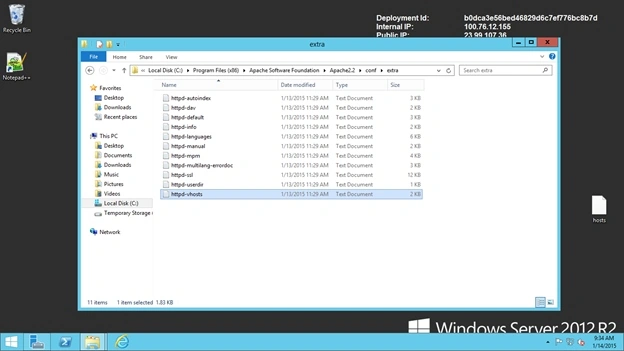
Figure 7 Directory
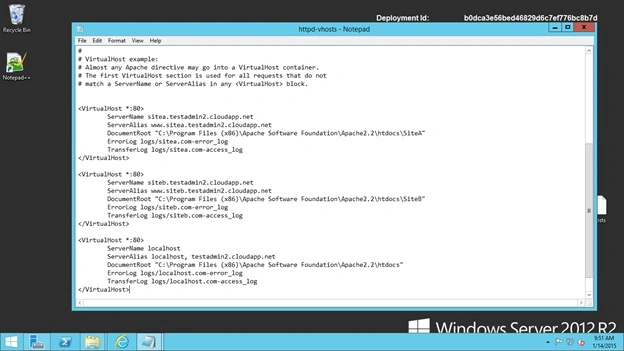
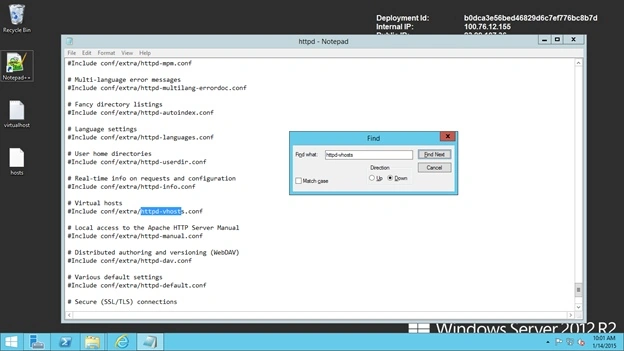
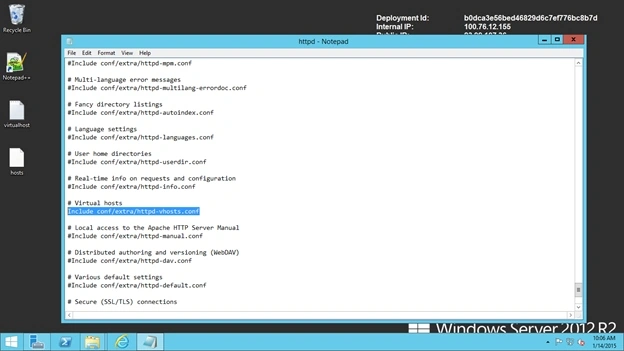
Open the “httpd-vhosts” file in a text editor and modify the virtual host part, in other words, the selected part in the following image. 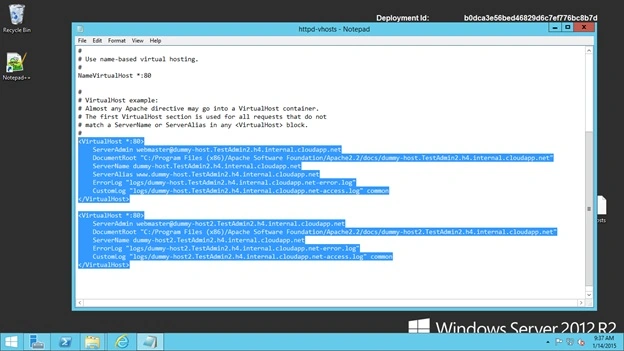
Figure 8 Modify Virtual host
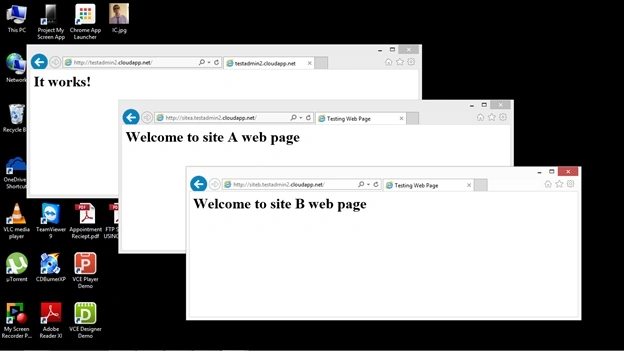
We can create as many virtual host as we want. In this tutorial we are creating two virtual hosts for two sites. Hence we added two virtual host entries.

NitinPosted May 28, 2015, 1:03 PM
nice
Shailesh UkePosted May 27, 2015, 10:27 AM
Nice Article
Sibeesh VenuPosted May 27, 2015, 5:58 AM
Good one.
Santhakumar MunuswamyPosted May 26, 2015, 3:47 PM
Good