
This article helps in running the Windows Service in debug mode so that we can debug the service to check the flow of code or fixing any of the issues. In this article, we are not going to concentrate more on developing a Windows Service rather we concentrate on developing a simple service which opens a Notepad process.
Note: In real-time applications we will not be using a Windows Service to open some application like Notepad but more for creating the code that runs behind the scenes and performs background operations which takes a long duration to complete. For example, we want to check the status of some flag in a table and do an appropriate action and update the flag to something like completed and this should be running 24*7 unless we are in server maintenance.
Open Visual Studio 2010/2008 and create a Windows Service application as below: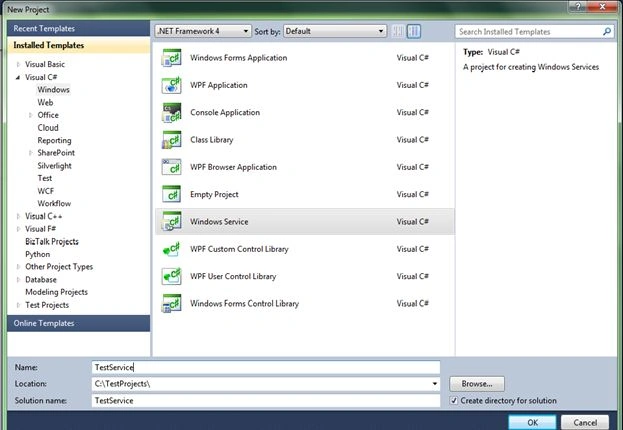
Figure 1: Selecting a Windows Service Project Type
Once the project is created, you will see the following files created for the Windows Service. In this example we are not going to stress out ourselves with creating setup projects or writing too much business logic.
Note: In real-time applications we need to add project installer files and create a setup project to deploy the windows service in the server.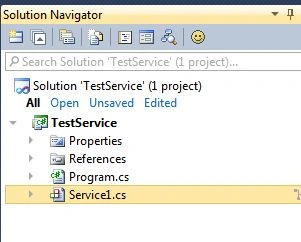
Figure 2: Solution structure
First things first. The main reason for this article is to identify why we need to do something to make the service that runs an exe. Why cannot a Windows Service be run in your desktop? Why cannot we be debug it directly?
If you are interested in knowing the answers to the preceding questions, do not wait until the end of the article. Just click on the F5 button and see what happens.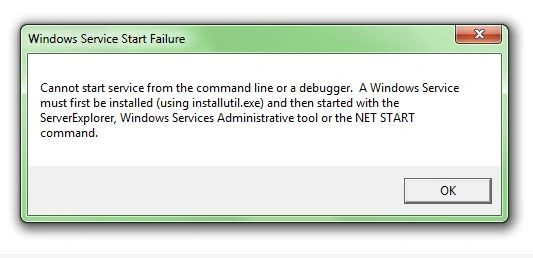
Figure 3: Alert
You will see the alert by Visual Studio that you cannot start a service from the command line or a debugger. It says that we need to install this service first to run the service. This is good for when we want to deploy it, right? But, what if we want to debug our code to see whether it is running properly or not? Or if we want to debug our code to fix some issue. Of course if we follow Test Driven Development, we should have done unit testing for the code we have developed. But what if we need to check the code in the Windows Service classes? Anyways, the answer is simple: You cannot do that directly.
OK. Now go to the Service1.cs class and check the code. It should be something as in the following: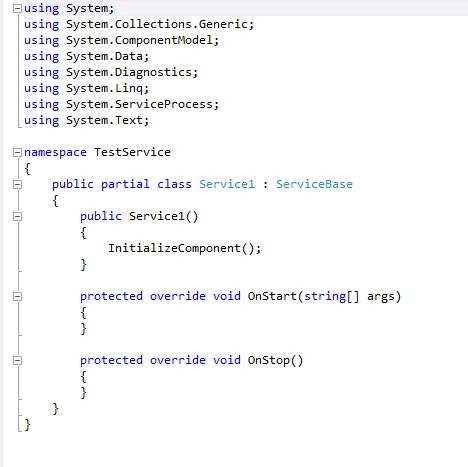
Figure 4: Service class before customization
Here the OnStart() method is what to do to initiate a service and OnStop() takes care of what to do stop the service. If we want to make our service code to be executed for every time interval we may have to add a timer control and add the logic that runs whenever the timer time interval is elapsed.
We cannot use the OnStart and OnStop methods to run the service on your desktop and so we need to write our own methods simulating the OnStart and OnStop methods in the preceding figure.
So here are the steps we need to follow to accomplish the goal of running the Windows Service like an exe file on your desktop and also should be able to debug the code:
1. Declare a static variable of type System.Timers.Timer.
//Declare a timer static variable
private static System.Timers.Timer _aTimer;
2. Add the timer related code in the constructor of the service.
//Now enable the timer and add an event handler for elapsed
public Service1()
{
_aTimer = new System.Timers.Timer(30000);
_aTimer.Enabled = true;
_aTimer.Elapsed += new System.Timers.ElapsedEventHandler(_aTimer_Elapsed);
InitializeComponent();
}
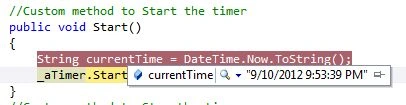
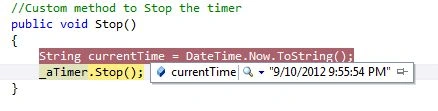
3. Write the custom method to start the timer and stop the timer:
//Custom method to Start the timer
public void Start()
{
_aTimer.Start();
}
//Custom method to Stop the timer
public void Stop()
{
_aTimer.Stop();
}

Running a Windows Service in Debug Mode
Join the conversation! Your thoughts help the community grow.
Sign in to leave a comment
It is the same account you read, post and publish with — and you will come straight back to this page.


lazer aPosted Sep 29, 2018, 4:43 PM
if(Environment.UserInteractive){ host.run(); } else{ host.RunAsCustomService(); }
Hemanth KumarPosted Nov 29, 2015, 11:38 PM
Thanks for sharing. Good one.
T K T KPosted May 25, 2015, 8:52 AM
Thanks a lot!One question please: I have an error on "myService.Start();: Service1 does not contain definition for Start(). Are you missing a refernce? Any ideas what is missing?
Manish Kumar ChoudharyPosted Nov 19, 2014, 6:12 AM
Thanks Akkiraju Ivaturi sir.. it helps me a lot..
Umesh shahanePosted Sep 11, 2014, 2:59 PM
good way to test win service,instead of ceating the test project(time consuming)this i better way to debug and probe the logic when time is short.
Sara HudiniPosted May 27, 2014, 5:37 AM
Thank you so much! This was enlightening! :)
satpal singhPosted Mar 29, 2013, 6:10 AM
nice one!!!