


In this article we can see how to create a simple Dynamic Project Scheduling from a database using a Stored Procedure with Pivot result. Display the result to MVC view using AngularJS and Web API 2 without using Entity Framework.
In this example I didn't use Entity Framework. The reason for not using EF is for EF we need to get the result of the select with fixed columns (the columns need to be defined) for example from our Stored Procedure we usually do a select result like “select column1,column2,column3 from table”. But for our example I have used the pivot result and the columns will be displayed dynamically depending on the date range and I am using the “exec sp_executesql @SQLquery;” in my SP to execute the dynamic query I. Insted of using the Entity Framework in my Web API I will be connecting to the database directly and execute the SP to return the result. From my AngularJS Controller I will call the Web API method to return the result.
Project Scheduling
Project Scheduling is a very important part in project planning. The project might be any type, for example software project development planning, production planning and so on. For a realistic example let's consider a car seat manufacturing company. Every week they will produce, for example, 100 sets of seats for a model of car. In the factory everything will go as planned, for example from this week beginning Monday to this week ending Friday a total of 100 seats need to be manufactured and delivered to the customer. Here we can see this is the plan since we need to produce 100 seats and deliver them to the customer. But for some reason the production could only make 90 sets of seats or production has made 100 set of seats in time. To track the production plan with the actual plan we use the Production Schedule Chart. The production plan will have both a start and end date, when the production must be started and when the production needs to be finished. The actual date is the real production start and the end date. The actual start and end dates will be set after the production is completed. If the actual date is the same or below the production end date then it's clear that the production is on time and it can be delivered to the customer. If the actual end date is past the production plan date then the production line must be closely watched and again the next time the same delay should be avoided.
In the project there might be 2 dates available, one is the scheduled start and end dates (this is the initial planned date or the target date for our project) and another one is the actual start and end date (this is when the project is actually started and completed). For all the projects we need to compare both the scheduled and actual dates, if there are greater differences in both of the dates then we need to check whether the project is completed within the scheduled time or if there was a delay in project development.
Previous articles related to Angular JS,MVC and WEB API:
- Create Database and Table
We will create a SCHED_Master table under the Database 'projectDB'. The following is the script to create a database, table and sample insert query. Run this script in your SQL Server. I have used SQL Server 2012.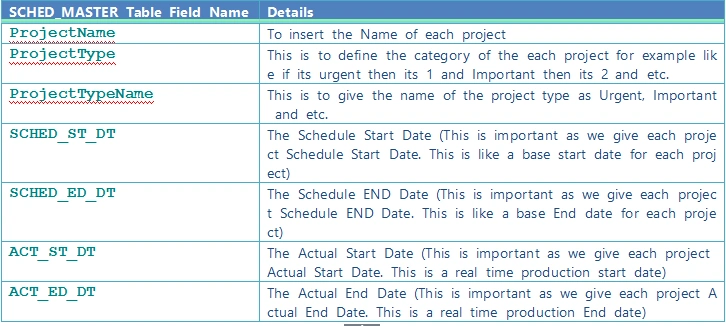
- --Script to create DB,Table and sample Insert data
- USE MASTER
- GO
- -- 1) Check for the Database Exists .If the database is exist then drop and create new DB
- IF EXISTS (SELECT [name] FROM sys.databases WHERE [name] = 'projectDB' )
- DROP DATABASE projectDB
- GO
- CREATE DATABASE projectDB
- GO
- USE projectDB
- GO
- CREATE TABLE [dbo].[SCHED_Master](
- [ID] [int] NOT NULL,
- [ProjectName] [varchar](100) NULL,
- [ProjectType] int NULL,
- [ProjectTypeName] [varchar](100) NULL,
- [SCHED_ST_DT] [datetime] NULL,
- [SCHED_ED_DT] [datetime] NULL,
- [ACT_ST_DT] [datetime] NULL,
- [ACT_ED_DT] [datetime] NULL,
- [status] int null
- PRIMARY KEY CLUSTERED
- (
- [ID] ASC
- )WITH (PAD_INDEX = OFF, STATISTICS_NORECOMPUTE = OFF, IGNORE_DUP_KEY = OFF, ALLOW_ROW_LOCKS = ON, ALLOW_PAGE_LOCKS = ON) ON [PRIMARY]
- ) ON [PRIMARY]
- -- Insert Query
- INSERT INTO [dbo].SCHED_Master
- ([ID],[ProjectName],[ProjectType],[ProjectTypeName],[SCHED_ST_DT],[SCHED_ED_DT],[ACT_ST_DT],[ACT_ED_DT],[status])
- VALUES
- (1001,'Project1',1,'Urgent','2015-06-01 00:00:00.000','2015-09-02 00:00:00.000'
- ,'2015-06-22 00:00:00.000','2015-08-26 00:00:00.000',1)
- INSERT INTO [dbo].SCHED_Master
- ([ID],[ProjectName],[ProjectType],[ProjectTypeName],[SCHED_ST_DT],[SCHED_ED_DT],[ACT_ST_DT],[ACT_ED_DT],[status])
- VALUES
- (1002,'Project1',2,'Important','2015-09-22 00:00:00.000','2015-12-22 00:00:00.000'
- ,'2015-09-19 00:00:00.000','2015-12-29 00:00:00.000',1)
- INSERT INTO [dbo].SCHED_Master
- ([ID],[ProjectName],[ProjectType],[ProjectTypeName],[SCHED_ST_DT],[SCHED_ED_DT],[ACT_ST_DT],[ACT_ED_DT],[status])
- VALUES
- (1003,'Project1',3,'Normal','2016-01-01 00:00:00.000','2016-03-24 00:00:00.000'
- ,'2016-01-01 00:00:00.000','2016-03-14 00:00:00.000',1)
- INSERT INTO [dbo].SCHED_Master
- ([ID],[ProjectName],[ProjectType],[ProjectTypeName],[SCHED_ST_DT],[SCHED_ED_DT],[ACT_ST_DT],[ACT_ED_DT],[status])
- VALUES
- (1004,'Project2',1,'Urgent','2015-07-01 00:00:00.000','2015-09-02 00:00:00.000'
- ,'2015-07-22 00:00:00.000','2015-08-26 00:00:00.000',1)
- INSERT INTO [dbo].SCHED_Master
- ([ID],[ProjectName],[ProjectType],[ProjectTypeName],[SCHED_ST_DT],[SCHED_ED_DT],[ACT_ST_DT],[ACT_ED_DT],[status])
- VALUES
- (1005,'Project2',2,'Important','2015-09-29 00:00:00.000','2015-12-22 00:00:00.000'
- ,'2015-09-08 00:00:00.000','2015-12-14 00:00:00.000',1)
- INSERT INTO [dbo].SCHED_Master
- ([ID],[ProjectName],[ProjectType],[ProjectTypeName],[SCHED_ST_DT],[SCHED_ED_DT],[ACT_ST_DT],[ACT_ED_DT],[status])
- VALUES
- (1006,'Project2',3,'Normal','2016-01-01 00:00:00.000','2016-03-04 00:00:00.000'
- ,'2016-01-01 00:00:00.000','2016-02-24 00:00:00.000',1)
- -- Select Query
- select ID,ProjectName,ProjectType,ProjectTypeName,SCHED_ST_DT,SCHED_ED_DT,ACT_ST_DT,ACT_ED_DT,status from SCHED_Master
Insert Query
- INSERT INTO[dbo].SCHED_Master([ID], [ProjectName], [ProjectType], [ProjectTypeName], [SCHED_ST_DT], [SCHED_ED_DT], [ACT_ST_DT], [ACT_ED_DT], [status])
- VALUES(1001, 'Project1', 1, 'Urgent', '2015-06-01 00:00:00.000', '2015-09-02 00:00:00.000', '2015-06-22 00:00:00.000', '2015-08-26 00:00:00.000', 1)
- INSERT INTO[dbo].SCHED_Master([ID], [ProjectName], [ProjectType], [ProjectTypeName], [SCHED_ST_DT], [SCHED_ED_DT], [ACT_ST_DT], [ACT_ED_DT], [status])
- VALUES(1002, 'Project1', 2, 'Important', '2015-09-22 00:00:00.000', '2015-12-22 00:00:00.000', '2015-09-19 00:00:00.000', '2015-12-29 00:00:00.000', 1)
- INSERT INTO[dbo].SCHED_Master([ID], [ProjectName], [ProjectType], [ProjectTypeName], [SCHED_ST_DT], [SCHED_ED_DT], [ACT_ST_DT], [ACT_ED_DT], [status])
- VALUES(1003, 'Project1', 3, 'Normal', '2016-01-01 00:00:00.000', '2016-03-24 00:00:00.000', '2016-01-01 00:00:00.000', '2016-03-14 00:00:00.000', 1)
- INSERT INTO[dbo].SCHED_Master([ID], [ProjectName], [ProjectType], [ProjectTypeName], [SCHED_ST_DT], [SCHED_ED_DT], [ACT_ST_DT], [ACT_ED_DT], [status])
- VALUES(1004, 'Project2', 1, 'Urgent', '2015-07-01 00:00:00.000', '2015-09-02 00:00:00.000', '2015-07-22 00:00:00.000', '2015-08-26 00:00:00.000', 1)
- INSERT INTO[dbo].SCHED_Master([ID], [ProjectName], [ProjectType], [ProjectTypeName], [SCHED_ST_DT], [SCHED_ED_DT], [ACT_ST_DT], [ACT_ED_DT], [status])
- VALUES(1005, 'Project2', 2, 'Important', '2015-09-29 00:00:00.000', '2015-12-22 00:00:00.000', '2015-09-08 00:00:00.000', '2015-12-14 00:00:00.000', 1)
- INSERT INTO[dbo].SCHED_Master([ID], [ProjectName], [ProjectType], [ProjectTypeName], [SCHED_ST_DT], [SCHED_ED_DT], [ACT_ST_DT], [ACT_ED_DT], [status])
- VALUES(1006, 'Project2', 3, 'Normal', '2016-01-01 00:00:00.000', '2016-03-04 00:00:00.000', '2016-01-01 00:00:00.000', '2016-02-24 00:00:00.000', 1)
- select ID,ProjectName,ProjectType,ProjectTypeName,SCHED_ST_DT,SCHED_ED_DT,ACT_ST_DT,ACT_ED_DT,status from SCHED_Master;
I will explain each step of my procedure so that you can understand it clearly to make your own with your table formats.
Step 1
Create the procedure with a parameter and declare the variable inside the procedure to be used in the SP.
Note here I have set the Fromdate and Todate as static. You can change this as a parametter from SP to get the dynamic results depending on your date range.
- Alter PROCEDURE [dbo].[usp_ProjectSchedule_Select]
- @projectId VARCHAR(10) = ''
- AS
- BEGIN
- -- 1. Declared for setting the Schedule Start and End date
- --1.Start /////////////
- Declare @FromDate VARCHAR(20) = '2015-06-08'--DATEADD(mm,-12,getdate())
- Declare @ToDate VARCHAR(20) = '2016-05-06'--DATEADD(mm, 1, getdate())
- -- used for the pivot table result
- DECLARE @MyColumns AS NVARCHAR(MAX),
- @SQLquery AS NVARCHAR(MAX)
We have defined our project start from date and end date. Now we need to search the project schedule result from the given date.The main purpose of the Project Schedule chart is do display the data range as weeks, months, years or days of any one format with a continuous result within the range.To get the continuous result I will get the days of Sundays from the start and end date. I will display the result as a display of a week so here I have used every week for the Sunday date and stored all the dates to a temp table to display the result.
- -- 2.This Temp table is to created for get all the days between the start date and end date to display as the Column Header
- --2.Start /////////////
- IF OBJECT_ID('tempdb..#TEMP_EveryWk_Sndays') IS NOT NULL
- DROP TABLE #TEMP_EveryWk_Sndays
- DECLARE @TOTALCount INT
- Select @TOTALCount= DATEDIFF(dd,@FromDate,@ToDate);
- WITH d AS
- (
- SELECT top (@TOTALCount) AllDays = DATEADD(DAY, ROW_NUMBER()
- OVER (ORDER BY object_id), REPLACE(@FromDate,'-',''))
- FROM sys.all_objects
- )
- SELECT distinct DATEADD(DAY, 1 - DATEPART(WEEKDAY, AllDays), CAST(AllDays AS DATE))WkStartSundays ,1 as status
- into #TEMP_EveryWk_Sndays
- FROM d
- where
- AllDays <= @ToDate
- AND AllDays >= @FromDate
- -- test the sample temptable with select query
- -- select * from #TEMP_EveryWk_Sndays
- --///////////// End of 2.
Step 3
I will join the preceding temp table to the actual Schedule table to compare the dates and produce the result. First I will check for the Schedule result and using the union I will combine the result to the actual result and insert the final result to another temp table to generate our pivot result.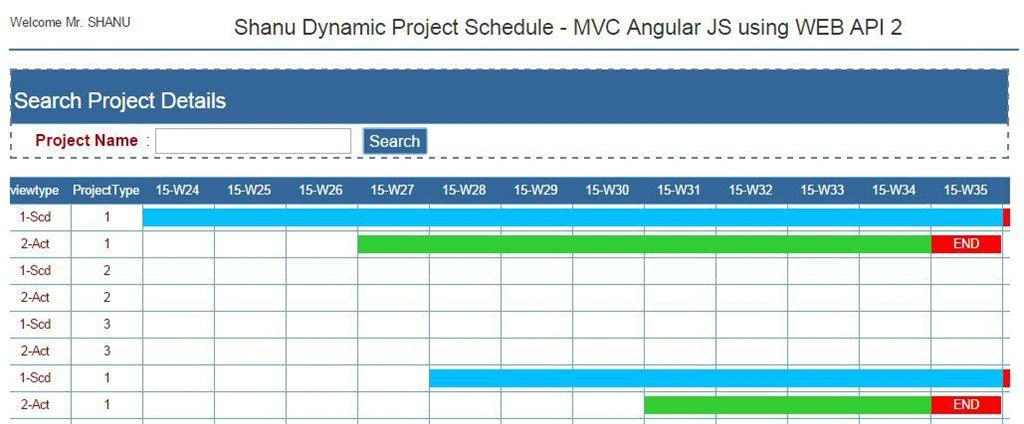
Note
For the actual data in the Pivot list I will display the result as:
- “-1” : For End Date of both the scheduled and actual result. In my program I will check for the produced value, if its “-1” then I will display the text as “END” with Red background color to notify the user for the end date of each project.
- “0” : If the result value is “0” then it means the days are not in any schedule or actual days so it should be left blank.
- “1” : If the result is “1” is to indicate as the scheduled start and end days. I will be using Blue to display the schedule days.
- “2” : If the result is “1” is to indicate the actual start and end days. I will be using Green to display the schedule days.
This is only a sample procedure that provides a sample program for the project schedule. You can custamize this table, procedure and program depending on your requirements. You can set your own rule and status to display the result.
- -- 3. This temp table is created toScedule details with result here i have used the Union ,
- --the 1st query return the Schedule Project result and the 2nd query returns the Actual Project result both this query will be inserted to a Temp Table
- --3.Start /////////////
- IF OBJECT_ID('tempdb..#TEMP_results') IS NOT NULL
- DROP TABLE #TEMP_results
- SELECT ProjectName,viewtype,ProjectType,resultnew,YMWK
- INTO #TEMP_results
- FROM(
- SELECT
- A.ProjectName ProjectName -- Our Project Name
- ,'1-Scd' viewtype -- Our View type first we display Schedule Data and then Actual
- , A. ProjectType ProjectType -- Our Project type here you can use your own status as Urgent,normal and etc
- , Case when cast(DATEPART( wk, max(A.SCHED_ED_DT)) as varchar(2)) = cast(DATEPART( wk, WkStartSundays) as varchar(2)) then -1 else
- case when min(A.SCHED_ST_DT)<= F.WkStartSundays AND max(A.SCHED_ED_DT) >= F.WkStartSundays
- then 1 else 0 end end resultnew -- perfectResult as i expect
- , RIGHT(YEAR(WkStartSundays), 2)+'-'+'W'+convert(varchar(2),Case when len(DATEPART( wk, WkStartSundays))='1' then '0'+
- cast(DATEPART( wk, WkStartSundays) as varchar(2)) else cast(DATEPART( wk, WkStartSundays) as varchar(2)) END
- ) as 'YMWK' -- Here we display Year/month and Week of our Schedule which will be displayed as the Column
- FROM -- here you can youe your own table
- SCHED_Master A (NOLOCK)
- LEFT OUTER JOIN
- #TEMP_EveryWk_Sndays F (NOLOCK) ON A.status= F.status
- WHERE -- Here you can check your own where conditions
- A.ProjectName like '%' + @projectId
- AND A.status=1
- AND A.ProjectType in (1,2,3)
- AND A.SCHED_ST_DT <= @ToDate
- AND A.SCHED_ED_DT >= @FromDate
- GROUP BY
- A.ProjectName
- , A. ProjectType
- ,A.SCHED_ED_DT
- ,F.WkStartSundays
- UNION -- This query is to result the Actual result
- SELECT
- A.ProjectName ProjectName -- Our Project Name
- ,'2-Act' viewtype -- Our View type first we display Schedule Data and then Actual
- , A. ProjectType ProjectType -- Our Project type here you can use your own status as Urgent,normal and etc
- , Case when cast(DATEPART( wk, max(A.ACT_ED_DT)) as varchar(2)) = cast(DATEPART( wk, WkStartSundays) as varchar(2)) then -1 else
- case when min(A.ACT_ST_DT)<= F.WkStartSundays AND max(A.ACT_ED_DT) >= F.WkStartSundays
- then 2 else 0 end end resultnew -- perfectResult as i expect
- , RIGHT(YEAR(WkStartSundays), 2)+'-'+'W'+convert(varchar(2),Case when len(DATEPART( wk, WkStartSundays))='1' then '0'+
- cast(DATEPART( wk, WkStartSundays) as varchar(2)) else cast(DATEPART( wk, WkStartSundays) as varchar(2)) END
- ) as 'YMWK' -- Here we display Year/month and Week of our Schedule which will be displayed as the Column
- FROM -- here you can youe your own table
- SCHED_Master A (NOLOCK)
- LEFT OUTER JOIN
- #TEMP_EveryWk_Sndays F (NOLOCK) ON A.status= F.status
- WHERE -- Here you can check your own where conditions
- A.ProjectName like '%' + @projectId
- AND A.status=1
- AND A.ProjectType in (1,2,3)
- AND A.ACT_ST_DT <= @ToDate
- AND A.ACT_ED_DT >= @FromDate
- GROUP BY
- A.ProjectName
- , A. ProjectType
- ,A.SCHED_ED_DT
- ,F.WkStartSundays
- ) q
- --3.End /////////////
Here I will display the final result using the Pivot query from the final result of temp table result.
- --4.Start /////////////
- --here first we get all the YMWK which should be display in Columns we use this in our next pivot query
- select @MyColumns = STUFF((SELECT ',' + QUOTENAME(YMWK)
- FROM #TEMP_results
- GROUP BY YMWK
- ORDER BY YMWK
- FOR XML PATH(''), TYPE
- ).value('.', 'NVARCHAR(MAX)')
- ,1,1,'')
- --here we use the above all YMWK to disoplay its result as column and row display
- set @SQLquery = N'SELECT ProjectName,viewtype,ProjectType,' + @MyColumns + N' from
- (
- SELECT
- ProjectName,
- viewtype,
- ProjectType,
- YMWK,
- resultnew as resultnew
- FROM #TEMP_results
- ) x
- pivot
- (
- sum(resultnew)
- for YMWK in (' + @MyColumns + N')
- ) p order by ProjectName, ProjectType,viewtype'
- exec sp_executesql @SQLquery;
Here is the complete code for the Stored Procedure.
- Alter PROCEDURE [dbo].[usp_ProjectSchedule_Select]
- @projectId VARCHAR(10) = ''
- AS
- BEGIN
- -- 1. Declared for setting the Schedule Start and End date
- --1.Start /////////////
- Declare @FromDate VARCHAR(20) = '2015-06-08'--DATEADD(mm,-12,getdate())
- Declare @ToDate VARCHAR(20) = '2016-05-06'--DATEADD(mm, 1, getdate())
- -- used for the pivot table result
- DECLARE @MyColumns AS NVARCHAR(MAX),
- @SQLquery AS NVARCHAR(MAX)
- --// End of 1.
- -- 2.This Temp table is to created for get all the days between the start date and end date to display as the Column Header
- --2.Start /////////////
- IF OBJECT_ID('tempdb..#TEMP_EveryWk_Sndays') IS NOT NULL
- DROP TABLE #TEMP_EveryWk_Sndays
- DECLARE @TOTALCount INT
- Select @TOTALCount= DATEDIFF(dd,@FromDate,@ToDate);
- WITH d AS
- (
- SELECT top (@TOTALCount) AllDays = DATEADD(DAY, ROW_NUMBER()
- OVER (ORDER BY object_id), REPLACE(@FromDate,'-',''))
- FROM sys.all_objects
- )
- SELECT distinct DATEADD(DAY, 1 - DATEPART(WEEKDAY, AllDays), CAST(AllDays AS DATE))WkStartSundays ,1 as status
- into #TEMP_EveryWk_Sndays
- FROM d
- where
- AllDays <= @ToDate
- AND AllDays >= @FromDate
- -- test the sample temptable with select query
- -- select * from #TEMP_EveryWk_Sndays
- --///////////// End of 2.
- -- 3. This temp table is created toScedule details with result here i have used the Union ,
- --the 1st query return the Schedule Project result and the 2nd query returns the Actual Project result both this query will be inserted to a Temp Table
- --3.Start /////////////
- IF OBJECT_ID('tempdb..#TEMP_results') IS NOT NULL
- DROP TABLE #TEMP_results
- SELECT ProjectName,viewtype,ProjectType,resultnew,YMWK
- INTO #TEMP_results
- FROM(
- SELECT
- A.ProjectName ProjectName -- Our Project Name
- ,'1-Scd' viewtype -- Our View type first we display Schedule Data and then Actual
- , A. ProjectType ProjectType -- Our Project type here you can use your own status as Urgent,normal and etc
- , Case when cast(DATEPART( wk, max(A.SCHED_ED_DT)) as varchar(2)) = cast(DATEPART( wk, WkStartSundays) as varchar(2)) then -1 else
- case when min(A.SCHED_ST_DT)<= F.WkStartSundays AND max(A.SCHED_ED_DT) >= F.WkStartSundays
- then 1 else 0 end end resultnew -- perfectResult as i expect
- , RIGHT(YEAR(WkStartSundays), 2)+'-'+'W'+convert(varchar(2),Case when len(DATEPART( wk, WkStartSundays))='1' then '0'+
- cast(DATEPART( wk, WkStartSundays) as varchar(2)) else cast(DATEPART( wk, WkStartSundays) as varchar(2)) END
- ) as 'YMWK' -- Here we display Year/month and Week of our Schedule which will be displayed as the Column
- FROM -- here you can youe your own table
- SCHED_Master A (NOLOCK)
- LEFT OUTER JOIN
- #TEMP_EveryWk_Sndays F (NOLOCK) ON A.status= F.status
- WHERE -- Here you can check your own where conditions
- A.ProjectName like '%' + @projectId
- AND A.status=1
- AND A.ProjectType in (1,2,3)
- AND A.SCHED_ST_DT <= @ToDate
- AND A.SCHED_ED_DT >= @FromDate
- GROUP BY
- A.ProjectName
- , A. ProjectType
- ,A.SCHED_ED_DT
- ,F.WkStartSundays
- UNION -- This query is to result the Actual result
- SELECT
- A.ProjectName ProjectName -- Our Project Name
- ,'2-Act' viewtype -- Our View type first we display Schedule Data and then Actual
- , A. ProjectType ProjectType -- Our Project type here you can use your own status as Urgent,normal and etc
- , Case when cast(DATEPART( wk, max(A.ACT_ED_DT)) as varchar(2)) = cast(DATEPART( wk, WkStartSundays) as varchar(2)) then -1 else
- case when min(A.ACT_ST_DT)<= F.WkStartSundays AND max(A.ACT_ED_DT) >= F.WkStartSundays
- then 2 else 0 end end resultnew -- perfectResult as i expect
- , RIGHT(YEAR(WkStartSundays), 2)+'-'+'W'+convert(varchar(2),Case when len(DATEPART( wk, WkStartSundays))='1' then '0'+
- cast(DATEPART( wk, WkStartSundays) as varchar(2)) else cast(DATEPART( wk, WkStartSundays) as varchar(2)) END
- ) as 'YMWK' -- Here we display Year/month and Week of our Schedule which will be displayed as the Column
- FROM -- here you can youe your own table
- SCHED_Master A (NOLOCK)
- LEFT OUTER JOIN
- #TEMP_EveryWk_Sndays F (NOLOCK) ON A.status= F.status
- WHERE -- Here you can check your own where conditions
- A.ProjectName like '%' + @projectId
- AND A.status=1
- AND A.ProjectType in (1,2,3)
- AND A.ACT_ST_DT <= @ToDate
- AND A.ACT_ED_DT >= @FromDate
- GROUP BY
- A.ProjectName
- , A. ProjectType
- ,A.SCHED_ED_DT
- ,F.WkStartSundays
- ) q
- --3.End /////////////
- --4.Start /////////////
- --here first we get all the YMWK which should be display in Columns we use this in our next pivot query
- select @MyColumns = STUFF((SELECT ',' + QUOTENAME(YMWK)
- FROM #TEMP_results
- GROUP BY YMWK
- ORDER BY YMWK
- FOR XML PATH(''), TYPE
- ).value('.', 'NVARCHAR(MAX)')
- ,1,1,'')
- --here we use the above all YMWK to disoplay its result as column and row display
- set @SQLquery = N'SELECT ProjectName,viewtype,ProjectType,' + @MyColumns + N' from
- (
- SELECT
- ProjectName,
- viewtype,
- ProjectType,
- YMWK,
- resultnew as resultnew
- FROM #TEMP_results
- ) x
- pivot
- (
- sum(resultnew)
- for YMWK in (' + @MyColumns + N')
- ) p order by ProjectName, ProjectType,viewtype'
- exec sp_executesql @SQLquery;
- END

Create our MVC Web Application in Visual Studio 2015
After installing our Visual Studio 2015 click Start -> Programs then select Visual Studio 2015 then click Visual Studio 2015 RC.
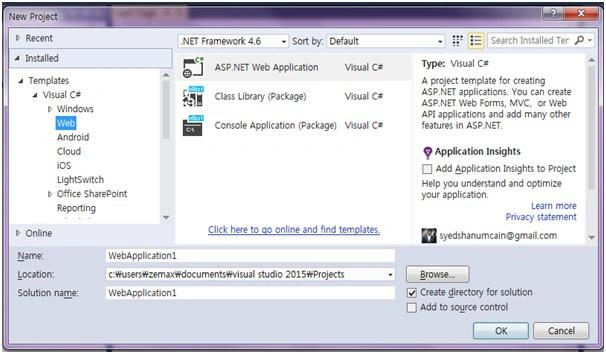
Click New -> Project - > Select Web -> ASP.NET Web Application. Select your project location and enter your web application Name.
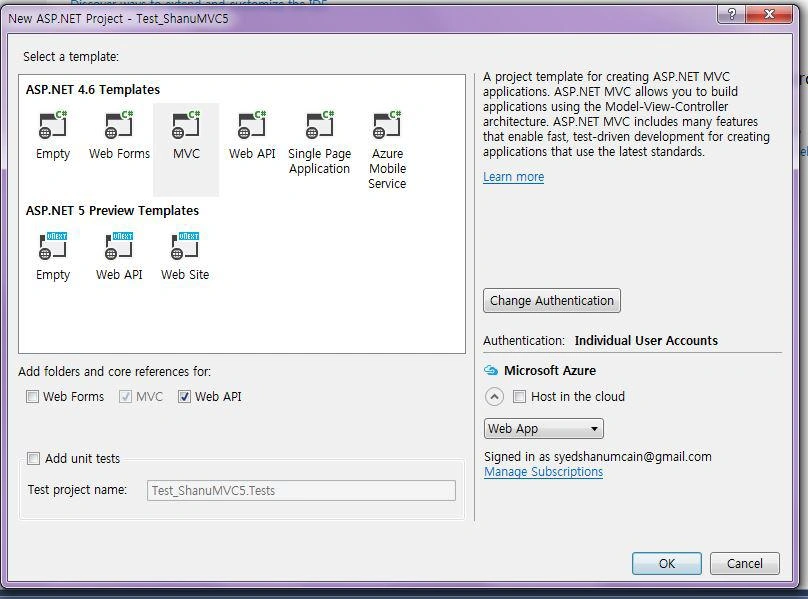
Select MVC and in Add Folders and Core reference for. Select the Web API and click OK.
Procedure to add our Web API Controller
Right-click the Controllers folder then click Add then click Controller.
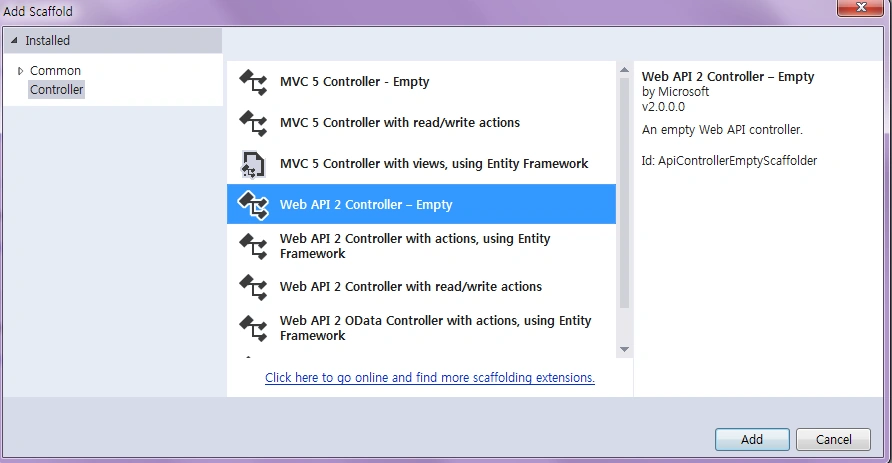
Since we will create our Web API Controller, select Controller and add Empty Web API 2 Controller. Provide the name for the Web API controller and click OK. Here for my Web API Controller I have used the name “ScheduleController”.
Since we have created a Web API controller, we can see our controller has been inherited ApiController.
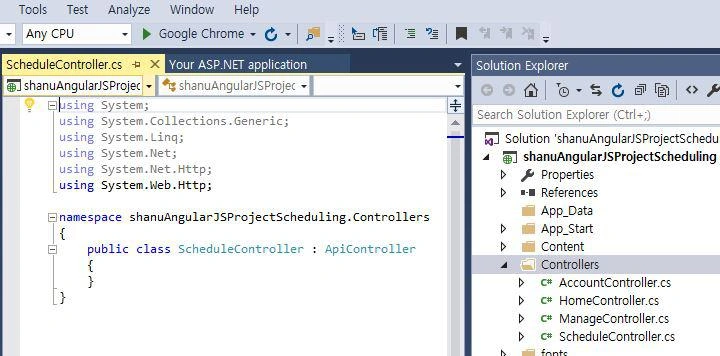
Since we all know Web API is a simple and easy to build HTTP Services for Browsers and Mobiles.
Web API has the four methods Get/Post/Put and Delete where:
- Get is to request data (select).
- Post is to create data (insert).
- Put is to update data.
- Delete is to delete data.
Get Method
In our example I have used only the Get method since I am using only a Stored Procedure. Since I didn't use the Entity Framework, here I have ben connecting to a database and gotten the result of the Stored Procedure to the Datatable.
- public class scheduleController: ApiController
- {
- // to Search Student Details and display the result
- [HttpGet]
- public DataTable projectScheduleSelect(string projectID)
- {
- string connStr = ConfigurationManager.ConnectionStrings["shanuConnectionString"].ConnectionString;
- DataTable dt = new DataTable();
- SqlConnection objSqlConn = new SqlConnection(connStr);
- objSqlConn.Open();
- SqlCommand command = new SqlCommand("usp_ProjectSchedule_Select", objSqlConn);
- command.CommandType = CommandType.StoredProcedure;
- command.Parameters.Add("@projectId", SqlDbType.VarChar).Value = projectID;
- SqlDataAdapter da = new SqlDataAdapter(command);
- da.Fill(dt);
- return dt;
- }
- }
Creating AngularJs Controller
First create a folder inside the Script Folder and I gave the folder the name “MyAngular”.
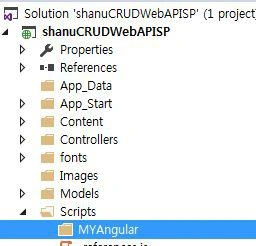
Now add your Angular Controller inside the folder.
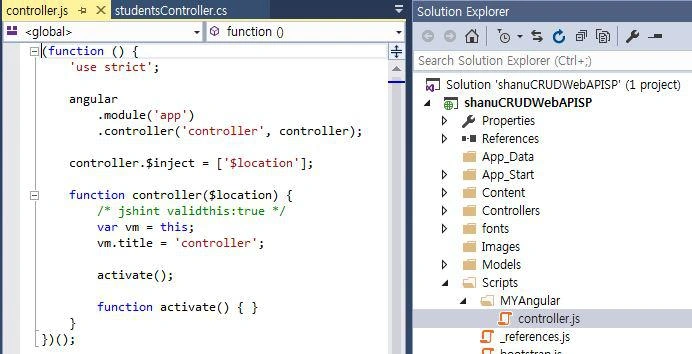
Right-click the MyAngular folder and click Add and New Item then select Web then select AngularJs Controller and provide a name for the Controller. I have given my AngularJs Controller the name “Controller.js”
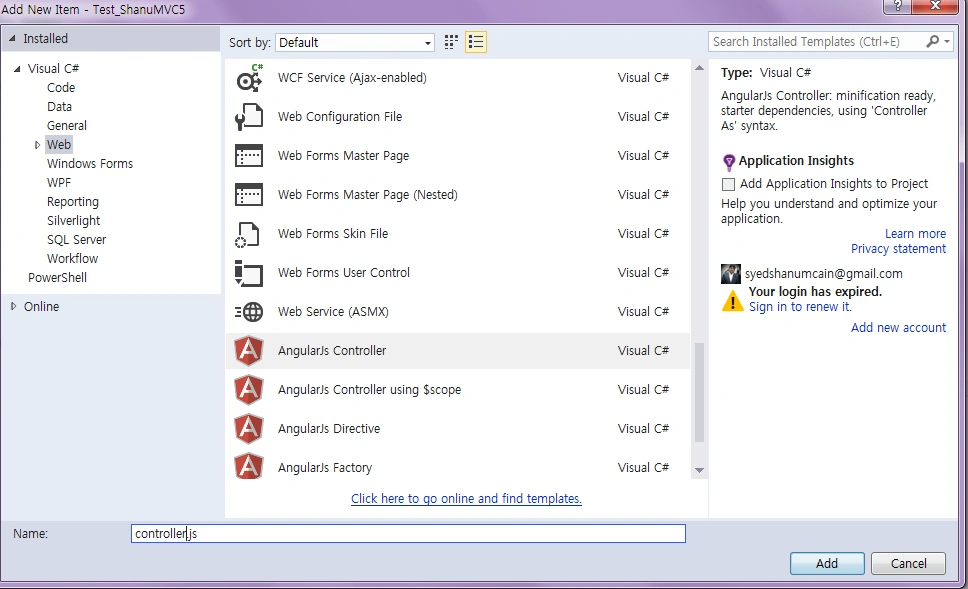
Once the AngularJs Controller is created, we can see by default the controller will have the code with default module definition and all.
I have changed the preceding code like adding a Module and controller as in the following.
If the AngularJS package is missing then add the package to your project.
Right-click your MVC project and click Manage NuGet Packages. Search for AngularJs and click Install.
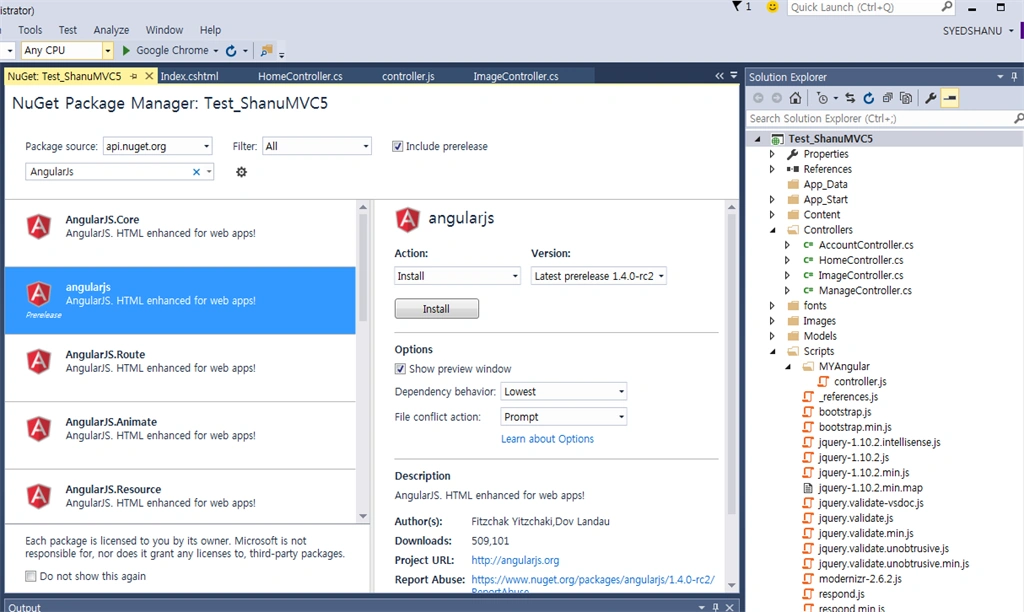
Now we can see all the AngularJs packages have been installed and we can see all the files in the Script folder.
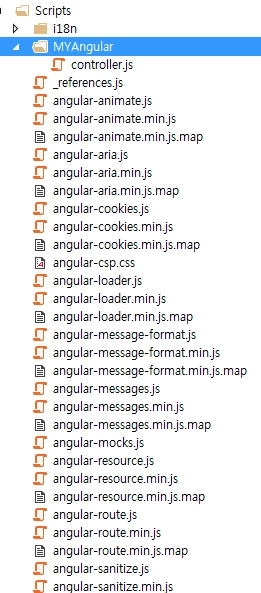
The following is the procedure to create AngularJS script files.
- // <reference path="../angular.js" />
- /// <reference path="../angular.min.js" />
- /// <reference path="../angular-animate.js" />
- /// <reference path="../angular-animate.min.js" />
- var app;
- (function()
- {
- app = angular.module("RESTClientModule", ['ngAnimate']);
- })();
In the AngularJS Controller I have done all the business logic and returned the data from the Web API to our MVC HTML page.
First I declared the entire local variable to be used. I have used only one method, “selectScheduleDetails“. In that method I called the Web API method with Project ID as parameter passing and the returned result I stored in the AngularJS variable to display in the MVC HTML page. In the search button click I will be calling the same method by passing the ProjectID as the search parameter.
- app.controller("AngularJs_studentsController", function($scope, $timeout, $rootScope, $window, $http) {
- $scope.date = new Date();
- $scope.projectId = "";
- selectScheduleDetails($scope.projectId);
- function selectScheduleDetails(projectId)
- {
- $http.get('/api/schedule/projectScheduleSelect/',
- {
- params: {
- projectId: projectId
- }
- }).success(function(data)
- {
- $scope.Schedules = data;
- if ($scope.Schedules.length > 0) {}
- })
- .error(function()
- {
- $scope.error = "An Error has occured while loading posts!";
- });
- }
- //Search
- $scope.searchScheduleDetails = function()
- {
- selectScheduleDetails($scope.projectId);
- }
- });
All the final result I will be display in the HTML page. Since here we receive all the result as dynamic we cannot predefine any value in our HTML page. The HTML table header and data we need to be generated dynamically.
Since we need to display the dynamic header and Dynamic data I will be using the nested “ng-repeat” to display the dynamic results in the Header to avoid the duplicate result. I have limited the result to be displayed as 1 ”limitTo:”.
Note: I have used the {{key}} to first display the header result and I have used {{val}} to display the result data.
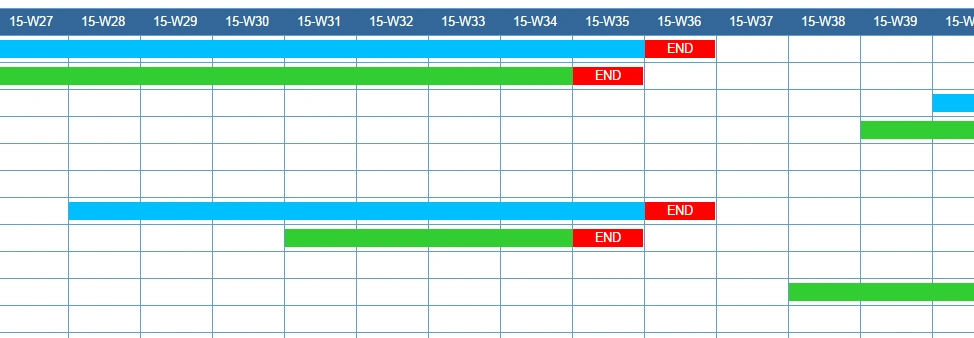
As I have explained, you already have the numbers are “-1, 0, 1, 2" in the data display. Our final result in the HTML table is the graphical project Scheduling Chart.
I have used the Span tag to display the result in a graphical manner as a chart of the table with appropriate colors filled in by each status.
- <table style=" background-color:#FFFFFF; border: solid 2px #6D7B8D; width: 99%;table-layout:fixed;" cellpadding="0" cellspacing="0">
- <tr style="height: 30px; background-color:#336699 ; color:#FFFFFF ;border: solid 1px #659EC7;" ng-repeat="item in Schedules | limitTo:1">
- <td width="80" align="center" ng-repeat="(key, val) in item | limitTo:1">
- <table>
- <tr>
- <td >
- {{key}}
- </td>
- </tr>
- </table>
- </td>
- </tr>
- <tr style="height: 30px; color:darkred ;border: solid 1px #659EC7;" ng-repeat="item in Schedules" >
- <td width="80" style="border: solid 1px #659EC7;table-layout:fixed;padding:0;" align="center" ng-repeat="(key, val) in item" >
- <table cellpadding="0" cellspacing="0">
- <tr>
- <td align="center" width="60" style="padding:0;">
- <div ng-if="key == 'ProjectName' ">
- {{val}}
- </div>
- <div ng-if="key == 'viewtype' ">
- {{val}}
- </div>
- <div ng-if="key == 'ProjectType' " >
- {{val}}
- </div>
- <div ng-if="val == '0' && key != 'ProjectType' " ></div>
- <div ng-if="val == '1' && key != 'ProjectType'" >
- <span style="background-color: deepskyblue; width: 100%; float:left; display: inline;margin-right:76px;" > </span>
- </div>
- <div ng-if="val == '2' && key != 'ProjectType'">
- <span style="background-color: limegreen; width: 100%; float:left; display: inline;margin-right:76px;"> </span>
- </div>
- <div ng-if="val == '-1' && key != 'ProjectType'">
- <span style="background-color: red; width: 100%; float:left; display: inline;margin-right:48px;color:white">END</span>
- </div>
- </td>
- </tr>
- </table>
- </td>
- </tr> </table>
Final Output
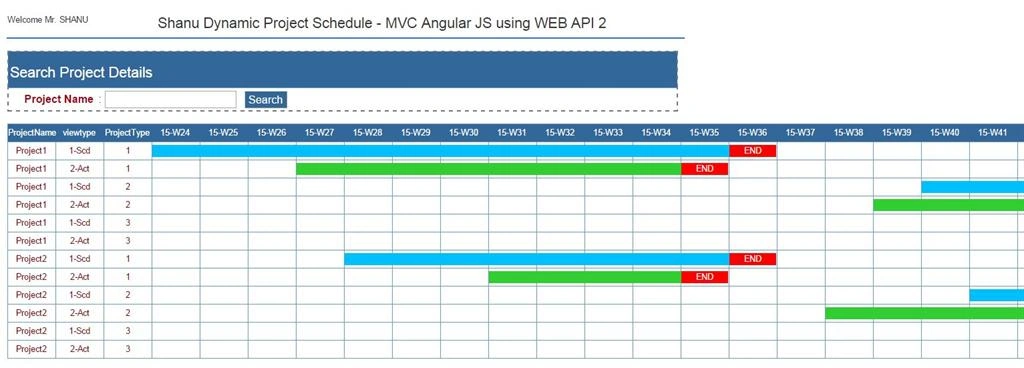
The final output will be like this.As i have already told all the final result will be get from stored procedure using the data Status like “-1,0,1,2” I will display the span tag inside HTML table to display or Project Schedule Chart.
We display Schedule and Actual result inside the HTML table as below.
Here we can see for each project I will display the Schedule chart as blue color with Schedule End date as red color and similarly for each project Actual start date I wil display with green color and End Date with red color.
In my Stored procedure I will check for each Schedule and Actual Start and End date range and I will display the result in Week Order with range to display as the status as 1 for Schedule and 2 for Actual.
For example lets take for result below we can see project1,1-Scd in our table we insert the:
- Schedule Start Date - 2015-06-01 (If we check for the Week no of this Date it will be as Week 24)
- Schedule End Date - 2015-09-02 (If we check for the Week no of this Date it will be as Week 36)
- Actual Start Date - 2015-06-22 (If we check for the Week no of this Date it will be as Week 27)
- Actual End Date - 2015-08-26 (If we check for the Week no of this Date it will be as Week 35)
We can see in my Stored procedure result for the Start and End date range for each week I will display the result as 1 for Schedule and 2 for Actual. In my MVC HTML page using the AngularJS ng-repeat and ng-if="val == '1' I will check for each result and display the Chart inside Table like below:
Note: In the WebConfig file you can find “shanuConnectionString” to change the connection string depending on your SQL Server connection.
Supported Browsers: Chrome and Firefox.
Chervine BhiwooPosted Aug 8, 2015, 2:21 AM
Very detailed! Thanks for sharing!
Upendra Pratap ShahiPosted Aug 7, 2015, 2:09 AM
nice sir
Nilesh JadavPosted Aug 4, 2015, 12:19 AM
nice one sir
Chervine BhiwooPosted Aug 3, 2015, 11:28 PM
Nice work
Rajeesh MenothPosted Aug 3, 2015, 5:31 AM
Thank you for sharing..Good One sir
Pramod ThakurPosted Aug 3, 2015, 3:32 AM
nice one.. thx for sharing..
Neeraj KumarPosted Jul 24, 2015, 1:15 PM
Great Article Sir.Thank you for sharing :)
Vilas ShendePosted Jul 24, 2015, 4:46 AM
Great one boss ! Thanks for sharing .
Sibeesh VenuPosted Jul 24, 2015, 4:13 AM
Nice Share. Thank you
SharadPosted Jul 24, 2015, 3:14 AM
Excellent..
Santhakumar MunuswamyPosted Jul 23, 2015, 2:59 PM
Excellent work. Thanks for sharing....
junaid mPosted Jul 22, 2015, 11:58 PM
Good job
Gopi ChandPosted Jul 22, 2015, 3:07 PM
Commendable job :)
RakeshPosted Jul 22, 2015, 10:08 AM
Very Nice Sirji
Rahul Kumar SaxenaPosted Jul 22, 2015, 6:50 AM
superb
SharadPosted Jul 22, 2015, 5:51 AM
Excellent...
Chervine BhiwooPosted Jul 22, 2015, 4:25 AM
Great work!
Sibeesh VenuPosted Jul 22, 2015, 4:03 AM
Nice Share.
Sunny SharmaPosted Jul 22, 2015, 2:35 AM
Nice Share!
Nilesh JadavPosted Jul 22, 2015, 1:55 AM
Nice one sir