

Introduction
This article explains the MatchEvaluator Delegate. You can use this delegate method to perform a custom verification for each match found by a Regular Expression Replace method. For each matched string, the Replace method calls the MatchEvaluator delegate method with a Match object that represents the match.
System.Text.RegularExpressions Namespace
- using System.Text.RegularExpressions;
The System.Text.RegularExpressions namespace contains classes that provide access to the .NET Framework Regular Expression engine. This namespace has the the "Match" class that represents the results from a single Regular Expression match.
MatchEvaluator Delegate
The MatchEvaluator delegate represents the method that is called each time a Regular Expression match is found during a "Replace" method.
- return regex.Replace(InputTxt, new MatchEvaluator(MatchRecords));
In a specified input string, replaces all strings that match a specified Regular Expression with a string returned by a MatchEvaluator delegate. The Regex.Replace method processes text replacements. In a Replace method we pass two arguments, the first argument is the input and the second argument is the replacement string.
- public string MatchRecords(Match m)
- {
- return ("<span class=highlight>" + m.Value + "</span>");
- }
The "Match" object represents the results from a single Regular Expression match.
FilterExpression Property
The FilterExpression property value is a format string expression or a string processed by the String.Format method and a filtering expression applied when data is retrieved using the Select method.
- <asp:SqlDataSource ID="dsDetails" runat="server" ConnectionString="<%$ConnectionStrings:dbconnection %>"
- SelectCommand="select * from EmployeeInformation" FilterExpression="Emp_Name LIKE '%{0}%'">
Now I will show you how to search the records in a GridView using MatchEvaluator. Let's use the following procedure.
Create DataBase and Table in SQL Server
Create Database Employee
- use Employee
- create table EmployeeInformation
- (
- EmpId int,
- Emp_Name varchar(max),
- Emp_Address nvarchar(max),
- Emp_Department varchar(max)
- )
Write the following procedure to insert the values in the table's columns:
- insert into EmployeeInformation values(101,'Pankaj Lohani','A-43 Vinod New Delhi','Web Development')
- insert into EmployeeInformation values(102,'Nimit Joshi','B-44 Laxminagar New Delhi','Web Development')
- insert into EmployeeInformation values(103,'Pravesh Khanduri','C-45 Pratap Vihar New Delhi','Teacher')
- insert into EmployeeInformation values(104,'Amit Senwal','D-46 R.K puram New Delhi','Web Development')
- insert into EmployeeInformation values(105,'Ravi Kumar','E-47 Saket New Delhi','Testing')
- insert into EmployeeInformation values(106,'Ainul Hasan','F-48 Saraswati Kunj New Delhi','Web Development')
- insert into EmployeeInformation values(107,'Ashish','F-49 Vinod Nagar New Delhi','Software Engineer')
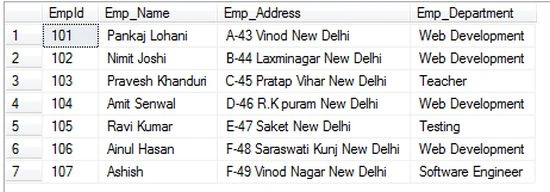
Write the following query to execute the table schema:
- select * from EmployeeInformation
Step 1
Open Visual Studio then select "Create New Website" --> ASP.NET Web Site.

Step 2
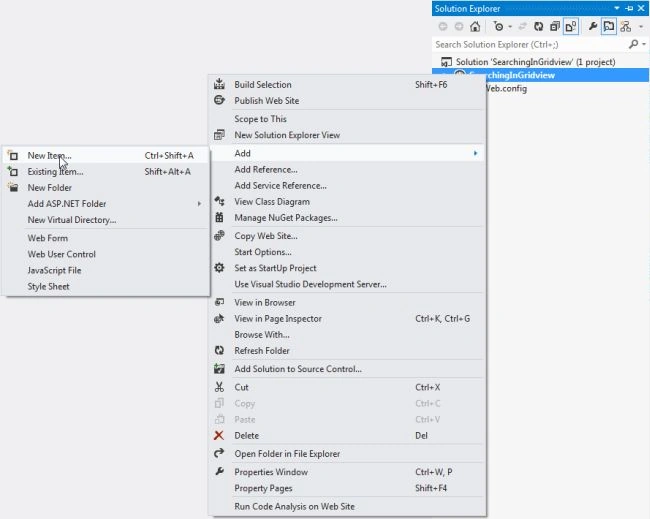
Now go to the Solution Explorer to the right side of the application and use the procedure shown in the following figure:
Step 3
Add a new Web form in the empty web application as in the figure given below.

Step 4
Write the following code in the GridForm.aspx page:
- <%@ Page Language="C#" AutoEventWireup="true" CodeFile="EmployeeDetails.aspx.cs" Inherits="EmployeeDetails" %>
- <!DOCTYPE html>
- <html xmlns="http://www.w3.org/1999/xhtml">
- <head id="Head1" runat="server">
- <title>Highlight the Search Keywords in Gridview </title>
- <style type="text/css">
- .GridviewDiv {font-size: 100%; font-family: 'Lucida Grande', 'Lucida Sans Unicode', Verdana, Arial, Helevetica, sans-serif; color: #303933;}
- Table.Gridview{border:solid 1px #df5015;}
- .Gridview th{color:#FFFFFF;border-right-color:#abb079;border-bottom-color:#abb079;padding:0.5em 0.5em 0.5em 0.5em;text-align:center}
- .Gridview td{border-bottom-color:#f0f2da;border-right-color:#f0f2da;padding:0.5em 0.5em 0.5em 0.5em;}
- .Gridview tr{color: Black; background-color: White; text-align:left}
- :link,:visited { color: #DF4F13; text-decoration:none }
- .highlight {text-decoration: none;color:black;background:white;}
- </style>
- </head>
- <body>
- <form id="form1" runat="server">
- <div class="GridviewDiv">
- <p>
- Enter Employee Name :
- <asp:TextBox ID="txtsrchbox" runat="server" />
- <asp:Button ID="btnSearch" Text="Search" runat="server"
- Style="top:5px; position: relative" OnClick="btnSearch_Click1"/>
- <asp:Button ID="btnClear" runat="server" Text="Clear" Style="top: 5px;position: relative" OnClick="btnClear_Click1"/><br />
- <br />
- </p>
- <asp:GridView ID="gvEmpDetails" runat="server" AutoGenerateColumns="False" AllowPaging="True"
- AllowSorting="True" DataSourceID="dsDetails" Width="540px" CssClass="Gridview" BackColor="White"
- BorderColor="#E7E7FF" BorderStyle="None" BorderWidth="1px" CellPadding="3" GridLines="Horizontal" >
- <FooterStyle BackColor="#B5C7DE" ForeColor="#4A3C8C" />
- <HeaderStyle BackColor="#4A3C8C" Font-Bold="True" ForeColor="#F7F7F7" />
- <AlternatingRowStyle BackColor="#F7F7F7" />
- <Columns>
- <asp:TemplateField HeaderText="Emp_Id">
- <ItemTemplate>
- <asp:Label ID="lblEmpId" Text='<%# GetRecord(Eval("EmpId").ToString()) %>' runat="server"/>
- </ItemTemplate>
- </asp:TemplateField>
- <asp:TemplateField HeaderText="Emp_Name">
- <ItemTemplate>
- <asp:Label ID="lblEmpname" Text='<%# GetRecord(Eval("Emp_Name").ToString()) %>' runat="server"/>
- </ItemTemplate>
- </asp:TemplateField>
- <asp:TemplateField HeaderText="Emp_Address">
- <ItemTemplate>
- <asp:Label ID="lblAddress" Text='<%# Eval("Emp_Address") %>' runat="server"/>
- </ItemTemplate>
- </asp:TemplateField>
- <asp:TemplateField HeaderText="Emp_Department">
- <ItemTemplate>
- <asp:Label ID="lblDepartment" Text='<%#Eval("Emp_Department") %>' runat="server"></asp:Label>
- </ItemTemplate>
- </asp:TemplateField>
- </Columns>
- <PagerStyle BackColor="#E7E7FF" ForeColor="#4A3C8C" HorizontalAlign="Right" />
- <RowStyle BackColor="#E7E7FF" ForeColor="#4A3C8C" />
- <SelectedRowStyle BackColor="#738A9C" Font-Bold="True" ForeColor="#F7F7F7" />
- <SortedAscendingCellStyle BackColor="#F4F4FD" />
- <SortedAscendingHeaderStyle BackColor="#5A4C9D" />
- <SortedDescendingCellStyle BackColor="#D8D8F0" />
- <SortedDescendingHeaderStyle BackColor="#3E3277" />
- </asp:GridView>
- </div>
- <asp:SqlDataSource ID="dsDetails" runat="server" ConnectionString="<%$ConnectionStrings:dbconnection %>"
- SelectCommand="select * from EmployeeInformation" FilterExpression="Emp_Name LIKE '%{0}%'">
- <FilterParameters>
- <asp:ControlParameter Name="Emp_Name" ControlID="txtsrchbox" PropertyName="Text" />
- </FilterParameters>
- </asp:SqlDataSource>
- </form>
- </body>
- </html>
Add the connectionstring string to the Web.Config file as in the following:
- <connectionStrings>
- <add name="dbconnection" connectionString="Data Source=; Initial Catalog=Employee;
- User=; Password=***" providerName="SqlClient"/>
- </connectionStrings>
In the preceding EmployeeDetails.aspx page we have the TemplateField consisting of two templates, an ItemTemplate that has a Label whose Text property is set to the value of the Employeename data field, and the data-binding syntax:
- <asp:Label ID="lblEmpId" Text='<%# GetRecord(Eval("EmpId").ToString()) %>' runat="server"/>
that indicates that the fieldName data field is bound to the specified Web control property.
Design View of EmployeeDetails.aspx

Now write the following code in EmployeeDetails.aspx.cs:
Step 5
- using System;
- using System.Collections.Generic;
- using System.Linq;
- using System.Web;
- using System.Data;
- using System.Data.SqlClient;
- using System.Text.RegularExpressions;
- using System.Web.UI;
- using System.Web.UI.WebControls;
- public partial class EmployeeDetails : System.Web.UI.Page
- {
- private string str = "";
- protected void Page_Load(object sender, EventArgs e)
- {
- }
- public string GetRecord(string InputTxt)
- {
- string srch = txtsrchbox.Text;
- Regex regex= new Regex(srch.Replace(" ", "|").Trim(), RegexOptions.IgnoreCase);
- return regex.Replace(InputTxt, new MatchEvaluator(MatchRecords));
- }
- public string MatchRecords(Match m)
- {
- return ("<span class=highlight>" + m.Value + "</span>");
- }
- protected void btnSearch_Click1(object sender, EventArgs e)
- {
- str = txtsrchbox.Text;
- }
- protected void btnClear_Click1(object sender, EventArgs e)
- {
- txtsrchbox.Text = "";
- str = "";
- gvEmpDetails.DataBind();
- }
- }
Step 6
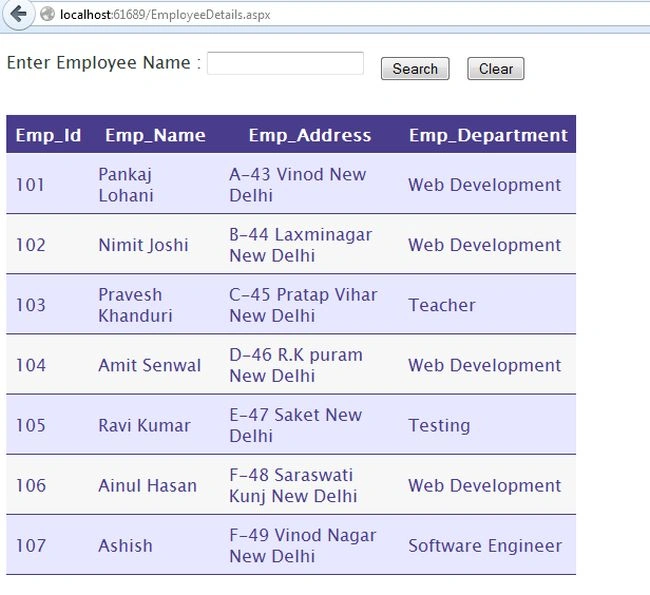
Debug the application by pressing F5 to execute the Web form. After debugging the application the output will be as in the following figure:
Step 7
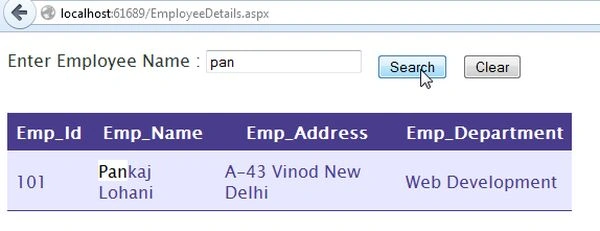
Now write the incomplete name on a given TextBox then click on the search button as in the figure given below.
Step 8
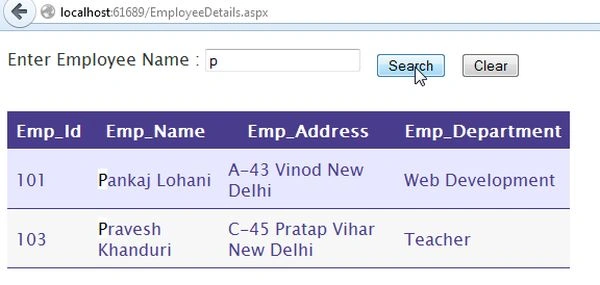
Now search the employee details through the single char of the name and click on the search button as in the figure given below.
Step 9
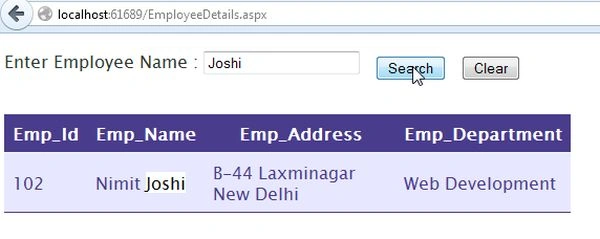
Search the details by the last name of the employee as in the figure given below.
Join the conversation! Your thoughts help the community grow.