

Introduction
Creating visually appealing and responsive web designs is essential for engaging user experiences. One crucial aspect of web development is centering DIV elements, which greatly impacts the overall layout and aesthetics of a webpage.
In this article, we will explore five effective methods to achieve this using CSS. By mastering these techniques – including margin auto, Flexbox, and Grid Layout – web developers can elevate their design skills and ensure that their websites look stunning and perform flawlessly on various devices. Let's delve into the world of CSS and discover how to center a DIV.
Horizontal Centering
Method 1: Using Margin Auto
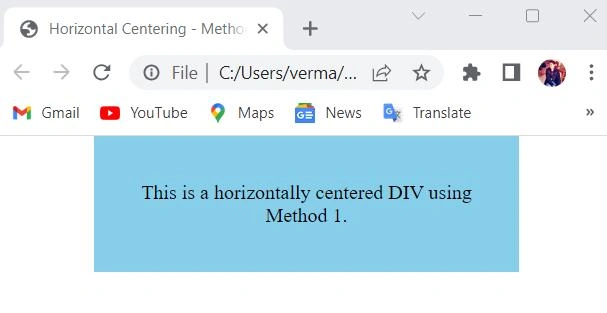
- To center a block-level DIV horizontally, we can set its left and right margins to "auto" using the CSS rule "margin: 0 auto;". This method calculates equal margins on both sides, pushing the element to the center of its containing parent.
- While this method works well for block-level elements, it has limitations when used with floated elements or absolute positioning. Floated elements may ignore the "margin: 0 auto;" rule, and absolute positioning takes the element out of the normal document flow, making it challenging to center it effectively using margins alone.
<!DOCTYPE html>
<html>
<head>
    <title>Horizontal Centering - Method 1</title>
    <style>
        body {
            margin: 0;
            padding: 0;
        }
        .container {
            width: 100%; /* Set container width to 100% */
        }
        .centered-div {
            width: 300px; /* Set the width of the centered DIV */
            margin: 0 auto; /* Set left and right margins to 'auto' for horizontal centering */
            background-color: #87CEEB;
            padding: 20px;
            text-align: center;
        }
    </style>
</head>
<body>
    <div class="container">
        <div class="centered-div">
            <p>This is a horizontally centered DIV using Method 1.</p>
        </div>
    </div>
</body>
</html>
Method 2: Using Flexbox
- Flexbox is a modern CSS layout method that offers powerful capabilities for centering elements. It involves setting the container's display property to "display: flex;".
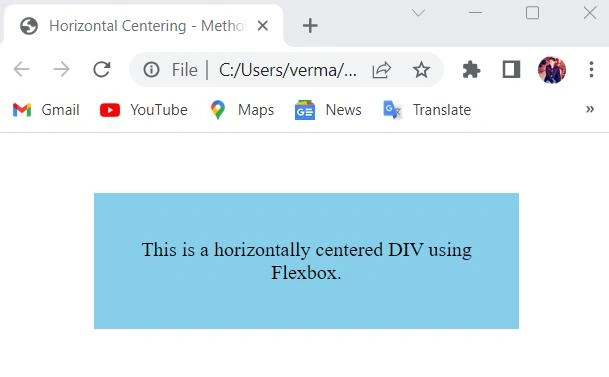
- To center a DIV horizontally using Flexbox, apply "justify-content: center;" to the parent container. This property distributes free space along the main axis, pushing the content to the center.
- Although Flexbox is widely supported in modern browsers, some older versions may have limited support, so it's essential to consider fallback options or use vendor prefixes if necessary.
<!DOCTYPE html>
<html>
<head>
    <title>Horizontal Centering - Method 2</title>
    <style>
        body {
            margin: 0;
            padding: 0;
        }
        .container {
            display: flex; /* Set the container as a flex container */
            justify-content: center; /* Center the flex items (centered-div) horizontally */
            align-items: center; /* Center the flex items (centered-div) vertically */
            height: 100vh; /* Set the container's height to 100% of the viewport height */
        }
        .centered-div {
            width: 300px; /* Set the width of the centered DIV */
            background-color: #87CEEB;
            padding: 20px;
            text-align: center;
        }
    </style>
</head>
<body>
    <div class="container">
        <div class="centered-div">
            <p>This is a horizontally centered DIV using Flexbox.</p>
        </div>
    </div>
</body>
</html>
Method 3: Using Grid Layout
- Grid Layout is another modern CSS layout option that enables precise control over the positioning of elements within a grid structure.
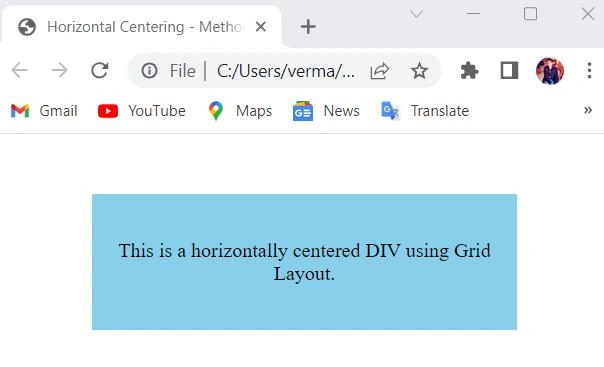
- To center a DIV horizontally with Grid Layout, set up a grid container with the "display: grid;" property and use "justify-items: center;" to align the grid items horizontally.
- Grid Layout enjoys good support in major modern browsers, but older browsers may lack full support. It's essential to test and provide fallback layouts or gracefully degrade the design for those browsers.
<!DOCTYPE html>
<html>
<head>
    <title>Horizontal Centering - Method 3</title>
    <style>
        body {
            margin: 0;
            padding: 0;
        }
        .container {
            display: grid; /* Set the container as a grid container */
            place-items: center; /* Center the grid items (centered-div) both horizontally and vertically */
            height: 100vh; /* Set the container's height to 100% of the viewport height */
        }
        .centered-div {
            width: 300px; /* Set the width of the centered DIV */
            background-color: #87CEEB;
            padding: 20px;
            text-align: center;
        }
    </style>
</head>
<body>
    <div class="container">
        <div class="centered-div">
            <p>This is a horizontally centered DIV using Grid Layout.</p>
        </div>
    </div>
</body>
</html>
Vertical Centering
Method 4: Using Flexbox
- To center a DIV vertically using Flexbox, we need to set the container as a flex container and apply the appropriate Flexbox properties.
- Set the container's display property to "display: flex;" to activate the Flexbox layout.
- Use "flex-direction: column;" to stack the child elements vertically.
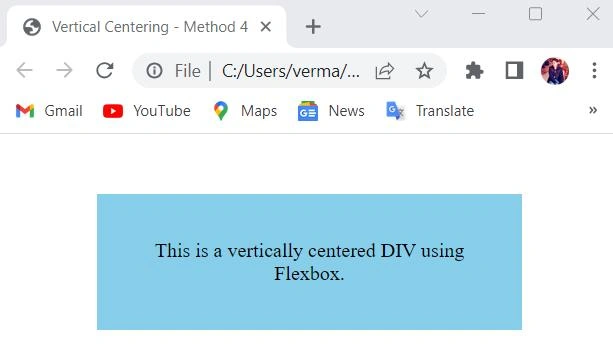
- Apply "justify-content: center;" to the parent container to center the child elements vertically.
- Potential issues arise when the container has dynamic content, such as varying text length or dynamic images. In such cases, the height of the container might change based on the content, causing the vertically centered DIV to shift. This can lead to unintended layout variations, and the centered DIV may no longer appear centered as the content changes dynamically. To address this issue, developers can use additional CSS or JavaScript to maintain consistent vertical centering regardless of the container's content.
<!DOCTYPE html>
<html>
<head>
    <title>Vertical Centering - Method 4</title>
    <style>
        body {
            margin: 0;
            padding: 0;
        }
        .container {
            display: flex; /* Set the container as a flex container */
            justify-content: center; /* Center the flex items horizontally */
            align-items: center; /* Center the flex items vertically */
            height: 100vh; /* Set the container's height to 100% of the viewport height */
        }
        .centered-div {
            width: 300px; /* Set the width of the centered DIV */
            background-color: #87CEEB;
            padding: 20px;
            text-align: center;
        }
    </style>
</head>
<body>
    <div class="container">
        <div class="centered-div">
            <p>This is a vertically centered DIV using Flexbox.</p>
        </div>
    </div>
</body>
</html>
Join the conversation! Your thoughts help the community grow.