
For this sample application, I have used Visual Studio 2012 RC, ASP.Net Web Page2 Beta and .Net 4.5 framework RC.
Step 1
To learn more about the basics of ASP.Net web pages, please refer to my previous blog:
http://www.c-sharpcorner.com/UploadFile/muralidharan.d/Asp-Net-web-pages-with-visual-studio-2012/
Step 2
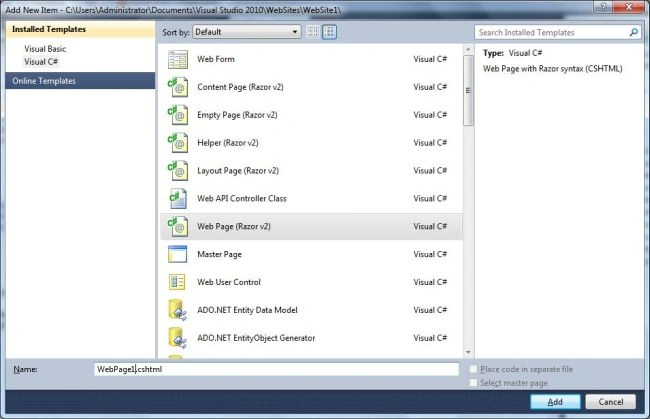
Add a new page in the ASP.Net web pages demo project.
Step 3
Add the "student" connectiion string in the existing web.config file.
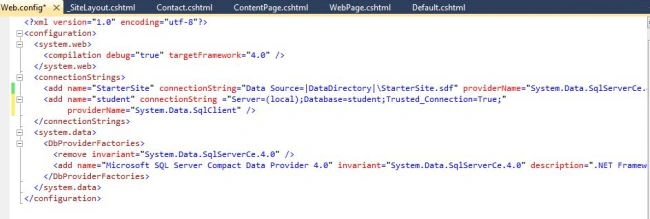
- <connectionStrings>
- <add name="StarterSite" connectionString="Data Source=|DataDirectory|\StarterSite.sdf" providerName="System.Data.SqlServerCe.4.0" />
- <add name="student" connectionString ="Server=(local);Database=student;Trusted_Connection=True;"
- providerName="System.Data.SqlClient" />
- </connectionStrings>
Step 4
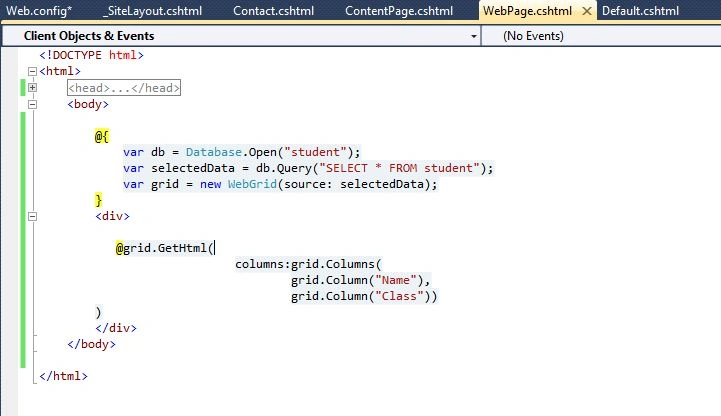
Add the following code to get the data from the student database.
- @{
- var db = Database.Open("student"); //Open the database here
- var selectedData = db.Query("SELECT * FROM student"); //get the data from student table
- var grid = new WebGrid(source: selectedData); //set the data source to the data grid
- }
Step 5
Fill in the datagrid with the data.
- @grid.GetHtml(
- columns:grid.Columns(
- grid.Column("Name"),
- grid.Column("Class"))
- )
Step 6
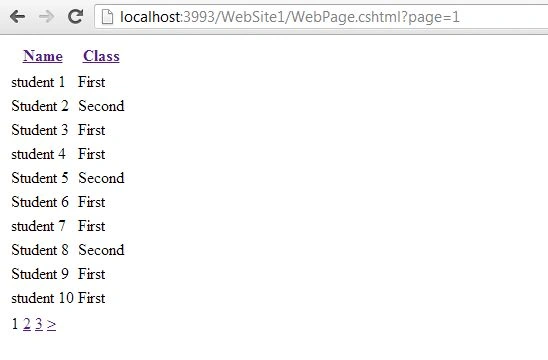
Hit F5 to run the application.
Step 7
Applying styles to the WebGrid.
Add the following style information in the head section.
- <head>
- <title></title>
- <style type="text/css">
- .grid { margin: 4px; border-collapse: collapse; width: 600px; font-family:Calibri; }
- .grid th, .grid td { border: 1px solid #C0C0C0; padding: 5px; }
- .head { background-color:Gray; font-weight: bold; color: black; }
- .alt { background-color: #E8E8E8; color: #000; }
- </style>
- </head>
Step 8
Add the style information to the webgrid.
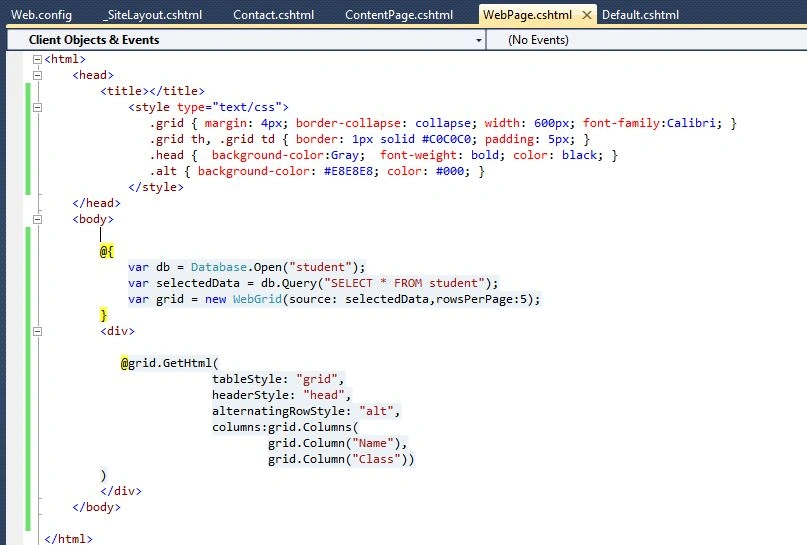
- @grid.GetHtml(
- tableStyle: "grid",
- headerStyle: "head",
- alternatingRowStyle: "alt",
- columns:grid.Columns(
- grid.Column("Name"),
- grid.Column("Class"))
- }
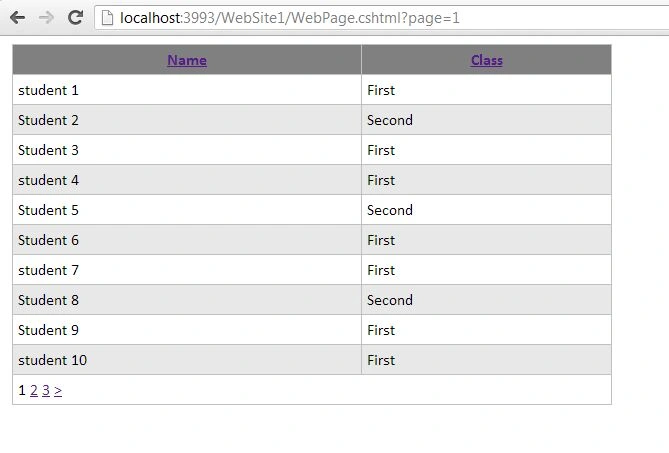
Step 9
Custom paging
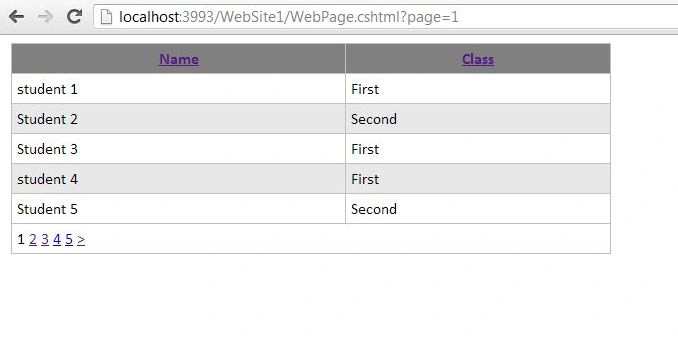
- var grid = new WebGrid(source: selectedData,rowsPerPage:5);
Hit F5 to run the application.
Join the conversation! Your thoughts help the community grow.