
📌 Introduction
In this automation, we will build a Power Automate flow that automatically imports the latest news from an RSS feed and uploads their associated images to SharePoint. The workflow helps eliminate manual updates and ensures that the SharePoint News list always displays current information.
Solution Overview
We will create a Power Automate flow that:
Runs every day
Reads the latest news from an RSS feed
Gets the news title, publish date, and image URL
Checks if the image already exists in SharePoint
Uploads the image only if it is new
Updates the SharePoint list with the image link and details
This avoids duplicate records and keeps SharePoint always updated with the latest news.
Step 1. Add Recurrence Trigger
Use the Recurrence trigger to schedule the automation:
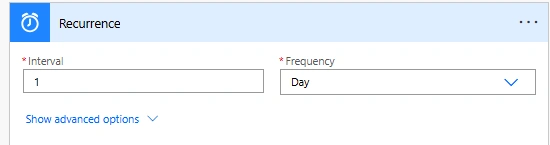
Interval : 1
Frequency : Day
This will run the flow every day by default .
You can customize the schedule based on your requirements, such as daily, weekly, monthly , or even at specific times.
You can also set an optional Start Time if you want the flow to begin running at a specific date or time.
Step 2. Get RSS Feed Items
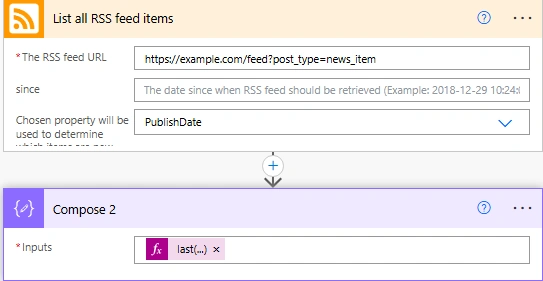
Add List all RSS feed items action:
RSS URL: https://example.com/feed?post_type=news_item
Replace the above URL with the RSS feed link you want to fetch news from .
For example, you can use your company news RSS URL or any public RSS news source.
Use Publish Date to identify new items
Add a Compose action to select the latest published news:
last(sort(outputs('List_all_RSS_feed_items'), 'publishDate'))This expression sorts all news records by Publish date and selects the most recent one.
Step 3. Get Existing SharePoint Items
Add the Get items action to retrieve records from the SharePoint list so we can compare .
Use the Get items action:
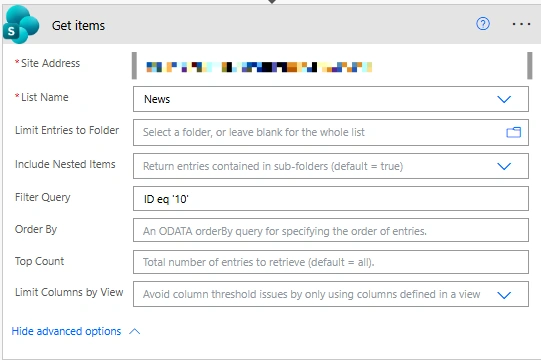
Site Address : "choose the site as per your requirement"
List Name : Select your target SharePoint list
Filter Query:
ID eq '10'
We use this filter Query so we can update the same item (same ID) instead of creating a duplicate.
Step 4. Extract Title and Image URL
Add two Compose actions to extract the news title and image URL from the RSS feed.
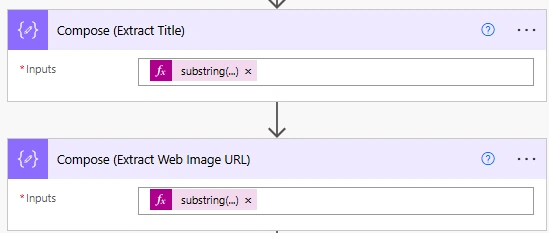
Compose 1 — Extract Limited Title from RSS Feed Title
substring(outputs('List_all_RSS_feed_items')?['title'], 0, 43)
Compose 2 — Extract Image URL from RSS Feed Summary
substring(substring(outputs('Compose_2')?['summary'], add(indexOf(outputs('Compose_2')?['summary'], 'src="'), 5)), 0, indexOf(substring(outputs('Compose_2')?['summary'], add(indexOf(outputs('Compose_2')?['summary'], 'src="'), 5)), '"'))
This extracts the image URL from the RSS summary HTML content (src="..." part).
You can modify the title length and image extraction logic depending on your RSS feed format.
Step 5. HTTP Action for Get the Web Image
✅ Reason
Many RSS feeds only give an image URL (not the actual file), so we need to download the image content (binary data) before uploading it to SharePoint.
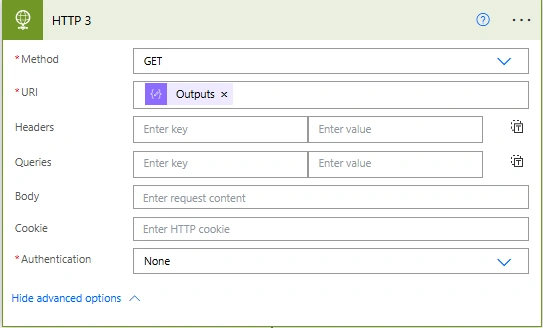
URL :
outputs('Compose_(Extract_Web_Image_URL)')The URL comes from the image URL we extracted from the RSS feed in the previous step.
You can replace the URL parameter with your own image source field if your RSS structure is different.
Step 6. Check If Image Already Exists
Add Send an HTTP request to SharePoint to check if the image file already exists in the SharePoint library.
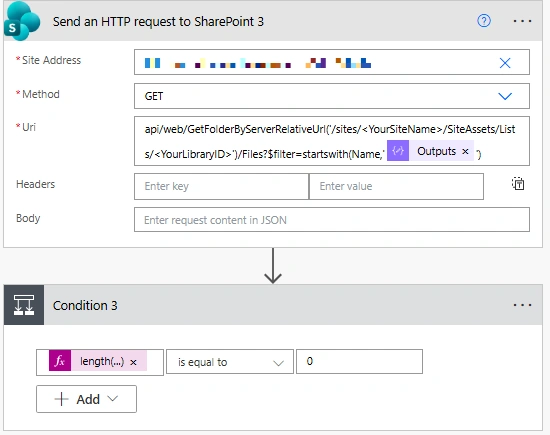
Method : Get
URI :
api/web/GetFolderByServerRelativeUrl('/sites/<YourSiteName>/SiteAssets/Lists/<YourLibraryID>')/Files?$filter=startswith(Name,'@{outputs('Compose(Extract_Title)')}')Add a Condition
In the Condition control, check the file count:
length(body('Send_an_HTTP_request_to_SharePoint')?['d']?['results'])Condition Logic
If Condition is equals 0 " Create new image file (image does NOT exist)"
greater than 0 "Do not upload (image already exists — reuse same file)"
This step prevents duplicate images from being uploaded. If the image already exists, we skip creating a new file and just update the SharePoint list with the existing reference.
Step 7. Create or Update File Based on Condition
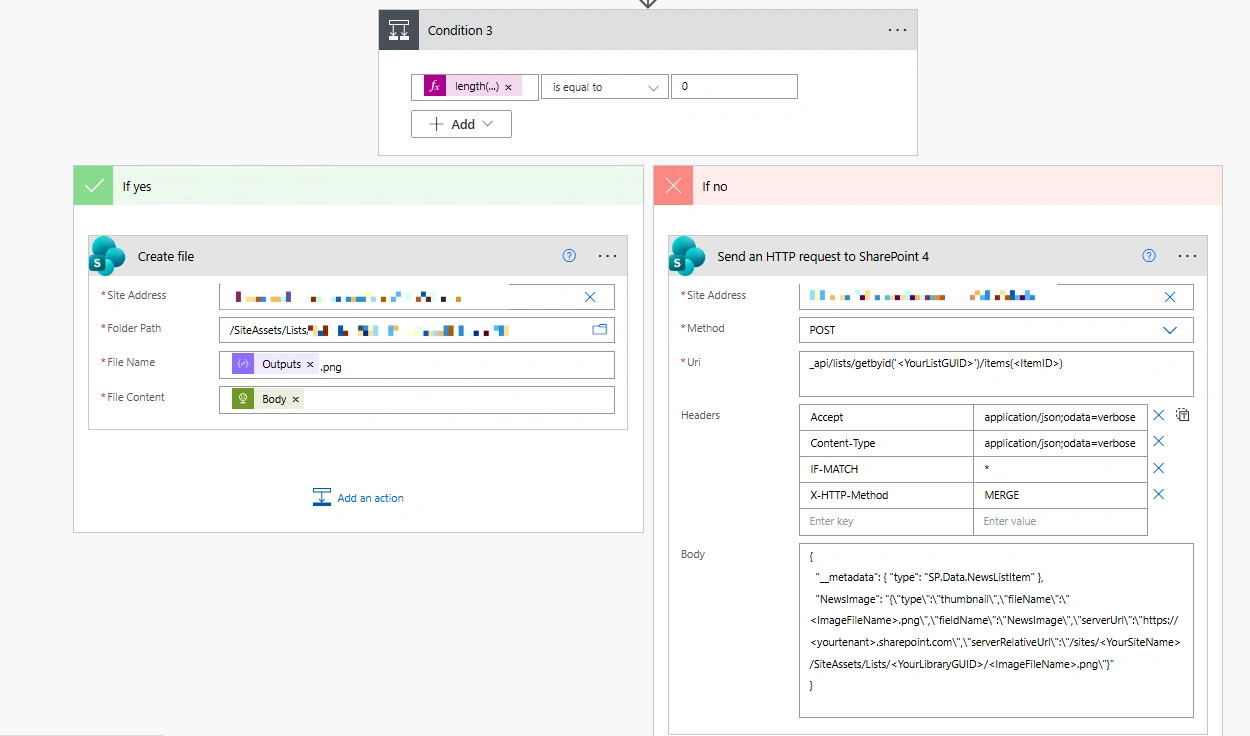
After checking if the image file already exists (Step 6), use the Condition result to decide whether to create a new file or update the existing SharePoint list item.
If file does NOT exist (Yes branch)
👉Create a new file in Site Assets
Site Address:
This is your SharePoint site URL where the Site Assets library exists.
Example:
https://yourtenant.sharepoint.com/sites/YourSiteFolder Path:
This is the location inside Site Assets → Lists → [LibraryID] where the image will be saved.
Example:
/SiteAssets/Lists/12345678-abcd-1234-abcd-987654321000File Name :
@{outputs('Compose_(Extract_Title)')}.pngFile Content :
@{body('HTTP_3')}This action uploads the new image to the folder.
If file already exists (No branch)
👉 Update the SharePoint list item to use the existing file image
Add Send an HTTP request to SharePoint
Site Address (Example):
Choose your site:
https://yourtenant.sharepoint.com/sites/YourSiteMethod: POST
Uri :
Option 1 — Using List GUID (your current method)
_api/lists/getbyid('<ListGUID>')/items(<ItemID>)Option 2 — Using List Name (simple and easy)
You can also use the list name directly instead of GUID:
_api/web/lists/getbytitle('<ListName>')/items(<ItemID>)You can use either the List GUID or the List Name in the URI
here, <ItemID> can be added either by retrieving it from the Get items action or entered manually."
Headers:
Accept: application/json;odata=verboseContent-Type: application/json;odata=verboseIF-MATCH: *X-HTTP-Method: MERGEBody:
{"__metadata": { "type": "SP.Data.NewsListItem" },"NewsImage": "{\"type\":\"thumbnail\",\"fileName\":\"<ImageFileName>.png\",\"fieldName\":\"NewsImage\",\"serverUrl\":\"https://<yourtenant>.sharepoint.com\",
\"serverRelativeUrl\":\"/sites/<YourSiteName>/SiteAssets/Lists/<YourLibraryGUID>/<ImageFileName>.png\"}"}
📝 Replace the placeholders in the body with your actual SharePoint details:
<ListGUID>→ Replace this with your SharePoint List ID<ListName>must match the List Name of your SharePoint list.<ItemID>→ Replace this with the ID of the list item you are updating<ImageFileName>→ Replace this with the image name from Extract Title compose<YourSiteName>→ Replace this with your SharePoint site name<YourLibraryGUID>→ Replace this with the GUID of your Site Assets library
Conclusion
This automated Power Automate flow keeps the SharePoint News list updated with the latest RSS content, prevents duplicate image files, ensures images are correctly stored in the Image column, and eliminates the need for manual updates.
Join the conversation! Your thoughts help the community grow.