
Tools Used: Visual C#.NET
You may be asking yourself: What's a GridView? I certainly didn't see it in the toolbox. Though it would be nice to have one... This example shows you how I've wrapped a ListView in a UserControl and turned it into a simple grid control. Many times I find myself not wanting to think about items, subitems, listitems, whatever. I just want to put a string in a row and column position, or populate a row, or populate a column. I suspect Microsoft never intended the ListView to be used as a Grid, but so many people were doing it, they enabled the capability for using it as a grid without supplying the methods. The GridView class wraps a bunch of the powerful ListView methods and properties, and gives you an easy means of sticking a string in a row and column position.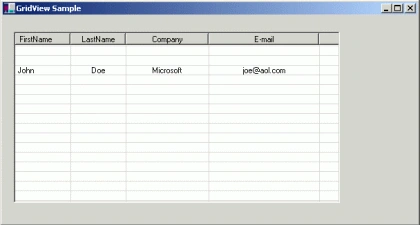
Fig 1.01
Below is the code for populating the line you see in Fig 1.01:
public Form1()
{
//
Required for Windows Form Designer support
//
InitializeComponent();
// set the column names at the top
gridView1.SetColumnNames(new string[]
{
"FirstName",
"LastName",
"Company",
"E-mail"
}
);
gridView1.SetColumnWidth(0, 10); // sets the width of the column in font units
gridView1.SetColumnWidth(1, 10); // sets the width of the column in font units
gridView1.SetColumnWidth(2, 15); // sets the width of the column in font units
gridView1.SetColumnWidth(3, 20); // sets the width of the column in font units
//
populate a row of data
gridView1.SetFullRow(2, new string[]{"John", "Doe", "Microsoft", [email protected]});
}
You can also use the gridView UserControl1 to set individual cells:
gridView1.SetCell(4, 3, [email protected]);
The Design of the Control is fairly easy. It just takes advantage of all the features of a ListView and wraps them so the control behaves as a grid. Below is the code for populating a cell in a GridView. Note that it works around the problem of a SubItem starting in column 1 (the second column).
public void SetCell(int aRow, int aColumn, string text)
{
if (aRow >= listView1.ListItems.Count) // precondition
{
MessageBox.Show("SetCell:Row out of range");
return;
}
if (aColumn >= listView1.Columns.Count) // precondition
{
MessageBox.Show("SetCell:Column out of range");
return;
}
// populate the cell at the position specified by row and column
if (aColumn == 0)
{
listView1.ListItems[aRow].Text = text;
}
else
{
listView1.ListItems[aRow].SetSubItem(aColumn - 1, text);
}
}
Once the UserControl is installed in your project, you can use it from the toolbox and size the grid to what you need. Also the Grid can be constructed with the dimensions of rows and columns you are using:
this.gridView1 = new GridViewSample.GridView (20,4);
It has really become easy to create your own components. This one could be expanded to have editing capability like Excel. Hope you find it useful!

A GridView Component in C#
Join the conversation! Your thoughts help the community grow.
Sign in to leave a comment
It is the same account you read, post and publish with — and you will come straight back to this page.
Joe WilsonPosted Dec 28, 2015, 2:13 AM
Well, it was great.
Balaji SelvarajanPosted Jul 3, 2012, 2:10 AM
Good Article
Thomas RossenPosted Mar 8, 2011, 8:47 AM
How do i install this UC in MVS2010?
chaitra bharadwajPosted Jan 15, 2011, 3:36 AM
Hi all, I have a prob updating the datagrid. i have may forms in my application. first form is login form. in second form i have a datagrid control along with a button add new user. once the new user button is clicked in the second form, a new form will be displayed. this new user form will have test boxes to enter the username and the password along with ok button. once the ok button is clicked, the data entered should be displayed in the datagrid. i have not used any database. i have just used windows forms. pls help me to solve this prob. with regards, Chaitra
Luis VidalPosted Feb 6, 2007, 3:23 PM
And in asp, How do that without datasource?