

Before reading this article, I highly recommend reading the previous part of the series
- Action Center Notifications In Universal Windows Programs Part 1
- Action Center Notifications In Universal Windows Programs Part 2
- Action Center Notifications In Universal Windows Programs: Part 3
ToastTextBox & ToastButton
In Windows 10 Anniversary update, Microsoft has allowed Textbox and Button features in the Action Center & we can process the input into the background or foreground.
ToastTextBox
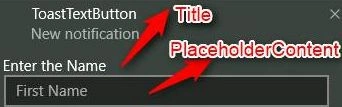
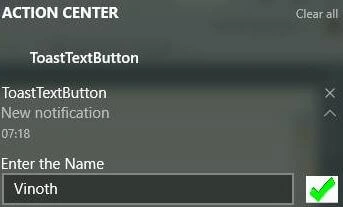
ToastTextBox features gets the input from the user from the ToastNotification. To create ToastTextBox object, each textbox, Id must be required.
Property
- Id
It represents to identify the Textbox (Next section will see the purpose of this) - Title
Title of the Textbox - PlaceholderContent
Hint to the user what should be entered.
Sample code
- public static ToastTextBox CreateText(string id) {
- ToastTextBox btnText = new ToastTextBox(id) {
- Title = "Enter the Name",
- PlaceholderContent = "First Name"
- };
- return btnText;
- }
DefaultInput
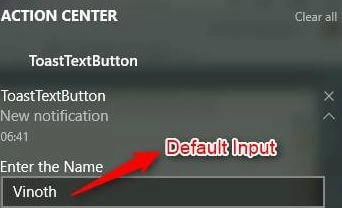
This property is allowing to set the default value of the textbox.
Note
This property is to remove the PlaceholderContent.
- public static ToastTextBox CreateText(string id) {
- ToastTextBox btnText = new ToastTextBox(id) {
- Title = "Enter the Name",
- PlaceholderContent = "First Name",
- DefaultInput = "Vinoth"
- };
- return btnText;
- }
ToastButton
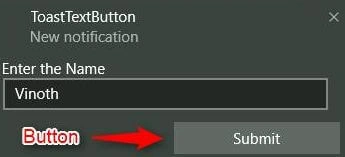
This class is used to create the button for ToastNotification.
To create ToastButton, two properties must be required i.e. content Name & arguments like ToastContextMenu.
- Name
Content name of the button. - arguments
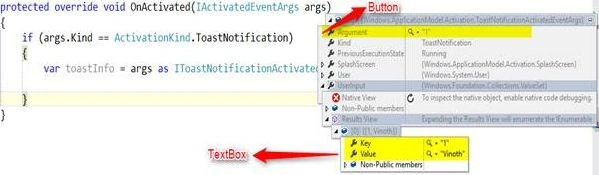
It is required to find which button has clicked.
Property
- ActivationType
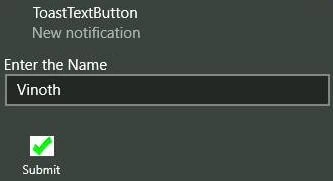
Activation type background, Foreground or protocol. - ImageUri
To assign the image to the button.
Sample code
Join the conversation! Your thoughts help the community grow.