

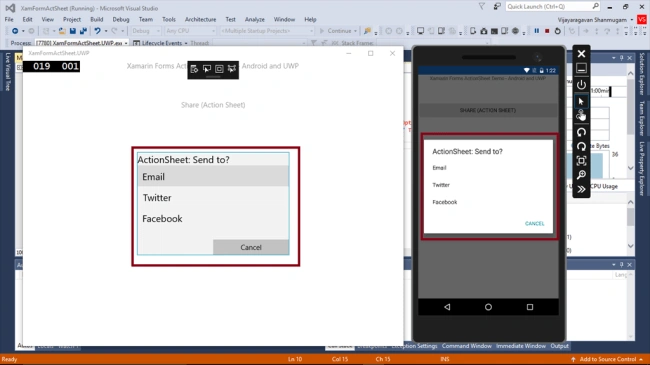
ActionSheet displays a list of buttons along with an optional title to the user. They allow an application to prompt a user for the action to take, such as confirming or canceling an operation.
Reading this article, you will learn how to use ActionSheet in Xamarin.Forms application for Android and Universal Windows Platform with XAML and Visual C# in cross platform application development.
The following important tools are required for developing UWP.
- Windows 10 (Recommended)
- Visual Studio 2017 RC Community/Enterprise/Professional edition (It is a Free trial software available online).
- Using Visual Studio 2017 Installer, enable the feature of Mobile development with .NET.
Now, we can discuss step by step app development.
Step 1
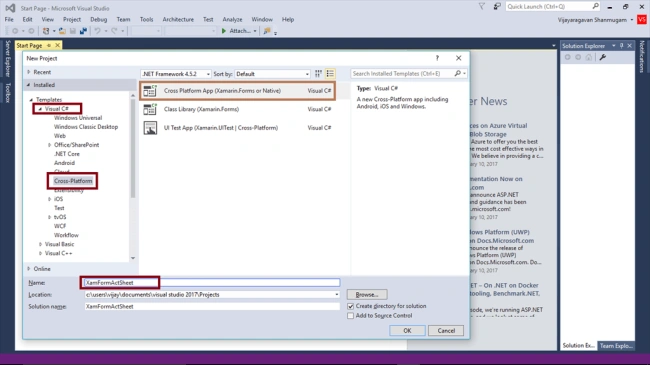
Open Visual Studio 2017 RC -> Start -> New Project-> Select Cross-Platform (under Visual C#->Cross Platform App-> Give a suitable name for your App (XamFormActSheet) -> OK.
Step 2
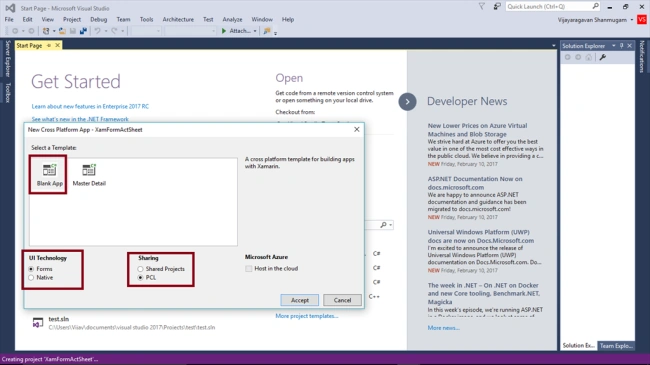
Select the Cross Platform template as Blank APP ->Set UI Technology as Forms and Sharing as PCL. Afterwards, Visual Studio creates 4 projects (Portable, Droid, iOS, UWP) and displays Getting Started.XamarinPage.
Step 3
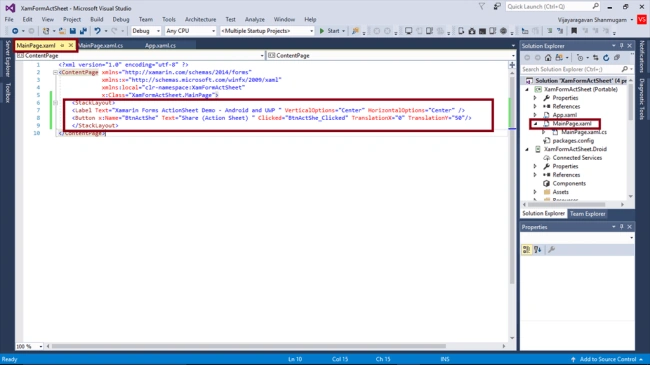
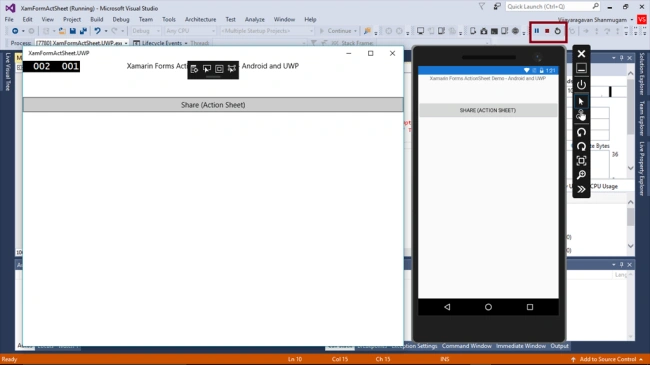
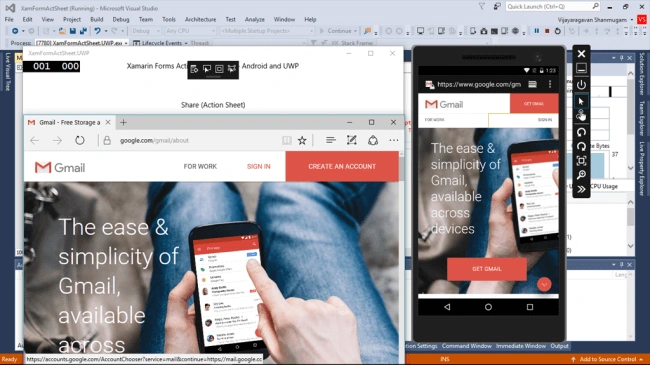
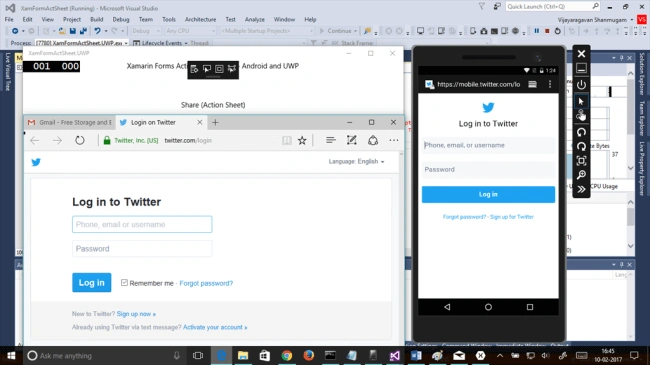
In MainPage.Xaml page, add Label and Buttons for ActionSheet Demo.
Step 3
In MainPage.Xaml page, add Label and Buttons for ActionSheet Demo.
- <StackLayout>
- <Label Text="Xamarin Forms ActionSheet Demo - Android and UWP " VerticalOptions="Center" HorizontalOptions="Center" />
- <Button x:Name="BtnActShe" Text="Share (Action Sheet) " Clicked="BtnActShe_Clicked" TranslationX="0" TranslationY="50"/>
- </StackLayout>
Join the conversation! Your thoughts help the community grow.