

Xamarin is the platform for developing cross-platform and multi-platform apps (e.g. Windows, Android, iOS). In Xamarin, the code-sharing concept is used. The Xamarin Studio is available in Visual Studio also.
Image Control is used for viewing image in your app.
Prerequisites
- Visual Studio 2015 Update 3
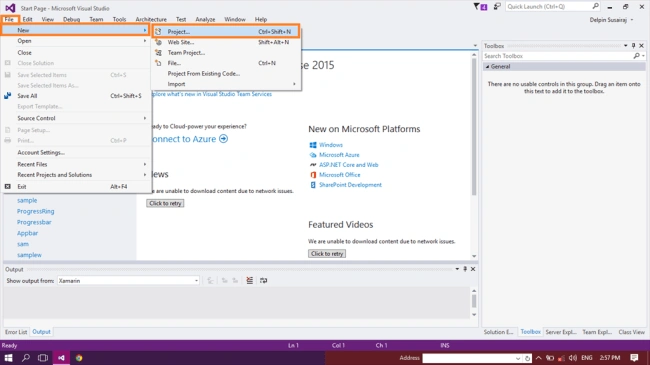
Step 1 - Click File --> New --> Project. This will open all available types of projects.
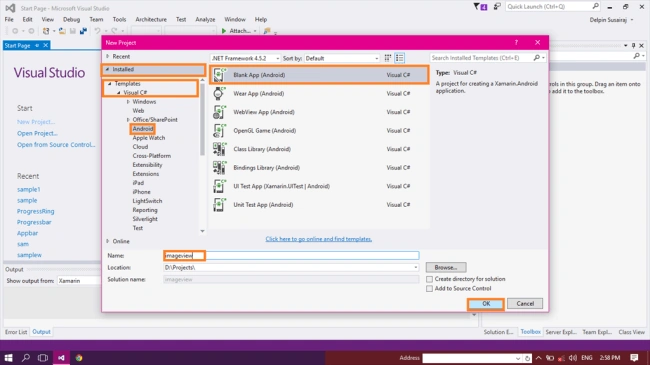
Step 2 - After opening the new project, select Installed --> Templates--> Visual C# --> Android--> choose Blank App (Android).
Next give your Android app a name and path. Click OK.
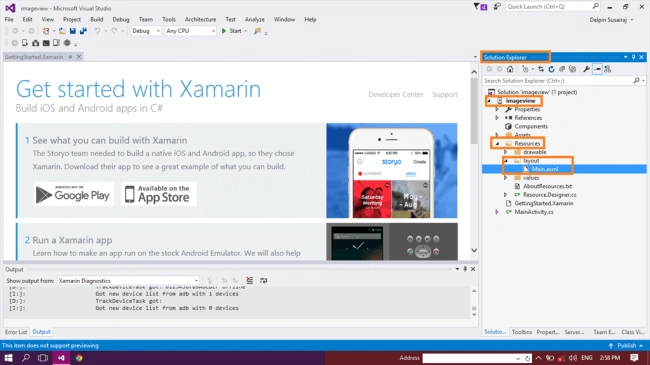
Step 3 - Next, go to the Solution Explorer and select Resource --> Layout. Double click to open the Main.axml page. You can either select Source or Design part for writing the XAML code or designing it using UI, respectively.
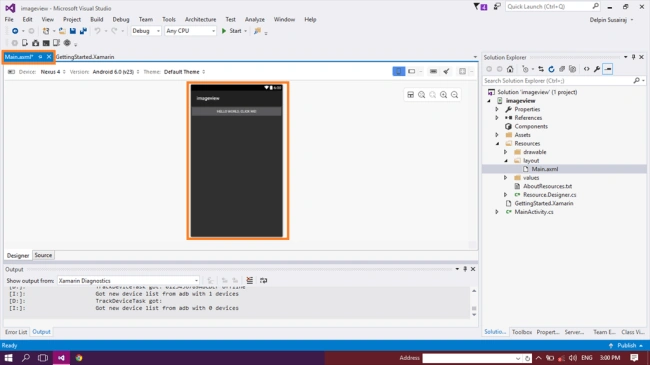
Step 4 - This will open the Main Page designer where you can design your app.
Step 5 - Next, delete the default Hello World button . Go to the Source panel. You can see the button coding and delete it.
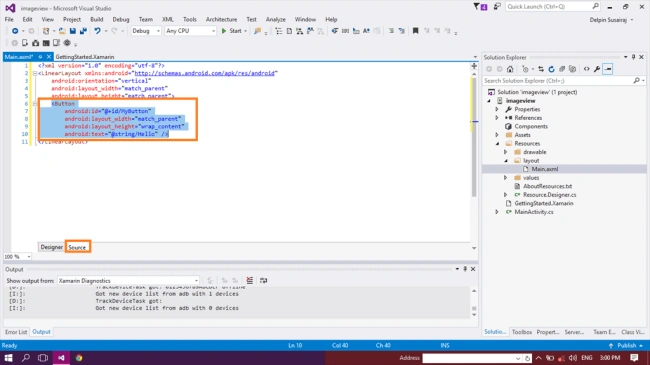
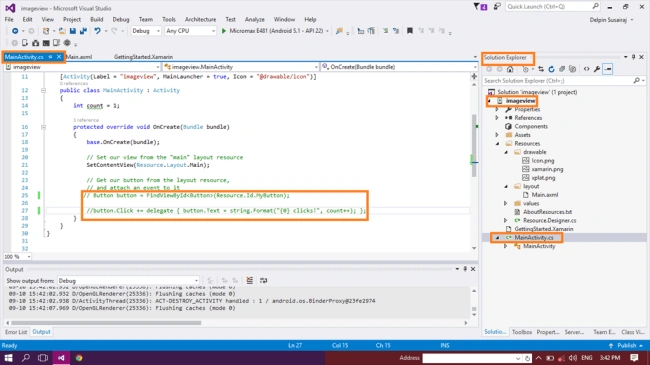
Step 6 - Next, delete the C# button action code in MainActivity.cs page.
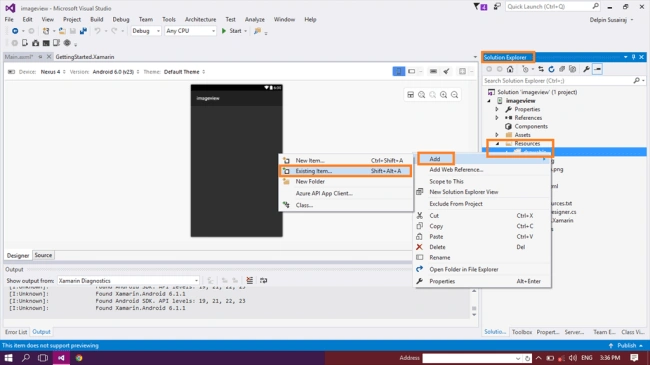
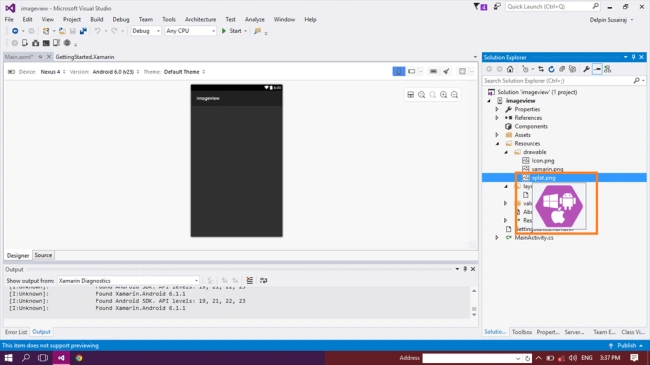
Step 8 - Next, add the image in your app. Go to the solution explorer, select Resource--> drawable. Right click --> add--> Existing Item.
or (Shift + Alt + A).
Step 9 - Next browse the image. Go to the your image path (location) and select the image after clicking the add button.
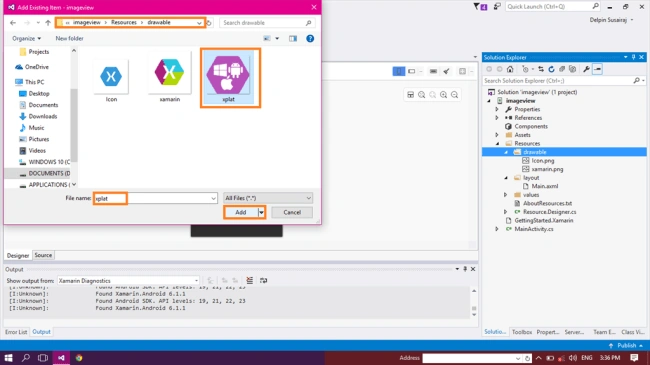
Step 10 - You will add the image -- you can see the image in your app source drawable folder.
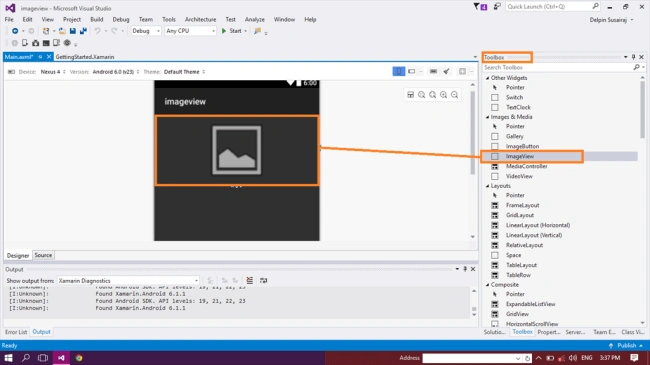
Step 11 - Next add the image view control.
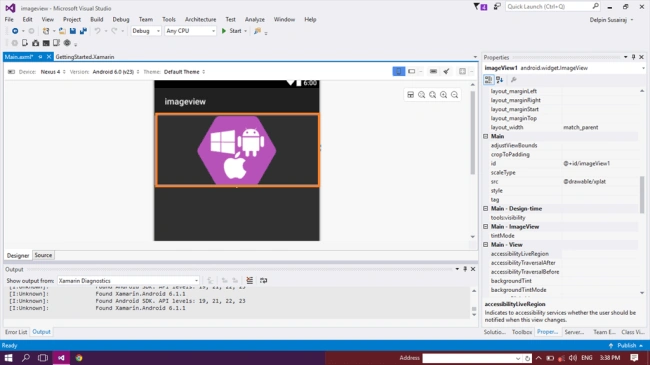
Go to the toolbox window. In the toolbox window are all tools and controls. You will select the image view and drag and drop the image view in your app main.axml page.
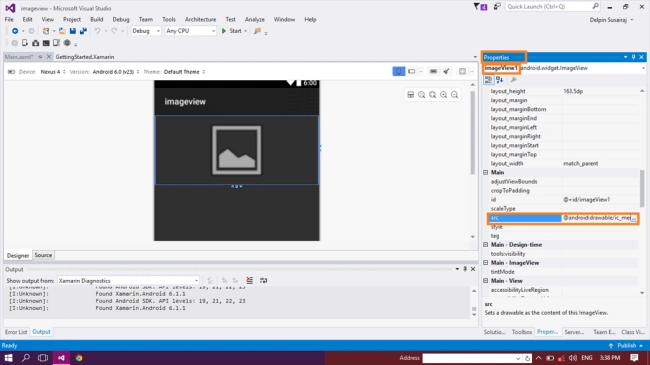
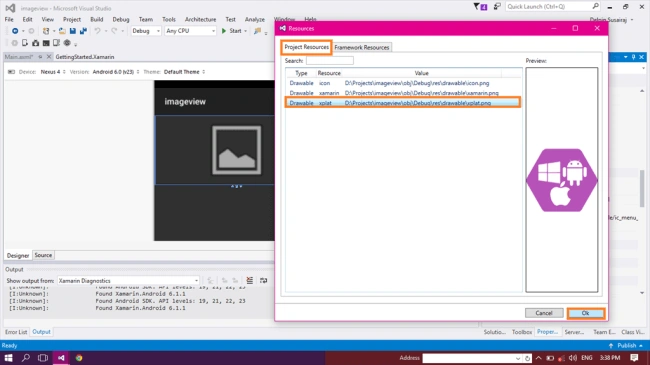
Step 12 - After dragding and dropping the image view control go to the properties window; you will add the image source path.
Step 3 - Next, go to the Solution Explorer and select Resource --> Layout. Double click to open the Main.axml page. You can either select Source or Design part for writing the XAML code or designing it using UI, respectively.
Step 4 - This will open the Main Page designer where you can design your app.
Step 5 - Next, delete the default Hello World button . Go to the Source panel. You can see the button coding and delete it.
Step 6 - Next, delete the C# button action code in MainActivity.cs page.
Step 8 - Next, add the image in your app. Go to the solution explorer, select Resource--> drawable. Right click --> add--> Existing Item.
or (Shift + Alt + A).
Step 9 - Next browse the image. Go to the your image path (location) and select the image after clicking the add button.
Step 10 - You will add the image -- you can see the image in your app source drawable folder.
Step 11 - Next add the image view control.
Go to the toolbox window. In the toolbox window are all tools and controls. You will select the image view and drag and drop the image view in your app main.axml page.
Step 12 - After dragding and dropping the image view control go to the properties window; you will add the image source path.

Vignesh ManiPosted Sep 19, 2016, 8:23 AM
Good one
Manoj KulkarniPosted Sep 18, 2016, 12:02 PM
Nice
Humayun Kabir MamunPosted Sep 18, 2016, 12:57 AM
Nice...
Bhavik PatelPosted Sep 18, 2016, 12:27 AM
Nice