

PnP which stands for Practices and Patterns is a community driven open source project where Microsoft and community members have created an implementation pattern for Office 365 and SharePoint on-premises. One of the branches of the PnP development is in PnP Core CSOM Library.
PnP Core library provides CSOM extension methods for SharePoint 2016 add-in model development. Official documentation can be accessed from here. PnP Core library increases the productivity of developers by abstracting complex operations. In this article we will see how to set up PnP core library remotely and work with SharePoint 2016 using a console application.
In order to work with PnP Core library we first have to install the Nuget package manager which is explained in this article .Once the PnP Core Library is added we can kick of the implementation using a Console application.
Project structure
Create a console application and add the below references.
- Microsoft.SharePoint.Client;
- OfficeDevPnP.Core;
Scope of the article will be to perform the below operations using PnP Core CSOM Library.
- Add new site collection administrator
- Retrieve the site collection administrators
Add Site Collection administrator
- Create instance of the authentication manager which will be used to create the client context.
- //Get instance of Authentication Manager
- OfficeDevPnP.Core.AuthenticationManager authenticationManager = new OfficeDevPnP.Core.AuthenticationManager();
- //Create authentication array for site url,User Name,Password and Domain
- string[] authArray = { "http://sharepoint2016/sites/HOL", "Priyaranjan","password-1","SharePointHOL" };
- Create Client Context by passing the authentication details to the authentication manager object.
- var clientContext = authenticationManager.GetNetworkCredentialAuthenticatedContext(authArray[0], authArray[1],authArray[2], authArray[3])
- var clientContext = authenticationManager.GetNetworkCredentialAuthenticatedContext(authArray[0], authArray[1],authArray[2], authArray[3])
- Create a user entity object and add the user as the site collection admin
- List<OfficeDevPnP.Core.Entities.UserEntity> adminColl = new List<Core.Entities.UserEntity>();
- Core.Entities.UserEntity admin = new Core.Entities.UserEntity();
- admin.LoginName = @"SharePointHOL\Jinesh";
- adminColl.Add(admin);
- clientContext.Web.AddAdministrators(adminColl);
Output
Upon running the script, it will add site collection administrator and will show up the console success message.
We can check the new site collection administrators form the Site Setting page as well.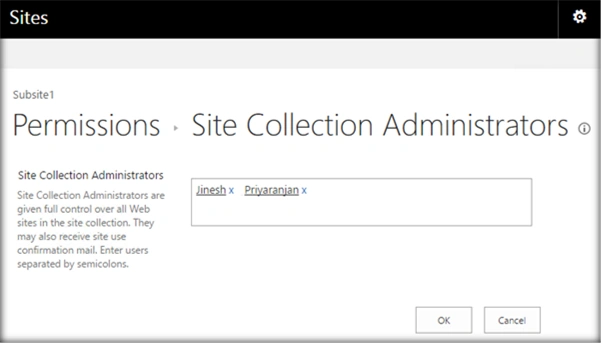
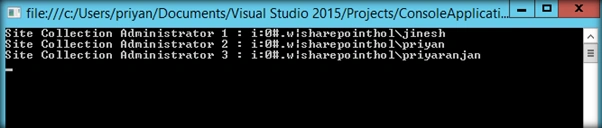
Get site collection administrators
Join the conversation! Your thoughts help the community grow.