

In this article, I will show how to set the dependencies on a Windows Service of a service or services through its registry or through Visual Studio.
Suppose after a reboot you need your service to be started automatically but many times we know certain services are required to be started before your service starts. In other words, your service is dependent on certain service(s) or we could say our service will not start until those services are started. Just for the sake of clarity, let us assume we have a Windows service or a WCF service (hosted on a Windows service) that checks its database connectivity on its startup. So before starting this service, the SQL Server Agent Service must be started. In this situation, Windows allows you to create service dependencies to take care of this. The Service dependency can be set either through the registry or through Visual Studio.
1. Service dependency setting through its Registry
Let us see how to set a service dependency through its registry. Even if you are not familiar with the registry at all, here is the step-by-step procedure to do this:
- Open the registry editor as in the following:
"Start" -> "Run" then enter "regedit" then click "OK" - Navigate to the specific service you are trying to delay:
HKEY_LOCAL_MACHINE\SYSTEM\CurrentControlSet\Services\
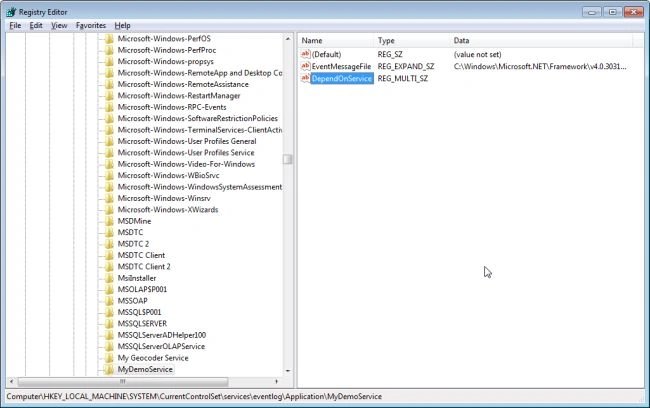
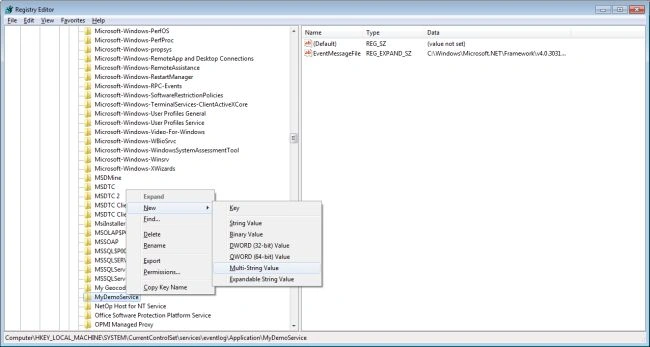
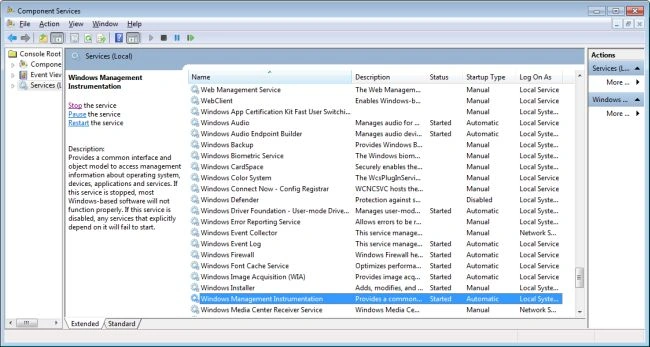
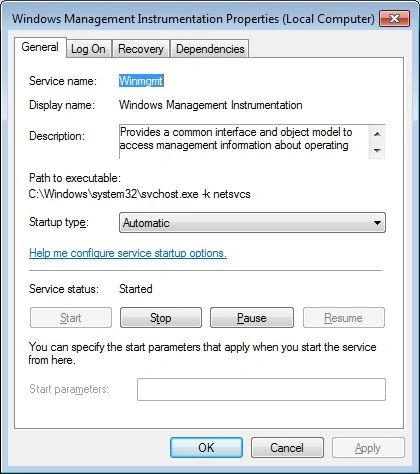
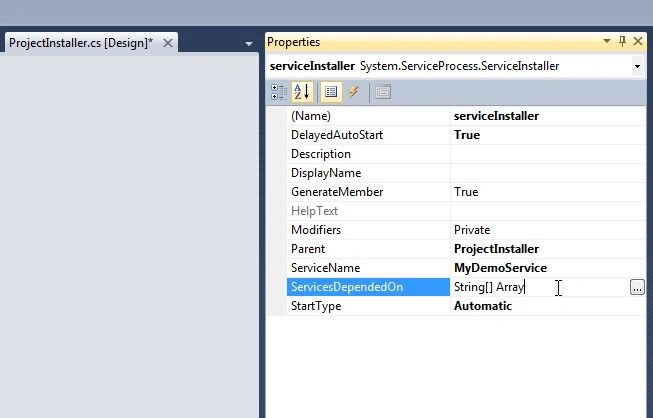
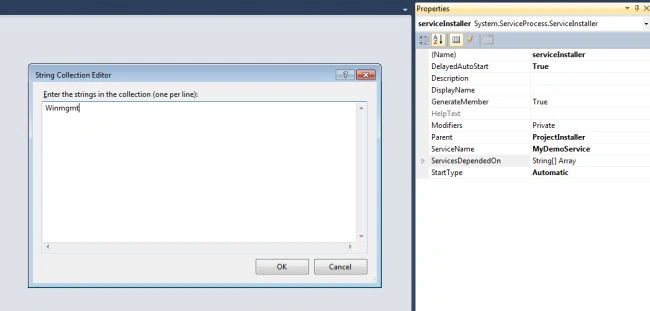
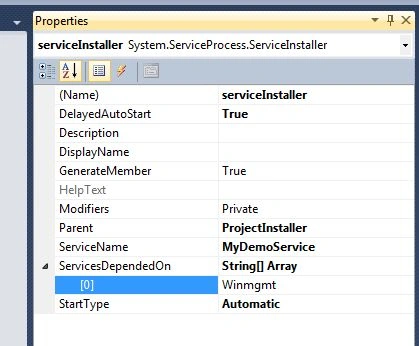
- If there is a "DependOnService" entry then simply modify it and add the service you want to start before the one you are editing in the registry. In this case, we want the service named 'Winmgmt' to be started before our service 'MyDemoService'.


Saqib JavaidPosted Dec 12, 2019, 12:34 AM
Adding comments to your answers blogs is a bad habbit which you have done in my post @ https://stackoverflow.com/q/59298607/7167486