

Introduction
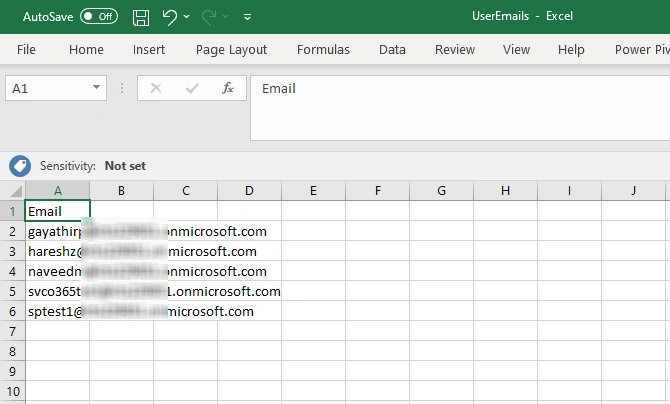
Recently our client has a requirement to add the users in bulk to Microsoft Teams. As a team owner, a user can add the users via Teams Interface. But if the users are in hundreds maybe in thousands, it becomes a tedious task. In such cases, there is a way to add the users in bulk via the PowerShell module. In this article let's see how we can add users in bulk. For this article, we will be adding only 5 users. The same script can be used for any no. of users. We are reading the users from a CSV file.
Please note that when a team is created from the MS teams, at the backend there is an associated O365 group. For instance, I create a Teams called Contoso Planning, the corresponding O365 group is also called Contoso Planning.
Team Screenshot for 'Contoso Planning',

O365 Groups screenshot for 'Contoso Planning',
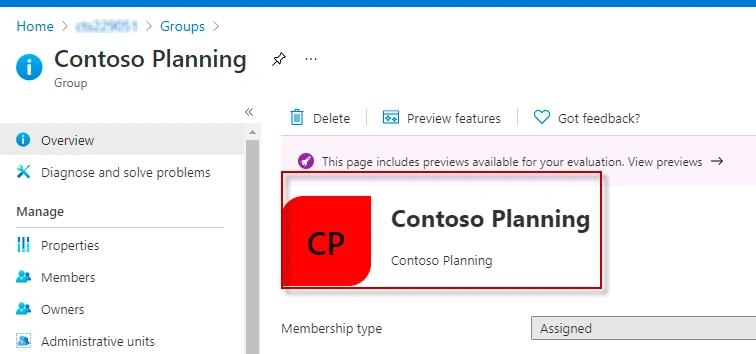
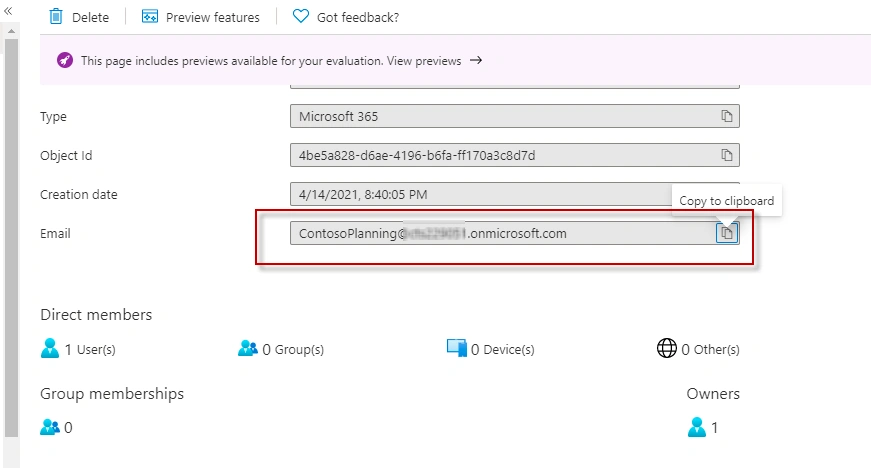
The associated email ID for the group Contoso Planning is [email protected]. Here I have replaced the actual domain name with 'thecompanyname'. We need this group email to add the users in bulk.
Steps
Please note that we need to use an account that has exchange admin rights or global admin rights to run the following PowerShell script. Also, you need to have the latest version of the exchange online PS module installed. Please refer to the references section on how to install the latest Exchange Online Module. For this article the latest module is Exo-v2.
Step 1
Connect to Exchange Online using exchange admin rights or global admin rights.
- Connect-Exchangeonline
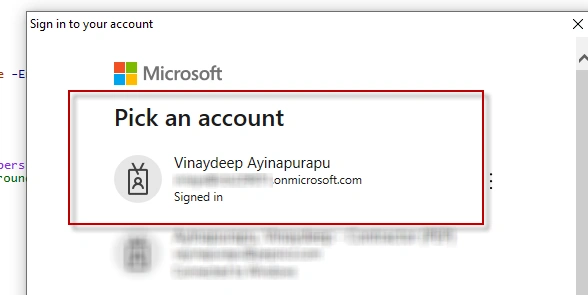
You will be asked to sign in. Use your Exchange Admin / Global Admin Account to log in
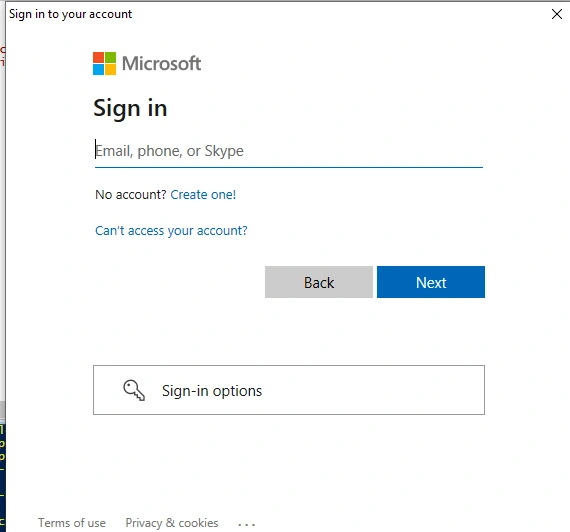
In the case of MFA, it will ask for a secondary code to sign in
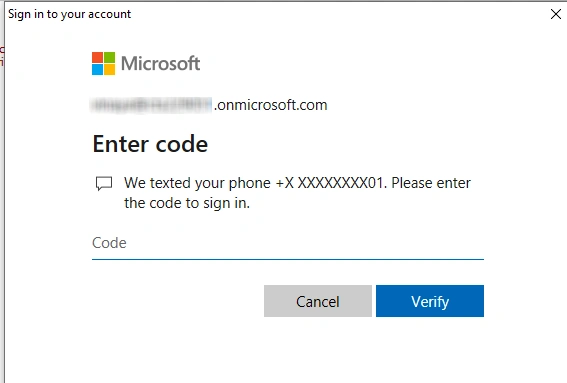
Step 2 (Optional)
This step suppresses the email notification when adding users to the Teams. By default, system sends a welcome note to the user that has been added. But in some cases, the admin wants to turn off the notifications to avoid any confusion. They might want to send a global communication to all the users.
- $GroupEmail = "[email protected]"
- $GroupIdentity = Get-UnifiedGroup -Identity "[email protected]" | select Identity
- Set-UnifiedGroup -Identity $GroupIdentity.Identity -UnifiedGroupWelcomeMessageEnabled:$false
Step 3
Get the List of users in CSV. Import the CSV to object and query on each email to get added to Group ID. If multiple group IDs are present, you may want to modify by writing multiple for each or adding multiple lines whichever is easier
- Add-UnifiedGroupLinks -Identity $GroupEmail -LinkType Members -Links $email
Step 4
Once done adding users you can toggle back welcome note.
- Set-UnifiedGroup -Identity $GroupIdentity.Identity -UnifiedGroupWelcomeMessageEnabled:$false
Step 5
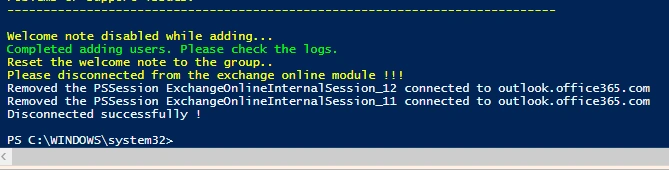
Disconnect from Exchange Online Module
- Disconnect-ExchangeOnline -Confirm
You may be prompted with the message 'Are you sure you want to disconnect' select 'Yes'.
Complete Script
- # Before running this, Please make sure you connect to Exchange Online Module.
- #Below code if your account is not MFAed
- Import-Module ExchangeOnlineManagement
- Connect-ExchangeOnline
- #PowerShell to Import Members to office 365 group from CSV
- #Setting up variables
- $GroupEmail="[email protected]"
- $GroupIdentity=Get-UnifiedGroup -Identity $GroupEmail | select Identity
- $currentTime = $(Get-Date).ToString("yyyymmddhhmmss");
- $OutFile="C:\Temp\AddingUsers_Log-"+$currentTime+".csv"
- $ExceptionLog= "C:\Temp\Exception_Log-"+$currentTime+".csv"
- Add-Content -Path $OutFile -Value "Email,Status,Message"
- try {
- # Suppress Email Notification to the users
- Set-UnifiedGroup $GroupIdentity.Identity -UnifiedGroupWelcomeMessageEnabled:$false -ErrorAction Stop
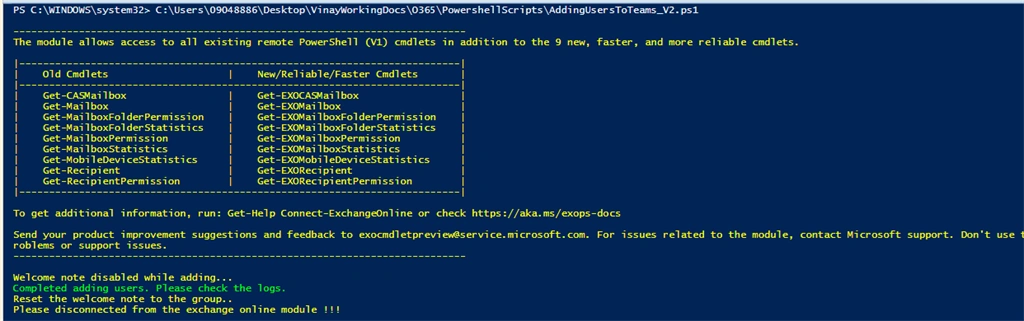
- Write-Host "Welcome note disabled while adding..." -ForegroundColor Yellow
- # Importing users and Adding users to the groups. Change the import path to your needs.
- $UsersToAdd=Import-Csv "C:\Input\UserEmails.csv"
- foreach($email in $UsersToAdd.Email){
- try {
- Add-UnifiedGroupLinks -Identity $GroupIdentity.Identity -LinkType Members -Links $email -ErrorAction Stop
- #Write-Host "Added Member $email to the O365 group $GroupID.." -ForegroundColor Green
- $status="Success"
- $message="Added Member $email to the O365 group $GroupID"
- Add-Content -Path $OutFile -Value "$email,$status,$message"
- $status=$null
- $message=$null
- } catch {
- $status="Error"
- $message=$_.Exception.Message
- Add-Content -Path $OutFile -Value "$email,$status,$message"
- }
- }
- Write-Host "Completed adding users. Please check the logs." -ForegroundColor green
- #Reset the flag for welcome message
- Set-UnifiedGroup $GroupIdentity.Identity -UnifiedGroupWelcomeMessageEnabled:$true
- Write-Host "Reset the welcome note to the group.." -ForegroundColor Yellow
- Write-Host "Please disconnected from the exchange online module !!!" -ForegroundColor Yellow
- }
- catch {
- Add-content -Path $ExceptionLog -Value $_.Exception.Message
- Write-Host "Error Occuured while adding user to group operations... Kindly check the exception logs at $ExceptionLog" -f $_.Exception.Message
- }
- finally {
- Disconnect-ExchangeOnline -Confirm
- }
Output
Conclusion
Thus in this article, we have seen how to add users in bulk to O365 Groups. Please note that all the Teams permissions are referenced from backend O365 Group memberships.
References
- https://docs.microsoft.com/en-us/powershell/exchange/exchange-online-powershell-v2?view=exchange-ps#install-and-maintain-the-exo-v2-module
- https://jeffbrown.tech/using-exception-messages-with-try-catch-in-powershell
Join the conversation! Your thoughts help the community grow.