

In this article we will be seeing how to change the Advanced Settings for
Document library in SharePoint 2010 using PowerShell and c#.
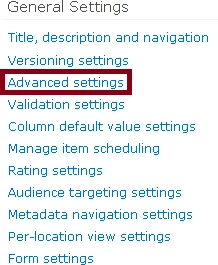
Go to Document Library => Library Settings => General Settings =>Advanced
Settings.
Using C#:
using
(SPSite site = new
SPSite("http://serverName:1111/"))
{
using (SPWeb
web = site.RootWeb)
{
SPList docLibrary=web.Lists["Doc
Library"];
// Change the advanced settings
// Update the changes
docLibrary.Update();
}
}
Using PowerShell
$site=Get-SPSite "http://serverName:1111/"
$web=$site.RootWeb
$docLibrary =$web.Lists["Doc Library"]
# Change the advanced settings
$docLibrary.Update()
Content Types:

C#:
docLibrary.ContentTypesEnabled = false;
PowerShell:
$docLibrary.ContentTypesEnabled = $false
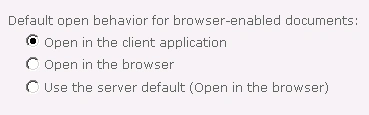
Opening Documents in the Browser:
C#:
// Open in the client application
docLibrary.DefaultItemOpen = DefaultItemOpen.PreferClient;
// Open in the browser
docLibrary.DefaultItemOpen = DefaultItemOpen.Browser;






Join the conversation! Your thoughts help the community grow.