

Introduction
This article explains how to show an Alert Box in AngularJS.
There is one basic difference between JavaScript and AngularJS, in other words in JavaScript default names of properties and objects are available for global Window Objects but in AngularJS "$window" is needed for referring to global Window Objects. For example if we want to show the alert in Angular then we need to pass it as $window.alert.
This article will show you how to display an alert box using AngularJS.
Step 1
First of all you need to add an external Angular.js file to your application, for this you can go to the AngularJS official site or can download my source code and then fetch it or click on this link and can download it: ANGULARJS.
After downloading the external file you need to add this file to the Head section of your application.
<head runat="server">
<script src="angular.min.js"></script>
<title></title>
</head>
Step 2
Now I will create a function and will show how to create the alert in this function.
Write this function in the head section of your application:
<script>
function greet($window, $scope) {
$scope.hello = function () {
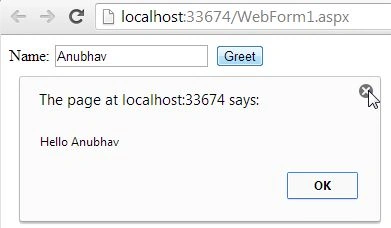
$window.alert('Hi!! ' + $scope.name);
}
}
</script>
Here I have created a function named "greet", in this function $scope and $window are passed as objects because scope is used to pass a value to the controller and as you know we will display an alert window, that's why $window is used.
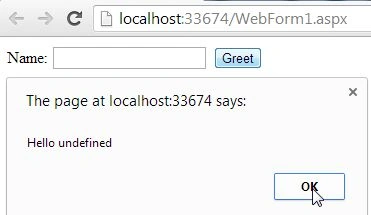
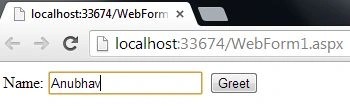
Then an alert is used but havs $window prior to it, in this alert the message "Hi!!" will be displayed along with some value that will be passed through a TextBox. This will be done using the $scope.name. Now you will be thinking that I have neither declared name anywhere nor provided an initial value to the scope, you can pass the initial value prior to this hello function but that will only help to show some text by default and nothing much more than that.
Step 3
Until now our work on ViewModel, in other words the Script part, is complete and now we need to work on our View, in other words the design part of our application.
Write this code in the body section:
<body>
<div ng-controller="greet">
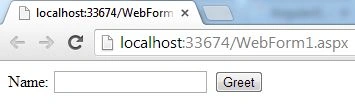
Name: <input ng-model="name" type="text"/>
<button ng-click="greet()">Greet</button>
Join the conversation! Your thoughts help the community grow.