
Generally, we are in need to generate reports while handling financial or any other data. The statistics or Reports must be available for downloading. And reports must be in file format which is very easy to understand. So generally, we choose Excel file type to generate Report.
In this Article, We are going to see an easy way of handling an Excel file using StreamWriter & StreamReader for report generation only
Creation of an Excel Document
We can easily create an Excel document using StreamWriter class. We must specify the type of Encoding in the creation of file. And while writing we have to separate data in excel file using tab.
This tab will arrange data into cells correctly. So when we open, it will show you a perfect Excel document.
Ex:
We are just creating an excel file with customer details.
String[] id ={ "001", "002" };
String[] name ={ "abc", "edf" };
String[] address ={ "311,3rd street", "26,NH Road" };
StreamWriter sw = new StreamWriter("filename.xls", false, Encoding.ASCII);
sw.WriteLine("CustomerID"+"\t"+"Name" +"\t"+ "Address" );
for (int i = 0; i < id.Length; i++)
sw.WriteLine(id[i] +"\t"+ name[i] +"\t"+ address[i]);
sw.Close();
Comment for each line
//String Array creation "Customer id details"
// String Array creation "Customer name details"
// String Array creation "Customer address details"
//stream writer object creation. In this, we pass encoding type as Encoding.ASCII
// write the Headers of table i.e. Column Heading of Report
//for loop. It will run till array length
// we writes data into file. Here tab separate each cells.
//close file stream.
In the WriteLine statement, we can write our data by composing a string with tab separator. Arrays [id, name & address] containing data which are retrieved from database.
Output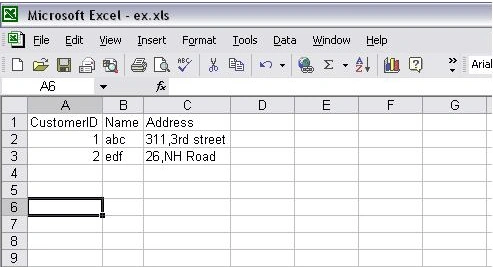
If you are trying to save this Excel file it will ask a question as specified below because of Tab delimited i.e. we separate our columns by tab.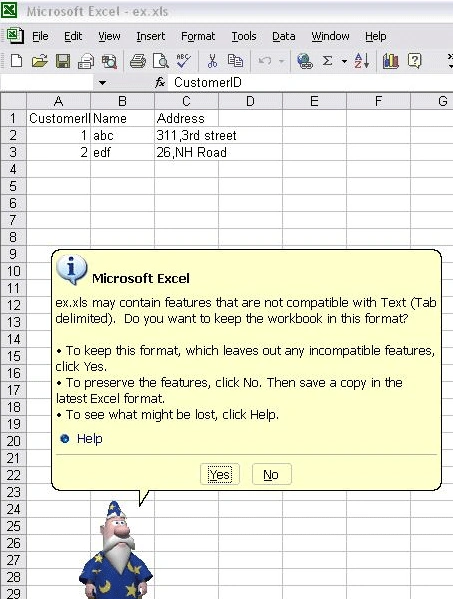
"Do you want to keep the workbook in this format?"
You have to choose yes, to keep this format. And then, save your file. If you choose a different format, then you can't read it through your C# application.
Reading an Excel Document
Using StreamReader, we can easily read the Excel Document which is created by us. It is possible, only if we keep that format [tab delimited]. Otherwise, we can't read an Excel Document using StreamReader.
We just read the lines and split data using same tab. after that, we can handle those data.
Ex:
we going to read same Excel file.
RavishankarPosted May 8, 2009, 7:53 AM
Hi - Adding Text Content works fine. But ususlly a report contails Graphs, Images and Legends. How to add them into Excel Workbook? Ravishankar
DerekPosted Mar 17, 2009, 8:07 AM
If anyone is interested, I have a multiplatform / multi office wrapper that lets you export data tables into excel. http://sourceforge.net/project/platformdownload.php?group_id=210192 It's kind of rough, but it's a fair bit better than this.
Vimal KandasamyeditedPosted Mar 13, 2009, 9:45 AMEdited Mar 13, 2009, 9:46 AM
After some of members comment that this article title is wrong.i have changed my article title.
Angsuman RoyeditedPosted Mar 13, 2009, 6:46 AMEdited Mar 13, 2009, 6:50 AM
With utter regret I must admit that I spent my valuable time after your worthless article. Please dont put write-ups on the net.
Martin DalyPosted Mar 13, 2009, 5:45 AM
The techniques shown here have basically nothing to do with Excel and the author's example showing that the file written should be given .xls extension is shoddy advice at best. The file is a character-separated values text file and should be given the extension .csv and the only concept relating to Excel in this article is that Excel is smart enough to read csv files. C# corner should be moderated and articles like this should be removed to avoid misguidance.