

Introduction
Welcome back, everyone! It feels good to get motivated by all community readers and by their valuable comments. Therefore, I will share my knowledge continuously by writing articles. In this article, we will explore loading a dynamic CSS from the Azure Blob Storage. Basically, we will learn about Azure Blob storage and a basic knowledge of CSS. Let's take a small look at Azure Blob Storage.
Azure Blob Storage is a cloud service that acts like an object store, where we can use it to save the data objects such as images, video files, etc. Now let’s wrap this thing up and let’s get back to the hands-on.
Prerequisites:
An Active Azure Login Subscription
Step 1
Let’s create a CSS file and upload the CSS file into an Azure Blob Storage. For uploading the CSS file to blob storage, we can use Microsoft Azure Storage Explorer. If you don’t have it, no hard feelings, you can download it from the following link: Azure Storage.
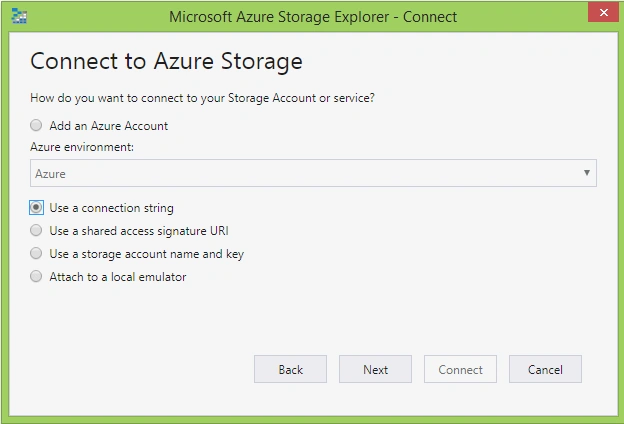
After downloading and installing, we need to create a connection. Go-to >> Storage Account menu and Click >> Connect to Azure Storage options and it will open in a new window.
Step 2
We can use any way of establishing the connection with the Azure Blob storage. Anyways I have selected >> Using a connection string and Click >> Next
Step 3
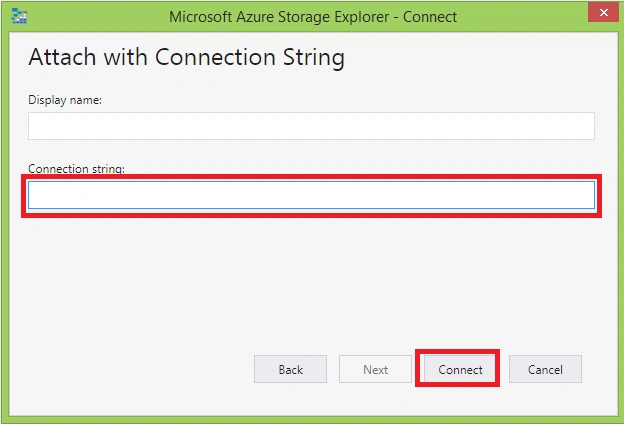
Continue to the next step, just copy and paste the storage connection URL and connect to the blob storage. Once the connection URL is valid, the display name will be automatically bound, then Click >> Connect.
Step 3
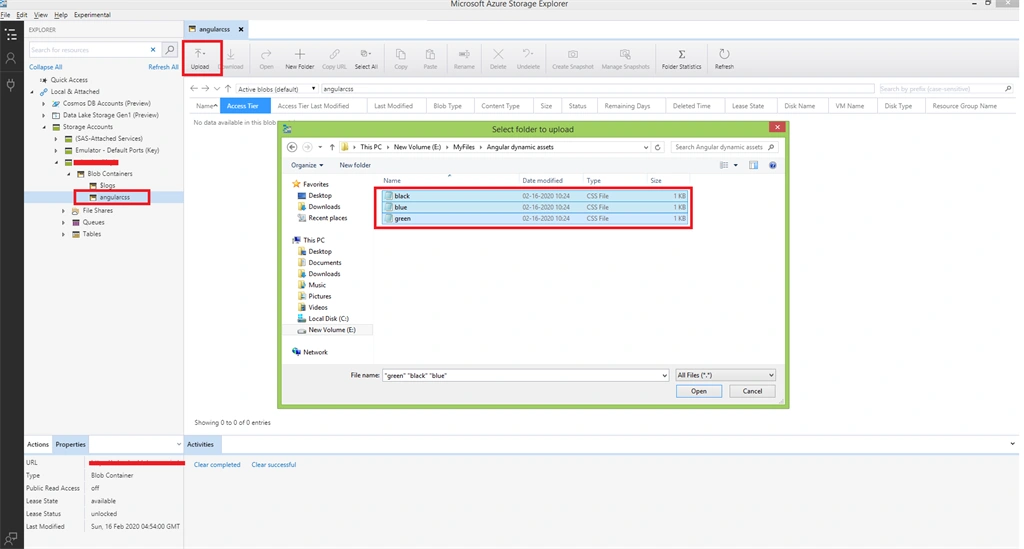
After the successful establishment of connection with Blob Storage, let’s create Blob Containers. For that Click Create Blob Containers and provide a name for Blob Storage. Here I have provided the name 'Angularcss.'
Step 4
Now open Angularcss in a container and upload three different style sheets. For your reference, refer to the below image as mentioned, then create a CSS file named blue.css, black.css under the Angular assets folder. Then the upload will be successfully uploaded to the blob storage.
Step 5
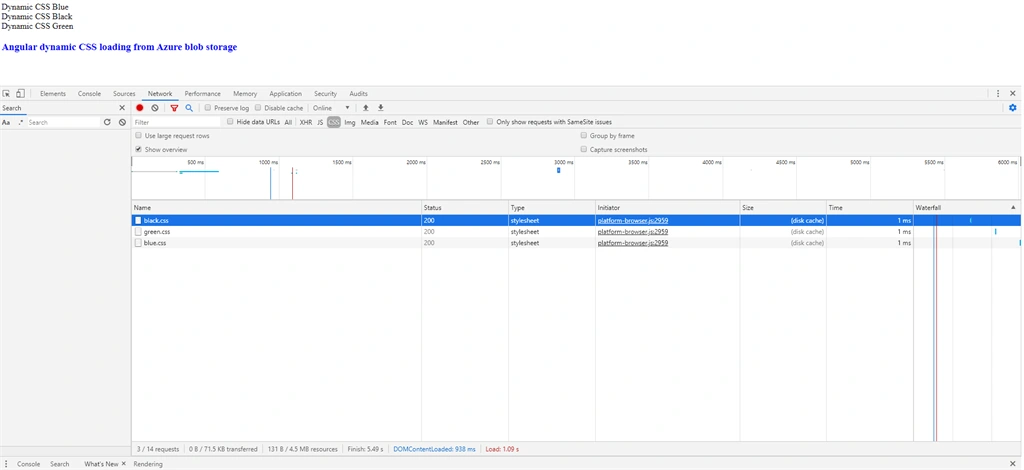
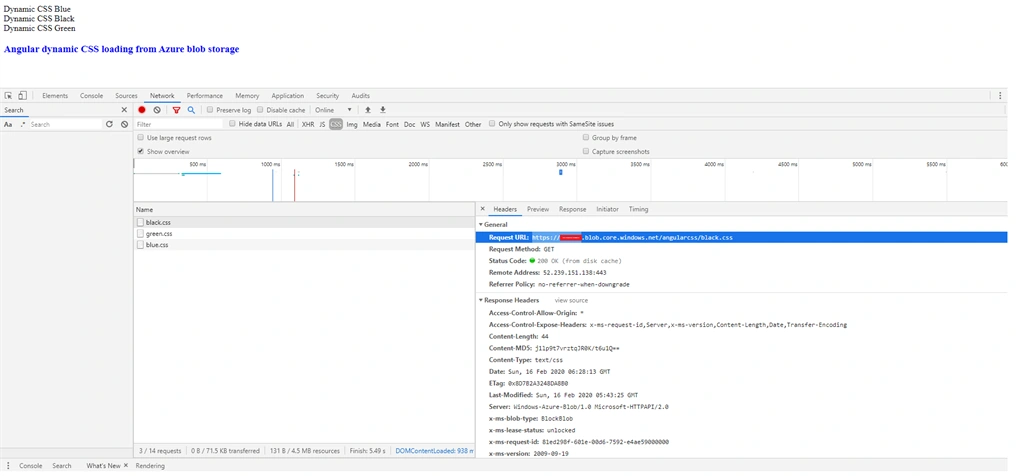
Now let’s continue to the next step. Select >> the CSS file and right-click >> Go to the properties option and get the path of the URL for the CSS files like the sample provided from the following links I have provided below:
- https://abcd.blob.core.windows.net/angularcss/black.css
- https://abcd.blob.core.windows.net/angularcss/blue.css
- https://abcd.blob.core.windows.net/angularcss/green.css
I will explain about this, but here just copy the following code and paste into the app.component.html and app.component.css file for the initial time for the view of change
Copy and paste the code to the app.component.html file
- <h3 class="textcolor">Angular dynamic CSS loading from Azure blob storage </h3>
And now copy and paste the following code inside of the app.component.css file
- .textcolor {
- color: red;
- text - align: center;
- }
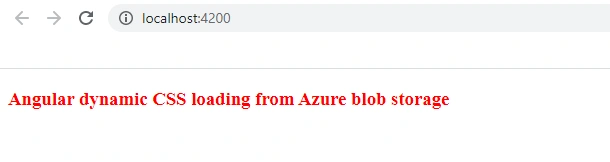
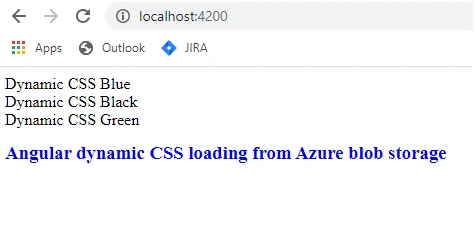
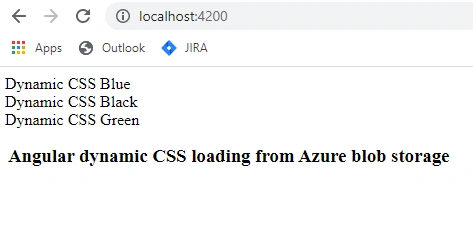
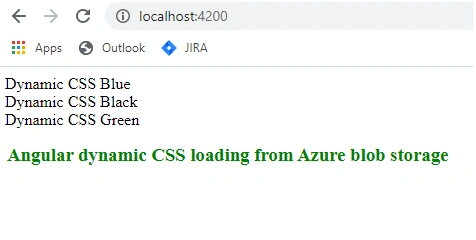
Run ng serve and open the default color that we set
Vidyadharran GPosted Feb 19, 2020, 1:14 PM
Keep sharing bro :)
shenbagam NPosted Feb 18, 2020, 2:17 AM
Good work, Useful article. Keep posted!
Haridhass ManiPosted Feb 17, 2020, 10:53 PM
Well written bro ... thanks for sharing this article