Brief of Pipe
- In Angular 2, Pipes are mainly used to change the data display format.
- By using the Pipe operator (|), we can apply the Pipe's features to any of the property in our Angular project.
- In addition to that, we can also chain pipe and pass parameters to the Pipe.
Diagrammatic representation of Pipe classification
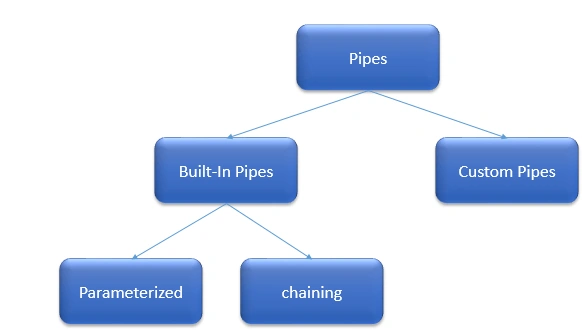
Below, we will look into the above concepts one by one with an example.
Brief of Built-In Pipes
- Angular 2 provides many built-in Pipes which include uppercase, lowercase, decimal, date, percent, currency etc.
- They are all available for use in any template in our Angular 2 project.
Syntax - Property value | uppercase
Simple Built-In Pipe example
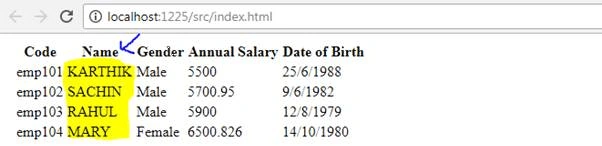
In this example, we will use uppercase pipes to change the employee name from lowercase letters to uppercase letters.
FileName
- <!DOCTYPE html>
- <html>
- <head>
- <title></title>
- <meta charset="utf-8" />
- </head>
- <body>
- <table>
- <thead>
- <tr>
- <th>Code</th>
- <th>Name</th>
- <th>Gender</th>
- <th>Annual Salary</th>
- <th>Date of Birth</th>
- </tr>
- </thead>
- <tbody>
- <tr *ngFor='let employee of employees'>
- <td>{{employee.code}}</td>
-
- <td>{{employee.name|uppercase}}</td>
-
- <td>{{employee.gender}}</td>
- <td>{{employee.annualSalary}}</td>
- <td>{{employee.dateOfBirth}}</td>
- </tr>
- <tr *ngIf="!employees || employees.length==0">
- <td colspan="5">
- No employees to display
- </td>
- </tr>
- </tbody>
- </table>
- </body>
- </html>
Filename - app.component.ts
- import { Component } from '@angular/core';
-
- @Component({
- selector: 'my-app',
- templateUrl: 'app/app.component.html'
- })
- export class AppComponent {
-
- employees: any[] = [
- {
- code: 'emp101', name: 'karthik', gender: 'Male',
- annualSalary: 5500, dateOfBirth: '25/6/1988'
- },
- {
- code: 'emp102', name: 'sachin', gender: 'Male',
- annualSalary: 5700.95, dateOfBirth: '9/6/1982'
- },
- {
- code: 'emp103', name: 'rahul', gender: 'Male',
- annualSalary: 5900, dateOfBirth: '12/8/1979'
- },
- {
- code: 'emp104', name: 'mary', gender: 'Female',
- annualSalary: 6500.826, dateOfBirth: '14/10/1980'
- },
- ];
- }
Output
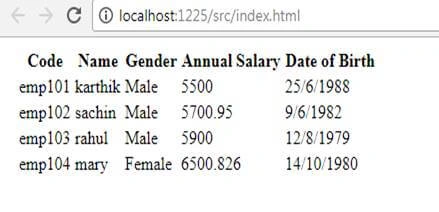
Before applying the uppercase pipe: just FYI
Same output, after applying the Uppercase pipe
Passing a parameter to PipeA Pipe can take any number of optional parameters to get the expected output.
Example
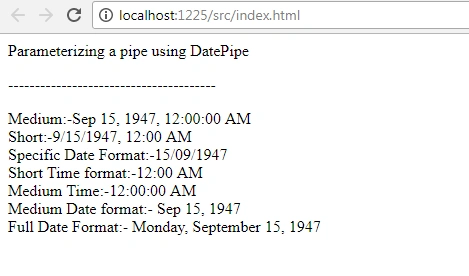
In the below code, we will see the complete usage of date pipes
- import { Component } from '@angular/core';
-
- @Component({
- selector: 'my-app',
-
- template: `<div>
- Parameterizing a pipe using DatePipe <br>
- <p>---------------------------------------</p>
- Medium:-{{DOB | date:"medium"}}<br/>
- Short:-{{DOB | date:"short"}}<br/>
- Specific Date Format:-{{DOB | date:"dd/MM/yyyy"}}<br/>
- Short Time format:-{{DOB | date:"shortTime"}}<br/>
- Medium Time:-{{DOB | date:"mediumTime"}}<br/>
- Medium Date format:- {{DOB | date:"mediumDate"}}<br/>
- Full Date Format:- {{DOB | date:"fullDate"}}<br/>
-
-
- </div> `
- })
- export class AppComponent {
-
- DOB = new Date(1947, 8, 15)
- }
Output
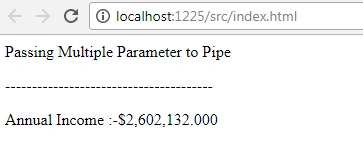
Passing multiple parameters to Pipe
Let's use a currency example for this, which will be most frequently used in our projects.
Example
- import { Component } from '@angular/core';
-
- @Component({
- selector: 'my-app',
-
- template: `<div>
- Passing Multiple Parameter to Pipe<br>
- <p>---------------------------------------</p>
- Annual Income :-{{salary | currency:'USD':true:'1.3-3'}}<br/>
-
- </div> `
-
- })
- export class AppComponent {
-
- salary: number = 2602132
-
- }
In the above code => currency:'USD': true:'1.3-3' is represent below,
- The first parameter 'USD' is currency type which can be of INR, USD or any currency type in the world.
- The Second parameter 'true' is a Boolean indicating whether to display currency symbol or not .By default it is false and, if we change it to true then the symbol will be displayed.
- The Third parameter '1.3-3' is a range limit of type string, which has the following format
Format syntax - {minIntegerDigits}.{minFractionDigits}-{maxFractionDigits} => {1}.{3}-{3}
- minIntegerDigits is a minimum number of integer digits to use. The Defaults value is 1.
- minFractionDigits is a minimum number of digits after fraction. The Defaults value is 0.
- maxFractionDigits is a maximum number of digits after fraction. The Defaults value is 3.
Output
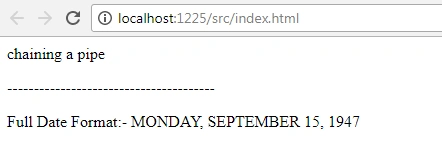
Chain Pipes Example By using the advantage of chaining, we can use two different pipes for the same property or column. Let us see how to use uppercase and date together in our example below.
Example
- import { Component } from '@angular/core';
-
- @Component({
- selector: 'my-app',
-
- template: `<div>
- chaining a pipe <br>
- <p>---------------------------------------</p>
-
- Full Date Format:- {{DOB | date:"fullDate"|uppercase}}<br/>
-
-
- </div> `
- })
- export class AppComponent {
-
- DOB = new Date(1947, 8, 15)
- }
Output
Custom Pipes
To create a pipe in Angular 2, you have to apply the @Pipe decorator to class, which we can import from the core Angular library.
The @Pipe decorator allows you to define the pipe name that you'll use within template expressions.
Syntax
- import { Pipe, PipeTransform } from '@angular/core';
- @Pipe({ name: 'Pipename' })
-
- export class Pipeclass implements PipeTransform {
- transform(parameters): returntype { }
- }
Note
Transform() method will decide the input types, the number of arguments, and its types and output type of our custom pipe.
Custom Pipe Example
Note
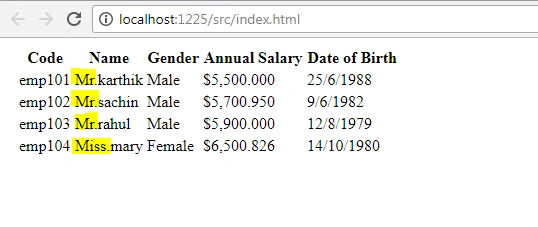
To easily understand, we will use same list example which we used in the above concept, and additionally provide the title (Mr. or Miss.) to the employees as per their gender value.
Step 1
Create a file called employeeTitle.pipe.ts in the app folder. Add the code like below to that file.
File Name - employeeTitle.pipe.ts
- import { Pipe, PipeTransform } from '@angular/core';
-
- @Pipe({
- name: 'employeeTitle'
- })
- export class EmployeeTitlePipe implements PipeTransform {
- transform(value: string, gender: string): string {
- if (gender.toLowerCase() == "male")
- return "Mr." + value;
- else
- return "Miss." + value;
- }
- }
Step 2
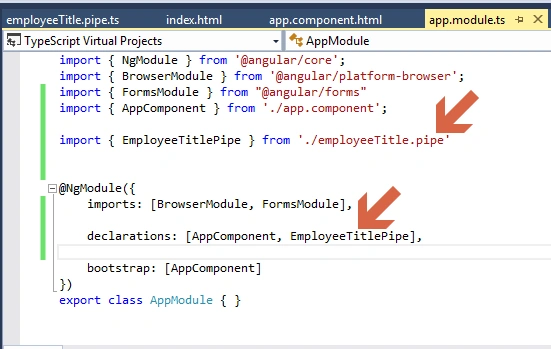
Register this newly created class in your existing root module like below:
File Name-app.module.ts
Step 3
Add this line <td>{{employee.name | employeeTitle:employee.gender}}</td> to your existing HTML file called app.component.html.
File name - app.component.html
- <!DOCTYPE html>
- <html>
- <head>
- <title></title>
- <meta charset="utf-8" />
- </head>
- <body>
- <table>
- <thead>
- <tr>
- <th>Code</th>
- <th>Name</th>
- <th>Gender</th>
- <th>Annual Salary</th>
- <th>Date of Birth</th>
- </tr>
- </thead>
- <tbody>
- <tr *ngFor='let employee of employees'>
- <td>{{employee.code}}</td>
- <td>{{employee.name | employeeTitle:employee.gender}}</td>
- <td>{{employee.gender}}</td>
- <td>{{employee.annualSalary | currency:'USD':true:'1.3-3'}}</td>
- <td>{{employee.dateOfBirth}}</td>
- </tr>
- <tr *ngIf="!employees || employees.length==0">
- <td colspan="5">
- No employees to display
- </td>
- </tr>
- </tbody>
- </table>
- </body>
- </html>
That’s it.
Final Output
 Conclusion
 Hope the above information will be very much helpful to implement pipes easily to our Angular project. Kindly let me know your thoughts or feedback. And, if you like to explore Angular concepts more, here are the links.


Join the conversation! Your thoughts help the community grow.