Animation is a great way to show your information on screen by providing an attractive user interface. In Xamarin.Forms, the ViewExtensions class provides a number of extension methods that can be used to create simple animations that rotate, scale, translate, and fade VisualElement instances.
Reading this article, you can learn how to use animation features in Xamarin.Forms cross-platform applications for Android and Universal Windows Platform with XAML and Visual C# using Visual Studio 2017RC.
The following important tools are required for developing UWP.
- Windows 10 (Recommended)
- Visual Studio 2017 RC Community/Enterprise/Professional Edition (It is a Free trial software available online)
- Using Visual studio 2017 Installer, Enable the feature of Mobile development with .NET.
Now, let us discuss step by step app development.
Step 1
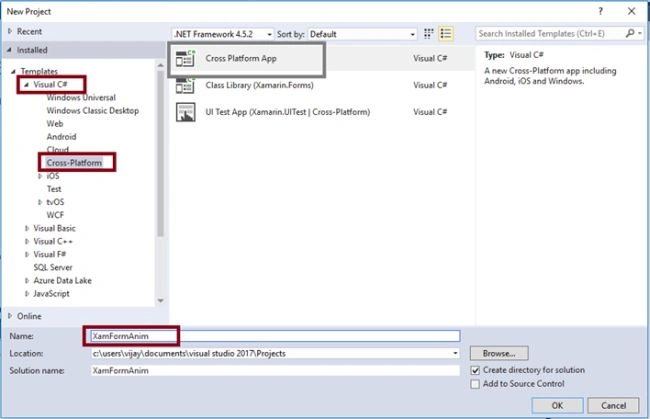
Open Visual Studio 2017 RC. Go to Start -> New Project-> select Cross-Platform (under Visual C#->Cross Platform App-> Give suitable name for your app (Example - XamFormAnim) ->OK.
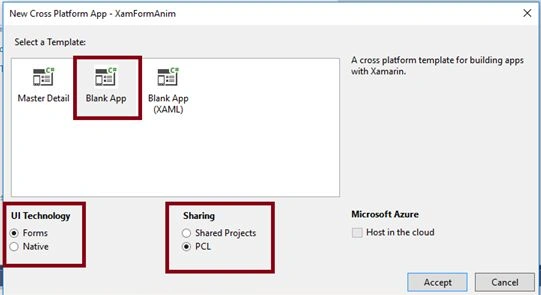
Step 2Select the Cross Platform App template as Blank App, set UI Technology as Forms, and Sharing as PCL. Afterwards, Visual Studio creates 4 projects (Portable, Droid, iOS, UWP) and displays Getting Started.XamarinPage.
Step 3
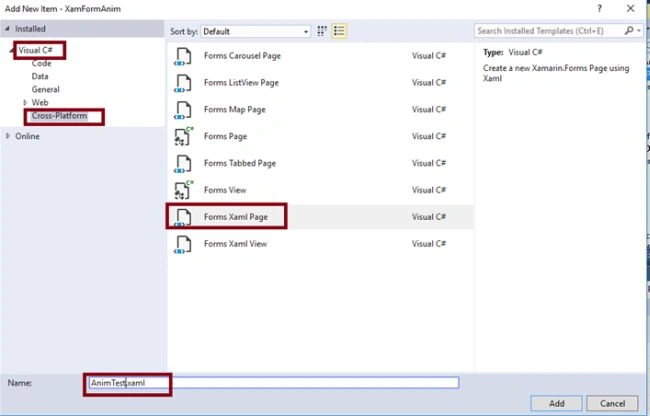
Add an XAML page for animation demo. Right click XamFormAnim(Portable) project, select ADD-> NewItem.
Select ->CrossPlatform-> FormXamlPage-> Give a relevant name (Example- AnimTest.Xaml).
Add the image in XamFormAnim_Droid project Resourses-> Drawable folder and add the image in XamFormAnim_UWP project
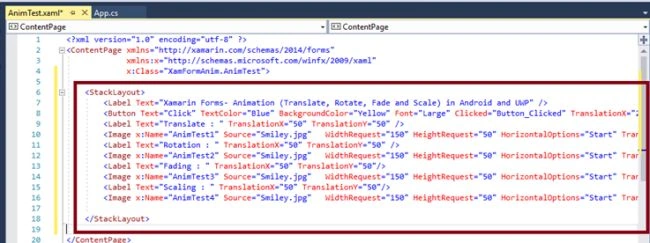
In AnimTest.Xaml, add Button, Label, and Image Controls, as shown below.
- <StackLayout>
- <Label Text="Xamarin Forms- Animation (Translate, Rotate, Fade and Scale) in Android and UWP" />
- <Button Text="Click" TextColor="Blue" BackgroundColor="Yellow" Font="Large" Clicked="Button_Clicked" TranslationX="20" TranslationY="25" />
- <Label Text="Translate " TranslationX="50" TranslationY="50" />
- <Image xName="AnimTest1" Source="Smiley.jpg" WidthRequest="150" HeightRequest="50" HorizontalOptions="Start" TranslationX="50" TranslationY="50" />
- <Label Text="Rotation " TranslationX="50" TranslationY="50" />
- <Image xName="AnimTest2" Source="Smiley.jpg" WidthRequest="150" HeightRequest="50" HorizontalOptions="Start" TranslationX="50" TranslationY="50" />
- <Label Text="Fading " TranslationX="50" TranslationY="50" />
- <Image xName="AnimTest3" Source="Smiley.jpg" WidthRequest="150" HeightRequest="50" HorizontalOptions="Start" TranslationX="50" TranslationY="50" />
- <Label Text="Scaling " TranslationX="50" TranslationY="50" />
- <Image xName="AnimTest4" Source="Smiley.jpg" WidthRequest="150" HeightRequest="50" HorizontalOptions="Start" TranslationX="150" TranslationY="50" />
- </StackLayout>
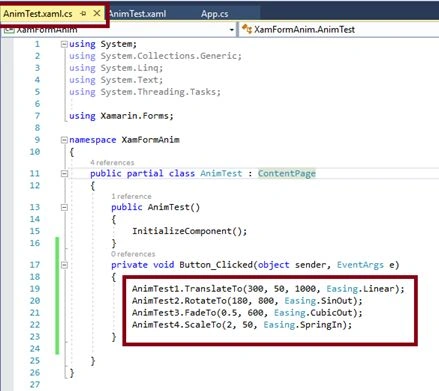
Add the following code in AnimTest.Xaml.cs for Button Click event.
- private void Button_Clicked(object sender, EventArgs e) {
- AnimTest1.TranslateTo(300, 50, 1000, Easing.Linear);
- AnimTest2.RotateTo(180, 800, Easing.SinOut);
- AnimTest3.FadeTo(0.5, 600, Easing.CubicOut);
- AnimTest4.ScaleTo(2, 50, Easing.SpringIn);
- }
Step 4
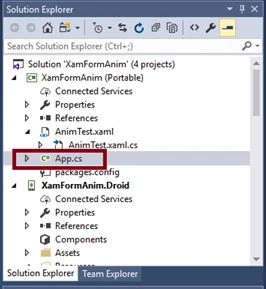
Open (double click) App.cs in the Solution Explorer-> XamFormAnim (portable) and set the Root Page.
 Step 5
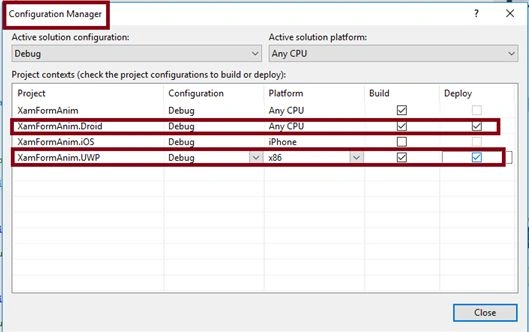
Change the "Configuration Manager " settings.
Go to Build -> Configuration Manager, and uncheck the "Build" and "Deploy" options for iOS and check them for Droid and UWP.
Step 6
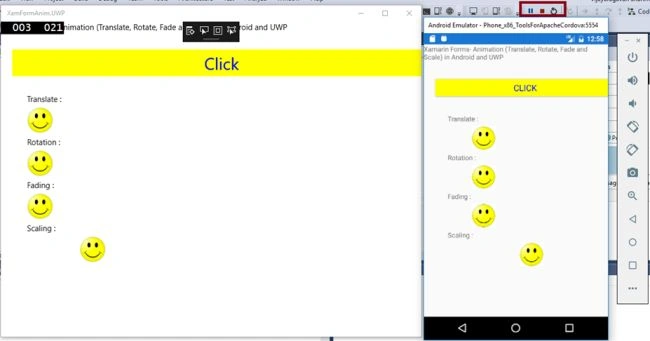
Deploy your app on Android Emulator and Local Machine (UWP). The output of the XamFormAnim App is shown below.
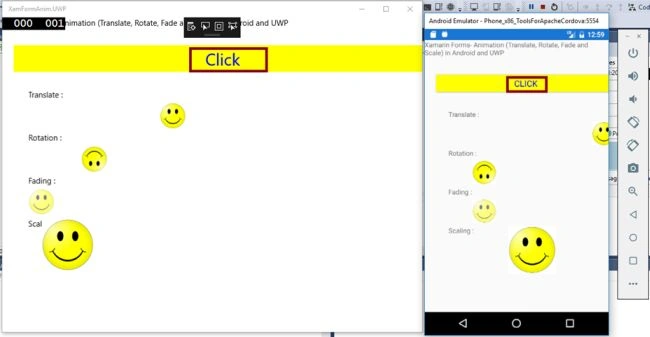
After clicking the "Click" button.
 Summary
Now, you have successfully tested simple animations in Xamarin.Forms application, using Visual C# and Xamarin in Visual Studio 2017 RC.


Asfend YarPosted Jan 21, 2017, 11:54 AM
Hmm It's good to see Visual Studio 2017. There's also a Master Detail and ListView Templates in it.But is this reliable for Xamarin ??
Joe WilsonPosted Jan 21, 2017, 5:46 AM
Well, thank you very much for sharing.